
Indledning
This manual provides detailed instructions for the setup, operation, and maintenance of your Doohoeek Keyboard Folio with Status Screen. This accessory is designed to enhance the functionality of your Samsung Galaxy Tab S11 11 inch 2025, transforming it into a versatile workstation with a comfortable typing experience and integrated protection.
Kompatibilitet
This keyboard folio is exclusively compatible with the Samsung Galaxy Tab S11 11-inch 2025 (model numbers: SM-X730 og SM-X736B).
To verify your tablet's model number, navigate to Settings > About tablet on your device, or check the back of your tablet for the printed model information.

Image: Illustration showing the keyboard folio's compatibility with the Samsung Galaxy Tab S11 2025 11-inch tablet.
Nøglefunktioner
- Status Display Screen: Provides real-time information on battery level, connection status, and charging status.
- Baggrundsbelyste taster: Features 7 adjustable colors and 3 brightness levels for comfortable typing in various lighting conditions.
- Integrated Trackpad: Supports multi-touch gestures and palm-rejection technology for precise navigation.
- Any-Angle Kickstand: Allows for smooth adjustment of viewing angles in both horizontal and vertical orientations.
- Removable Magnetic Keyboard: The keyboard can be easily detached from the folio for flexible use.
- S-Pen Holder: A dedicated cutout in the case securely holds and provides easy access to your S-Pen.
- Genopladeligt batteri: Indbygget 650mAh batteri til længere tids brug.
- Saksekontaktnøgler: Provides a tactile and responsive typing experience.
- Bluetooth-forbindelse: Ensures a stable wireless connection to your tablet.

Billede: Nærbillede view of the keyboard's status display screen, showing indicators for pairing, wireless connection, and battery level.

Billede: To views of the keyboard folio, highlighting the 7-color backlit keys and 3 brightness levels.

Billede: Detaljeret view of the keyboard folio showing the exact cutout for the S-Pen, the rechargeable battery, and the scissor-switch key mechanism.
Opsætning
1. Inserting the Tablet
- Gently align your Samsung Galaxy Tab S11 11-inch 2025 with the case's frame.
- Press the tablet firmly into the case until it is securely seated. Ensure all edges are properly covered by the protective frame.
2. Opladning af tastaturet
- Locate the charging port on the keyboard (typically USB-C).
- Connect the provided charging cable to the keyboard and a suitable USB power adapter.
- The status display screen will indicate charging status. A full charge typically takes approximately 2-3 hours.
3. Bluetooth-parring
- Sørg for, at tastaturet er opladet og tændt.
- På tastaturet skal du trykke og holde nede Fn+C keys simultaneously for 1 second. The status display screen will show "Pairing..." and the Bluetooth indicator will flash.
- On your Samsung Galaxy Tab S11, go to Indstillinger > Forbundne enheder > Bluetooth.
- Slå Bluetooth til, og søg efter tilgængelige enheder.
- Select "Doohoeek Keyboard" (or similar name) from the list of devices.
- Follow any on-screen prompts to complete the pairing process. The status display screen will show "Wireless Keyboard Connected" once pairing is successful.

Image: Illustration demonstrating the pairing process, showing the keyboard's status display screen indicating "Pairing..." and "Wireless Keyboard Connected".
Betjeningsvejledning
1. Using the Keyboard and Trackpad
- Indtastning: The QWERTY layout with scissor-switch keys provides a familiar and comfortable typing experience.
- Pegefelt: Use the integrated trackpad for precise cursor control. It supports standard multi-touch gestures for scrolling, zooming, and other functions. Palm-rejection technology helps prevent accidental inputs.

Image: Illustration demonstrating the multi-touch trackpad and palm-rejection feature, showing hands interacting with the trackpad.
2. Justering af baggrundsbelysning
- To change backlight colors, press the Fn + Light bulb icon key. Cycle through the 7 available colors.
- To adjust backlight brightness, press the Fn + Up/Down arrow keys (or specific brightness keys if available). There are 3 brightness levels.
3. Using the Any-Angle Stand
- The integrated kickstand on the back of the folio allows you to prop up your tablet.
- Adjust the stand to achieve your desired viewing angle for both horizontal (landscape) and vertical (portrait) orientations.

Image: Illustration showing the keyboard folio with the tablet in various viewing angles, demonstrating the versatility of the any-angle stand for both horizontal and vertical use.
4. Detaching the Keyboard
- The keyboard is held in place by strong magnets. To detach, simply pull the keyboard away from the folio.
- This allows for lighter tablet use when typing is not required, or for more flexible positioning of the keyboard.
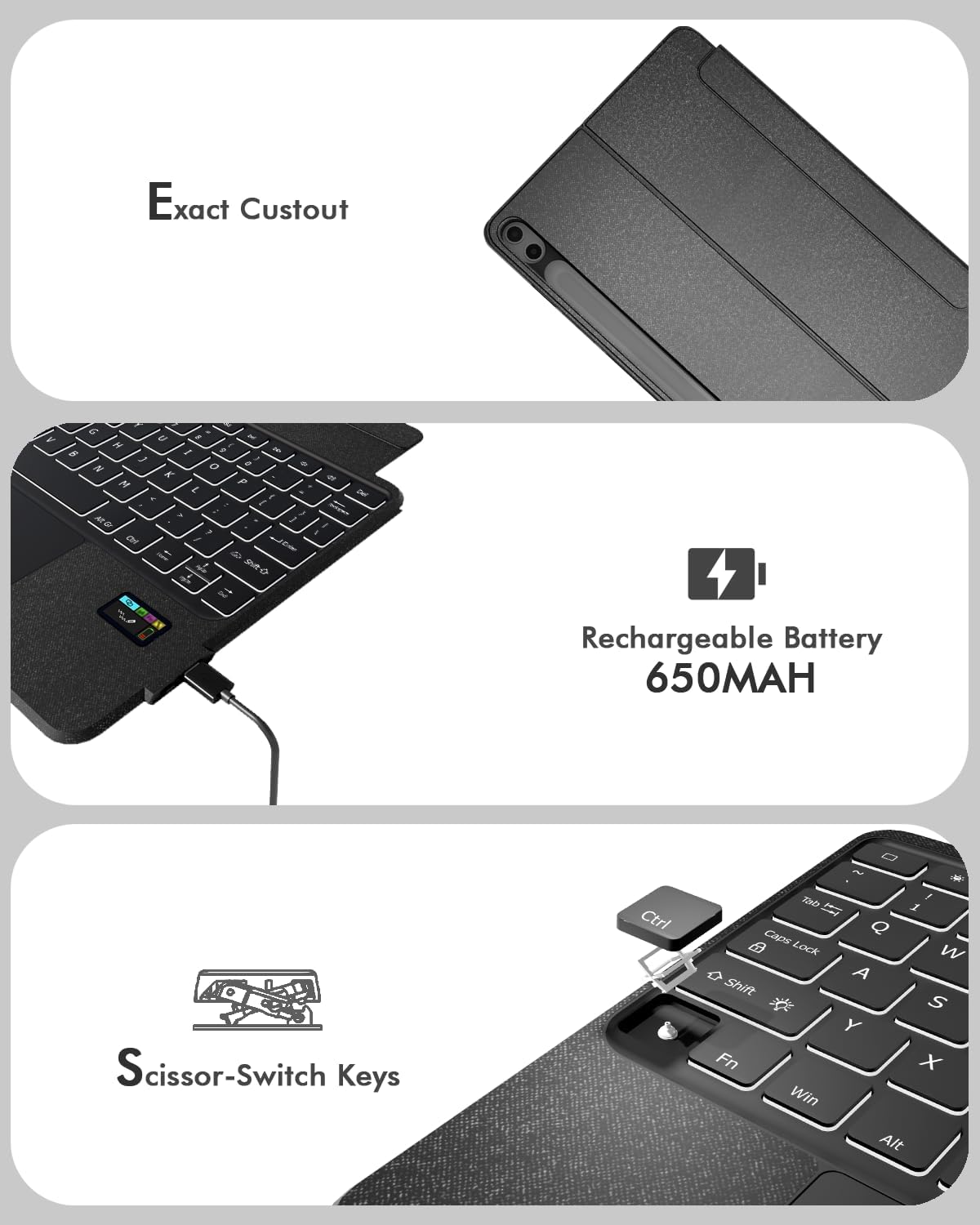
Image: The keyboard folio with the keyboard detached, showcasing the tablet propped up by the kickstand and the separate keyboard unit.
5. S-Pen Access
- The case features a dedicated cutout on the back for storing your S-Pen.
- To retrieve the S-Pen, gently push it through the cutout from the back of the case.
Image: Illustration showing the S-Pen being stored and retrieved from the dedicated holder on the tablet case.
Opretholdelse
Rensning
- Brug en blød klud til at rengøre tastaturet og kabinettet.amp klæde.
- Avoid using harsh chemicals or abrasive cleaners, as these can damage the surface.
- Sørg for, at tastaturet er slukket og frakoblet enhver strømkilde, før du rengør det.
Batteripleje
- For optimal battery life, avoid fully discharging the keyboard frequently.
- Opbevar tastaturet et køligt og tørt sted, når det ikke er i brug i længere perioder.
Fejlfinding
Tastaturet opretter ikke forbindelse/reagerer ikke
- Tjek batteri: Ensure the keyboard has sufficient charge. Refer to the status display screen.
- Genparr Bluetooth: If the connection is lost, try re-pairing the keyboard with your tablet following the "Bluetooth Pairing" steps in the Setup section.
- Genstart enheder: Turn off and on both your tablet and the keyboard, then attempt to reconnect.
Keyboard Entering Sleep Mode Too Quickly
- The keyboard is designed to enter a power-saving sleep mode after a period of inactivity.
- To wake it up, simply press any key. There might be a slight delay for the first few keystrokes as it reconnects.
Baggrundsbelysningen virker ikke
- Tjek batteri: Lavt batteri kan påvirke baggrundsbelysningens funktionalitet. Oplad tastaturet.
- Juster indstillinger: Ensure the backlight is turned on and brightness is set to a visible level using the Fn key combinations.
Specifikationer
| Mærke | Doohoeek |
| Kompatible enheder | Samsung Galaxy Tab S11 11-inch 2025 (SM-X730/SM-X736B) |
| Forbindelsesteknologi | Bluetooth |
| Tastaturbeskrivelse | Keyboard Folio with Status Screen |
| Særlige funktioner | Backlit, Built-In Screen, Integrated Stand, Trackpad, Removable Keyboard |
| Materiale | Plast |
| Strømkilde | Genopladeligt batteri (650mAh) |
| Switch Type | Mechanical (Scissor-Switch) |
| Tastaturlayout | QWERTY |
| Antal nøgler | 84 |
Garanti
This Doohoeek Keyboard Folio comes with a 1 års garanti fra købsdatoen. Denne garanti dækker fabrikationsfejl og udførelse under normal brug. Den dækker ikke skader forårsaget af misbrug, ulykker, uautoriserede ændringer eller normal slitage.
Gem venligst dit købsbevis for garantikrav.
Støtte
For technical assistance, troubleshooting beyond this manual, or warranty inquiries, please contact Doohoeek customer support through the retailer where the product was purchased or visit the official Doohoeek webwebsted for kontaktoplysninger.