
AceGamer B0FMYK2DGH
AceGamer Wireless Pocket Controller User Manual
Model: B0FMYK2DGH
1. Introduktion
This manual provides detailed instructions for the AceGamer Wireless Pocket Controller. Please read this manual carefully before using the product to ensure proper operation and to maximize your gaming experience. Keep this manual for future reference.
2. Produktet er slutview
The AceGamer Wireless Pocket Controller is a compact and versatile gaming controller designed for multi-platform compatibility. It features a unique Lift-Stick design for portability and durability, a 6-axis gyroscope for precise motion control, dual motor vibration for immersive feedback, and a 1000Hz polling rate for instant response.
2.1 Nøglefunktioner
- Bred kompatibilitet: Supports Nintendo Switch, Switch 2, Switch Lite, Switch OLED, PC, iOS, Android, Steam Deck, and Tablets.
- Design i lommestørrelse: Measuring 4.7"x2.6"x1.2" and weighing 3.3 oz, with a joystick lift-and-down mechanism to prevent damage and enhance portability.
- Præcisionskontrol: 360° refined analog sticks with no dead zone and a built-in 6-axis gyro sensor for accurate input.
- Fordybende feedback: Dual motor vibration for enhanced tactile sensation (Note: Mobile games may not support vibration).
- Hurtig respons: 1000Hz polling rate for instant button and trigger response.
- Customizable Turbo: Assign any key as a turbo key and adjust frequency (5Hz, 12Hz, 20Hz).
- ABXY Key Interchange: Freely switch between PC game button layout and Switch game button layout.
- One-Button Wake-up: Conveniently wake up and reconnect your Nintendo Switch console.
2.2 Controllerkomponenter
Familiarize yourself with the various buttons and ports on your AceGamer Wireless Pocket Controller.

Figur 1: Øverst view of the AceGamer Wireless Pocket Controller (White). Shows the dual analog sticks, D-pad, ABXY buttons, Home button, and indicator lights.

Figur 2: Side view of the controller, highlighting the USB-C charging port and the X/S mode switch.
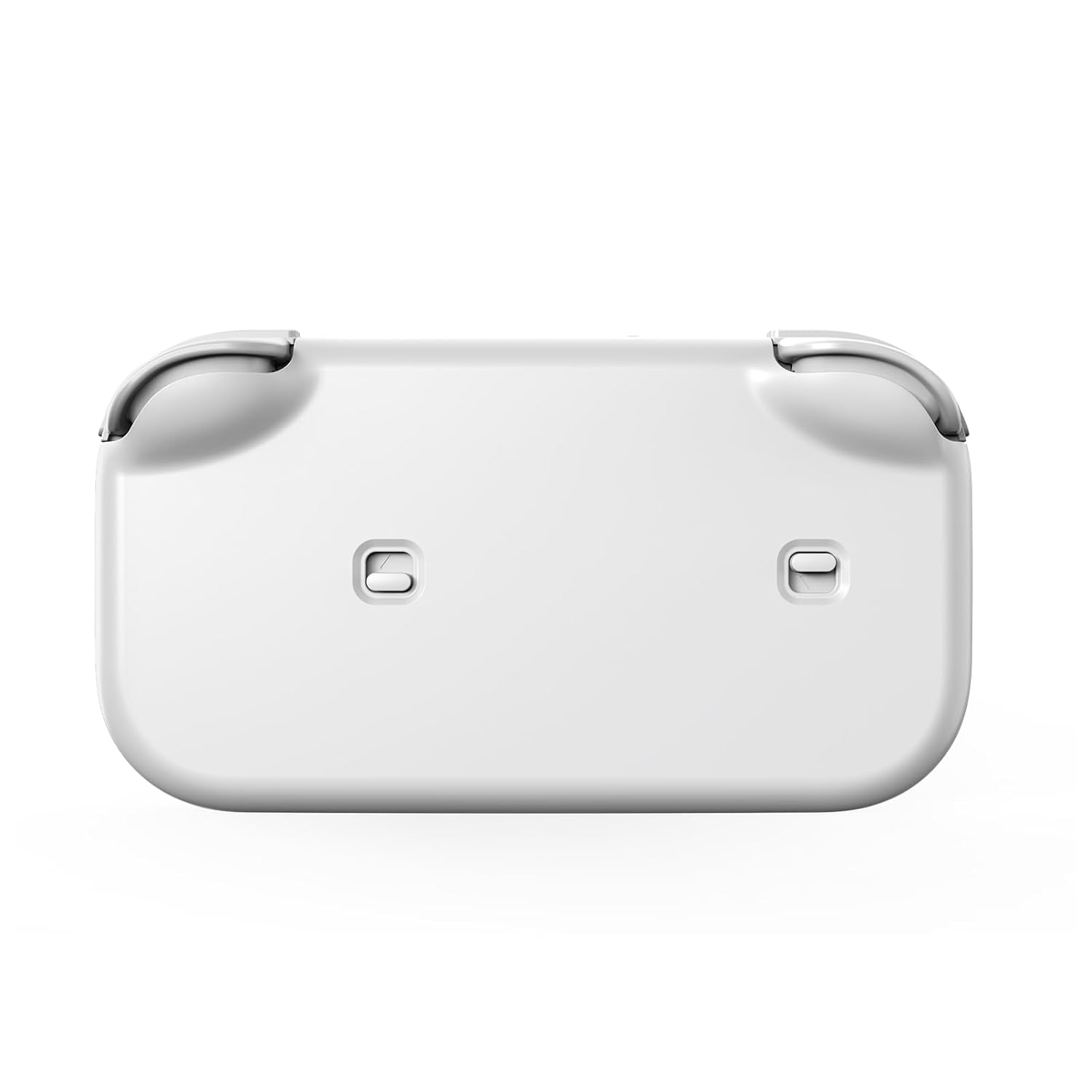
Figur 3: Nederst view of the controller, showing the recessed trigger buttons.

Figure 4: Visual representation of the controller's key features, including the retractable joysticks, interchangeable ABXY buttons, vibration, gyroscope, turbo function, wake-up feature, and high polling rate.
3. Opsætning og tilslutning
3.1 Opladning af controlleren
Before first use, fully charge the controller using the provided USB-C charging cable. Connect the cable to the USB-C port on the controller and a power source. The indicator lights will show charging status.
3.2 Parring med enheder
The AceGamer Wireless Pocket Controller supports multiple connection modes. Ensure the controller is sufficiently charged before attempting to pair.
3.2.1 Nintendo Switch / Switch 2 / Switch Lite / Switch OLED
- On the controller, slide the mode selector switch (located on the top edge, near the USB-C port) to the "S" position for NS (Nintendo Switch) mode.
- On your Nintendo Switch console, navigate to the "Controllers" menu and select "Change Grip/Order".
- Hold nede HJEM button on the controller for approximately 3 seconds until the LED indicator lights begin to flash alternately.
- The controller will appear on the Switch screen and connect automatically. Once connected, the corresponding player indicator light(s) on the controller will remain solid.
Video 1: Demonstrates the multi-platform linking process for the AceGamer Pocket Controller, including connection to Nintendo Switch.
One-Button Wake-up (NS Mode): For at vække din Nintendo Switch-konsol fra dvaletilstand skal du blot trykke på HJEM button on the connected controller.

Figure 5: The controller's Home button can be used to wake up a sleeping Nintendo Switch console.
3.2.2 PC (Windows) / Steam Deck
- On the controller, slide the mode selector switch to the "X" position for X-Input mode.
- On your PC or Steam Deck, ensure Bluetooth is enabled.
- Hold nede HJEM button on the controller for approximately 3 seconds until the LED indicator lights begin to flash alternately.
- In your device's Bluetooth settings, search for "Xbox 360 Controller" or a similar name and select it to pair.
- Alternatively, for PC, you can use a wired connection by connecting the controller directly to your PC via a USB-C cable.
3.2.3 iOS / Android / Tablet
- On the controller, slide the mode selector switch to the "X" position for X-Input mode (for Android/HarmonyOS) or "S" position (for iOS, which emulates a DUALSHOCK 4 Wireless Controller).
- Enable Bluetooth on your mobile device or tablet.
- Hold nede HJEM button on the controller for approximately 3 seconds until the LED indicator lights begin to flash alternately.
- In your device's Bluetooth settings, search for "Pocket Controller" (Android) or "DUALSHOCK 4 Wireless Controller" (iOS) and select it to pair.
Video 2: Shows the AceGamer Pocket Controller being used with a mobile phone, demonstrating its portability and ease of connection.
Note: iOS only supports native games that have controller support.

Figur 6: Overview of connection methods for various platforms, indicating the correct mode switch setting and device recognition name.
4. Betjeningsvejledning
4.1 Joystick Lift and Down Design
The controller features a unique Lift-Stick design. To protect the joysticks during transport, they can be pushed down into the controller body. To use, simply pull the joysticks up until they click into place. This design prevents accidental damage and makes the controller more compact for travel.

Figure 7: The joysticks can be lifted for play and pushed down for compact storage.
4.2 Turbo Function Setting
The Turbo function allows for rapid, repeated input of a button press. You can customize any key (A, B, X, Y, L, R, ZL, ZR) as a turbo key.
- Set Turbo Key: Hold nede Turbo button, then press the desired action button (e.g., A, B, X, Y) to assign the Turbo function to it.
- Adjust Turbo Frequency: Mens du holder nede Turbo button, push the right analog stick up or ned to cycle through frequencies: 5Hz, 12Hz (default), and 20Hz.
Note: Turbo settings are not saved after the controller is powered off.

Figure 8: Instructions for setting the Turbo function and adjusting its frequency.
4.3 ABXY Key Value Interchange (X-Input Mode)
In X-Input mode (for PC/Android), you can interchange the ABXY button layout to match your preference or game requirements. This allows you to switch between the standard Xbox layout and a Nintendo-style layout.
Note: This setting is not saved after the controller is powered off.

Figure 9: Visual guide for swapping ABXY button functions in X-Input mode.
4.4 6-Axis Gyroscope and Dual Vibration
The built-in 6-axis gyroscope provides precise motion control in supported games, offering a more realistic and immersive experience. The dual motor vibration system delivers tactile feedback for in-game events like collisions or actions. The vibration intensity cannot be turned off.

Figure 10: The 6-axis gyroscope enables sensitive motion control for compatible games.

Figure 11: Dual vibration motors provide realistic feedback during gameplay. Note that vibration cannot be turned off.
5. Vedligeholdelse
- Rensning: Brug en blød, tør klud til at rengøre controlleren. Undgå at bruge skrappe kemikalier eller slibende materialer.
- Opbevaring: Store the controller in a cool, dry place away from direct sunlight and extreme temperatures. Ensure joysticks are pushed down to prevent damage during storage or transport.
- Batteripleje: For at forlænge batteriets levetid bør du undgå at aflade controlleren helt ofte. Oplad den regelmæssigt, selvom den ikke er i brug i længere perioder.
6. Fejlfinding
| Problem | Mulig årsag | Løsning |
|---|---|---|
| Controlleren tænder ikke. | Lavt batteri. | Charge the controller fully using the provided USB-C cable. |
| Unable to connect/pair with device. | Incorrect mode selected, Bluetooth off, or interference. |
|
| Knapper eller joysticks reagerer ikke. | Connection issue, software glitch, or physical obstruction. |
|
| Turbofunktionen virker ikke. | Incorrect setup or controller powered off. |
|
7. Specifikationer
| Feature | Detalje |
|---|---|
| Model | B0FMYK2DGH |
| Forbindelse | Trådløs Bluetooth, USB-C-kablet |
| Kompatibilitet | Nintendo Switch/Switch 2/Lite/OLED, PC, iOS, Android, Steam Deck, Tablet |
| Afstemningsfrekvens | 1000 Hz |
| Sensorer | 6-akse Gyroskop |
| Vibration | Dual Motor Vibration (cannot be turned off) |
| Batteri | 1 A batteri (medfølger) |
| Dimensioner | 4.7 x 2.6 x 1.2 tommer (ca.) |
| Vægt | 3.3 g (omtrentlig) |
| Fabrikant | AceGamer |
8. Garanti og support
AceGamer is committed to providing high-quality products and professional after-sales service. If you encounter any issues or have questions regarding your Wireless Pocket Controller, please contact AceGamer customer support. Refer to the product packaging or the official AceGamer webwebsted for kontaktoplysninger.
Ask a question about this manual
Ask about setup, troubleshooting, compatibility, parts, safety, or missing instructions. Manuals+ will review the question and use this page’s manual context to help answer it.