
1. Introduktion
The Akko Mineral 02 is a high-performance QMK/VIA compatible aluminum mechanical keyboard designed for versatility and customization. Featuring tri-mode connectivity (wired, 2.4GHz wireless, and Bluetooth), hot-swappable switches, and customizable RGB lighting, this keyboard offers a premium typing and gaming experience. This manual provides essential information for setting up, operating, maintaining, and troubleshooting your Akko Mineral 02 keyboard.
2. Pakkens indhold
Tjek venligst pakken for følgende varer:
- Akko Mineral 02 QMK/VIA Aluminum Mechanical Keyboard
- USB-C kabel
- Assembly/Disassembly Tools (Switch Puller, Keycap Puller)
- 2.4 GHz trådløs modtager
- Brugervejledning (dette dokument)
3. Produktet er slutview
The Akko Mineral 02 keyboard combines robust aluminum construction with advanced features for a customizable user experience.
Nøglefunktioner:
- Tri-mode-tilslutning: Seamlessly switch between Wired (USB-C), 2.4GHz Wireless, and Bluetooth connections.
- QMK/VIA-understøttelse: Full programmability for key remapping, macros, and lighting customization.
- Hot-swap-kontakter: Skift nemt mekaniske kontakter uden lodning.
- RGB-belysning, der kan tilpasses: Per-key RGB and unique corner lighting effects.
- Aluminiumshus: Durable and premium build quality.
- Pakningsmonteret design: Provides a flexible and comfortable typing feel with improved acoustics.
- 8000mAh batteri: Extended wireless usage.
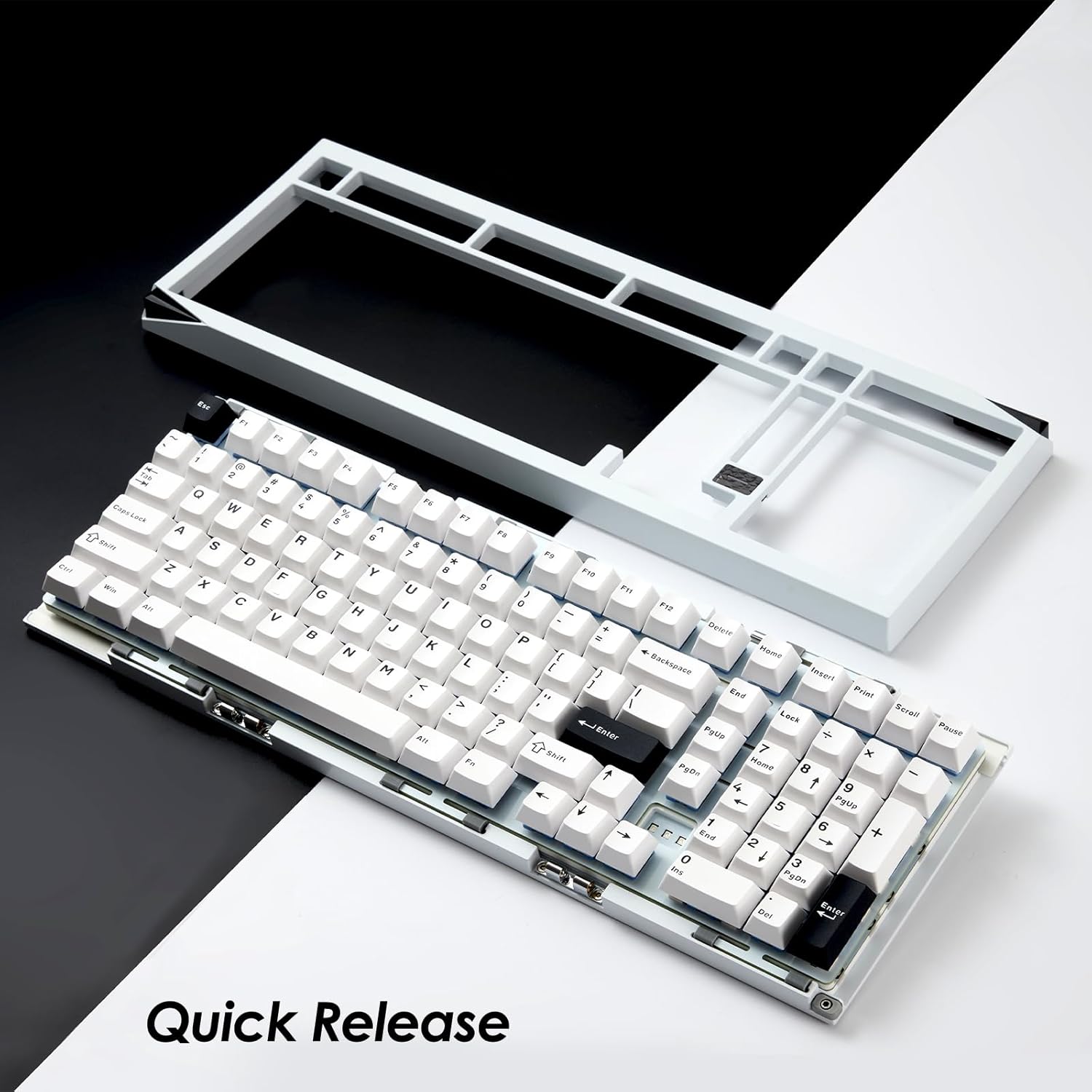
Image: Akko Mineral 02 keyboard with its top case detached, illustrating the quick release design for easy customization and maintenance.

Image: Detail of the hot-swappable sockets on the Akko Mineral 02 keyboard, allowing for easy switch replacement without soldering. RGB lighting is visible through the sockets.

Image: Visual representation highlighting the 8000mAh battery capacity of the Akko Mineral 02 keyboard, indicating long wireless usage.
4. Opsætning
4.1 Indledende opladning
Before first use, connect the keyboard to a USB power source using the provided USB-C cable to ensure it is fully charged. The charging indicator (usually an LED near the USB port or a specific key) will show charging status and turn off or change color when fully charged.
4.2 Tilslutning via kabelforbindelse
- Ensure the keyboard's mode switch (usually located on the back or side) is set to 'Wired' or 'USB'.
- Connect the USB-C cable to the keyboard's USB-C port and the other end to an available USB port on your computer.
- Tastaturet vil automatisk blive genkendt af dit operativsystem.

Image: The USB-C port located on the Akko Mineral 02 keyboard for wired connection and charging.
4.3 Tilslutning via 2.4 GHz trådløs tilstand
- Locate the 2.4GHz wireless receiver in your package.
- Sæt 2.4 GHz-modtageren i en ledig USB-port på din computer.
- Indstil tastaturets tilstandsknap til '2.4G'.
- Tastaturet burde oprette forbindelse automatisk. Hvis ikke, tryk på Fn + 4 (or the designated key for 2.4G pairing) to initiate pairing.
4.4 Forbindelse via Bluetooth-tilstand
- Set the keyboard's mode switch to 'BT' (Bluetooth).
- Aktiver Bluetooth på din computer eller enhed, og søg efter nye enheder.
- Tryk og hold nede på tastaturet Fn + 1, Fn + 2, eller Fn + 3 i 3-5 sekunder for at aktivere parringstilstand for henholdsvis Bluetooth-enhed 1, 2 eller 3. Indikatorlampen blinker hurtigt.
- Select 'Akko Mineral 02' from the list of available Bluetooth devices on your computer/device.
- Once paired, the indicator light will stop flashing. You can pair up to three Bluetooth devices.

Image: The Akko Mineral 02 keyboard demonstrating its tri-mode connectivity options: Type-C wired, 2.4GHz wireless, and Bluetooth, connecting to various devices.
5. Betjeningsvejledning
5.1 Grundlæggende nøglefunktioner
The Akko Mineral 02 features a standard 1800 compact layout. Refer to the keycap legends for primary functions. Secondary functions are typically accessed using the Fn key in combination with other keys (e.g., Fn + F1-F12 for media controls).
5.2 RGB-lysstyring
The keyboard features customizable RGB lighting. Basic lighting effects can be cycled through using specific Fn key combinations (refer to your keyboard's specific key legends or a quick start guide). For advanced customization, including per-key lighting and dynamic effects, use the VIA software.
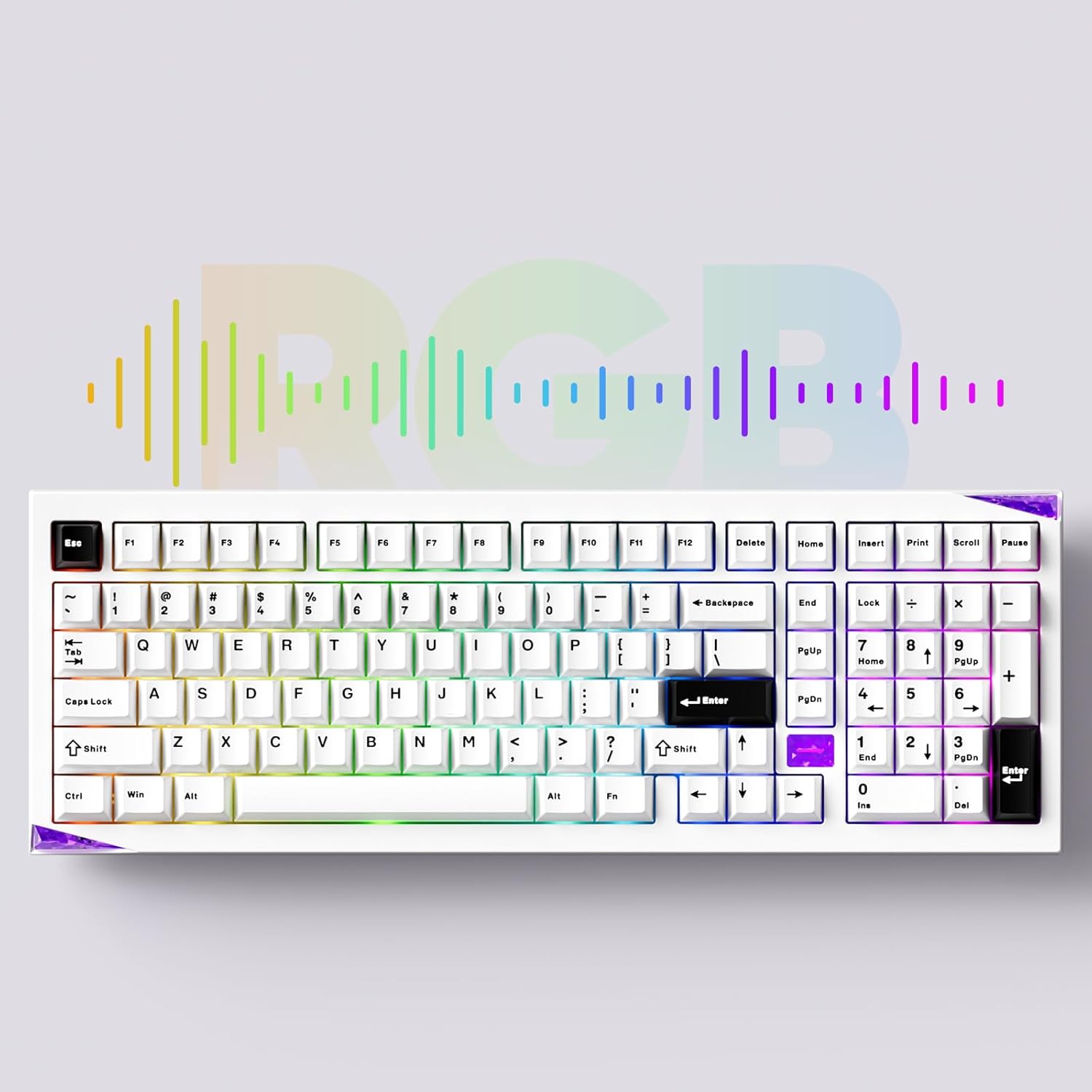
Image: The Akko Mineral 02 keyboard illuminated with various RGB lighting patterns, showcasing its customizable backlighting.
5.3 QMK/VIA Software Usage
The Akko Mineral 02 supports QMK firmware and VIA software for advanced customization. VIA allows you to remap keys, create macros, and adjust RGB lighting in real-time without flashing firmware. To use VIA:
- Download the VIA software from the official Akko website or the VIA webwebsted.
- Connect your keyboard in wired mode.
- Start VIA-softwaren. Den burde automatisk registrere dit tastatur.
- Use the intuitive interface to customize key assignments, layers, and lighting effects.

Image: A visual representation of the VIA software interface, demonstrating its capabilities for key remapping and customization.
5.4 Skift af operativsystemtilstand (Windows/Mac)
To switch between Windows and Mac operating system layouts, locate the dedicated switch or key combination. Some Akko keyboards use Fn + Caps Lock to toggle between modes. Refer to your keyboard's specific documentation for the exact method.
6. Vedligeholdelse
6.1 Rengøring af tastaturet
- Frakobl tastaturet fra din computer.
- Brug en tastehætteaftrækker til at fjerne tastehætterne for grundig rengøring.
- Brug trykluft til at fjerne støv og snavs mellem kontakterne.
- Tør tastehætter af med annonceamp en klud og en mild sæbeopløsning, og tør derefter grundigt.
- Clean the keyboard case with a soft, dry cloth. Avoid harsh chemicals.
6.2 Hot-swapping-switche
The Akko Mineral 02 features hot-swappable sockets, allowing you to change switches without soldering.
- Frakobl tastaturet.
- Brug den medfølgende tastaftrækker til at fjerne den ønskede tast.
- Use the provided switch puller to gently grip the switch from the top and bottom, then pull it straight up to remove.
- Juster stifterne på den nye kontakt med hullerne på printkortet. Sørg for, at stifterne er lige.
- Gently push the new switch into the socket until it clicks into place. Do not force it.
- Udskift tastaturdækslet.

Billede: En detaljeret view of an Akko Mirror Switch, illustrating the component that can be hot-swapped in the keyboard.
7. Fejlfinding
7.1 Tastaturet reagerer ikke
- Kablet tilstand: Sørg for, at USB-C-kablet er korrekt tilsluttet til både tastaturet og computeren. Prøv en anden USB-port eller et andet kabel.
- 2.4 GHz trådløs: Ensure the 2.4GHz receiver is plugged in and the keyboard is in 2.4G mode. Re-pair by pressing Fn + 4. Check battery level.
- Bluetooth-tilstand: Ensure Bluetooth is enabled on your device and the keyboard is in BT mode. Re-pair by holding Fn + 1/2/3. Check battery level.
- Batteri: Oplad tastaturet helt.
7.2 Problemer med RGB-belysning
- Sørg for, at tastaturet er tændt.
- Check if RGB lighting is disabled via Fn key combinations.
- Use the VIA software to verify and adjust lighting settings.
7.3 Nøgler registreres ikke
- Fjern tastaturdækslet og skift til den berørte tast.
- Inspect the switch pins for bends or damage. Straighten gently if bent.
- Reinsert the switch firmly into the socket.
- Test with a different switch if the issue persists.
8. Specifikationer
| Feature | Detalje |
|---|---|
| Mærke | Akko |
| Model | Mineral 02 |
| Forbindelsesteknologi | Bluetooth, 2.4 GHz trådløs, USB-C kablet |
| Kompatible enheder | PC, tablet, smartphone |
| Tastaturbeskrivelse | Ergonomic, Mechanical |
| Særlige funktioner | Tri-Mode, Hot-swappable, RGB Lighting, QMK/VIA Support, Gasket Mount |
| Materiale | Aluminium (etui) |
| Inkluderede komponenter | USB-C Cable, Assembly/Disassembly Tools |
| Strømkilde | Trådløs og kablet |
| Antal nøgler | 104 (1800 Compact Layout) |
| Switch Type | Mekanisk |
| Mechanical Keyboard Switch Model | Mirror Switch (Pre-lubed) |
| Batterikapacitet | 8000mAh |
9. Garanti og support
Akko products come with a standard manufacturer's warranty. For specific warranty terms, duration, and support inquiries, please refer to the warranty card included with your product or visit the official Akko webwebsted. Gem din købsbevis til garantikrav.
For technical support, troubleshooting assistance, or further information, please contact Akko customer service through their official channels.