
1. Introduktion
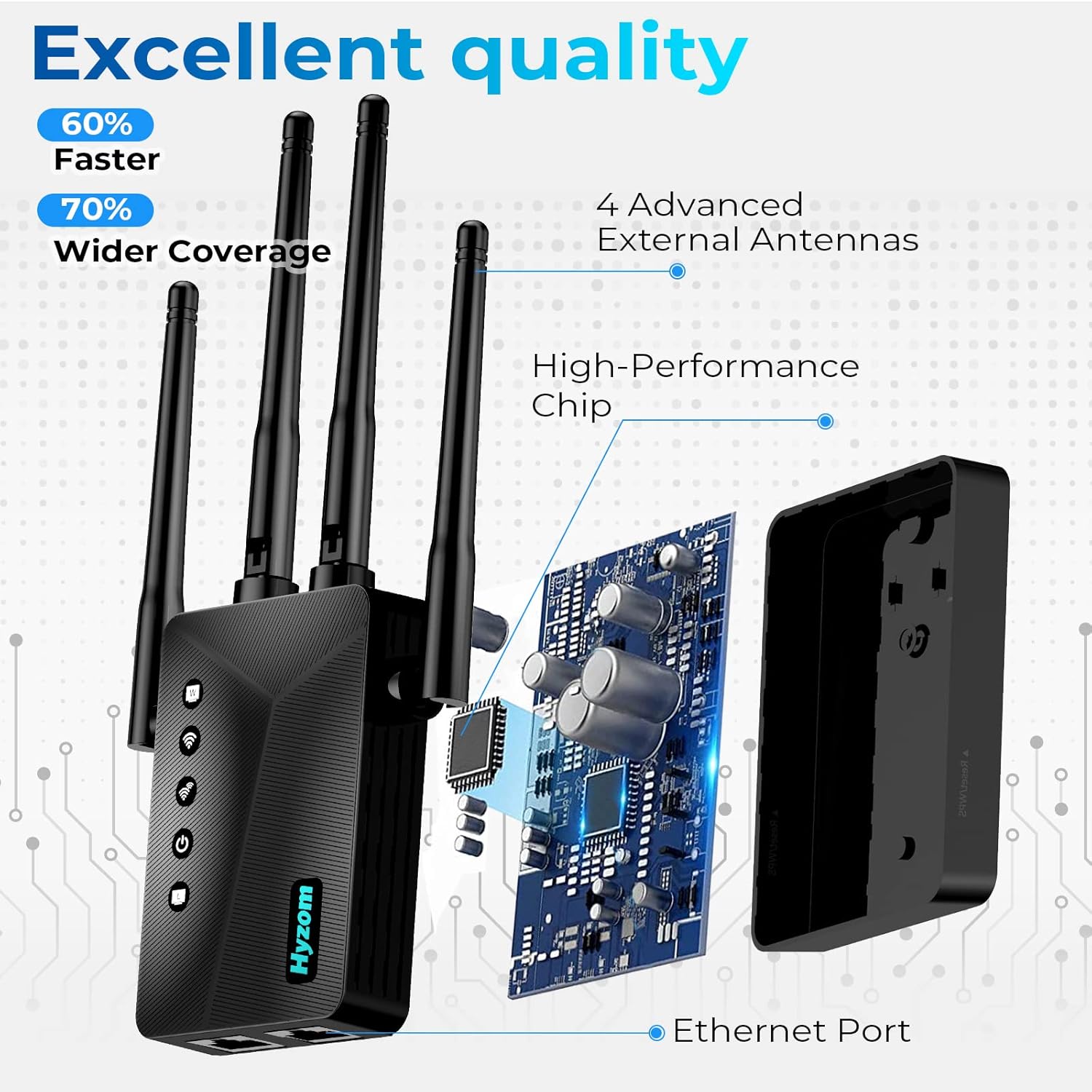
The Hyzom WiFi Extender Booster is designed to expand your existing wireless network coverage, eliminate dead zones, and provide a stronger, more reliable internet signal throughout your home or office. Featuring four high-gain antennas and an advanced bionic chip, this device offers extended range and improved speed for multiple connected devices.
Hvad er der i æsken:
- Hyzom WiFi Extender Booster
- Netværkskabel
- Instruktionsmanual (dette dokument)

2. Opsætningsvejledning
Setting up your Hyzom WiFi Extender Booster is designed to be quick and straightforward. You can choose between two primary methods: WPS (Wi-Fi Protected Setup) or Web Browser Configuration.
2.1. WPS (Wi-Fi Protected Setup) Method (Recommended for quick setup)
- Tænd: Plug the Hyzom WiFi Extender Booster into an electrical outlet near your existing router. Wait for the power indicator light to become stable.
- Tryk på WPS på routeren: Locate the WPS button on your main Wi-Fi router and press it. The WPS indicator on your router may start blinking.
- Tryk på WPS på extenderen: Within two minutes, press the WPS button on the Hyzom WiFi Extender Booster. The signal indicator lights on the extender will begin to flash.
- Tilslutningsbekræftelse: Once the signal indicator lights on the extender become solid (or show a strong signal), the connection is successful. You can now unplug the extender and move it to a more optimal location.

2.2. Web Browser Configuration Method
- Tænd: Plug the Hyzom WiFi Extender Booster into an electrical outlet.
- Opret forbindelse til extenderens netværk: On your computer or mobile device, connect to the Wi-Fi network broadcast by the extender (e.g., "Hyzom_Extender" or similar). No password is required for the initial connection.
- Adgangsopsætningsside: Åbn a web browser (e.g., Chrome, Firefox) and enter the default IP address or web address provided in the quick start guide (usually found on a sticker on the device or in the packaging). Follow the on-screen instructions to log in (default username/password often 'admin').
- Vælg netværk: Scan for available Wi-Fi networks and select your home Wi-Fi network. Enter your home Wi-Fi password when prompted.
- Komplet opsætning: Follow any remaining prompts to finalize the configuration. The extender will restart, and its network name will change to reflect your extended network (e.g., "YourNetworkName_EXT").
2.3. Optimal placering
For best performance, place the extender halfway between your router and the area where you need improved Wi-Fi coverage. Avoid placing it near large metal objects, concrete walls, or other electronic devices that may cause interference. The four high-performance antennas are adjustable to help direct the signal for customized coverage.

3. Betjeningsvejledning
Once set up, the Hyzom WiFi Extender Booster operates automatically to extend your Wi-Fi signal. Devices connected to the extended network will benefit from improved coverage and speed.
3.1. Extended Coverage and Speed
The extender works to eliminate Wi-Fi dead zones, providing up to 8,000 sq.ft of coverage. Its advanced chip and antennas contribute to significantly faster speeds, ensuring smooth streaming, gaming, and video calls even in multi-story homes.

3.2. Device Capacity and Ethernet Port
The extender supports connections for over 50 devices simultaneously without significant speed loss. This includes smartphones, tablets, laptops, smart home devices, gaming consoles, and IP cameras. The integrated Ethernet port allows for a stable, prioritized wired connection for devices like desktop PCs or gaming consoles.


4. Vedligeholdelse
To ensure the longevity and optimal performance of your Hyzom WiFi Extender Booster, follow these simple maintenance guidelines:
- Hold rent: Regularly wipe the exterior of the device with a soft, dry cloth to prevent dust buildup. Do not use liquid cleaners or aerosols.
- Sørg for ventilation: Make sure the extender is placed in an area with adequate airflow to prevent overheating. Do not cover ventilation openings.
- Undgå ekstreme forhold: Do not expose the device to extreme temperatures, high humidity, or direct sunlight.
- Firmwareopdateringer: Kontroller jævnligt producentens website (Hyzom) for any available firmware updates. Updating firmware can improve performance, add new features, and enhance security.
5. Fejlfinding
If you encounter issues with your Hyzom WiFi Extender Booster, try the following troubleshooting steps:
5.1. Ingen internetforbindelse eller svagt signal
- Tjek strøm: Ensure the extender is properly plugged into a working electrical outlet and its power indicator light is on.
- Reposition Extender: Move the extender closer to your main router. The ideal location is halfway between your router and the area needing coverage. Ensure the signal indicator lights on the extender show a strong connection to your router.
- Tjek routeren: Verify that your main router is working correctly and providing an internet connection.
- Interferens: Move the extender away from other electronic devices (microwaves, cordless phones, Bluetooth devices) that might cause interference.

5.2. Setup Issues
- Reset Extender: If setup fails, perform a factory reset on the extender. This usually involves pressing and holding a small reset button (often recessed) for 5-10 seconds until the lights flash. Refer to the quick start guide for exact instructions.
- Re-attempt Setup: After resetting, try the WPS method again, ensuring you press the WPS buttons on both the router and extender within the specified time frame. If WPS fails, try the web browser configuration method.
- Router kompatibilitet: While the Hyzom extender is compatible with most routers (including Google and Eero), ensure your router's firmware is up to date.
6. Specifikationer
| Feature | Detalje |
|---|---|
| Produktdimensioner | 6 x 3.2 x 1.6 tommer |
| Varens vægt | 6.1 ounce |
| ASIN | B0FKSYBPJK |
| Mærke | Hyzom |
| Standard for trådløs kommunikation | 802.11a/b/g/n, 802.11a/b/g/n/ac |
| Dataoverførselshastighed | 300 megabyte i sekundet |
| Frekvensbåndsklasse | Single-Band |
| Speciel funktion | 1-Tap Setup, Award winner WiFi Extender, Long range coverage WiFi booster |
7. Garanti og support
For specific warranty information regarding your Hyzom WiFi Extender Booster, please refer to the documentation included with your purchase or visit the official Hyzom webGarantibetingelserne kan variere afhængigt af region og forhandler.
If you require technical assistance, have questions about setup, or need to troubleshoot an issue not covered in this manual, please contact Hyzom customer support. Contact details are typically available on the product packaging or the official Hyzom website. Hyzom is committed to providing reliable Wi-Fi solutions and customer satisfaction.