
1. Introduktion og overview
This manual provides essential information for setting up, operating, maintaining, and troubleshooting your ACEMAGIC AX16 16.0-inch laptop. Please read this guide thoroughly to ensure optimal performance and longevity of your device.
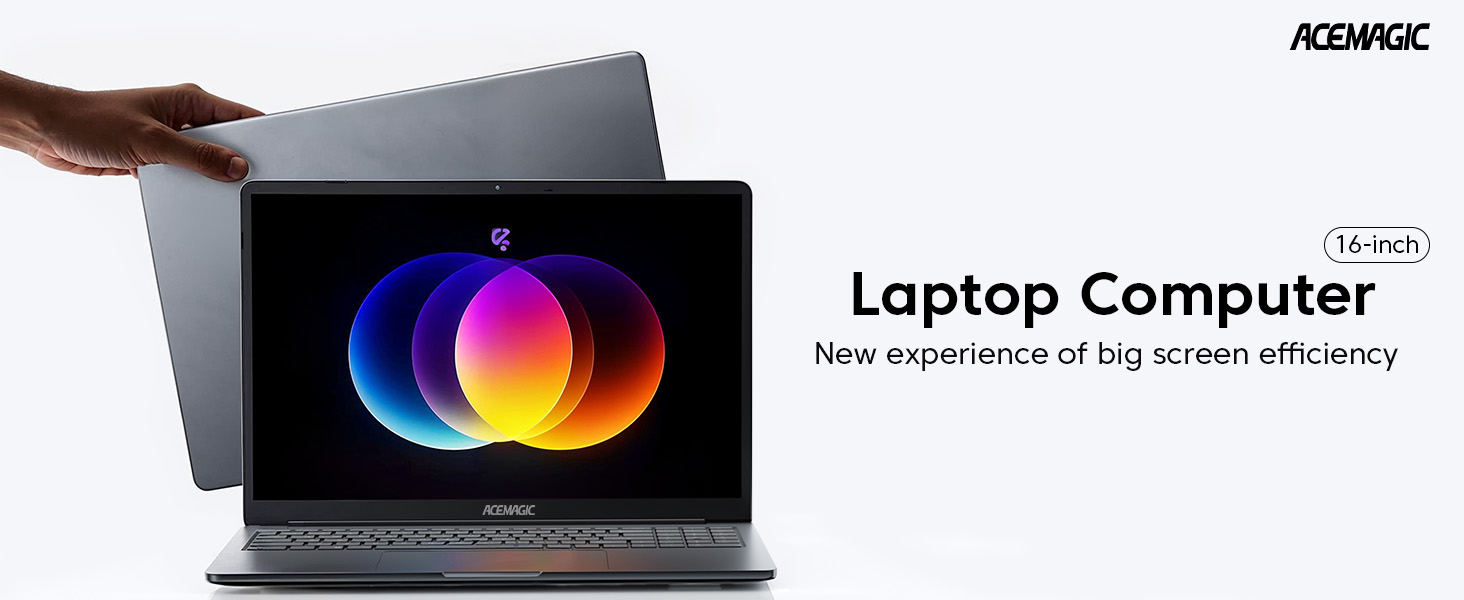
Figure 1: ACEMAGIC AX16 Laptop Overview
Nøglefunktioner:
- Effektiv ydeevne: Equipped with an Intel 12th Gen Alder Lake Quad-Core processor (up to 3.6GHz) for robust multitasking.
- Kraftig konfiguration: Features 16GB DDR4 RAM and a 512GB M.2 SSD, expandable up to 2TB.
- 16.0-tommer FHD-skærm: Immersive 1920x1200 resolution with thin bezels for enhanced viewing.
- Lang batterilevetid: 38Wh battery provides up to 8 hours of usage.
- Rige grænseflader: Includes USB 3.2, Type-C, HDMI, 3.5mm headphone jack, and SD card socket.
2. Opsætningsvejledning
2.1 Udpakning og første inspektion
Carefully remove the laptop and all accessories from the packaging. Verify that all components are present: laptop, power adapter, and documentation. Inspect the laptop for any physical damage.
2.2 Tilslutning af strømadapteren
Connect the power adapter to the DC-IN port on the side of the laptop and then plug it into a power outlet. It is recommended to fully charge the battery before the first use.

Figur 2: Side view of the ACEMAGIC AX16 laptop, showing the DC-IN port and other connections.
2.3 Første opstart og opsætning af operativsystem
- Tryk på tænd/sluk-knappen på tastaturet for at tænde den bærbare computer.
- Follow the on-screen instructions to complete the initial Windows setup, including language selection, region, network connection, and user account creation.
- Ensure you connect to a stable Wi-Fi network during setup to download necessary updates.
3. Betjeningsvejledning
3.1 Tænd/sluk og dvaletilstand
- Tænd: Tryk på tænd/sluk-knappen.
- Sluk: Click the Start menu, then Power > Shut down.
- Sove mode: Click the Start menu, then Power > Sleep, or close the laptop lid.
3.2 Tastatur og touchpad
The laptop features a full QWERTY keyboard with a numeric keypad for enhanced typing efficiency. The integrated touchpad supports multi-touch gestures for navigation.
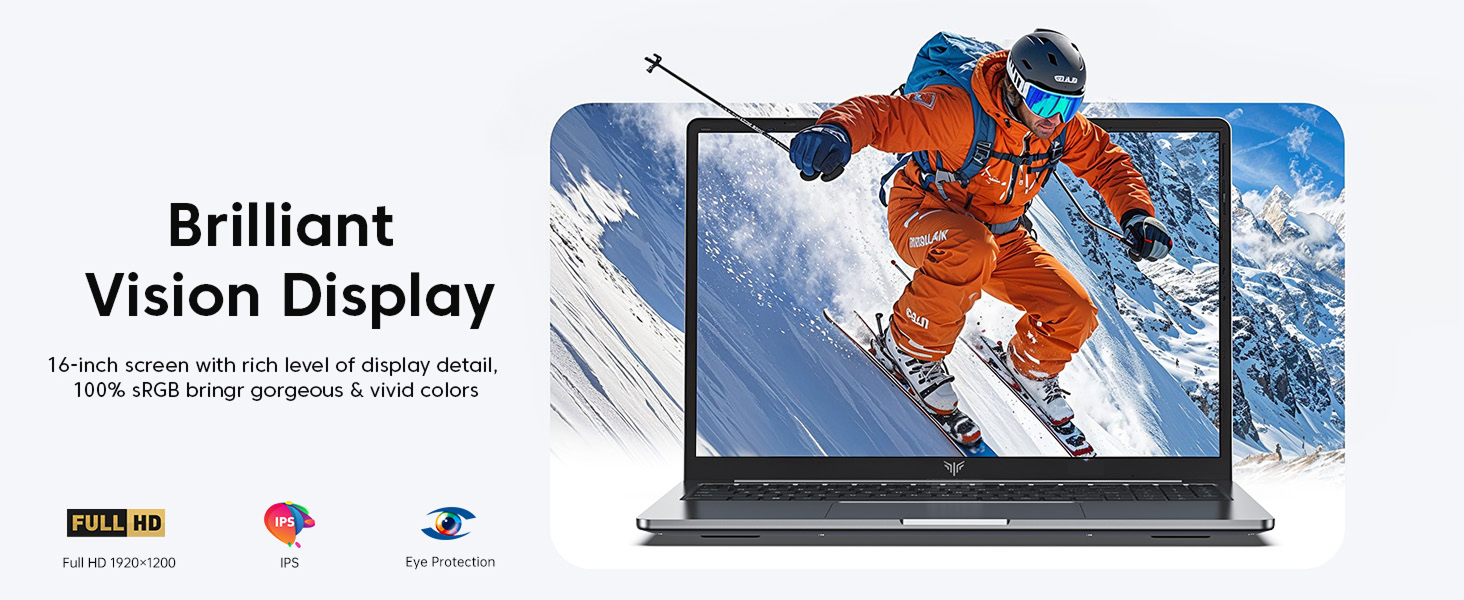
Figure 3: The ACEMAGIC AX16 laptop display, showcasing dens visuelle evner.
3.3 Connecting to Networks and Devices
- Wi-Fi: Click the network icon in the taskbar, select your desired network, and enter the password.
- Bluetooth: Go to Settings > Devices > Bluetooth & other devices to pair with Bluetooth peripherals.
- External Display (HDMI): Connect an HDMI cable from the laptop's HDMI port to an external monitor or TV. Press
Windows key + Pfor at konfigurere skærmindstillinger. - USB-enheder: Insert USB devices into the available USB 3.2 ports.
- Type-C-enheder: Use the Type-C port for compatible devices.
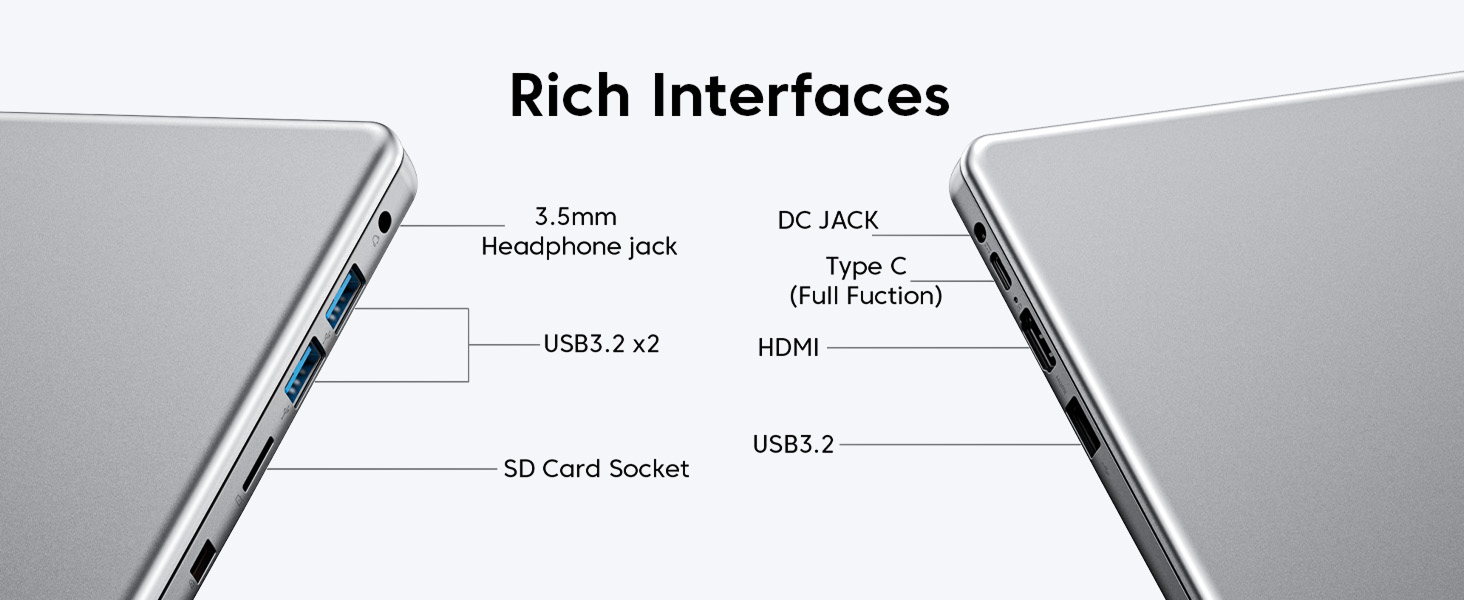
Figur 4: Detaljeret view of the ACEMAGIC AX16 laptop's various ports and interfaces.
4. Vedligeholdelse
4.1 Rengøring af den bærbare computer
- Brug en blød, fnugfri klud dampened with a small amount of water or screen cleaner for the display.
- Brug en blød klud til tastatur og kabinet. Undgå skrappe kemikalier.
- Periodically use compressed air to clear dust from vents to ensure efficient cooling.
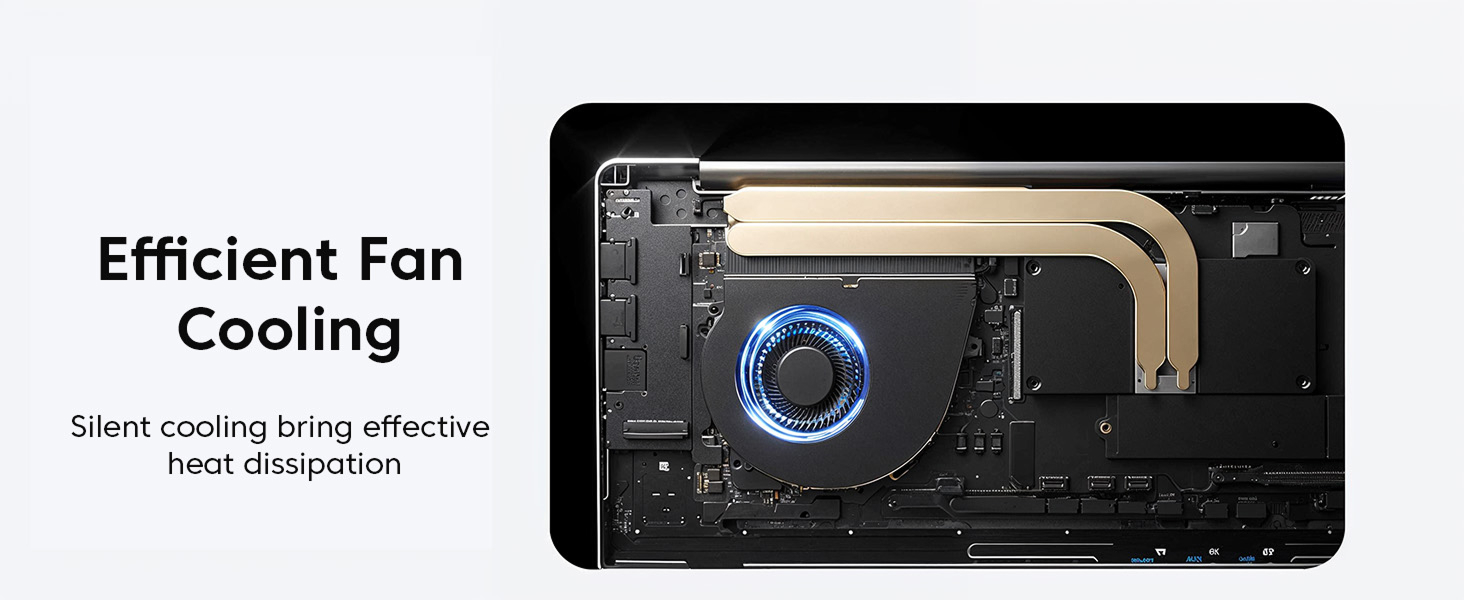
Figur 5: Intern view of the laptop's efficient fan cooling system.
4.2 Pleje af batterier
- Undgå at aflade batteriet helt ofte.
- Opbevar den bærbare computer et køligt og tørt sted, hvis den ikke bruges i længere perioder.
- Udsæt ikke batteriet for ekstreme temperaturer.
4.3 Software Updates and Storage Management
- Søg regelmæssigt efter og installer Windows-opdateringer for at sikre systemstabilitet og sikkerhed.
- Ryd jævnligt op med unødvendige ting fileog applikationer for at frigøre lagerplads.
- The 512GB M.2 SSD can be replaced with a maximum SSD of 2TB for increased storage capacity.
5. Fejlfinding
5.1 Almindelige problemer og løsninger
- Den bærbare computer tænder ikke:
Ensure the power adapter is securely connected and the power outlet is functional. Try a different outlet. If the battery is completely drained, it may take a few minutes to respond after plugging in. - Ingen Wi-Fi-forbindelse:
Check if Wi-Fi is enabled in Windows settings. Restart your router and the laptop. Verify your Wi-Fi password. - Problemer med skærmen (intet billede, flimmer):
Ensure the laptop lid is fully open. If using an external monitor, check the cable connection and display settings (Windows key + P). Restart the laptop. - Langsom ydeevne:
Close unnecessary applications. Check Task Manager for processes consuming high CPU or RAM. Ensure Windows is updated. Consider running a disk cleanup. - Touchpad'en reagerer ikke:
Ensure the touchpad is not disabled (check function keys, e.g., Fn + F10). Restart the laptop.
For persistent issues or problems not listed here, please refer to the Warranty and Support section.
6. Specifikationer
Below are the detailed technical specifications for the ACEMAGIC AX16 laptop:
| Feature | Specifikation |
|---|---|
| Mærke | ACEMAGISK |
| Modelnavn | AX16 |
| Skærmstørrelse | 16 tommer |
| Opløsning | 1920 x 1200 pixels |
| Processor mærke | Intel |
| CPU-modelnummer | i7-1260P (12th Gen Alder Lake Quad-Core) |
| CPU hastighed | 1.7 GHz (op til 3.6 GHz Turbo) |
| Installeret RAM-hukommelsesstørrelse | 16 GB DDR4 SDRAM |
| Harddisk størrelse | 512 GB NVMe M.2 SSD |
| Operativsystem | Windows 10 Home |
| Beskrivelse af grafikkort | Integreret Intel UHD-grafik |
| Forbindelsesteknologi | Wi-Fi (802.11ac), Bluetooth, HDMI, USB-A, Type-C |
| Samlet USB-porte | 3 |
| Batteriets energiindhold | 38 wattimer |
| Varens vægt | 2.56 kilo |
| Dimensioner (L x B x T) | 14.25 cm x 9.9 cm x 0.7 cm |
| Human-Interface Input | Touch Pad, Numeric Keypad |
7. Garanti og support
ACEMAGIC provides comprehensive support for your AX16 laptop.
7.1 Garantioplysninger
Your ACEMAGIC AX16 laptop comes with a 12-month repair warranty fra købsdatoen. Denne garanti dækker fabrikationsfejl og hardwarefejl ved normal brug. Gem venligst din købsbevis til garantikrav.
7.2 Teknisk support
Unlimited technical support is available for all customers. If you encounter any issues or have questions regarding your laptop, please do not hesitate to reach out to ACEMAGIC customer service.
For assistance, please visit the official ACEMAGIC website or contact their support team through the contact information provided with your product packaging.