
1. Introduktion
Thank you for choosing the BIGASUO BGP34 Android 5G WiFi Projector. This manual provides essential information for setting up, operating, maintaining, and troubleshooting your projector. Please read it thoroughly before use to ensure optimal performance and longevity of your device. Keep this manual for future reference.
2. Vigtige sikkerhedsinstruktioner
- Bloker ikke ventilationsåbningerne. Sørg for tilstrækkelig luftgennemstrømning omkring projektoren for at forhindre overophedning.
- Avoid direct exposure to the projector lens light. The bright light can cause eye strain or damage.
- Do not place the projector in unstable locations. Ensure it is on a flat, stable surface to prevent falls.
- Hold projektoren væk fra vand eller andre væsker. Må ikke anvendes i damp miljøer.
- Brug kun den strømadapter, der følger med projektoren.
- Tag stikket ud af projektoren under tordenvejr eller når den ikke bruges i længere perioder.
- Forsøg ikke at reparere projektoren selv. Overlad al service til kvalificeret personale.
3. Pakkens indhold
Bekræft at alle varer er til stede i din pakke:
- BIGASUO BGP34 Projector
- Strømadapter
- Fjernbetjening (AAA-batterier medfølger ikke)
- HDMI kabel
- Brugermanual
- Tripod (may vary by package)
4. Produktet er slutview
The BIGASUO BGP34 is a portable Android 5G WiFi projector designed for home entertainment. It supports 1080P native resolution and 4K input, offering a clear and vibrant viewoplevelse.
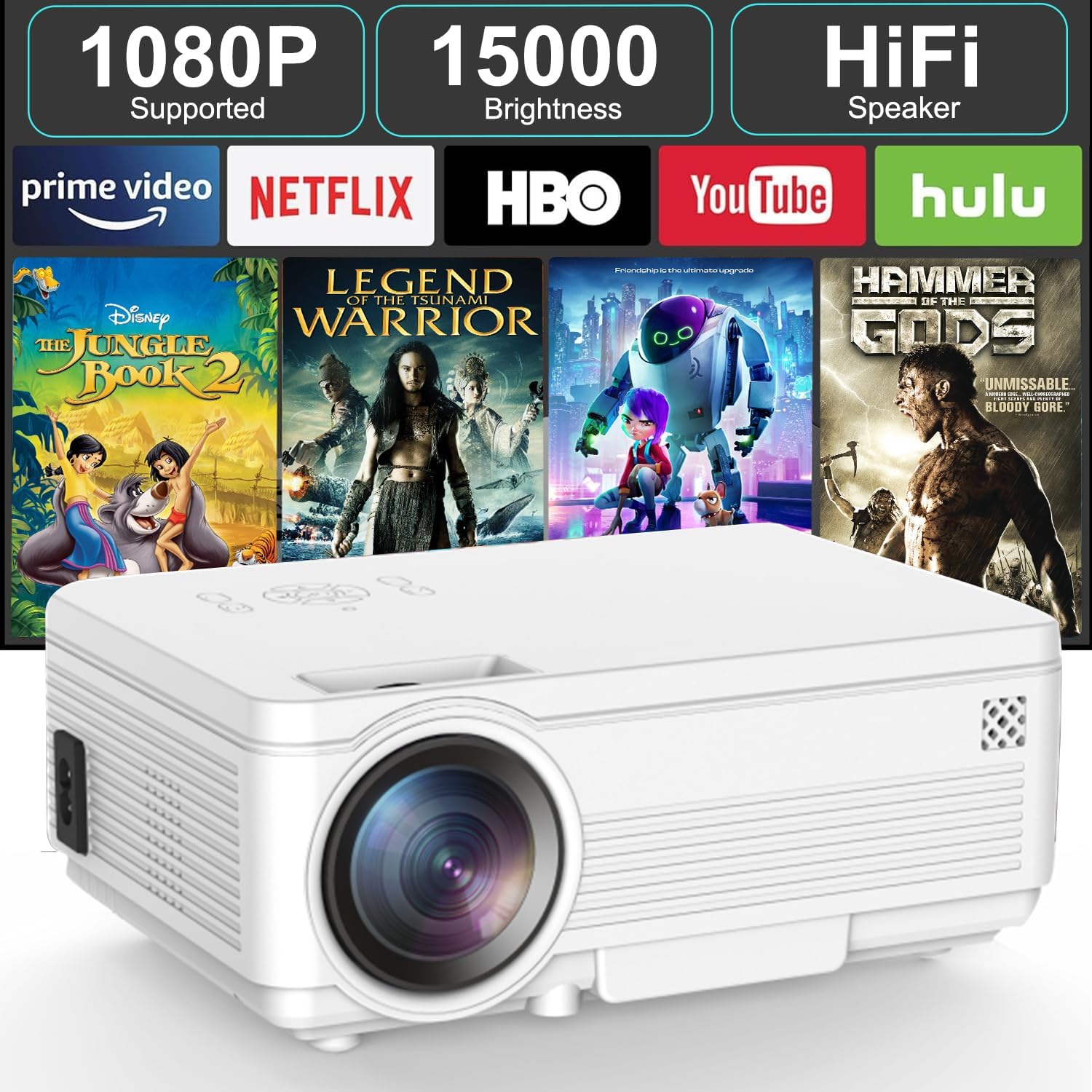
Billede: Forside view of the BIGASUO BGP34 projector, showcasing its lens and ventilation. The image also highlights key features like 1080P support, 15000 brightness, HiFi speaker, and compatibility with streaming services such as Prime Video, Netflix, HBO, YouTube, and Hulu.
Porte og kontroller
Familiarize yourself with the various ports and controls on your projector for seamless connectivity.

Billede: En detaljeret view of the projector's side panel, illustrating various input ports including AUX, AV, TF card slot, HDMI, and USB. Below the projector, icons depict compatible devices such as speakers, PS4, tablets, laptops, smartphones, USB flash drives, Roku Stick, TV Box, and TV Stick, demonstrating its versatile connectivity options.
- HDMI-port: Connects to laptops, gaming consoles, TV sticks, etc.
- USB-port: Tilsluttes USB-flashdrev til afspilning af medier.
- AUX/Audio Out: Tilsluttes eksterne højttalere eller hovedtelefoner.
- AV-port: Tilsluttes ældre enheder med et AV-kabel.
- TF-kortslot: For playing media directly from a TF (MicroSD) card.
- Strømindgang: Tilsluttes strømadapteren.
- Fokusring: Justerer billedets klarhed.
- Keystone-korrektion: Adjusts image shape (manual or auto, depending on model features).
5. Opsætning
5.1 Placering og skærmstørrelse
Position the projector on a stable surface. The projection distance affects the screen size. Ensure the projector is perpendicular to the projection surface for the best image quality.

Image: The BIGASUO BGP34 projector displayed in three common mounting configurations: on a desktop, mounted on a tripod, and hanging from a ceiling. This illustrates the versatility of the projector for various setup environments.
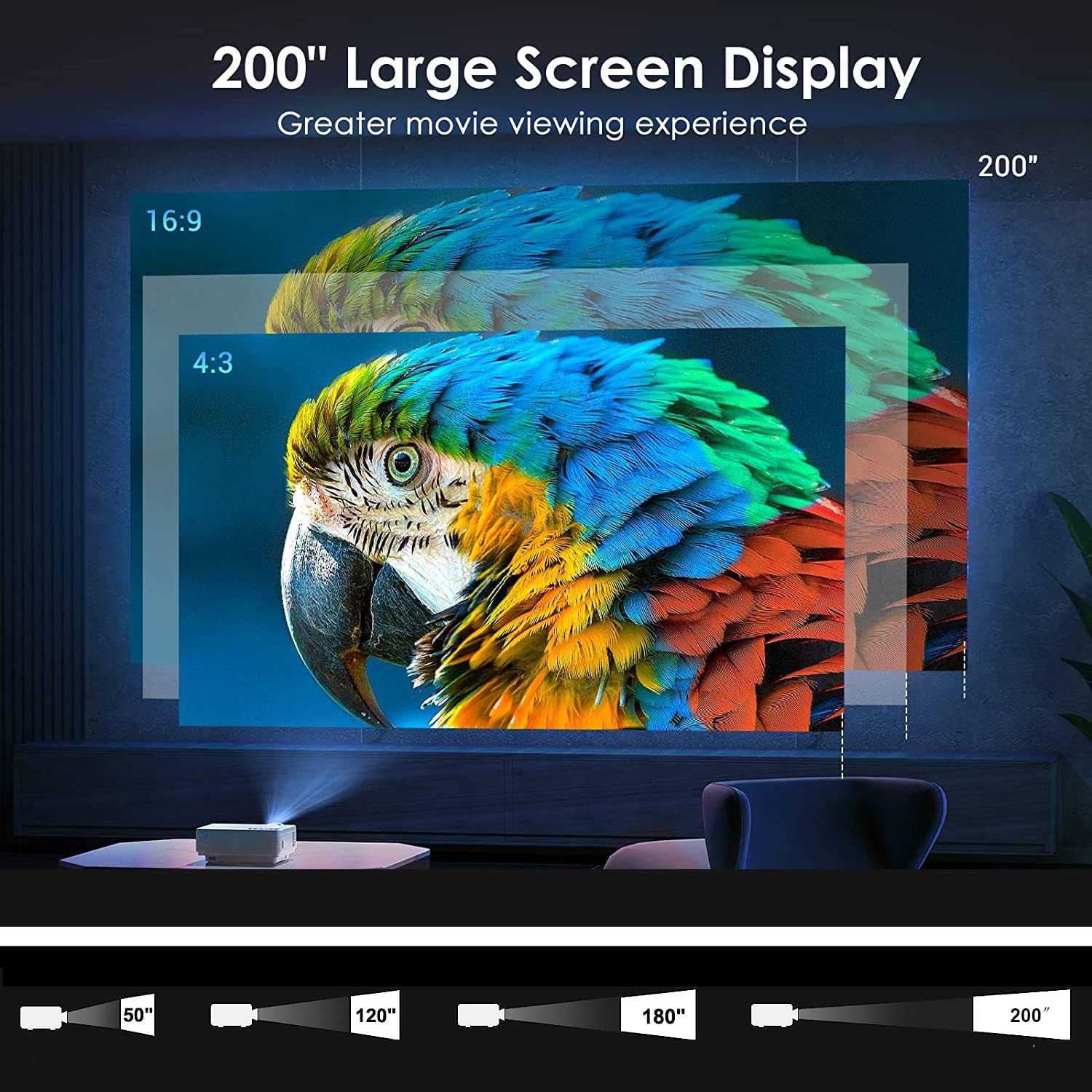
Image: A visual representation of the projector's capability to display a large screen up to 200 inches. It shows different projection sizes (50", 120", 180", 200") at varying distances, along with aspect ratio comparisons (16:9 and 4:3), demonstrating the immersive viewoplevelse.
- For optimalt viewing, project onto a white wall or a dedicated projector screen.
- Adjust the distance to achieve your desired screen size, up to 200 inches.
- The projector supports desktop, tripod, and ceiling mounting options.
5.2 Strømtilslutning
- Tilslut strømadapteren til projektorens strømindgang.
- Sæt strømadapteren i en passende stikkontakt.
- Tryk på tænd/sluk-knappen på projektoren eller fjernbetjeningen for at tænde den.
5.3 Fokus- og Keystone-justering
- Fokus: Drej fokusringen nær objektivet, indtil det projicerede billede er klart og skarpt.
- Keystone-korrektion: If the image appears trapezoidal, use the keystone correction feature (manual knob or digital adjustment via settings) to square the image.
6. Betjeningsvejledning
6.1 Tilslutning af eksterne enheder
- HDMI: Connect an HDMI cable from your device (laptop, TV stick, game console) to the projector's HDMI port. Select the HDMI input source from the projector's menu.
- USB: Insert a USB flash drive into the USB port. The projector's media player will typically detect the drive, allowing you to browse and play media files.
- AV: Use an AV cable to connect older devices. Select the AV input source.
- TF-kort: Insert a TF (MicroSD) card into the designated slot for direct media playback.
6.2 Wireless Connectivity (5G WiFi, Bluetooth)
- WiFi-forbindelse: Navigate to the projector's settings menu, select 'Network' or 'WiFi', and connect to your desired 2.4G or 5G WiFi network. This enables access to online apps and screen mirroring.
- Bluetooth-forbindelse: Go to the Bluetooth settings on the projector. Enable Bluetooth and pair with your Bluetooth speaker, headphones, or soundbar for enhanced audio.
6.3 Screen Mirroring (Android/iOS)
The projector supports screen mirroring from Android and iOS devices via WiFi.
- Til Android: Ensure your Android device and projector are on the same WiFi network. On the projector, select the 'Android Cast' or 'Screen Mirroring' option. On your Android device, enable 'Wireless Display', 'Smart View', or 'Cast' and select the projector from the list.
- Til iOS: Ensure your iOS device and projector are on the same WiFi network. On the projector, select the 'iOS Cast' or 'AirPlay' option. On your iOS device, open Control Center, tap 'Screen Mirroring', and select the projector.
- Note: Due to copyright restrictions, some streaming services (e.g., Prime Video, Netflix) may not support screen mirroring directly. For these, connect a TV stick (not included) or use an HDMI cable.
6.4 Brug af indbyggede applikationer
The BIGASUO BGP34 comes with built-in Android applications like YouTube. Connect to WiFi to access these apps directly.
- Navigate the Android interface using the remote control.
- Select the desired application from the home screen.
- Sørg for en stabil internetforbindelse for jævn streaming.

Image: A collage demonstrating various application scenarios for the BIGASUO BGP34 projector, including outdoor parties, home theater setups, gaming sessions, and watching sports matches. This highlights the projector's versatility for different entertainment needs.
7. Vedligeholdelse
Korrekt vedligeholdelse sikrer projektorens levetid og optimale ydeevne.
- Rengøring af linser: Brug en blød, fnugfri klud, der er specielt designet til optiske linser. Tør forsigtigt linsen af for at fjerne støv eller pletter. Undgå slibende materialer eller barske kemikalier.
- Rengøring af ventilation: Regularly check and clean the air vents to prevent dust buildup, which can lead to overheating. Use a soft brush or compressed air.
- Opbevaring: When not in use, store the projector in a cool, dry, and dust-free environment. If possible, use the original packaging or a protective case.
- Sluk: Sluk altid projektoren korrekt, og lad den køle af, før du tager stikket ud eller flytter den.
8. Fejlfinding
Se tabellen nedenfor for almindelige problemer og deres løsninger.
| Problem | Mulig årsag | Løsning |
|---|---|---|
| Intet billede vises | Power cable loose; incorrect input source; device not connected. | Check power connection; select correct input source (HDMI, USB, etc.); ensure external device is properly connected and powered on. |
| Sløret billede | Focus not adjusted; keystone not corrected. | Adjust the focus ring; correct keystone distortion. |
| Ingen lyd | Volume too low; external speaker not connected/paired; incorrect audio output. | Increase volume; connect/pair Bluetooth speaker; check audio output settings on projector and source device. |
| Fjernbetjening virker ikke | Batteries dead/incorrectly inserted; sensor blocked. | Replace batteries; ensure correct polarity; clear any obstructions between remote and projector sensor. |
| WiFi-forbindelse ustabil | Weak signal; too far from router; network interference. | Move projector closer to router; ensure no large obstructions; try connecting to a 5G network if available and supported. |
9. Tekniske specifikationer
| Feature | Specifikation |
|---|---|
| Mærke | BIGASUO |
| Model | BGP34 |
| Indfødt opløsning | 1920 x 1080 pixel |
| Understøttet opløsning | Op til 4K |
| Display Type | LED |
| Billedkontrastforhold | 6000:1 |
| Aspektforhold | 16:9 |
| Forbindelsesteknologi | Bluetooth 5.0, 5G WiFi |
| Hardware-interface | HDMI, USB |
| Særlige funktioner | Bluetooth 5.0, Android OS, Auto Keystone |
| Anbefalet brug | Hjemmebiograf |
| Produktdimensioner | 10 x 25 x 10 cm |
| Varens vægt | 2.5 kg |
| Voltage | 220 volt |
| Wattage | 50 watt |
| Opdateringshastighed | 60 Hz |
10. Garanti og support
Your BIGASUO BGP34 Projector is covered by a manufacturer's warranty. Please refer to the warranty card included in your package for specific terms and conditions, including the warranty period and coverage details.
For technical support, troubleshooting assistance, or warranty claims, please contact BIGASUO customer service. Contact information can typically be found on the product packaging, the official BIGASUO webwebstedet eller din købsfaktura.