
Leadfan Model B
Leadfan Carplay Radio for Nissan Altima 2013-2018 (Model B) Instruction Manual
9-inch IPS Touch Screen Head Unit with Wireless Carplay & Android Auto, GPS, Bluetooth, WiFi, FM/RDS, SWC, and Backup Camera
1. Introduktion
This manual provides detailed instructions for the installation, operation, and maintenance of your Leadfan Carplay Radio. This head unit is designed to enhance your driving experience with advanced features such as wireless Apple CarPlay, Android Auto, GPS navigation, Bluetooth 5.1, WiFi connectivity, FM/RDS radio, steering wheel control integration, and a backup camera input. Please read this manual thoroughly before installation and use to ensure proper functionality and safety.
2. Gældende bilmodeller
This Android car stereo radio is specifically designed for Nissan Altima models from 2013, 2014, 2015, 2016, 2017, and 2018. This particular model (Model B) is suitable for vehicles without an AC vent integrated into the radio bezel. It features a 9-inch IPS touch screen.
Vigtig bemærkning: This car stereo is not compatible with Nissan Altima vehicles equipped with a large factory navigation screen or a premium audio system. Please verify the model year and the shape of your vehicle's center console to ensure compatibility before installation.

Image: Comparison of the Nissan Altima dashboard before and after the Leadfan Carplay Radio installation. The top image shows the new 9-inch touchscreen unit, while the bottom images show the original radio and the new unit in place.
3. Pakkens indhold
Kontroller venligst pakken omhyggeligt for at sikre, at alle komponenter er til stede:
- Leadfan Carplay Radio Head Unit (9-inch IPS Touch Screen)
- Backup kamera
- Wiring Harnesses (Power Cable, RCA Cable, USB Cables x2)
- GPS antenne
- WiFi antenne
- Bluetooth antenne
- Monteringsbeslag
- Radio adapter
- Can-bus-dekoder
- Mikrofon (MIC)
- Brugermanual
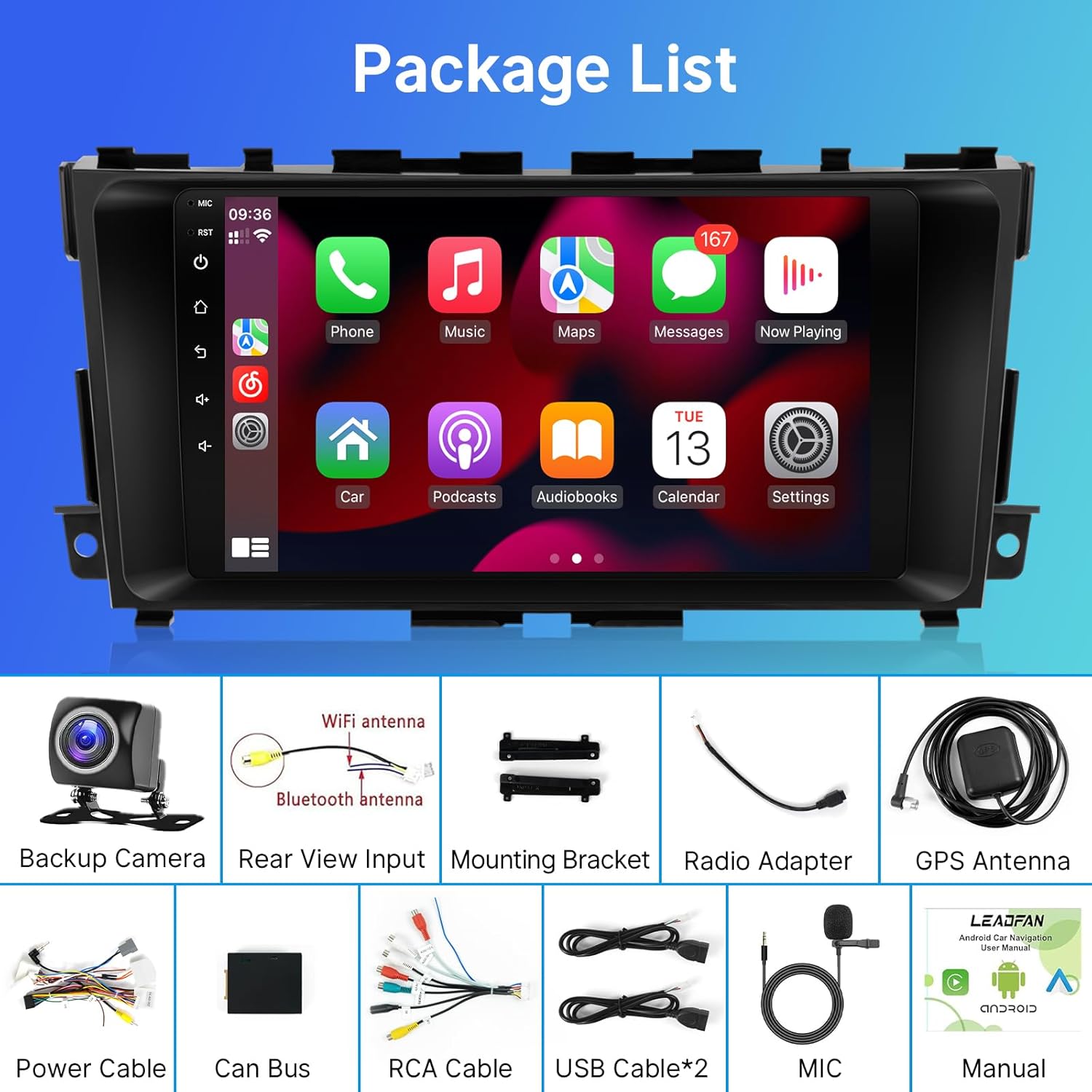
Image: Visual representation of the package contents, including the head unit, backup camera, various cables, antennas, and mounting accessories.
4. Opsætning og installation
The Leadfan Carplay Radio is designed for plug-and-play installation. All necessary wiring harnesses are included. Professional installation is recommended to ensure correct wiring and avoid damage to your vehicle's electrical system.
4.1 Generelle installationstrin
- Afbryd batteriet: Før start skal du frakoble den negative pol på dit køretøjs batteri for at forhindre kortslutninger.
- Fjern gammel radio: Carefully remove the factory radio and trim panels. Refer to your vehicle's service manual for specific instructions.
- Tilslut ledningsnet: Connect the provided wiring harnesses to the vehicle's factory wiring. Ensure all connections are secure.
- Tilslut antenner: Attach the GPS, WiFi, and Bluetooth antennas to the corresponding ports on the new head unit. Position the GPS antenna in a location with a clear view af himlen.
- Installer bakkamera (valgfrit): Follow the instructions below for backup camera installation.
- Monter hovedenhed: Secure the new head unit into the dashboard using the provided mounting brackets.
- Gentilslut batteri: Tilslut den negative batteripol igen.
- Test funktionalitet: Tænd køretøjet og test alle funktioner i den nye radio.
4.2 Tilslutning af bakkamera
The backup camera provides enhanced visibility when reversing. Ensure the white plug is securely connected to the radio; otherwise, Bluetooth and WiFi functionalities may be unavailable.

Image: Wiring diagram for the backup camera, showing connections to the head unit's reverse input, video extension line, and the car's reversing light positive and negative terminals. Two wiring choices (roof wiring, under seat wiring) are indicated.
Ledningstrin:
- Connect the video extension line to the camera.
- Connect the video extension line to the radio's reverse input.
- Connect the camera's power cable to the car's reversing light positive terminal.
- Connect the camera's power cable to the car's reversing light negative terminal.
5. Betjeningsvejledning
5.1 Trådløs Apple CarPlay og Android Auto
This head unit supports wireless integration for both Apple CarPlay and Android Auto. You can connect your iPhone or Android phone wirelessly via Bluetooth or using a USB cable to access features like navigation, music, calls, and messages directly on the car's display.

Image: The head unit display showcasing the user interfaces for Wireless Apple CarPlay and Android Auto, with various app icons visible.
5.2 WiFi & Offline Navigation
The unit features built-in WiFi, allowing you to connect to the internet via a hotspot or home WiFi network. This enables access to online content, streaming media, and real-time navigation updates. Preloaded maps for North America are included for offline navigation. You can also download additional maps and applications from the app store.
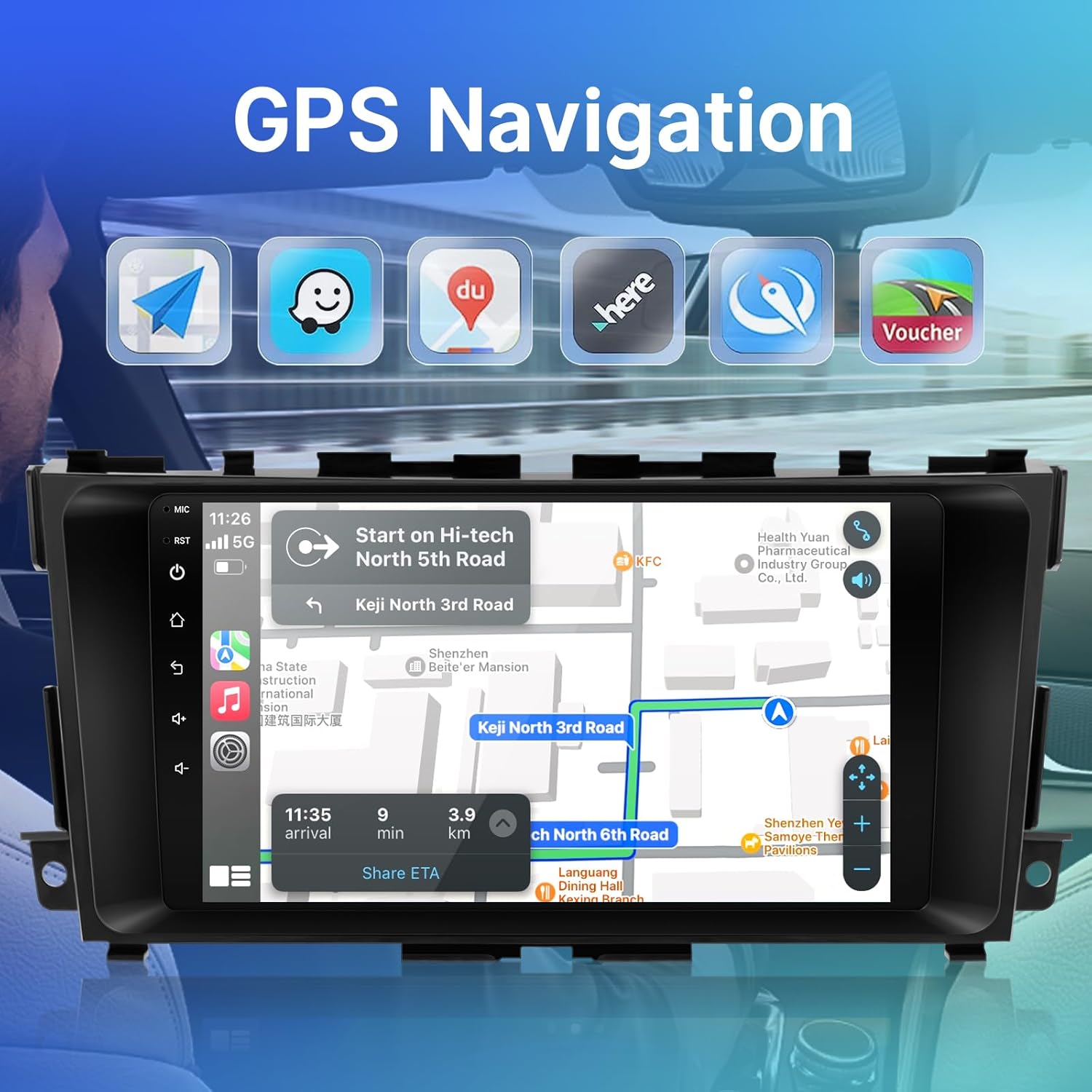
Image: The head unit display showing a GPS navigation map with route information and estimated time of arrival. Icons for various navigation apps are also visible.

Image: The head unit displaying a map interface and various online applications, illustrating the WiFi function for internet access and app downloads.
5.3 Bluetooth 5.1 & FM Function
Utilize Bluetooth 5.1 for stable hands-free calling and audio streaming from your smartphone. The integrated FM radio with RDS (Radio Data System) allows you to listen to your favorite stations, receive traffic information, and view song titles where available. MP3 playback and EQ adjustment features are also included for optimal audio quality.

Image: The head unit display showing the Bluetooth interface, including a dial pad, contacts, call records, and music playback controls with album art.

Image: The head unit display showing the FM radio interface with frequency selection and equalizer settings for sound customization.
5.4 AHD bagtil View Kamera
The integrated AHD rear camera provides a clear view of the area behind your vehicle, enhancing safety during parking and reversing maneuvers. The display automatically switches to the camera view når køretøjet sættes i bakgear.

Image: The head unit display showing the reverse camera feed with dynamic parking guidelines, alongside an image of the physical reversing camera.
5.5 Ratbetjening (SWC)
The head unit supports integration with your vehicle's existing steering wheel controls. This allows you to manage essential operations such as volume adjustment, track skipping, and answering calls without taking your hands off the steering wheel. The system includes an interface for learning and mapping your steering wheel buttons.

Image: The head unit display showing the Steering Wheel Control setup menu, where users can program functions for their vehicle's steering wheel buttons.
6. Vedligeholdelse
To ensure the longevity and optimal performance of your Leadfan Carplay Radio, follow these maintenance guidelines:
- Rensning: Brug en blød, tør klud til at rengøre skærmen og de udvendige overflader. Tør let ved genstridige pletter.ampRengør kluden med vand eller et skærmsikkert rengøringsmiddel. Undgå slibende materialer eller barske kemikalier.
- Softwareopdateringer: Periodically check for available software updates to ensure you have the latest features and bug fixes. Updates can typically be found on the manufacturer's website or through the device's settings menu.
- Undgå ekstreme temperaturer: Do not expose the unit to extreme temperatures, either hot or cold, for extended periods.
- Beskyt mod fugt: Hold enheden tør og beskyt den mod vand eller andre væsker.
7. Fejlfinding
If you encounter issues with your Leadfan Carplay Radio, refer to the following common troubleshooting steps:
- Ingen strøm:
- Kontroller alle strømtilslutninger og sikringer.
- Sørg for, at køretøjets batteri er korrekt tilsluttet og opladet.
- Ingen lyd:
- Bekræft højttalerforbindelser.
- Kontroller lydstyrkeniveauer og mute-indstillinger.
- Sørg for, at den korrekte lydkilde er valgt.
- CarPlay/Android Auto opretter ikke forbindelse:
- Ensure Bluetooth is enabled on both the phone and the head unit.
- Prøv et andet USB-kabel til kabelforbindelser.
- Restart both the phone and the head unit.
- Tjek telefonindstillingerne for CarPlay/Android Auto-tilladelser.
- Problemer med GPS-signal:
- Sørg for, at GPS-antennen har en klar view af himlen.
- Kontroller antenneforbindelsen til hovedenheden.
- Bakkamera viser ikke:
- Verify all camera wiring connections, especially the reverse trigger wire.
- Ensure the white plug for Bluetooth/WiFi is securely connected.
- Enheden fryser eller reagerer langsomt:
- Perform a soft reset (refer to the device settings for a reset option).
- If issues persist, a factory reset may be necessary (note: this will erase all user data and settings).
Hvis disse trin ikke løser problemet, bedes du kontakte kundesupport.
8. Specifikationer
| Feature | Specifikation |
|---|---|
| Skærmstørrelse | 9 tommer |
| Operativsystem | Android (specific version not provided, typically Android 11 or newer) |
| Forbindelsesteknologi | Bluetooth 5.1, USB, Wi-Fi |
| Særlige funktioner | Wireless Apple CarPlay, Android Auto, Built-In Bluetooth, Touchscreen, GPS Navigation, FM/RDS Radio, Steering Wheel Control (SWC) Support, AHD Backup Camera Input |
| Lydudgangstilstand | Stereo, Surround |
| Kontrolmetode | Tryk, stemme |
| Kompatible enheder | Smartphone |
| Varens vægt | 2.86 pund (1.3 kilo) |
| Pakkedimensioner | 2 x 2 x 2 tommer |
| Modelnummer | 3adb201d-2903-41dc-b0ae-ccde859261b9 |
9. Garanti og support
9.1 Garantioplysninger
Specific warranty details are typically provided with your purchase documentation or on the product's official webwebsted. Gem venligst din købsbevis i tilfælde af garantikrav. Garantien dækker generelt fabrikationsfejl under normale brugsforhold.
9.2 Kundesupport
For technical assistance, troubleshooting beyond this manual, or warranty inquiries, please contact Leadfan customer support through the retailer where you purchased the product or visit the official Leadfan webwebsted for kontaktoplysninger.
Online ressourcer:
- Leadfan Store on Amazon: Visit Leadfan Store