
TABWEE K10
TABWEE K10 Kids Tablet 10.1-tommer Wi-Fi-model Brugermanual
Your guide to setting up, operating, and maintaining your TABWEE K10 Kids Tablet.
1. Introduktion
Welcome to the TABWEE K10 Kids Tablet! This 10.1-inch Wi-Fi tablet is designed to provide a safe and engaging learning and entertainment experience for children. Featuring Android 15 Go Edition, Google Kids Space, robust parental controls via Google Family Link, and a durable EVA protective case, the K10 is built for young users.
This manual will guide you through the tablet's features, setup process, operation, maintenance, and troubleshooting to ensure a smooth and enjoyable experience.
Hvad er der i æsken
Upon opening your TABWEE K10 Kids Tablet package, you should find the following items:
- TABWEE K10 Kids Tablet (with pre-installed EVA protective case)
- Touch pen
- USB Type-C-kabel
- Strømadapter
- Brugervejledning (dette dokument)
- AR Zoo Cards (for interactive learning)
Video: Unboxing the TABWEE K10 Kids Tablet, showing the tablet, protective case, and accessories.
2. Sikkerhedsoplysninger
Please read the following safety guidelines carefully to ensure safe and proper use of your TABWEE K10 Kids Tablet:
- Voksenopsyn: Always supervise young children while they are using the tablet.
- Opladning: Use only the provided power adapter and USB Type-C cable for charging. Do not use damaged chargers or cables. Ensure the tablet is charged in a well-ventilated area.
- Vand og fugt: Keep the tablet away from water, liquids, and excessive humidity.
- Temperatur: Undgå at udsætte tabletten for ekstreme temperaturer (varme eller kolde).
- Fysisk skade: While the EVA case provides protection, avoid dropping the tablet from significant heights or applying excessive force.
- Skærmtid: Encourage breaks during extended use to prevent eye strain. Utilize parental controls to manage screen time.
- Høreværn: When using headphones, ensure the volume is set to a safe level to protect hearing.
- Rensning: Use a soft, dry cloth to clean the tablet. Do not use harsh chemicals.
3. Kom godt i gang (opsætning)
3.1 Indledende opladning
Before first use, fully charge the tablet using the included USB Type-C cable and power adapter. The battery indicator on the screen will show charging progress.
3.2 Tænd/sluk
- For at tænde: Press and hold the Power button (located on the side) for a few seconds until the TABWEE logo appears.
- For at slukke: Press and hold the Power button until a menu appears on the screen. Select "Power Off" and confirm.
- For at genstarte: Vælg "Genstart" i tænd/sluk-menuen.
3.3 Guide til indledende opsætning
Når tabletten tændes første gang, vil den guide dig gennem en indledende opsætningsproces:
- Sprogvalg: Vælg dit foretrukne sprog.
- Wi-Fi-forbindelse: Vælg dit Wi-Fi-netværk, og indtast adgangskoden for at oprette forbindelse til internettet.
- Google-konto: Sign in with an existing Google account or create a new one. This is necessary for accessing Google services like Kids Space and Play Store.
- Dato og tid: Indstil den korrekte dato og tid.
- Opsætning af Google Kids Space: Follow the on-screen prompts to set up Google Kids Space for your child. This will provide age-appropriate content and a child-friendly interface.
- Google Family Link Setup: Install the Google Family Link app on your own smartphone and follow the instructions to link your child's tablet. This enables parental control features.
4. Produktet er slutview (Components & Controls)
Familiarize yourself with the physical components and controls of your TABWEE K10 Kids Tablet:

Image: The TABWEE K10 tablet showing its various ports, buttons, and cameras.
- Power knap: Turns the tablet on/off or puts it to sleep.
- Lydstyrkeknapper: Justerer lydstyrken.
- USB Type-C-port: Til opladning og dataoverførsel.
- 3.5 mm lydstik: Til tilslutning af hovedtelefoner.
- MicroSD -kortplads: Til udvidelse af lagerplads op til 2 TB.
- Frontkamera (2 MP): Til videoopkald og selfies.
- Bagkamera (5 MP): Til at tage billeder og videoer.
- Højttalere: Giver lydoutput.
- Mikrofon: Til stemmeinput.
- EVA Protective Case: Provides drop protection and includes a built-in stand/handle.
5. Betjeningsvejledning
5.1 Grundlæggende navigation
The TABWEE K10 uses a touchscreen interface. Use your finger or the included touch pen for navigation:
- Tryk på: Vælg et element, eller åbn en app.
- Stryg: Rul gennem sider eller menuer.
- At klemme: Zoom ind eller ud på billeder og web sider.
5.2 Google Kids Space
Google Kids Space offers a curated library of apps, books, and videos designed for children. It categorizes content into "Play," "Read," "Watch," and "Make" to encourage exploration and learning.
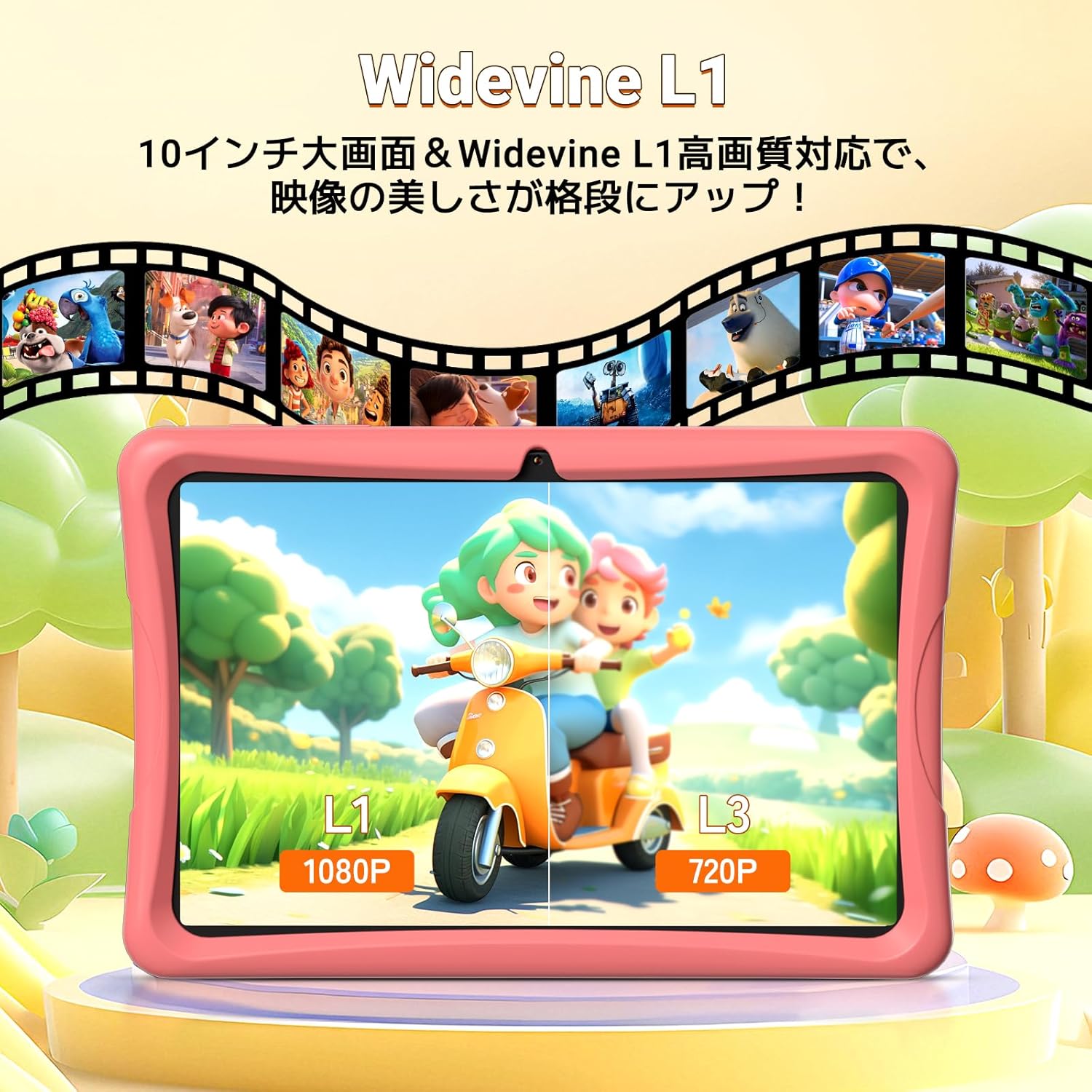
Image: The tablet screen showing the Google Kids Space interface with various app categories.
To access Kids Space, tap its icon on the home screen. Parents can manage the content available through Google Family Link.
Video: Demonstrating the variety of educational apps and content available within Google Kids Space.
5.3 YouTube Kids
The tablet supports YouTube Kids, offering a safer video experience for children. You can adjust filter settings based on your child's age and preferences.

Image: The tablet screen displaying the YouTube Kids application.
5.4 Parental Controls (Google Family Link)
Google Family Link allows you to manage your child's tablet usage remotely from your smartphone. Key features include:
- Håndtering af skærmtid: Set daily usage limits in 15-minute increments.
- App-begrænsninger: Block or allow specific apps.
- Indholdsfiltrering: Ensure age-appropriate content is displayed.
- Fjernovervågning: View your child's activity and screen time.
Video: Demonstration of Google Family Link features for managing app usage and screen time on the tablet.
5.5 Using the Touch Pen
The included touch pen allows for precise interaction with the tablet, making drawing, writing, and educational games more engaging. Simply use the pen as you would your finger on the screen.

Image: A child interacting with the tablet using the dedicated touch pen.
5.6 Skærmtilstande
The tablet offers various display modes to enhance comfort and reduce eye strain:
- Nattilstand: Reducerer udledning af blåt lys for komfortabel komfort viewunder dårlige lysforhold.
- Mørk tilstand: Changes the interface to a darker color scheme, which can reduce eye fatigue.
- Læsertilstand: Optimizes the display for reading, often by adjusting colors to mimic paper.

Image: The tablet screen demonstrating Night Mode, Dark Mode, and Reader Mode.
5.7 AR Zoo App
The tablet comes with an AR Zoo app that uses augmented reality technology. Use the included AR Zoo cards with the tablet's camera to bring animals to life on the screen, providing an interactive learning experience.
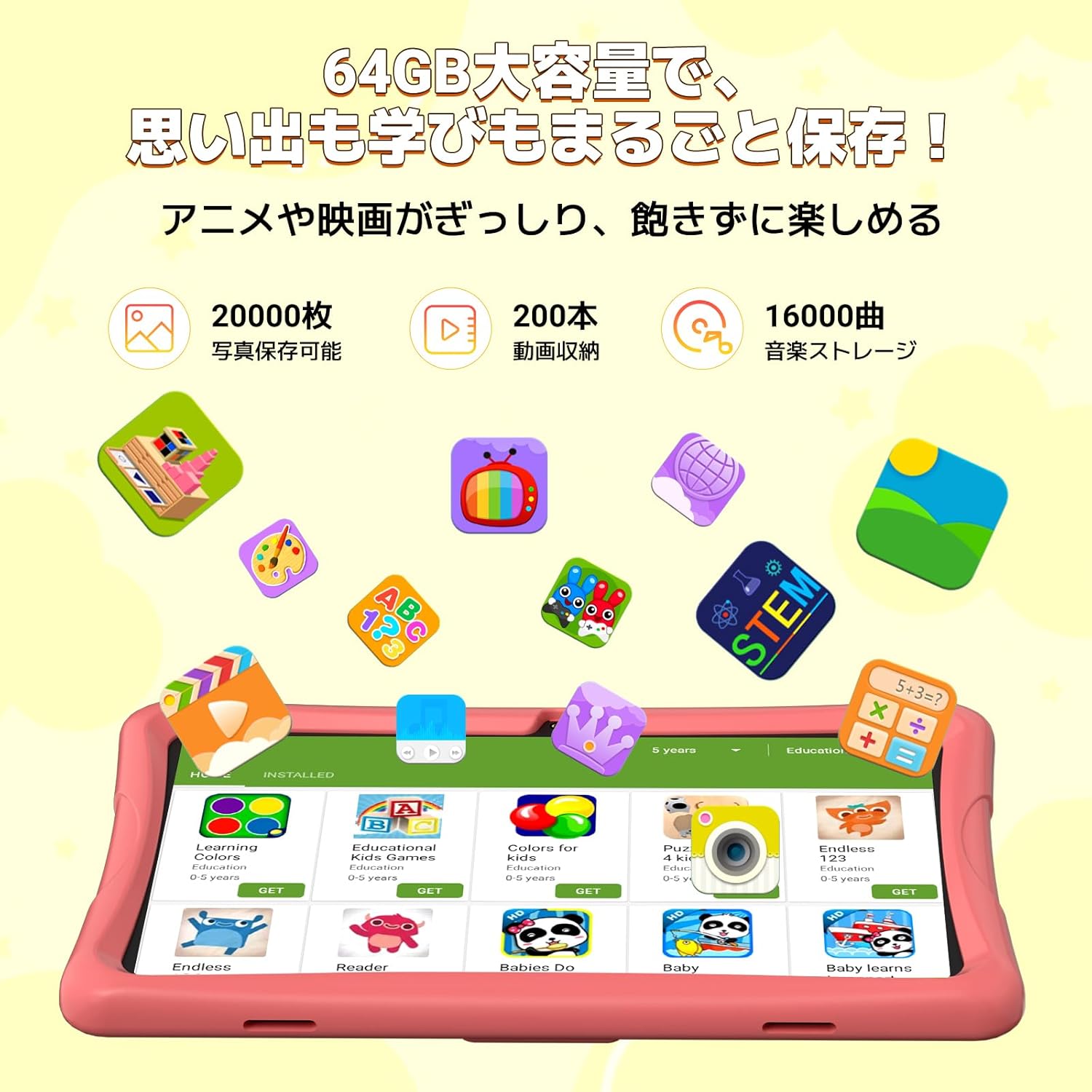
Image: The tablet displaying an augmented reality animal from the AR Zoo app, with physical cards nearby.
5.8 Lagerstyring
The tablet has 64GB of internal storage, which can be expanded up to 2TB using a microSD card (sold separately). To insert a microSD card, locate the card slot on the side of the tablet and gently push the card in until it clicks into place.
5.9 Kamerabrug
The tablet is equipped with a 2MP front camera and a 5MP rear camera. Open the Camera app to take photos or record videos. The intuitive interface makes it easy for children to capture their moments.
6. Vedligeholdelse
- Rensning: Use a soft, lint-free cloth to wipe the screen and body of the tablet. For stubborn smudges, slightly dampRengør kluden med vand. Undgå at bruge slibende rengøringsmidler eller opløsningsmidler.
- Batteripleje: To prolong battery life, avoid fully discharging the tablet frequently. Charge the tablet when the battery level is low. Store the tablet in a cool, dry place when not in use for extended periods.
- Softwareopdateringer: Periodically check for system updates in the tablet's settings. Keeping the software updated ensures optimal performance and security.
- EVA sag: The EVA case can be cleaned with mild soap and water if it gets dirty. Ensure it is completely dry before reattaching it to the tablet.
7. Fejlfinding
If you encounter any issues with your TABWEE K10 Kids Tablet, please refer to the following common solutions:
| Problem | Løsning |
|---|---|
| Tabletten tænder ikke. | Sørg for, at tabletten er fuldt opladet. Tilslut opladeren, og vent et par minutter, før du forsøger at tænde den igen. |
| Problemer med Wi-Fi-forbindelse. | Check if your Wi-Fi router is working correctly. Go to Settings > Network & internet > Wi-Fi, forget the network, and reconnect. Restart the tablet and router. |
| Apps går ned eller fryser. | Close the problematic app and reopen it. Clear the app's cache (Settings > Apps > [App Name] > Storage & cache > Clear cache). Restart the tablet. |
| Langsom ydeevne. | Close unnecessary background apps. Clear app caches. Ensure there is sufficient free storage space. Restart the tablet. |
| Parental controls not working as expected. | Ensure both the tablet and your smartphone have the latest Google Family Link app versions. Check the settings within the Family Link app on your smartphone. |
| Touch pen not responding. | Ensure the screen is clean. Try restarting the tablet. |
Hvis problemet fortsætter efter at have prøvet disse trin, bedes du kontakte kundesupport for yderligere assistance.
8. Specifikationer
| Feature | Detalje |
|---|---|
| Modelnavn | TABWEE K10 |
| Operativsystem | Android 15 Go Edition |
| Vise | 10.1-inch HD IPS (1280x800 pixels) |
| Processor | RK3562 Quad-Core (Cortex-A55, max 2.0GHz) |
| GPU | Mali-G52 |
| VÆDDER | 12 GB (4 GB fysisk + 8 GB virtuel) |
| Intern opbevaring | 64 GB ROM |
| Udvidelig opbevaring | Op til 2 TB via microSD-kort (medfølger ikke) |
| Batteri | 5000 mAh Lithium-ion |
| Forreste kamera | 2 MP |
| Bagkamera | 5 MP |
| Forbindelse | Wi-Fi (802.11ac), Bluetooth |
| Dimensioner | 32.79 x 20 x 3.9 cm |
| Vægt | 1.02 kg |
| Certificeringer | TELEC, GMS |
9. Garanti og support
Your TABWEE K10 Kids Tablet comes with a 24 måneders garanti fra købsdatoen. Denne garanti dækker fabrikationsfejl og giver dig ro i sindet.
For any questions, technical support, or warranty claims, please contact TABWEE customer service. Our support team is available 24 hours a day via email in both Japanese and English.
Sådan kontakter du support:
- Through Amazon: Go to your Amazon account, navigate to "Order History," select the relevant order, and click "Contact Seller."
- From the Product Page: On the product page, below the "Add to Cart" button, click on the store name. Then, in the upper right corner, click "Ask a Question" to send an email.
We aim to respond to all inquiries as quickly as possible, excluding holidays.

Image: A customer support representative assisting with inquiries.
Ask a question about this manual
Ask about setup, troubleshooting, compatibility, parts, safety, or missing instructions. Manuals+ will review the question and use this page’s manual context to help answer it.