
1. Introduktion
The Machenike KG98 is a versatile mechanical gaming keyboard designed for various uses including work, gaming, and study. It features multi-device connectivity, hot-swappable switches, an ergonomic structure, and customizable RGB lighting. This manual provides detailed instructions for setup, operation, and maintenance to ensure optimal performance and user experience.
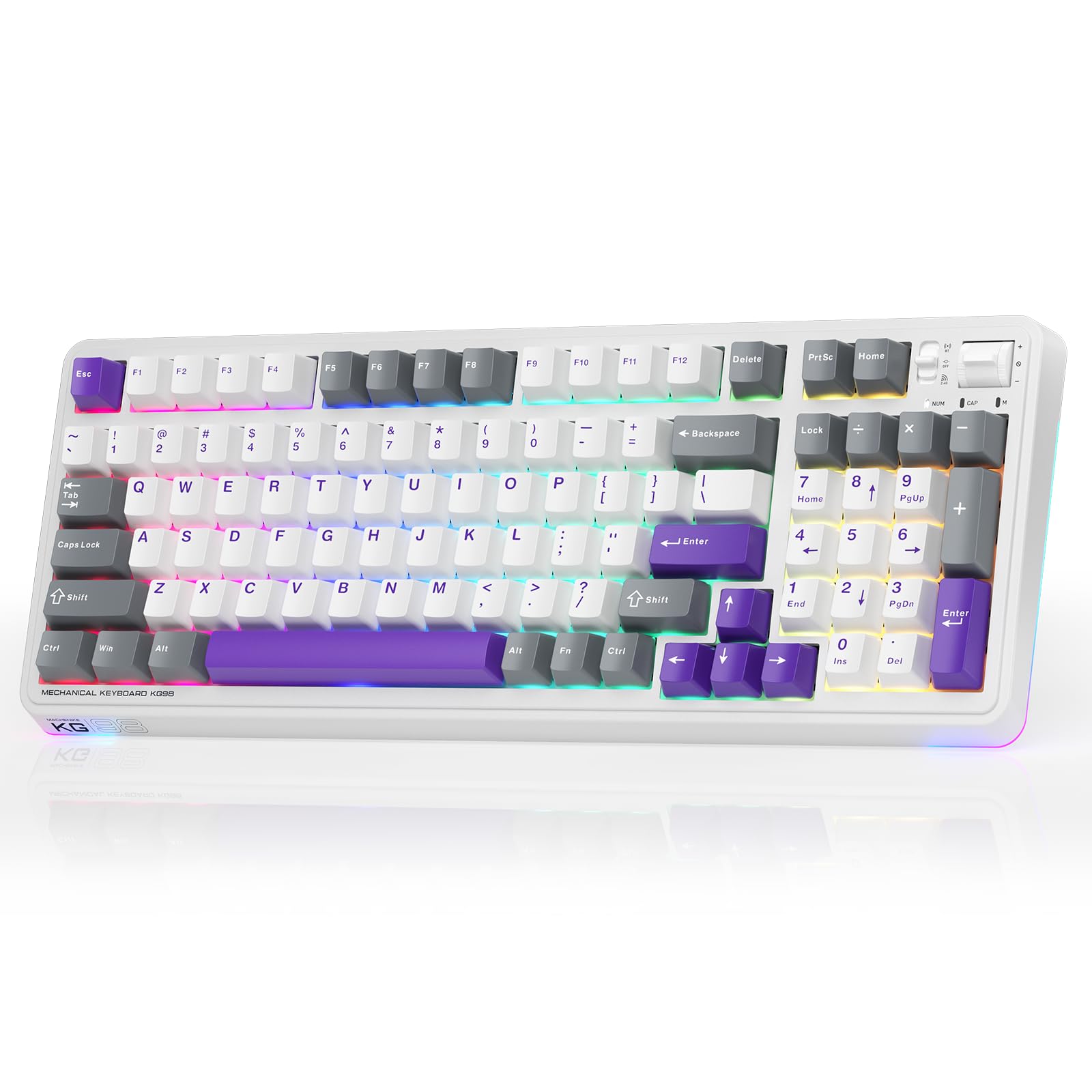
Figure 1: Machenike KG98 Mechanical Gaming Keyboard
2. Hvad er der i æsken
Kontroller venligst, at alle varer er til stede ved udpakning:
- Machenike KG98 Mechanical Keyboard
- Extra 2 Grey Pre-lubed Linear Switches
- Keycap aftrækker
- USB-kabel (Type-A til Type-C)
- Brugervejledning (dette dokument)

Figure 2: Box Contents of the KG98 Keyboard
3. Opsætning
3.1 Forbindelsestilstande
The KG98 keyboard supports three connection modes: Wired (USB-C), 2.4G Wireless, and Bluetooth (BT5.0). A mode switch is located on the top-right side of the keyboard.
- Kablet tilstand: Connect the provided USB-C cable to the keyboard and your computer. The mode switch should be in the middle (USB) position.
- 2.4G trådløs tilstand: Locate the 2.4G USB dongle (usually stored magnetically on the keyboard's underside). Insert the dongle into your computer's USB port. Slide the mode switch to the bottom (2.4G) position. The keyboard will automatically connect.
- Bluetooth-tilstand: Slide the mode switch to the top (BT) position. On your device (computer, tablet, smartphone), search for Bluetooth devices and select 'Machenike KG98'. The keyboard's indicator light will flash blue during pairing.
3.2 Opladning af tastaturet
The keyboard is equipped with an 8000mAh battery. To charge, connect the USB-C cable to the keyboard and a power source (e.g., computer USB port, USB wall adapter). The indicator light will show charging status.

Figure 3: Connectivity and Multimedia Control Switches
Video 1: Machenike KG98 Mechanical Keyboard Overview (Seller Content)
This video demonstrates the unboxing, various features, and connectivity options of the Machenike KG98 Mechanical Keyboard, including switch removal and typing sound tests.
4. Betjeningsvejledning
4.1 Funktionstastkombinationer
The KG98 keyboard utilizes the 'Fn' key for various secondary functions. Refer to the included user manual for a comprehensive list of Fn key combinations for both Windows and macOS, including multimedia controls, brightness adjustments, and system functions.
4.2 RGB-lysstyring
The keyboard features 16.8 million customizable RGB backlighting and dual-sided RGB light strips. Use the following key combinations to adjust the lighting:
- Fn + Shift: Cycle through various RGB lighting effects.
- Fn + Enter: Change the solid color of the current lighting effect.
- Fn + Pil op/ned: Juster baggrundsbelysningens lysstyrke (4 niveauer).
- Fn + Venstre/højre pil: Adjust animation speed (4 levels).
- Fn + Side op/Side ned: Change side light strip color.
- Fn + Home/End: Change side light strip mode/speed.
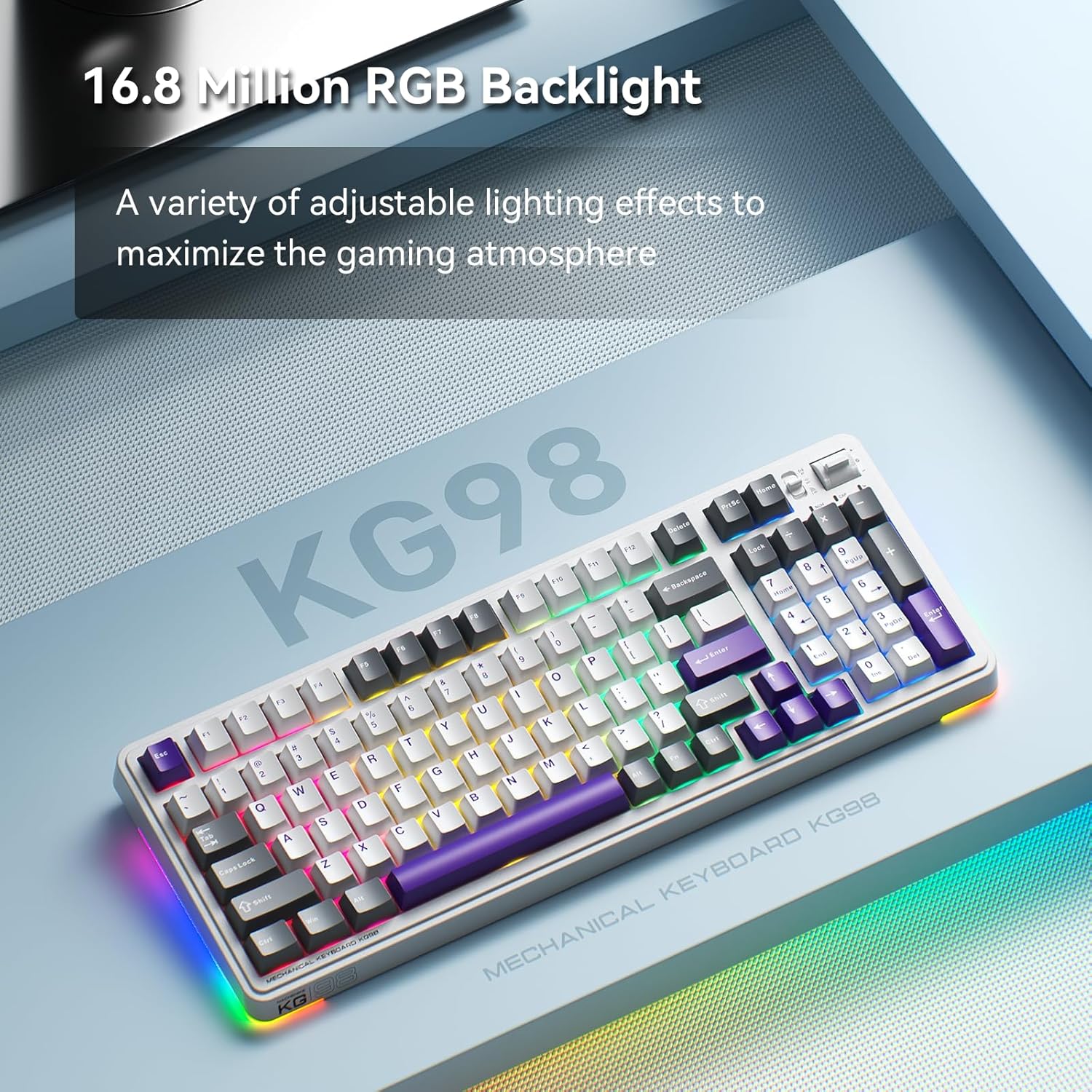
Figure 4: Customizable RGB Backlighting
4.3 Multimedia and Volume Controls
A multi-functional toggle switch is located on the top-right of the keyboard, allowing for quick adjustments:
- Rotere: Juster lydstyrken op eller ned.
- Trykke: Slå lyd til/fra.
- Tryk og hold: Skift mellem RGB-belysningstilstande.
5. Tilpasning
5.1 Hot-swap-kontakter
The KG98 keyboard features hot-swappable sockets, allowing you to easily replace switches without soldering. This enables personalization of typing feel and sound. Use the included keycap puller and switch puller to remove and install switches. The keyboard supports both 3-pin and 5-pin switches.

Figur 5: Hot-swap-kontakter
5.2 Udskiftning af tastehætte
The keyboard comes with durable PBT keycaps. You can replace these with aftermarket keycaps of your choice to further customize the keyboard's aesthetics. Use the keycap puller to safely remove keycaps.
5.3 Softwaretilpasning
Download the official Machenike software to unlock advanced customization options, including:
- Key remapping for individual keys.
- Macro recording and assignment.
- Detailed RGB lighting effects and color customization.
- Adjusting debounce time and sleep settings.
6. Specifikationer
| Modelnummer | KG98 |
| Produktdimensioner | 16.61 cm L x 7.48 cm B x 2.16 cm H |
| Varens vægt | 3.39 pund |
| Forbindelsesteknologi | BT5.0 (Bluetooth), 2.4G Wireless, USB-C Wired |
| Tastaturbeskrivelse | Pakning trådløst mekanisk tastatur |
| Tastatur baggrundsbelysning | RGB |
| Batteri | 1 lithium-ion batteri (medfølger) |
| Speciel funktion | Noise-canceling, Hot-swappable switches, Multi-functional switch |
| Kompatible enheder | Spillekonsol, bærbar computer, pc, smartphone, tablet |
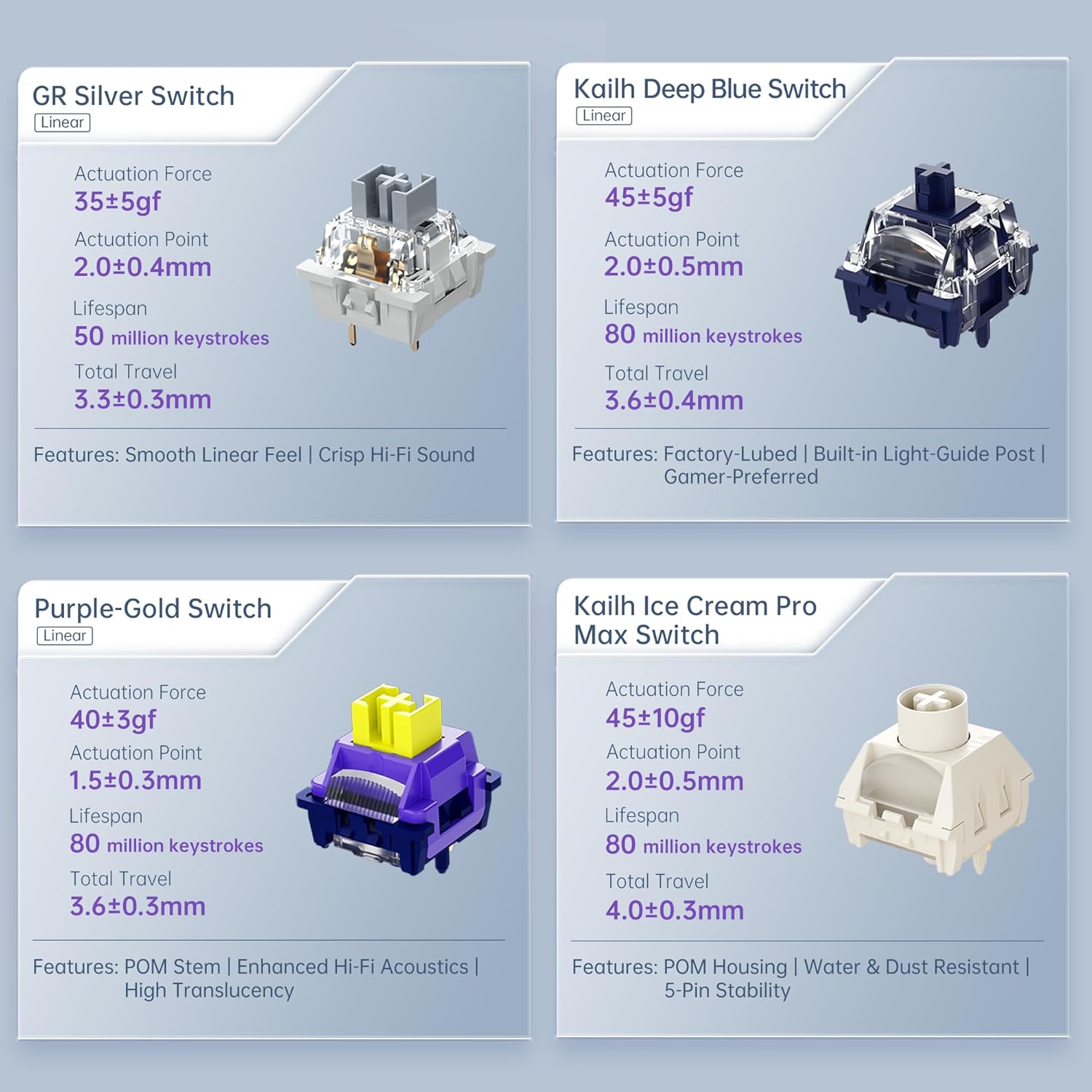
Figure 6: Premium 5-Layer Acoustic Filling Design
7. Vedligeholdelse
To ensure the longevity and optimal performance of your Machenike KG98 keyboard, follow these maintenance guidelines:
- Rensning: Regularly clean the keyboard with a soft, dry cloth. For deeper cleaning, remove keycaps using the provided puller and use compressed air to clear debris from between switches.
- Undgå væsker: Do not expose the keyboard to liquids. If spills occur, immediately disconnect the keyboard and allow it to dry completely before re-using.
- Opbevaring: Opbevar tastaturet et køligt, tørt sted væk fra direkte sollys og ekstreme temperaturer.
8. Fejlfinding
If you encounter issues with your Machenike KG98 keyboard, try the following troubleshooting steps:
- Ingen reaktion: Ensure the keyboard is properly connected in wired mode, or that the 2.4G dongle/Bluetooth is correctly paired and the mode switch is in the correct position. Check battery level.
- Forbindelsesproblemer: For wireless modes, ensure the keyboard is within range of your device. Try re-pairing Bluetooth or re-inserting the 2.4G dongle.
- RGB-lys virker ikke: Check brightness settings (Fn + Up Arrow). Ensure the lighting mode is active (Fn + Shift).
- Nøgler registreres ikke: If individual keys are not working, try replacing the switch using the provided tools and extra switches.
- Softwareproblemer: Ensure you have the latest version of the Machenike software installed. Restart your computer and the software.
- Gendan fabriksindstillinger: If problems persist, you can perform a factory reset via the customization software.
9. Garanti og support
For warranty information, technical support, or service inquiries, please contact Machenike customer support through their official website or the contact details provided with your purchase. Keep your proof of purchase for warranty claims.