
1. Introduktion
This manual provides essential information for setting up, operating, maintaining, and troubleshooting your VIBOX I-12 Gaming PC. This complete gaming system includes a 22-inch monitor, gaming keyboard, gaming mouse, headset, LED mouse pad, and a USB Wi-Fi 6 + Bluetooth 5.4 adapter. It is powered by an AMD Ryzen 3 3200G processor with integrated Radeon Vega 8 graphics, 16GB of DDR4 RAM, and a 500GB SSD, running on Windows 11 Home.
Please read this manual thoroughly before using your new PC to ensure optimal performance and longevity.
2. Opsætning
2.1 Udpakning og indhold
Pak forsigtigt alle komponenter ud af kassen. Sørg for, at følgende dele er til stede:
- VIBOX I-12 PC Tower
- 22 tommer skærm
- Gaming tastatur
- Gaming mus
- Headset
- LED musemåtte
- USB Wi-Fi 6 AX900 and Bluetooth 5.4 Adapter
- Power Cables (for PC and Monitor)
- HDMI kabel
- Dokumentation (denne manual)

Billede: VIBOX I-12 Gaming PC-tower, vistasing its internal components and white chassis.
2.2 Tilslutning af eksterne enheder
- Overvåge: Connect the 22-inch monitor to the PC tower using the provided HDMI cable. Ensure both ends are securely plugged in.
- Tastatur og mus: Connect the gaming keyboard and mouse to the available USB ports on the rear or front of the PC tower.
- Headset: Plug your headset into the audio jacks (headphone and microphone) on the front or rear of the PC.
- Wi-Fi/Bluetooth Adapter: Insert the USB Wi-Fi 6 + Bluetooth 5.4 adapter into an available USB port.
- Magt: Connect the power cable to the PC tower and then to a wall outlet. Connect the monitor's power cable to the monitor and a wall outlet. The PC uses a Type C/EF – 2 pin (European/hybrid FR-DE plug) power connection.

Billede: Nærbillede view of the PC's versatile connectivity panel, highlighting USB 3.0, USB 2.0, headphone jack, RGB change button, and power button.
2.3 Indledende tænding
Once all connections are secure, press the power button on the front of the PC tower. The system will boot up, and Windows 11 Home will guide you through the initial setup process, including language selection, network connection, and user account creation.
3. Betjening af din pc
3.1 Windows 11 Home
Your VIBOX I-12 PC comes pre-installed with Windows 11 Home, optimized for gaming. Key features include:
- DirectStorage: For faster game loading times.
- Auto HDR: Enhances graphics for supported games.
- Xbox Game Pass Integration: Seamless access to a library of games.
- Optimized CPU Performance: Ensures smooth gameplay and multitasking.
- Windows Defender & Windows Hello: Forbedrede sikkerhedsfunktioner.
Image: Promotional image for Windows 11 Home, highlighting its gaming-centric features like DirectStorage and Auto HDR.
3.2 Spilydelse
The AMD Ryzen 3 3200G processor with integrated Radeon Vega 8 graphics provides solid performance for popular games at 1080p resolution. Performance may vary depending on game settings and specific titles.

Image: Performance comparison for Minecraft and Fortnite, showing average FPS at 1920x1080 resolution with different graphics settings.

Image: Performance comparison for Counter-Strike 2 and Grand Theft Auto V, showing average FPS at 1920x1080 resolution with different graphics settings.
3.3 Forbindelse
The VIBOX I-12 offers comprehensive connectivity options:
- Trådløs: Integrated Wi-Fi 6 (802.11ax) and Bluetooth 5.4 for high-speed wireless networking and peripheral connections.
- wired: Ethernet port for stable wired internet connection.
- USB-porte: Multiple USB 3.0 and USB 2.0 ports for various peripherals.
- Video output: HDMI port for display connection.
4. Vedligeholdelse
4.1 Generel rengøring
To ensure optimal performance and longevity, regularly clean your PC. Use a soft, dry cloth to wipe down the exterior. For dust accumulation, especially on vents and fans, use compressed air. Sluk altid pc'en og tag stikket ud, inden du rengør den.
4.2 Kølesystem
The VIBOX I-12 features a mesh design and 6 Hex RGB 120mm fans for exceptional airflow and cooling. Periodically check the fan vents for dust buildup, which can impede airflow and lead to overheating. The tempered glass side panel is articulated and magnetic, allowing for easy access to internal components for cleaning and maintenance.

Image: Diagram illustrating the exceptional airflow and next-generation cooling design of the VIBOX I-12 PC tower.
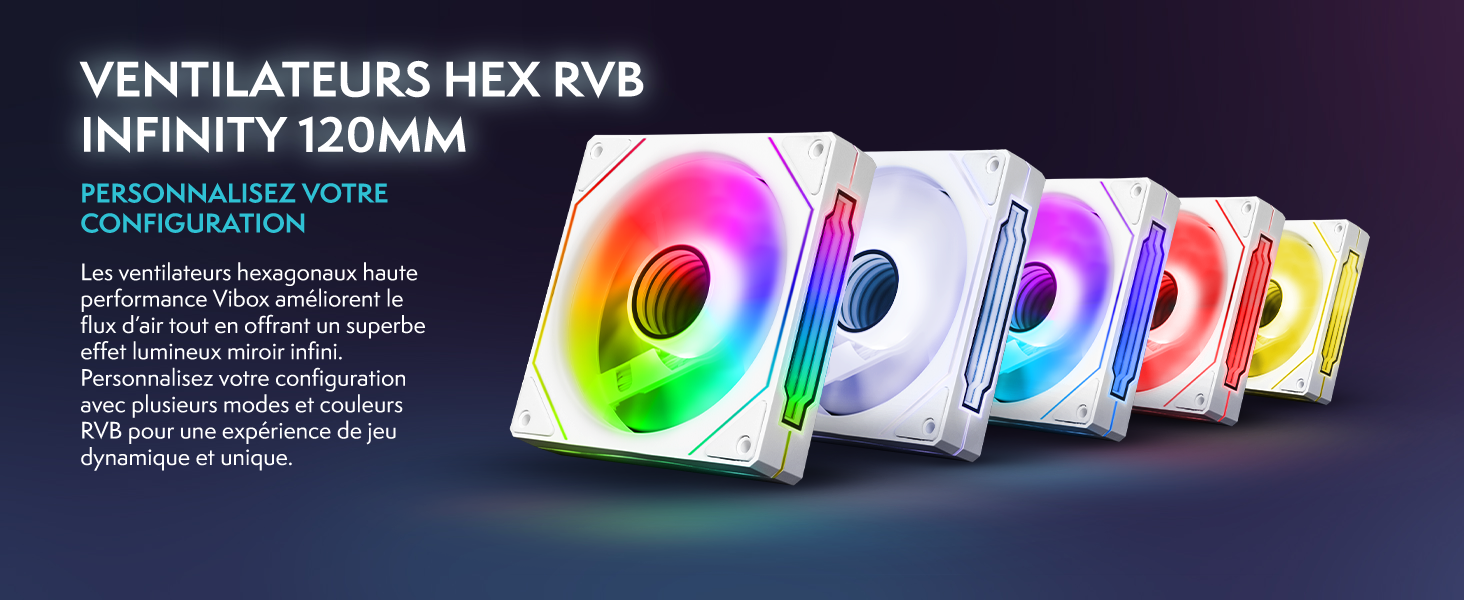
Image: Five 120mm RGB Infinity fans, showcasing brugerdefinerede belysningsmuligheder.
5. Fejlfinding
This section addresses common issues you might encounter. If you experience problems not covered here, please contact VIBOX support.
5.1 Ingen strøm / Systemet starter ikke
- Tjek strømforbindelser: Ensure all power cables (PC and monitor) are securely plugged into both the device and the wall outlet.
- Wall Socket: Test the wall socket with another device to confirm it is functional.
- Power knap: Ensure the power button on the PC tower is fully pressed.
5.2 Ingen visning på skærmen
- Kabelforbindelse: Verify the HDMI cable is firmly connected to both the PC's video output port and the monitor's input port.
- Skærmstyrke: Sørg for, at skærmen er tændt, og at dens strømindikatorlampe lyser.
- Inputkilde: Check the monitor's input source settings (e.g., HDMI 1, HDMI 2) to ensure it matches the port you're using.
5.3 Peripherals Not Responding (Keyboard/Mouse)
- USB-porte: Try connecting the keyboard and mouse to different USB ports on the PC.
- Genstart: Genstart pc'en.
- Drivere: Ensure Windows has installed the necessary drivers. This usually happens automatically.
5.4 Wi-Fi or Bluetooth Issues
- Adapterforbindelse: Ensure the USB Wi-Fi/Bluetooth adapter is securely plugged into a USB port.
- Drivere: Verify that the drivers for the adapter are correctly installed. Windows 11 typically handles this automatically.
- Netværksindstillinger: Check Windows network settings to ensure Wi-Fi and Bluetooth are enabled.
6. Specifikationer
| Komponent | Detalje |
|---|---|
| Mærke | VIBOX |
| Modelnummer | I-12 |
| Operativsystem | Windows 11 Home |
| Processor (CPU) | AMD Ryzen 3 3200G (4 Cores, 3.6 GHz Base, 4.0 GHz Max Boost) |
| Grafik (GPU) | Integrated Radeon Vega 8 Graphics (2GB Shared Memory) |
| VÆDDER | 16 GB DDR4 (2666 MHz) |
| Opbevaring | 500 GB SSD |
| Overvåge | 22-inch LED (1920x1080 Pixels, 16:9 Aspect Ratio) |
| Trådløs forbindelse | Wi-Fi 6 (802.11ac/n), Bluetooth 5.4 |
| Kablet tilslutning | Ethernet, HDMI (1 port), USB (4 total ports) |
| Afkølingsmetode | Air (6 Hex RGB 120mm fans) |
| Dimensions (PC Tower) | 40 x 21 x 45 cm |
| Strømstik type | Type C/EF – 2 pin (European/hybrid FR-DE) |
| Inkluderede periferiudstyr | 22" Monitor, Gaming Keyboard (AZERTY layout), Gaming Mouse, Headset, LED Mouse Pad, USB Wi-Fi/Bluetooth Adapter |
7. Garanti og support
7.1 Garantioplysninger
Your VIBOX I-12 Gaming PC comes with a comprehensive warranty:
- Dele: 2 år
- Arbejdskraft: Livstid
Please retain your proof of purchase for warranty claims. The warranty covers manufacturing defects and hardware failures under normal use conditions.
7.2 Kundesupport
For technical assistance, troubleshooting, or warranty inquiries, please contact VIBOX Gaming customer support. You can find more information and contact details on the official VIBOX webhjemmeside eller via deres Amazon-butiksside: