
OMOTON B0FCMD15TF
OMOTON Foldable Bluetooth Keyboard with Touchpad (QWERTZ Layout)
Model: B0FCMD15TF
Mærke: OMOTON
1. Introduktion
Thank you for choosing the OMOTON Foldable Bluetooth Keyboard with Touchpad. This portable QWERTZ keyboard is designed for convenience and efficiency, offering multi-device connectivity and an integrated touchpad. This manual provides detailed instructions for setup, operation, and maintenance to ensure optimal performance.
2. Pakkens indhold
Tjek venligst pakken for følgende varer:
- OMOTON Foldable Bluetooth Keyboard
- Mobiltelefonstativ
- Type-C opladerkabel
- Bæretaske
- Brugermanual
3. Produktet er slutview
The OMOTON Foldable Bluetooth Keyboard features a compact QWERTZ layout with 78 full-size keys and a multi-touch touchpad. It supports connection to up to three devices simultaneously across iOS, Android, and Windows operating systems. Its magnetic folding design makes it highly portable.
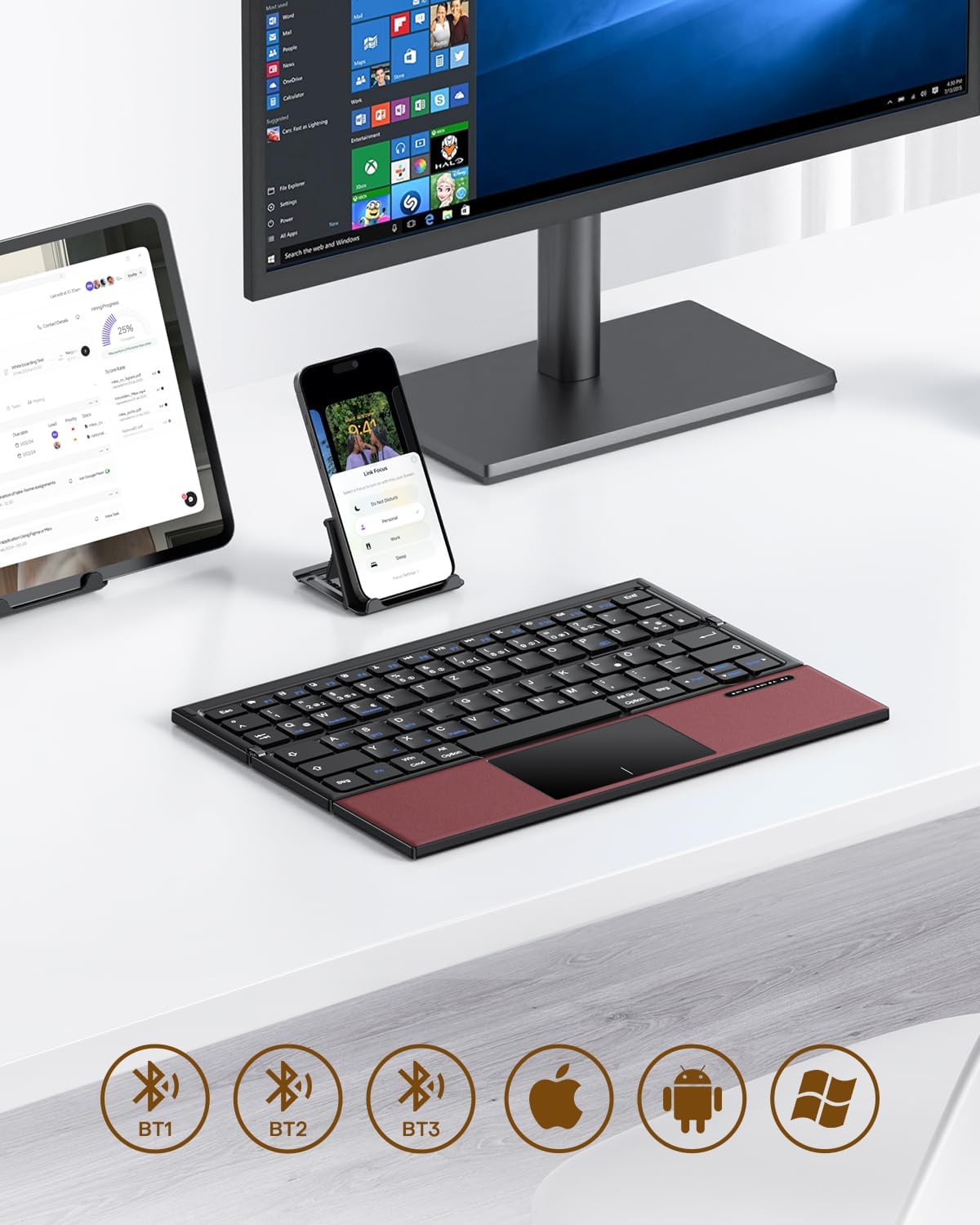
Image 3.1: The OMOTON Foldable Bluetooth Keyboard in use with a tablet, smartphone, and monitor, demonstrating multi-device connectivity via BT1, BT2, and BT3 channels.
Nøglefunktioner:
- Tri-fold design: Compact and portable for travel.
- Integreret touchpad: Multi-touch functionality for navigation without an external mouse.
- Tilslutning til flere enheder: Connects to up to three Bluetooth-enabled devices (BT1, BT2, BT3).
- QWERTZ-layout: Standard German keyboard layout with 78 full-size keys.
- Genopladeligt batteri: Indbygget 180mAh batteri med Type-C-opladning.

Image 3.2: Close-up details of the keyboard, highlighting its magnetic closure, indicator lights, silent scissor keys, elegant PU leather finish, and durable metal hinge.
Portabilitet:
The keyboard's compact, tri-fold design makes it ideal for travel and on-the-go use. It easily fits into bags and pockets, making it a convenient companion for various environments.

Image 3.3: The keyboard in use in a cafe, on an airplane, and in a meeting room, demonstrating its versatility for different work and travel scenarios.

Image 3.4: The folded keyboard being placed into a carrying case inside a bag and slipped into a jacket pocket, illustrating its compact size and ease of transport.
4. Opsætning
4.1 Opladning af tastaturet
Before first use, fully charge the keyboard. Use the included Type-C charging cable to connect the keyboard to a power source (e.g., computer USB port, USB wall adapter).
- Strømindikatorlampen viser opladningsstatus.
- En fuld opladning tager typisk 2-3 timer.
- The keyboard offers up to 60 hours of operating time and 90 days of standby time on a full charge.

Image 4.1: The keyboard connected via its Type-C port for charging, with icons indicating charging time, working time, and standby time.
4.2 Parring med en enhed
The keyboard supports up to three Bluetooth connections (BT1, BT2, BT3). Follow these steps to pair your keyboard with a device:
- Tænd: Unfold the keyboard to automatically power it on. The indicator light will flash.
- Vælg kanal: Tryk på Fn + BT1, Fn + BT2, eller Fn + BT3 keys simultaneously to select a Bluetooth channel. The corresponding indicator light will flash slowly.
- Gå ind i parringstilstand: Trykke Fn+C (or the Bluetooth icon key) to enter pairing mode. The selected channel indicator light will flash rapidly.
- Aktivér Bluetooth på enheden: Gå til Bluetooth-indstillingerne på din enhed (smartphone, tablet, bærbar computer), og tænd Bluetooth.
- Vælg tastatur: Søg efter "OMOTON Keyboard" (or similar) in the list of available devices and select it to connect.
- Bekræft forbindelse: Når den er tilsluttet, holder indikatorlampen på tastaturet op med at blinke og lyser konstant i et par sekunder, før den slukker.
Note: The Type-C cable is for charging only and does not support wired connectivity.
4.3 Skift mellem enheder
For at skifte mellem parrede enheder skal du blot trykke på Fn + BT1, Fn + BT2, eller Fn + BT3 to select the desired channel. The keyboard will automatically connect to the last paired device on that channel.
5. Betjeningsvejledning
5.1 Keyboard Layout and Special Keys
The keyboard features a QWERTZ layout with 78 standard keys and 12 multimedia shortcuts. Familiarize yourself with the layout for efficient typing.

Image 5.1: The keyboard displaying its full-size keys and integrated multi-touch touchpad, designed for a laptop-like typing experience.
5.2 Brug af touchpad'en
The multi-touch touchpad supports various gestures for navigation. This eliminates the need for an external mouse.
- Tryk med en enkelt finger: Venstre klik.
- To-finger tryk: Højreklik (kontekstmenu).
- To-finger rulning: Rul op/ned eller venstre/højre.
- Knib for at zoome: Zoom in/out (supported on some devices/apps).
- Strygbevægelser: Specific gestures may vary by operating system (Windows, Android, iOS).
Note for iPad users: You may need to enable "AssistiveTouch" in your iPad settings for full touchpad functionality. Some gestures may vary between applications. Scrolling direction can be adjusted in your device settings.
5.3 Strømbesparende tilstand
To conserve battery, the keyboard will automatically enter sleep mode after 30 minutes of inactivity. To wake it up, press any key.
5.4 Ergonomic Usage
For comfortable and ergonomic typing, ensure your screen is positioned correctly to maintain a healthy posture.

Image 5.2: A visual guide showing the recommended ergonomic posture for using the keyboard with a screen, emphasizing proper neck and back alignment.
6. Vedligeholdelse
- Rensning: Brug en blød, tør klud til at rengøre tastaturoverfladen. For genstridigt snavs, tør letampRengør kluden med vand eller en mild rengøringsopløsning. Undgå for meget fugt.
- Opbevaring: When not in use, fold the keyboard and store it in the provided carrying case to protect it from dust and scratches.
- Batteripleje: Avoid fully discharging the battery frequently. Charge the keyboard regularly, especially if it will be stored for an extended period.
- Undgå ekstreme forhold: Do not expose the keyboard to extreme temperatures, direct sunlight, or high humidity.
7. Fejlfinding
7.1 Tastatur opretter ikke forbindelse
- Ensure the keyboard is powered on (unfolded).
- Sørg for, at Bluetooth er aktiveret på din enhed.
- Check if the keyboard is in pairing mode (indicator light flashing rapidly after pressing Fn+C).
- Ensure you have selected the correct Bluetooth channel (BT1, BT2, or BT3).
- Prøv at ophæve parringen og parre tastaturet igen fra din enheds Bluetooth-indstillinger.
- Sørg for, at tastaturets batteri er opladet.
7.2 Touchpad'en reagerer ikke
- Sørg for, at tastaturet er korrekt forbundet via Bluetooth.
- For iPad users, verify that "AssistiveTouch" is enabled in your iPad settings.
- Genstart tastaturet og din enhed.
- Rengør touchpad-overfladen for at fjerne snavs eller affald.
7.3 Incorrect Key Output (QWERTZ vs. QWERTY)
- This keyboard has a QWERTZ layout. Ensure your device's software keyboard setting is also set to QWERTZ (German layout) for correct character output.
- If your device is set to QWERTY, some keys (e.g., Y/Z, special characters) will not match the physical keyboard. Adjust your device's input language/keyboard layout settings.
7.4 Kort batterilevetid
- Sørg for, at tastaturet er fuldt opladet før brug.
- The keyboard automatically enters sleep mode after 30 minutes of inactivity to save power.
- Avoid leaving the keyboard unfolded and powered on when not in use for extended periods.
8. Specifikationer
| Mærke | OMOTON |
| Model | B0FCMD15TF |
| Forbindelsesteknologi | Bluetooth |
| Kompatible enheder | iPadOS, iOS, Android, Windows (Laptops, PCs, Tablets, Smartphones) |
| Tastaturlayout | QWERTZ (tysk layout) |
| Antal nøgler | 78 |
| Særlige funktioner | Foldable, Portable, Rechargeable, Integrated Multi-touch Touchpad |
| Materiale | Plast, polyuretan (PU) |
| Batterikapacitet | 180 mAh Li-ion |
| Opladningsport | Type-C |
| Opladningstid | Ca. 2-3 timer |
| Driftstid | Op til 60 timer |
| Standby tid | Op til 90 dage |
| Foldede dimensioner | 25.3 x 6 x 2.1 cm |

Image 8.1: Visual representation of the keyboard's dimensions when unfolded and folded, alongside a tablet and smartphone for scale.
9. Garanti og support
OMOTON products come with a standard warranty. For detailed warranty information, please refer to the warranty card included in your package or visit the official OMOTON webwebsted.
If you encounter any issues or have questions regarding your OMOTON Foldable Bluetooth Keyboard, please contact OMOTON Customer Support:
- Webwebsted: OMOTON Official Store on Amazon
Please have your model number (B0FCMD15TF) and purchase details ready when contacting support.
Ask a question about this manual
Ask about setup, troubleshooting, compatibility, parts, safety, or missing instructions. Manuals+ will review the question and use this page’s manual context to help answer it.