
1. Introduktion
Thank you for choosing the TCL Gaming Monitor 25G54. This monitor is designed to provide an immersive gaming experience with its advanced display technology and high performance. This manual will guide you through the setup, operation, and maintenance of your new monitor.
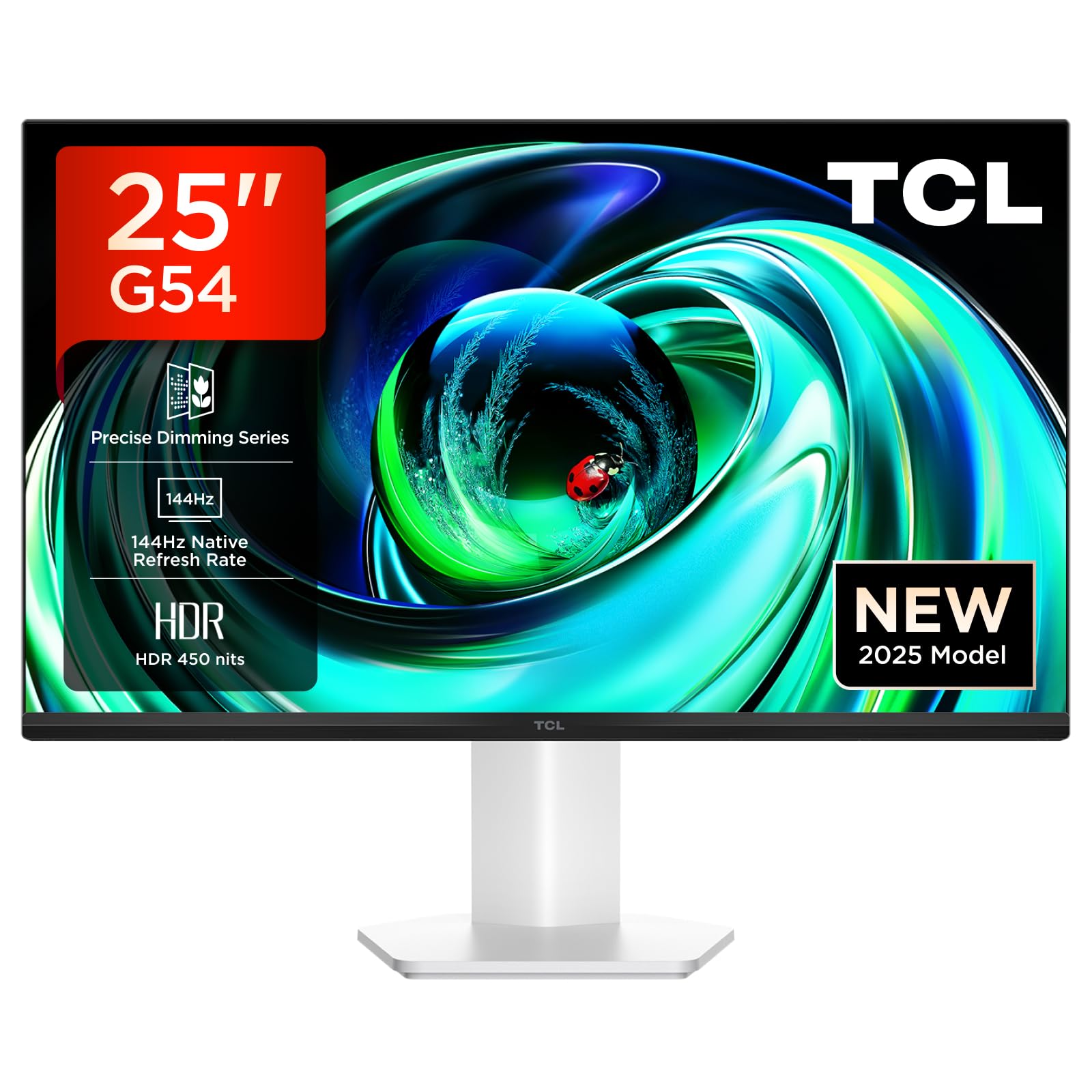
Figur 1: Forside view of the TCL Gaming Monitor 25G54.
2. Sikkerhedsoplysninger
Læs venligst alle instruktioner omhyggeligt, inden du bruger skærmen. Gem denne manual til senere brug.
- Udsæt ikke skærmen for regn eller fugt for at undgå brand eller elektrisk stød.
- Åbn ikke skærmen casing. Der er ingen dele indeni, som kan serviceres af brugeren. Overlad al service til kvalificeret personale.
- Placer skærmen på en stabil, plan overflade for at forhindre den i at falde.
- Sørg for tilstrækkelig ventilation omkring skærmen. Bloker ikke ventilationsåbningerne.
- Brug kun den strømadapter og de kabler, der er leveret af producenten.
- Tag stikket ud af stikkontakten, hvis skærmen ikke skal bruges i længere tid.
3. Pakkens indhold
Bekræft at alle varer er til stede i din pakke:
- TCL Gaming Monitor 25G54
- Monitorstativ (base og hals)
- Strømkabel
- HDMI kabel
- Brugervejledning og garantibevis
Note: Specific cable types (e.g., DisplayPort) may vary by region or package.
4. Opsætning
4.1 Samling af stativet
- Tag forsigtigt skærmens og stativets komponenter ud af emballagen.
- Fastgør stativets hals til skærmpanelet. Sørg for, at den klikker sikkert på plads, eller at den er fastgjort med skruer som angivet i hurtigstartvejledningen.
- Fastgør stativets base til stativets hals, og fastgør den med den medfølgende skrue.
- Placer den samlede skærm på et stabilt bord.
4.2 Tilslutning af skærmen
The monitor supports various input options. Connect the appropriate cable from your computer or gaming console to the monitor.
- HDMI-forbindelse: Use an HDMI cable to connect your device to the monitor's HDMI port.
- DisplayPort-forbindelse: Use a DisplayPort cable to connect your device to the monitor's DisplayPort.
- USB-forbindelser: Brug USB-portene til tilslutning af ydre enheder.

Figur 2: Bagside view showing the monitor's connectivity ports including HDMI, DisplayPort, and USB.
4.3 Tænd
- Tilslut strømkablet til skærmens strømindgang og derefter til en stikkontakt.
- Press the power button, usually located on the back or bottom of the monitor, to turn it on.
5. Betjeningsvejledning
5.1 On-Screen Display (OSD) menu
The OSD menu allows you to adjust various monitor settings. Access it using the joystick button, typically located on the back of the monitor.

Figure 3: Illustration of the joystick button for OSD menu navigation.
Almindelige OSD-indstillinger:
- Lysstyrke/kontrast: Juster skærmens luminans- og kontrastniveauer.
- Farveindstillinger: Modify color temperature, gamma, and color space (e.g., DCI-P3, sRGB).
- Inputkilde: Manually select the active input (HDMI, DisplayPort).
- Spilfunktioner: Enable/disable FreeSync, adjust response time, and other gaming-specific enhancements.
- Billedtilstand: Select preset display modes for different content types (e.g., Standard, Game, Movie).
5.2 Ergonomiske justeringer
Skærmstativet tilbyder ergonomiske justeringer for optimal viewkomfort.
- Vip: Juster skærmens lodrette vinkel.
- Drejelig: Drej skærmen vandret.
- Højdejustering: Hæv eller sænk skærmen til øjenhøjde.
- Pivot: Roter skærmen til stående eller liggende retning.

Figure 4: Illustration of the monitor's ergonomic stand, showing tilt and height adjustment capabilities.
6. Funktioner
The TCL Gaming Monitor 25G54 incorporates several key technologies for superior performance:
- Mini LED-teknologi: Combines QLED and OLED advantages for precise, pixel-level illumination, offering sharp contrast and a wide color gamut.
- Præcis dæmpningsserie: Enhances overall image quality by optimizing light and shadow, providing a high-quality visual experience.
- HDR 400 nit Brightness: With a peak brightness of 450 nits and a contrast ratio of 4,500,000:1, it delivers extended dynamic range and vivid details in both dark and bright areas.
- 144 Hz opdateringshastighed: Ensures smooth and fluid images in all gaming scenes and actions, minimizing motion blur.
- 1ms (GTG) responstid: An extremely fast response time reduces ghosting and blurring, allowing for quick target acquisition.
- 93% DCI-P3 Wide Color Gamut: Displays vibrant colors with professional-level accuracy, revealing an immersive world of color.
- TÜV Rheinland Flicker-Free & Low Blue Light: Certified for eye protection, this mode blocks harmful blue light and eliminates flicker for prolonged viewkomfort.

Figur 5: Overview of the TCL 25G54 Mini LED Monitor's key features.
7. Vedligeholdelse
Korrekt vedligeholdelse sikrer din skærms levetid og optimale ydeevne.
- Rengøring af skærmen: Tør forsigtigt skærmen af med en blød, fnugfri klud. Brug en skærmspecifik rengøringsopløsning på kluden, ikke direkte på skærmen, til genstridige pletter.
- Rengøring af Casing: Brug en blød, tør klud til at tørre skærmen afasing. Undgå slibende rengøringsmidler.
- Ventilation: Ensure the ventilation openings are clear of dust and debris. Use compressed air to clean if necessary.
- Sluk: Sluk altid skærmen og tag stikket ud af stikket, før du rengør den, eller hvis den ikke skal bruges i længere tid.
8. Fejlfinding
Hvis du støder på problemer med din skærm, kan du bruge følgende almindelige løsninger:
| Problem | Mulig årsag | Løsning |
|---|---|---|
| Intet billede på skærmen | Power cable disconnected, input cable loose, incorrect input source selected. | Check power and input cable connections. Select correct input source via OSD. |
| Billedet er sløret eller forvrænget | Incorrect resolution, faulty cable, graphics driver issue. | Set display resolution to 1920x1080. Try a different cable. Update graphics drivers. |
| Flimrende skærm | Refresh rate mismatch, faulty cable, external interference. | Ensure refresh rate is set to 144Hz. Try a different cable. Check for nearby electronic devices. |
| Ingen lyd | Audio cable not connected, volume too low, incorrect audio output selected. | Connect headphones to the monitor's audio output. Adjust volume. Select monitor as audio output on your device. |
Hvis problemet fortsætter efter at have prøvet disse løsninger, bedes du kontakte TCLs kundesupport.
9. Specifikationer
| Feature | Specifikation |
|---|---|
| Mærke | TCL |
| Modelnummer | 25G54 |
| Skærmstørrelse | 25 tommer |
| Opløsning | 1920x1080 (FHD) |
| Paneltype | IPS |
| Opdateringshastighed | 144 Hz |
| Svartid | 1 ms (GTG) |
| Lysstyrke | 450 nits |
| Kontrastforhold | 4,500,000:1 |
| HDR-understøttelse | VESA Display HDR 400 |
| Farveskala | 93 % DCI-P3 |
| Viewi vinkel | 178 grader |
| Forbindelse | 1x HDMI, 1x DisplayPort, 4x USB, Headphone Output |
| Adaptiv synkronisering | FreeSync |
| Dimensioner (DxBxH) | 18.2 x 55.6 x 43.9 cm |
| Vægt | 4.39 kg |
| Særlige funktioner | Mini LED, Flicker-Free, Low Blue Light |
10. Garanti og support
Your TCL Gaming Monitor 25G54 comes with a 2-year manufacturer's warranty. For warranty claims, technical support, or service inquiries, please visit the official TCL support webwebstedet eller kontakt din lokale forhandler.
For mere information, besøg TCL-butik på Amazon.
11. Genbrugsoplysninger
Please dispose of this product responsibly. Electronic waste should not be disposed of with household waste. Follow local regulations for the proper disposal of electronic devices. This helps protect the environment and human health.


