
Indledning
This manual provides essential information for setting up, operating, maintaining, and troubleshooting your Acer AL15-33P laptop. Please read this guide thoroughly to ensure proper use and to maximize the lifespan of your device.
Opsætning
1. Udpakning og indledende inspektion
Carefully remove the laptop and all accessories from the packaging. Check for any visible damage. The package should include the laptop, power adapter, and this user manual.

Front view of the Acer AL15-33P laptop with the screen displaying the Windows desktop.
2. Tilslutning af strøm
- Connect the AC adapter cable to the power adapter.
- Plug the DC output connector of the power adapter into the power input port on the side of your laptop.
- Sæt netledningen i en stikkontakt.
Batteriet begynder at oplade automatisk. Det anbefales at oplade batteriet helt inden første brug.
3. Første opstart og Windows-opsætning
- Åbn den bærbare computers låg.
- Press the power button, typically located on the keyboard deck or side, to turn on the laptop.
- Follow the on-screen instructions to complete the Windows 11 setup process. This includes selecting your region, language, accepting terms, and setting up a user account.
Betjening af din bærbare computer
1. Brug af tastatur og touchpad
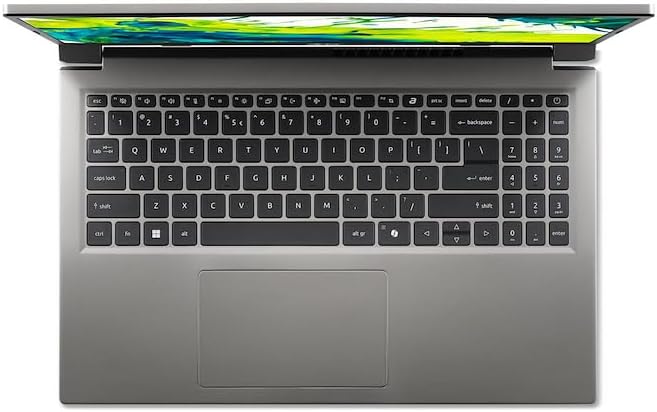
Top-down view af den bærbare computers tastatur og touchpad.
- Tastatur: The laptop features a full-size keyboard. Use the function (Fn) key in combination with F-keys for special functions like adjusting brightness, volume, or enabling/disabling Wi-Fi.
- Touchpad: The integrated touchpad supports multi-touch gestures. Tap to click, use two fingers to scroll, and pinch to zoom.
2. Tilslutning af eksterne enheder
Your Acer AL15-33P laptop is equipped with various ports for connecting external devices.

Right side of the laptop showing ports including USB and audio jack.

Left side of the laptop showing ports including power, USB-C, HDMI, and USB-A.
- USB-porte: Tilslut USB-enheder såsom eksterne harddiske, mus eller tastaturer.
- HDMI-port: Connect an external monitor or TV for a larger display.
- Lydstik: Tilslut hovedtelefoner eller eksterne højttalere.
- USB-C-port: For data transfer and potentially display output or charging, depending on the specific model configuration.
3. Trådløs forbindelse
- Wi-Fi: For at oprette forbindelse til et trådløst netværk skal du klikke på Wi-Fi-ikonet på proceslinjen, vælge dit netværk og indtaste adgangskoden, hvis det er nødvendigt.
- Bluetooth: For at parre Bluetooth-enheder skal du gå til Windows-indstillinger > Bluetooth og enheder og aktivere Bluetooth.
4. Strømstyring
- Sove mode: Luk låget, eller vælg 'Søvntilstand' i startmenuen for at sætte den bærbare computer i en lavstrømstilstand.
- Nedlukning: To turn off the laptop completely, go to the Start menu, click the Power icon, and select 'Shut down'.
- Genstart: To restart the laptop, go to the Start menu, click the Power icon, and select 'Restart'.
Opretholdelse
1. Rengøring af den bærbare computer
- Brug en blød, fnugfri klud lidt dampskylles med vand eller en skærmrens for at rengøre skærmen.
- Brug en blød klud til tastatur og kabinet. Undgå skrappe kemikalier eller slibende materialer.
- Brug jævnligt trykluft til at fjerne støv fra køleventilerne for at forhindre overophedning.
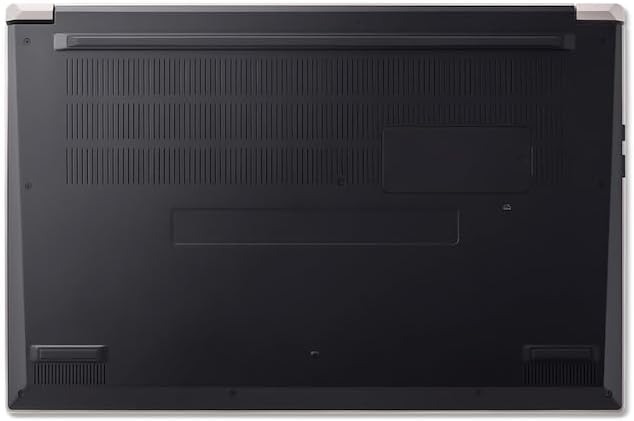
Bund view of the laptop, highlighting the ventilation grilles.
2. Batteripleje
- Undgå at aflade batteriet helt ofte.
- Hvis du opbevarer den bærbare computer i længere tid, skal du sørge for, at batteriet er opladet til cirka 50-70%.
- Operate the laptop in a moderate temperature environment.
3. Softwareopdateringer
Regularly update your operating system and drivers to ensure optimal performance and security. Windows Update can be accessed via Settings > Windows Update.
4. Lagerstyring
Periodisk vedrview og slet unødvendige files to free up storage space. Utilize cloud storage or external drives for backups of important data.
Fejlfinding
This section addresses common issues you might encounter with your Acer AL15-33P laptop.
| Problem | Mulig løsning |
|---|---|
| Den bærbare computer tænder ikke. | Ensure the power adapter is securely connected and the outlet is working. Try a different outlet. If the battery is completely drained, it may take a few minutes to show signs of life after plugging in. |
| Skærmen er tom eller sort. | Check if the laptop is powered on. Try pressing Fn + F6 (or the corresponding display toggle key) to cycle through display modes. Connect an external monitor to check if the issue is with the laptop's screen. |
| Problemer med Wi-Fi-forbindelse. | Ensure Wi-Fi is enabled (Fn + F3 or check Windows settings). Restart your router and modem. Check if other devices can connect to the Wi-Fi network. Update Wi-Fi drivers. |
| Den bærbare computer kører langsomt. | Close unnecessary applications. Check Task Manager for processes consuming high CPU or memory. Run a disk cleanup. Ensure Windows and drivers are up to date. |
Specifikationer
The following are key specifications for the Acer AL15-33P model. Note that specific configurations may vary.
- Model: Acer AL15-33P
- Processor: Intel Core i3-N355
- VÆDDER: 8 GB
- Opbevaring: 512 GB SSD
- Vise: 15.6 tommer
- Operativsystem: Windows 11
- Mærke: Acer
Garanti og support
Your Acer AL15-33P laptop comes with a standard manufacturer's warranty. Please refer to the warranty card included with your product for specific terms and conditions, including the warranty period and coverage details.
For teknisk support, download af drivere eller serviceforespørgsler, besøg venligst den officielle Acer-supportside. website or contact Acer customer service directly. Have your laptop's serial number ready when contacting support.
Acer Support Webwebsted: www.acer.com/support