
1. Vigtige sikkerhedsoplysninger
Please read this section carefully before using your Veidoo W40 tablet to ensure safe and proper operation. Keep this manual for future reference.
Generelle forholdsregler
- Undgå at udsætte tabletten for ekstreme temperaturer, direkte sollys eller høj luftfugtighed.
- Do not drop, bend, or puncture the tablet.
- Keep the tablet away from water and other liquids. If it gets wet, power it off immediately and allow it to dry completely before use.
- Use only accessories approved by Veidoo. Unauthorized accessories may damage the tablet or pose safety risks.
- Do not attempt to disassemble, repair, or modify the tablet yourself. Contact customer support for assistance.
Batterisikkerhed
- The tablet contains a non-removable lithium-ion battery. Do not attempt to replace it yourself.
- Udsæt ikke batteriet for ild eller ekstrem varme.
- Dispose of the tablet and its battery responsibly, following local regulations.
Opladningssikkerhed
- Charge the tablet using the provided USB-C cable and a compatible power adapter.
- Do not charge the tablet in damp forhold.
- Unplug the charger when the tablet is fully charged or not in use.
2. Produktet er slutview
The Veidoo W40 is an 11-inch Android tablet designed for versatile use, featuring an Octa-Core processor, ample storage, and modern connectivity options.
Nøglefunktioner
- Vise: 11-inch In-Cell HD Touch Screen with 1280x800 resolution.
- Processor: 2.0 GHz Octa-Core processor for smooth performance.
- Hukommelse og opbevaring: 8GB RAM (4GB + 4GB expandable) and 128GB internal storage, expandable up to 1TB via MicroSD card.
- Operativsystem: Android 14.
- Kameraer: 2MP front camera and 5MP rear camera.
- Forbindelse: WiFi 6 (802.11ax) and Bluetooth 5.0.
- Batteri: 5000mAh kapacitet.

Image: Veidoo W40 Tablet configuration summary, highlighting key features like Android 14, 11-inch In-Cell display, 1280x800 resolution, Octa-Core processor, 8GB RAM, 128GB ROM, 5000mAh battery, WiFi 6, Bluetooth 5.0, and dual cameras.
3. Hvad er der i æsken
The standard package for your Veidoo W40 tablet typically includes the following items:
- Veidoo W40 11-inch Android Tablet
- USB-C ladekabel
- Strømadapter
- Brugermanual
Note: Contents may vary slightly depending on region or retailer.
4. Kom godt i gang (opsætning)
4.1 Opladning af tabletten
- Tilslut USB-C-kablet til tablettens opladningsport.
- Tilslut den anden ende af USB-C-kablet til strømadapteren.
- Sæt strømadapteren i en stikkontakt.
- Lad tabletten oplades helt, før den tages i brug første gang. Batteriindikatoren på skærmen viser opladningsstatus.
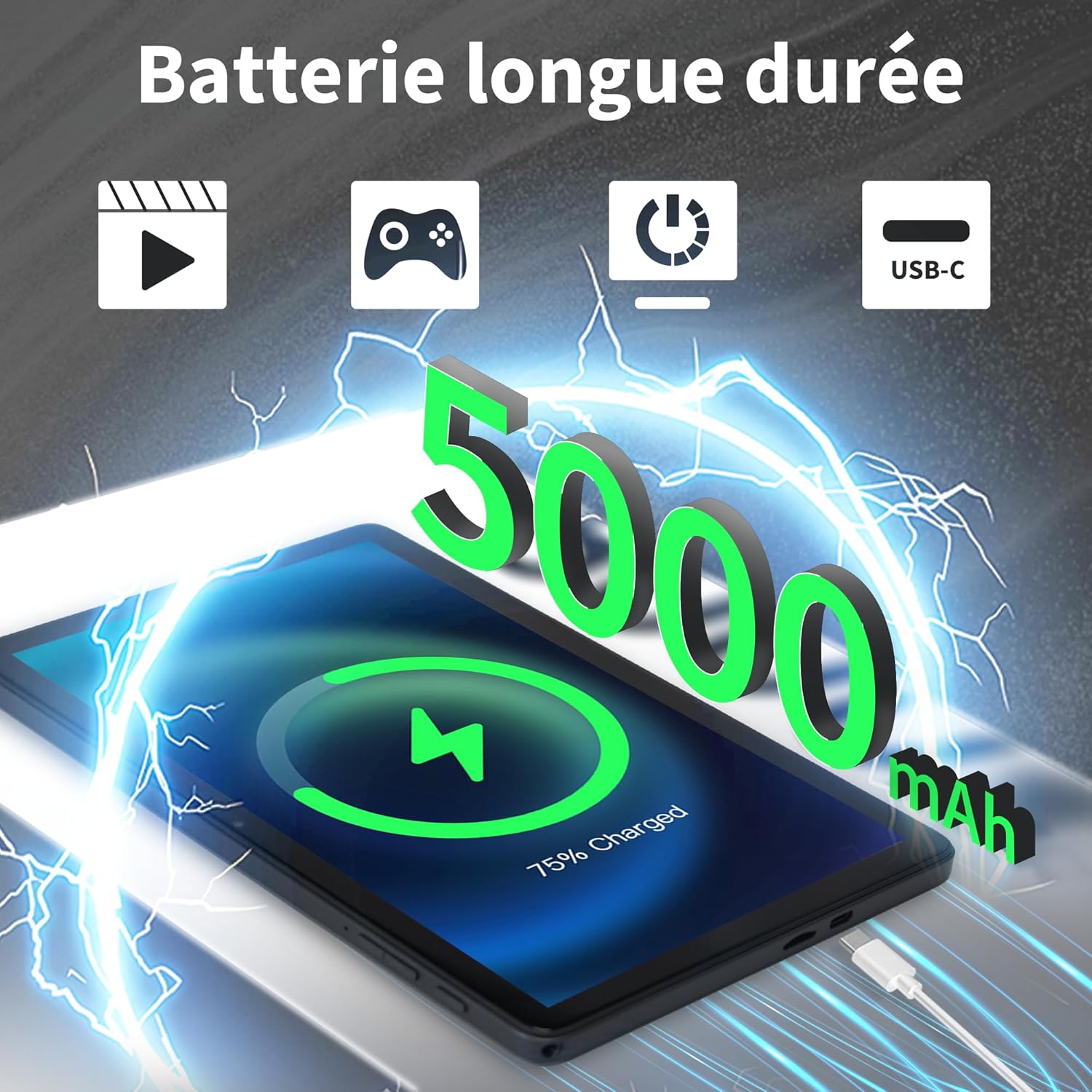
Image: Veidoo W40 Tablet connected to a USB-C charger, showing the battery icon and 5000mAh capacity.
4.2 Tænd/sluk
- For at tænde: Press and hold the Power button until the Veidoo logo appears on the screen.
- For at slukke: Tryk på tænd/sluk-knappen og hold den nede, indtil menuen med strømindstillinger vises. Vælg "Sluk", og bekræft.
- For at genstarte: Fra menuen med strømindstillinger skal du vælge "Genstart" og bekræfte.
4.3 Guide til indledende opsætning
Når tabletten tændes første gang, vil den guide dig gennem en indledende opsætningsproces:
- Vælg dit foretrukne sprog.
- Opret forbindelse til et Wi-Fi-netværk.
- Accepter vilkår og betingelser.
- Log ind med din Google-konto, eller opret en ny. Dette er nødvendigt for at downloade apps fra Google Play Store.
- Set up screen lock (PIN, pattern, or password) and other security features.
- Review og juster andre indstillinger efter behov.
4.4 Indsættelse af et MicroSD-kort
The tablet supports expandable storage up to 1TB using a MicroSD card.
- Find MicroSD-kortstikket på siden af tabletten.
- Sæt forsigtigt MicroSD-kortet i kortstikket med de gyldne kontakter nedad, indtil det klikker på plads.
- The tablet will detect the card and may prompt you to format it for use as portable or internal storage. Follow the on-screen instructions.
5. Grundlæggende betjening
5.1 Tryk på Bevægelser
- Tryk på: Touch the screen once to select an item or open an app.
- Tryk og hold: Tryk og hold på et element for at få adgang til kontekstmenuer eller træk elementer.
- Stryg: Træk fingeren hen over skærmen for at rulle gennem sider eller lister.
- At klemme: Brug to fingre til at zoome ind eller ud på billeder og web sider.
5.2 Tilslutning til Wi-Fi
- Gå til Indstillinger > Netværk og internet > Wi-Fi.
- Slå Wi-Fi til/fra On.
- Vælg dit ønskede Wi-Fi-netværk fra listen.
- Indtast adgangskoden, hvis du bliver bedt om det, og tryk på Forbinde.
5.3 Tilslutning til Bluetooth-enheder
- Gå til Indstillinger > Tilsluttede enheder > Forbindelsespræferencer > Bluetooth.
- Slå Bluetooth til/fra On.
- Sørg for, at din Bluetooth-enhed er i parringstilstand.
- Vælg enheden fra listen over tilgængelige enheder, og følg eventuelle vejledninger på skærmen for at fuldføre parringen.
5.4 Brug af kameraerne
Tabletten har et 2MP frontkamera og et 5MP bagkamera.
- Åbn Kamera app.
- Tryk på kameraikonet for at skifte mellem forreste og bageste kamera.
- Tryk på udløserknappen for at tage et billede eller starte/stoppe videooptagelse.
- Access photos and videos in the Gallery app.

Image: Tablet cameras (2MP front, 5MP rear) with example photos, demonstrating its capability to capture moments.
5.5 Administration af lagerplads
The tablet comes with 128GB of internal storage and supports up to 1TB expandable storage.
- Gå til Indstillinger > Opbevaring til view lagerbrug.
- You can free up space by uninstalling unused apps, deleting old photos/videos, or moving files til et MicroSD-kort.

Image: Tablet storage illustration, showing how photos, videos, and music can be stored on the 128GB ROM and expanded with 8GB RAM.
5.6 Installing/Uninstalling Apps
- Installer apps: Åbn Google Play Butik app, search for your desired app, and tap Installere.
- Afinstaller apps: Touch and hold the app icon on the home screen or app drawer, then drag it to "Uninstall" or select "App info" and tap "Uninstall". Alternatively, go to Indstillinger > Apps > select the app > Afinstaller.

Image: Tablet in use for various activities such as watching movies, playing games, working, and video calls, demonstrating its versatility.
6. Vedligeholdelse og pleje
6.1 Rengøring af tabletten
- Brug en blød, fnugfri klud til at rengøre skærmen og tablettens kabinet.
- Til genstridige pletter, let dampRengør kluden med vand eller en skærmrenser beregnet til elektronik.
- Undgå at bruge skrappe kemikalier, slibende rengøringsmidler eller aerosolspray.
6.2 Batterioptimering
To maximize battery life (5000mAh):
- Reducer skærmens lysstyrke.
- Sluk Wi-Fi og Bluetooth, når de ikke er i brug.
- Luk baggrundsapps.
- Enable battery saver mode in Settings.
- Undgå ekstreme temperaturer under opladning og brug.
6.3 Softwareopdateringer
Søg regelmæssigt efter og installer softwareopdateringer for at sikre optimal ydeevne og sikkerhed.
- Gå til Indstillinger > System > Systemopdatering.
- Følg instruktionerne på skærmen for at søge efter og installere tilgængelige opdateringer.
6.4 Fabriksindstilling
En fabriksnulstilling sletter alle data fra din tablet og gendanner den til dens oprindelige fabriksindstillinger. Sikkerhedskopier vigtige data, før du fortsætter.
- Gå til Indstillinger > System > Nulstil muligheder.
- Vælge Slet alle data (gendan fabriksindstillinger).
- Bekræft din beslutning, og indtast din pinkode/mønster/adgangskode, hvis du bliver bedt om det.
7. Fejlfinding
If you encounter issues with your Veidoo W40 tablet, try the following solutions:
Tabletten tænder ikke
- Ensure the tablet is sufficiently charged. Connect it to a power source and wait a few minutes before attempting to power on.
- Tryk og hold tænd/sluk-knappen nede i 10-15 sekunder for at fremtvinge en genstart.
Problemer med Wi-Fi-forbindelse
- Sørg for, at Wi-Fi er aktiveret i Indstillinger.
- Genstart din Wi-Fi-router.
- Glem netværket i tabletindstillingerne, og genopret forbindelsen.
- Sørg for, at du er inden for Wi-Fi-signalets rækkevidde.
Langsom ydeevne eller appnedbrud
- Luk ubrugte baggrundsprogrammer.
- Clear the cache of problematic apps (Settings > Apps > [App Name] > Storage & cache > Clear cache).
- Genstart tabletten.
- Sørg for, at der er tilstrækkelig opbevaringsplads.
- Check for system and app updates.
Skærmen reagerer ikke
- Genstart tabletten ved at holde tænd/sluk-knappen nede.
- Sørg for, at skærmen er ren og fri for snavs.
8. Specifikationer
Below are the technical specifications for the Veidoo W40 11-inch Android Tablet:
| Feature | Specifikation |
|---|---|
| Model | W40 |
| Skærmstørrelse | 11 tommer |
| Skærmopløsning | 1280 x 800 pixels (In-Cell HD Touch Screen) |
| Processor | 2.0 GHz Octa-Core (Allwinner) |
| VÆDDER | 8GB (4GB + 4GB Expand) |
| Internt lager (ROM) | 128 GB |
| Udvidelig opbevaring | Op til 1 TB via MicroSD-kort |
| Operativsystem | Android 14 |
| Forreste kamera | 2 MP |
| Bagkamera | 5 MP |
| Wi-Fi | Wi-Fi 6 (802.11ax) |
| Bluetooth | Bluetooth 5.0 |
| Batterikapacitet | 5000mAh |
| Dimensioner (LxBxH) | 9.57 x 6.34 x 0.31 tommer |
| Vægt | 1.13 pund |
| Farve | Grå |

Image: Octa-Core processor illustration, highlighting the 2.0 GHz speed and performance benefits.
9. Garanti og support
Garantioplysninger
Your Veidoo W40 tablet is covered by a standard manufacturer's warranty. Please refer to the warranty card included in your package or visit the official Veidoo webwebstedet for detaljerede vilkår og betingelser vedrørende garantidækning, varighed og reklamationsproces.
Kundesupport
If you require technical assistance, have questions about your product, or need to report an issue, please contact Veidoo customer support. For inquiries, you may consult via email. Contact details are typically available on the official Veidoo webwebsted eller via din købsplatform.