
1. Introduktion
This user manual provides detailed instructions for the KTC M27P6 27-inch MiniLED Gaming Monitor. Please read this manual thoroughly before operating the device to ensure proper usage and optimal performance. Keep this manual for future reference.
The KTC M27P6 is a high-performance gaming monitor featuring a 27-inch MiniLED panel with 1152 local dimming zones, offering exceptional contrast and brightness up to HDR1400. It supports dual display modes: 4K resolution at 160Hz and Full HD resolution at 320Hz, providing versatility for various gaming and professional needs. Key features include a 1ms GtG response time, Adaptive Sync technology, and comprehensive connectivity options including USB-C with 65W power delivery and KVM functionality.

Billede: Overview of KTC M27P6 monitor's key features including MiniLED, 1152 local dimming zones, dual mode 4K@160Hz/FHD@320Hz, USB-C, KVM, HDR1400, 145% sRGB, Fast IPS, and Adaptive-Sync.
2. Sikkerhedsoplysninger
- Placer altid skærmen på en stabil, plan overflade for at forhindre den i at falde ned.
- Udsæt ikke skærmen for regn eller fugt for at undgå elektrisk stød eller brand.
- Keep the monitor away from direct sunlight, heat sources, or extreme temperatures.
- Sørg for tilstrækkelig ventilation omkring skærmen. Bloker ikke ventilationsåbningerne.
- Brug kun den strømadapter og de kabler, der er medfølgende eller anbefalet af producenten.
- Unplug the power cord from the outlet if the monitor will not be used for a long period.
- Forsøg ikke at reparere skærmen selv. Overlad al service til kvalificeret servicepersonale.
- Undgå at berøre skærmen med skarpe genstande.
3. Pakkens indhold
Verify that all components are present in your package. If any items are missing or damaged, contact your retailer.
- KTC M27P6 27-inch MiniLED Gaming Monitor
- Skærmstativ (base og arm)
- Strømadapter
- Strømkabel
- HDMI kabel
- DisplayPort-kabel
- USB-C kabel
- USB-B to USB-A Cable (for KVM/USB Hub)
- Brugervejledning (dette dokument)
- Garantikort
4. Monitor Overview
4.1 Foran View
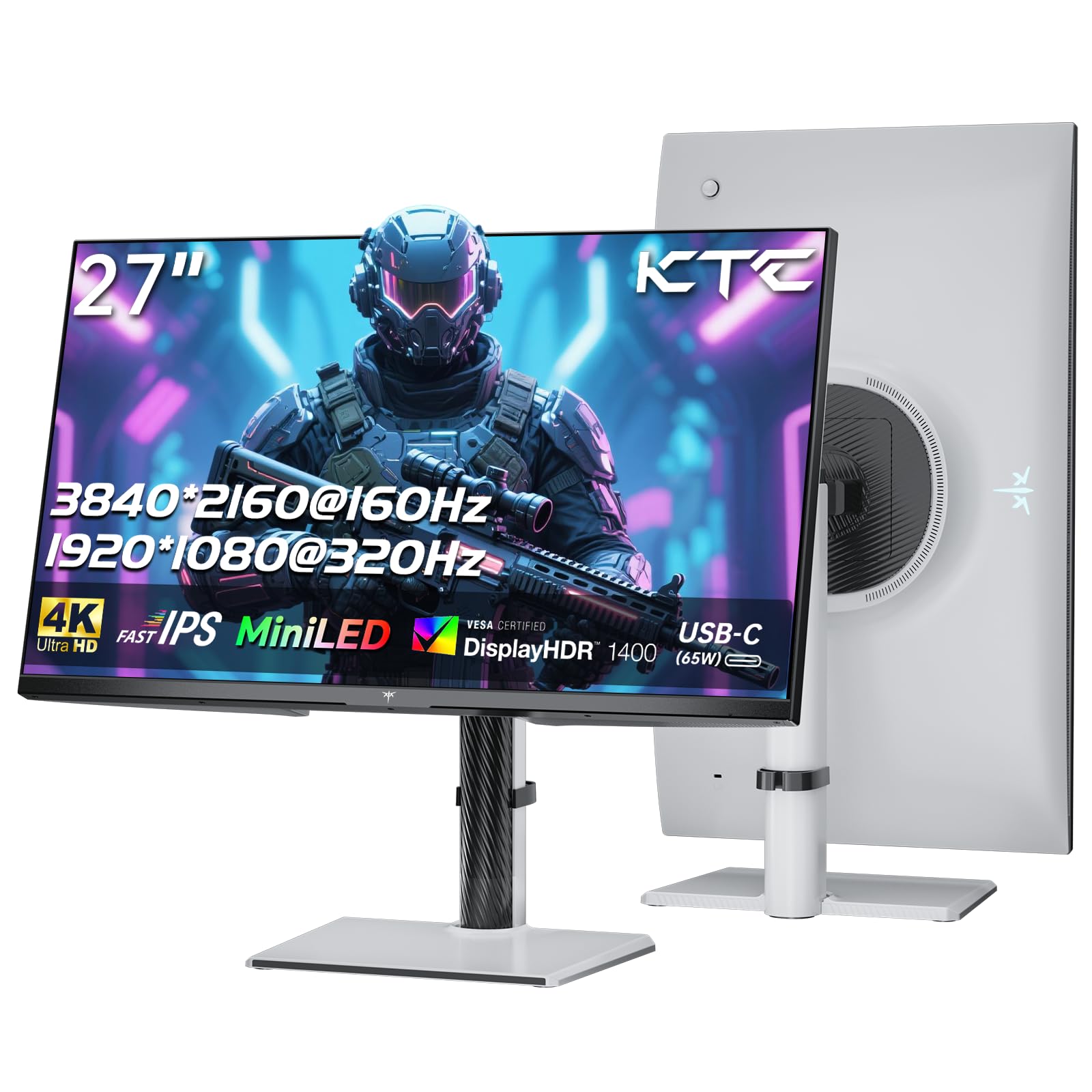
Billede: Forside view of the KTC M27P6 27-inch MiniLED Gaming Monitor.
The front of the monitor features the 27-inch MiniLED display panel. The KTC logo is typically located at the bottom center bezel.
4.2 bag View og havne

Billede: Bagside view of the KTC M27P6 monitor, highlighting the various input/output ports and the adjustable stand.
The rear of the monitor houses the input/output ports and the stand attachment point. The ports include:
- Strømindgang: Til tilslutning af strømadapteren.
- HDMI 2.1-porte (x2): For connecting to devices supporting HDMI 2.1 (4K@160Hz / FHD@320Hz).
- DisplayPort 1.4 Ports (x2): For connecting to devices supporting DisplayPort 1.4 (4K@160Hz / FHD@320Hz).
- USB-C-port (x1): Full-function port supporting video input (4K@160Hz / FHD@320Hz) and 65W Power Delivery.
- USB-B Upstream Port (x1): For connecting the monitor's USB hub to your computer, enabling the downstream USB-A ports and KVM functionality.
- USB-A 3.0 Downstream Ports (x3): Til tilslutning af eksterne enheder som tastaturer, mus eller USB-drev.
- 3.5 mm lydudgang: Til tilslutning af hovedtelefoner eller eksterne højttalere.
Video: En overview of the KTC M27P6 monitor's features and design, including its connectivity options and adjustable stand.
5. Opsætning
5.1 Samling af stativet
- Tag forsigtigt skærmens og stativets komponenter ud af emballagen.
- Attach the stand arm to the monitor panel by aligning the mounting points and securing with screws (if applicable).
- Attach the stand base to the stand arm, ensuring it is firmly connected.
- Placer den samlede skærm på en stabil, plan overflade.
The monitor also supports VESA mounting (100x100mm) for use with compatible wall mounts or monitor arms. Ensure the VESA mount is rated for the monitor's weight.

Image: Diagram illustrating the multi-angle adjustment capabilities of the KTC M27P6 monitor stand, including height, tilt, swivel, and pivot.
5.2 Tilslutningskabler
- Strømtilslutning: Tilslut strømadapteren til skærmens strømindgang, og sæt derefter strømkablet i en stikkontakt.
- Videoforbindelse:
- For PC/Gaming Console: Connect one end of the HDMI or DisplayPort cable to your device's output and the other end to the corresponding port on the monitor.
- For USB-C Compatible Devices: Connect the USB-C cable from your device to the monitor's USB-C port for video, data, and power delivery.
- USB Hub/KVM Connection: To use the monitor's USB-A ports and KVM functionality, connect the USB-B to USB-A cable from the monitor's USB-B upstream port to a USB-A port on your computer.
- Lydforbindelse: If using external headphones or speakers, connect them to the 3.5mm audio out port on the monitor.
6. Betjeningsvejledning
6.1 Tænd/sluk
Press the power button (usually located on the back or bottom of the monitor) to turn the monitor on or off. The power indicator light will illuminate when the monitor is on.
6.2 OSD-menu navigation
The On-Screen Display (OSD) menu allows you to adjust various monitor settings. Use the joystick or buttons (refer to your monitor's physical layout) to navigate the OSD menu:
- Press Joystick/Button: Gå ind i OSD-menuen eller bekræft valget.
- Flyt joysticket op/ned: Naviger gennem menuindstillinger.
- Flyt joysticket til venstre/højre: Adjust values or move to sub-menus.
- Afslut-knap: Exit the current menu or OSD.
6.3 Dual Mode Switching (4K@160Hz / FHD@320Hz)
The KTC M27P6 supports seamless switching between two display modes: 4K (3840x2160) at 160Hz and Full HD (1920x1080) at 320Hz. This allows you to optimize performance based on your content (e.g., high-resolution graphics for AAA games or ultra-high refresh rate for competitive FPS games).
To switch modes, access the OSD menu and navigate to the "Display" or "Gaming" settings. Select the desired resolution and refresh rate. Your connected device must also support these resolutions and refresh rates for optimal performance.

Image: Illustration of the KTC M27P6 monitor's seamless dual mode switching capability, showing a 4K@160Hz gaming scene and a FHD@320Hz gaming scene.
6.4 Adaptiv synkronisering
The monitor supports Adaptive Sync (AMD FreeSync and NVIDIA G-Sync compatible) to eliminate screen tearing and stuttering, providing a smoother gaming experience. Ensure Adaptive Sync is enabled in the monitor's OSD settings and in your graphics card control panel.

Image: Visual representation of Adaptive Sync technology, showing how it prevents screen tearing by synchronizing the monitor's refresh rate with the GPU's frame rate.
6.5 KVM-funktionalitet
The integrated KVM (Keyboard, Video, Mouse) switch allows you to control multiple computers or devices connected to the monitor using a single keyboard and mouse. To use KVM:
- Connect your primary computer to the monitor via DisplayPort/HDMI and the USB-B upstream cable.
- Connect your secondary device (e.g., laptop via USB-C) to the monitor.
- Connect your keyboard and mouse to the USB-A downstream ports on the monitor.
- Switch between connected devices using the KVM hotkey or OSD menu option.
6.6 Color Settings and HDR1400
The monitor features a MiniLED panel with 1152 local dimming zones and VESA DisplayHDR 1400 certification, providing high contrast and vibrant colors. You can adjust color settings (brightness, contrast, color temperature, gamma) through the OSD menu. For HDR content, ensure HDR is enabled in your operating system and the monitor's OSD. The monitor supports 10-bit color depth and a wide color gamut (145% sRGB / 99% DCI-P3).

Image: Visual comparison demonstrating the enhanced dynamic range and detail provided by HDR1400 on the KTC M27P6 monitor.
7. Vedligeholdelse
- Rengøring af skærmen: Tør forsigtigt skærmen af med en blød, fnugfri klud. Fjern genstridige mærker ved atampRengør kluden med en lille mængde skærmrens (uden ammoniak). Spray ikke rengøringsmiddel direkte på skærmen.
- Rengøring af Casing: Brug en blød, tør klud til at tørre skærmen afasing. Undgå at bruge slibende rengøringsmidler eller opløsningsmidler.
- Ventilation: Ensure the ventilation openings on the monitor are clear of dust and debris to prevent overheating.
8. Fejlfinding
| Problem | Mulig årsag | Løsning |
|---|---|---|
| Intet billede på skærmen | Strømkabel frakoblet; Videokabel frakoblet; Forkert inputkilde. | Kontroller strøm- og videokabelforbindelser. Vælg den korrekte inputkilde via OSD-menuen. |
| Billedet er sløret eller forvrænget | Forkert opløsning; Defekt videokabel. | Set the display resolution to the native 3840x2160 or 1920x1080. Try a different video cable. |
| Skærmrivning eller hakken i spil | Adaptive Sync not enabled; Graphics card driver issues. | Enable Adaptive Sync in monitor OSD and graphics card settings. Update graphics drivers. |
| USB-porte virker ikke | USB-B upstream cable not connected; Driver issues. | Ensure the USB-B upstream cable is connected from the monitor to your computer. Check computer's USB drivers. |
| Ingen lyd fra lydudgang | Incorrect audio output selected; Volume too low. | Check audio output settings on your computer. Adjust monitor and device volume. |
9. Specifikationer
| Feature | Detalje |
|---|---|
| Mærke | KTC |
| Modelnavn | M27P6 |
| Skærmstørrelse | 27 Pollici (27 inches) |
| Paneltype | MiniLED, Fast IPS |
| Resolution (Native) | 3840 x 2160 (4K UHD) |
| Maksimal opdateringshastighed (4K) | 160 Hz |
| Maksimal opdateringshastighed (FHD) | 320 Hz |
| Svartid | 1ms GtG |
| Lokale dæmpningszoner | 1152 zoner |
| HDR certificering | VESA DisplayHDR 1400 |
| Lysstyrke | 1400 cd/m² (peak) |
| Kontrastforhold | 1,000,000:1 (dynamisk) |
| Farveskala | 145 % sRGB, 99 % DCI-P3 |
| Farvedybde | 10-bit |
| Adaptiv synkronisering | Kompatibel med AMD FreeSync og NVIDIA G-Sync |
| Viewi vinkel | 178 grader |
| Forbindelse | 2x HDMI 2.1, 2x DisplayPort 1.4, 1x USB-C (65W PD), 1x USB-B Upstream, 3x USB-A 3.0 Downstream, 1x 3.5mm Audio Out |
| KVM-understøttelse | Ja |
| Stativjusteringer | Højde, tilt, dreje, dreje |
| VESA Mount | 100 x 100 mm |
| Dimensioner (DxBxH) | 21.1P x 61.7L x 54.7H cm |
10. Garanti og support
KTC products are covered by a limited warranty. Please refer to the warranty card included in your package for specific terms and conditions. For technical support, troubleshooting assistance, or warranty claims, please contact KTC customer service or visit the official KTC webwebsted.
You can find more information and contact details on the KTC official store page: KTC Store.