
Indledning
Welcome to your BoxWave AllReader SD Card Reader. This device provides a convenient solution for transferring files between various devices using SD and microSD cards. It features multiple interfaces for broad compatibility, allowing you to easily manage your digital content across different platforms.
Produkt overview
The BoxWave AllReader SD Card Reader is designed for ease of use and versatility. Key features include:
- Four Interfaces: Equipped with USB-C, USB-A, and Micro-USB connectors for wide compatibility with smartphones, tablets, and computers. This ensures connectivity with a broad range of modern and legacy devices.
- Let File Overførsel: Facilitates quick and simple transfer of photos, videos, music, and other files between your memory cards and devices. Streamline your data management without complex software.
- Plug and Play: No drivers or software installation required. Simply insert your SD or microSD card and connect to your device. The system will automatically recognize the reader.
- Kompakt design: Its small and lightweight form factor makes it highly portable, fitting easily into your bag, purse, or pocket for on-the-go use.

Image: The BoxWave AllReader SD Card Reader, showcasing dens kompakte design og forskellige tilslutningsporte.
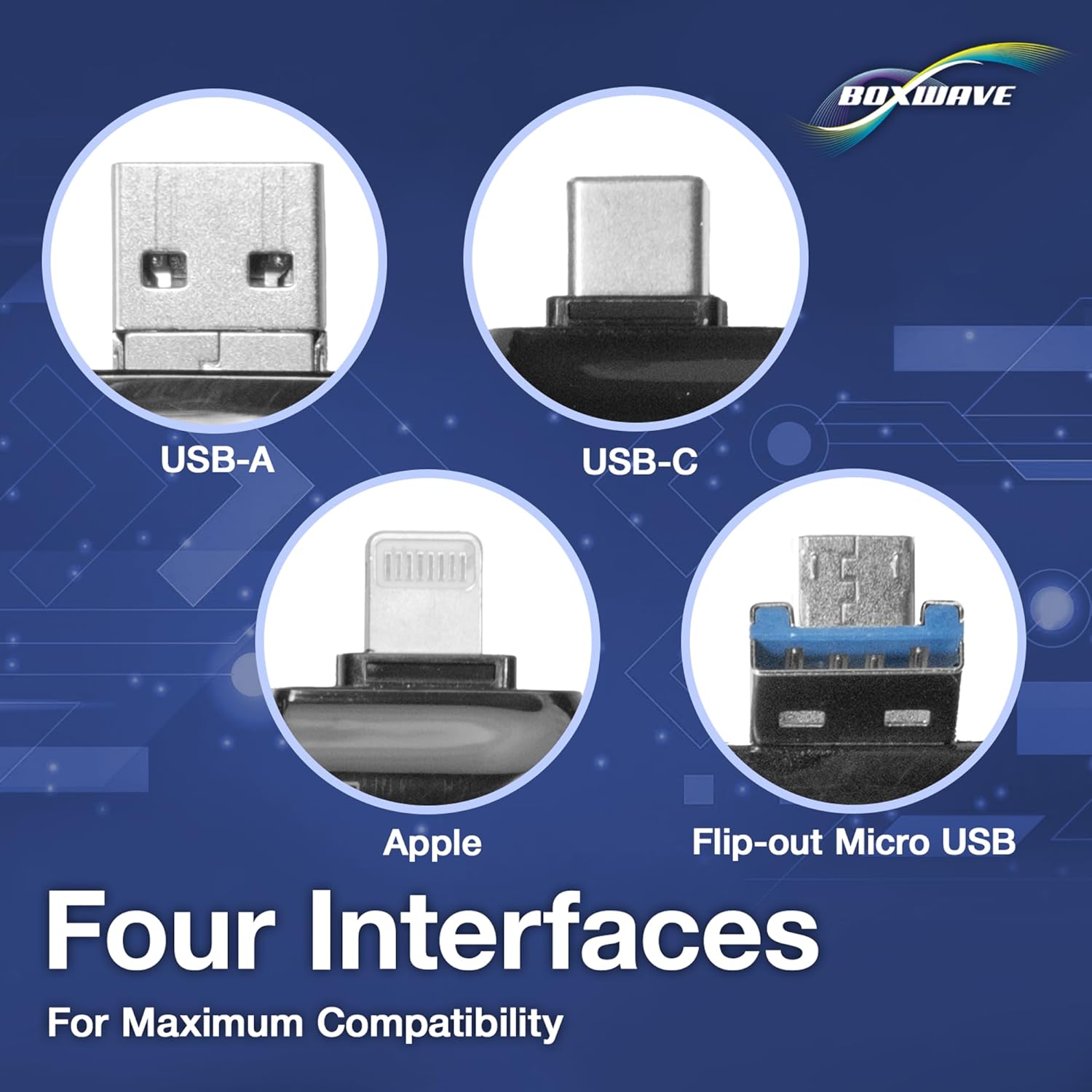
Billede: En detaljeret view highlighting the four distinct interfaces: USB-A, USB-C, Apple (Lightning), and a flip-out Micro USB connector, ensuring maximum compatibility.
Opsætning
Follow these steps to set up your BoxWave AllReader SD Card Reader:
- Indsæt hukommelseskort: Locate the appropriate slot for your SD or microSD card on the AllReader. Gently insert your memory card until it clicks into place. Ensure the card is inserted correctly according to its orientation, with the contacts facing down.
- Opret forbindelse til enhed: Identify the correct connector on the AllReader for your host device (USB-C, USB-A, or Micro-USB). Plug the AllReader firmly into the corresponding port on your smartphone, tablet, or computer.
- Enhedsgenkendelse: Your device should automatically detect the AllReader as an external storage device. You may see a notification or the device appear in your file leder.

Image: The AllReader SD Card Reader with an SD card inserted, connected to a tablet, demonstrating the ease of setup for file adgang.
Betjeningsvejledning
Adgang Files
Once the AllReader is connected and recognized by your device, navigate to your device's file manager, 'My Files' app, or photo gallery application. The inserted memory card will appear as a removable drive or external storage device. Tap or click on it to view dens indhold.
Overfører Files
At overføre files, use your device's standard file ledelsesfunktioner:
- From Card to Device: Vælg files you wish to transfer from the memory card. Use your device's copy/paste or move function to transfer them to your desired location on the device's internal storage or another connected storage.
- From Device to Card: Vælg files from your device's internal storage or another source. Use the copy/paste or move function to transfer them to the memory card.
Frakobling af enheden
Before physically removing the AllReader, it is recommended to safely eject the device through your operating system's options (e.g., "Safely Remove Hardware" on Windows, "Eject" on macOS, or an unmount option on mobile devices) to prevent data corruption and ensure all write operations are complete.

Image: Visual representation of the AllReader connected to various devices including smartphones, tablets, laptops, and desktop PCs, demonstrating its versatile file overførselskapaciteter.
Opretholdelse
Proper care will extend the life of your AllReader SD Card Reader:
- Keep the AllReader clean and free from dust and debris. Use a soft, dry cloth for cleaning the exterior. Avoid using liquid cleaners.
- Undgå at udsætte enheden for ekstreme temperaturer, høj luftfugtighed eller direkte sollys.
- Do not attempt to disassemble the device. This can void any potential warranty and may cause damage.
- Store the AllReader in a safe place when not in use to prevent damage to the connectors and internal components.

Image: The BoxWave AllReader SD Card Reader held in a hand, illustrating its compact and portable size, which also makes it easy to store and maintain.
Fejlfinding
If you encounter issues with your AllReader, refer to the following common problems and solutions:
Enheden genkendes ikke
- Ensure the AllReader is firmly connected to your device's port. A loose connection can prevent recognition.
- Try connecting to a different USB port on your computer or another compatible device to rule out a faulty port.
- Verify that the memory card is correctly inserted into the AllReader. Remove and reinsert the card to ensure a proper connection.
- Test the memory card in another reader or device to confirm it is functional and not corrupted.
File Transfer Errors
- Check if the memory card has sufficient free space for the files you are attempting to transfer.
- Sørg for files you are transferring are not corrupted. Try opening them on another device if possible.
- If transferring many large files, try transferring a smaller number of files ad gangen.
- Make sure the memory card is not write-protected. Some SD cards have a small physical switch that can enable write protection.
Specifikationer
| Varens vægt | 6 ounce |
| ASIN | B0F6433SVR |
| Dato først tilgængelig | 13. august 2024 |
| Fabrikant | BoxWave |
| Grænseflader | USB-C, USB-A, Micro-USB, Apple (Lightning) |
| Kortkompatibilitet | SD, microSD |
Garanti og support
For detailed warranty information, product registration, or technical assistance, please visit the official BoxWave webwebstedet eller kontakt deres kundeserviceafdeling direkte. Gem venligst din købskvittering som købsbevis i tilfælde af garantikrav.