
1. Introduktion
This manual provides detailed instructions for the JamesDonkey J4 Wireless Custom Mechanical Keyboard. The J4 keyboard features tri-mode connectivity (2.4 GHz, Bluetooth 5.2, USB-C wired), QMK firmware for customization, dual-OS compatibility, hot-swappable switches, and an 80% tenkeyless layout with RGB backlighting. Please read this manual thoroughly to ensure proper setup and operation.

Image 1.1: JamesDonkey J4 Wireless Custom Mechanical Keyboard (Dark Blue variant).
2. Pakkens indhold
Bekræft at alle varer er til stede i din pakke:
Image 2.1: Diagram showing the keyboard and included accessories.
- 1 x Fully Assembled JamesDonkey J4 Keyboard
- 1 x Type-A til Type-C-kabel
- 1 x Type-A 2.4GHz Receiver
- 1 x Tastatur- og switch-aftrækker
- Internal Components (Case, PCB, Steel Plate, Sound Absorbing Foam, IXPE Foam, PET Film, Bottom Pad, EPDM Foam, Bottom Case PET Film, Stabilizers, Keycaps, Switches)
3. Opsætning og tilslutning
The JamesDonkey J4 keyboard supports three connection modes: 2.4 GHz wireless, Bluetooth 5.2, and USB-C wired. The mode switch is located on the side of the keyboard.

Image 3.1: Close-up of the keyboard's side, indicating the mode switch and USB-C port.
3.1. Kablet tilstand
- Tilslut det medfølgende USB-C-kabel til tastaturets USB-C-port.
- Tilslut den anden ende af kablet til din computers USB-port.
- Ensure the mode switch on the keyboard is set to the wired position (usually indicated by a cable icon or 'USB').
- Tastaturet vil automatisk blive genkendt af din computer.
3.2. 2.4 GHz Wireless Mode
- Locate the 2.4GHz USB receiver (dongle) in the keyboard's storage compartment.
- Sæt USB-modtageren i en ledig USB-port på din computer.
- Skub tilstandsknappen på tastaturet til positionen '2.4G'.
- Tastaturet burde oprette forbindelse automatisk. Hvis ikke, tryk på Fn + 4 for at starte parring.
3.3. Bluetooth 5.2-tilstand
The J4 keyboard can connect to up to three Bluetooth devices.
- Skub tilstandsknappen på tastaturet til 'BT'-positionen.
- For at aktivere parringstilstand for en bestemt plads skal du trykke og holde nede Fn + 1, Fn + 2, eller Fn + 3 for 3 seconds. The indicator light will flash rapidly.
- Aktiver Bluetooth på din enhed (computer, tablet osv.) og søg efter nye enheder.
- Select "JamesDonkey J4" from the list of available devices to pair.
- Når parringen er afsluttet, holder indikatorlampen op med at blinke.
- For at skifte mellem parrede Bluetooth-enheder skal du trykke på Fn + 1, Fn + 2, eller Fn + 3 kort.
4. Betjeningsvejledning
4.1. QMK & Web-based Launcher Customization
The JamesDonkey J4 keyboard is QMK compatible, allowing for extensive customization of key layouts, macros, and settings through a web-based launcher. No software installation is required.
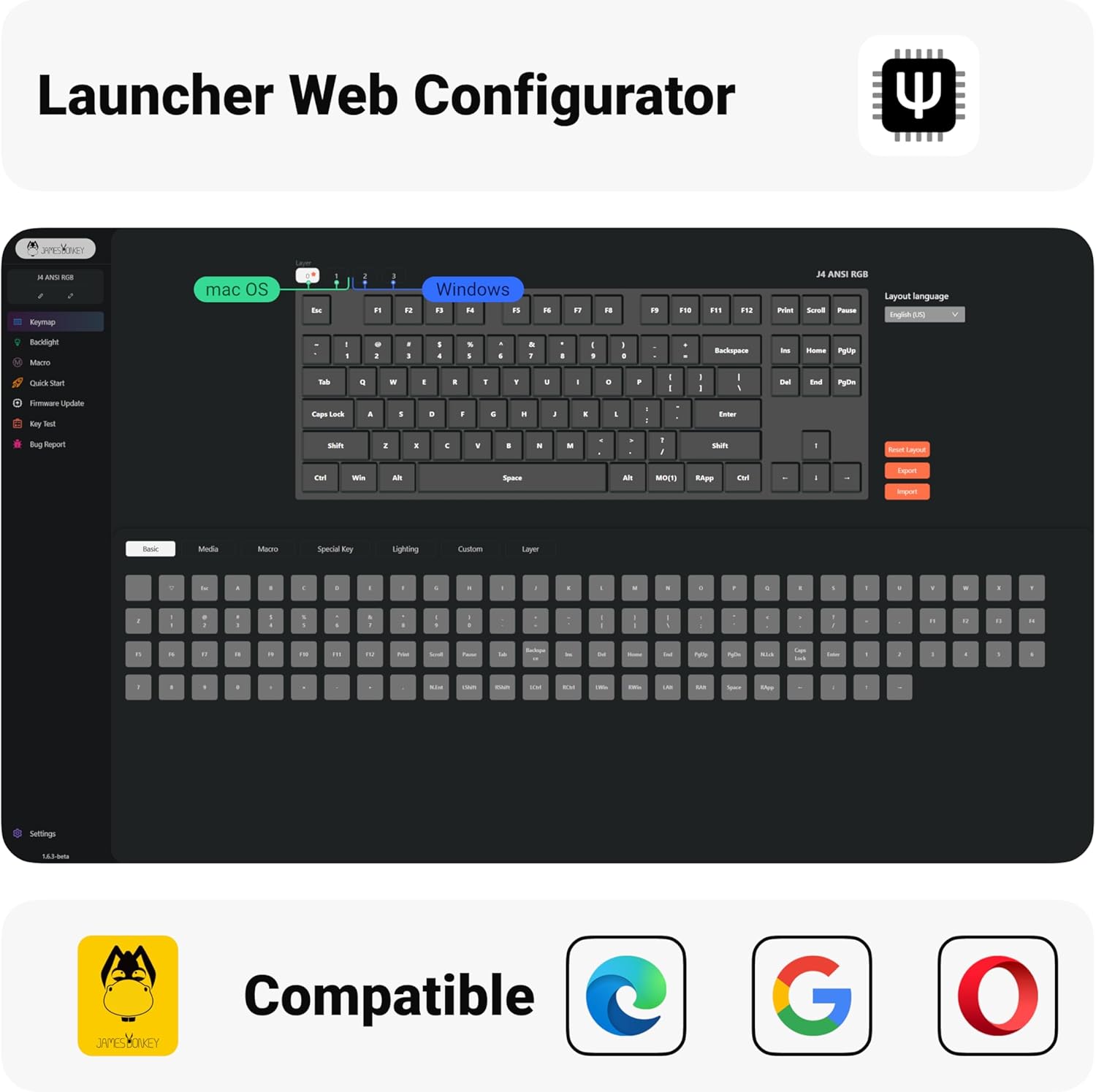
Image 4.1: Screenshot of the web-based Launcher interface for keyboard configuration.
- Access the JamesDonkey web-based Launcher (refer to the official JamesDonkey webwebsted for URL).
- Connect your keyboard in wired mode to ensure stable communication with the configurator.
- Use the interface to remap keys, create complex macros, and adjust various keyboard settings.
- Save your configurations and flash them to the keyboard directly from the browser.
4.2. Dual-OS Smart Switch (Windows/macOS)
The J4 keyboard is designed for seamless compatibility with both Windows and macOS operating systems. It includes dedicated shortcuts for macOS functions.
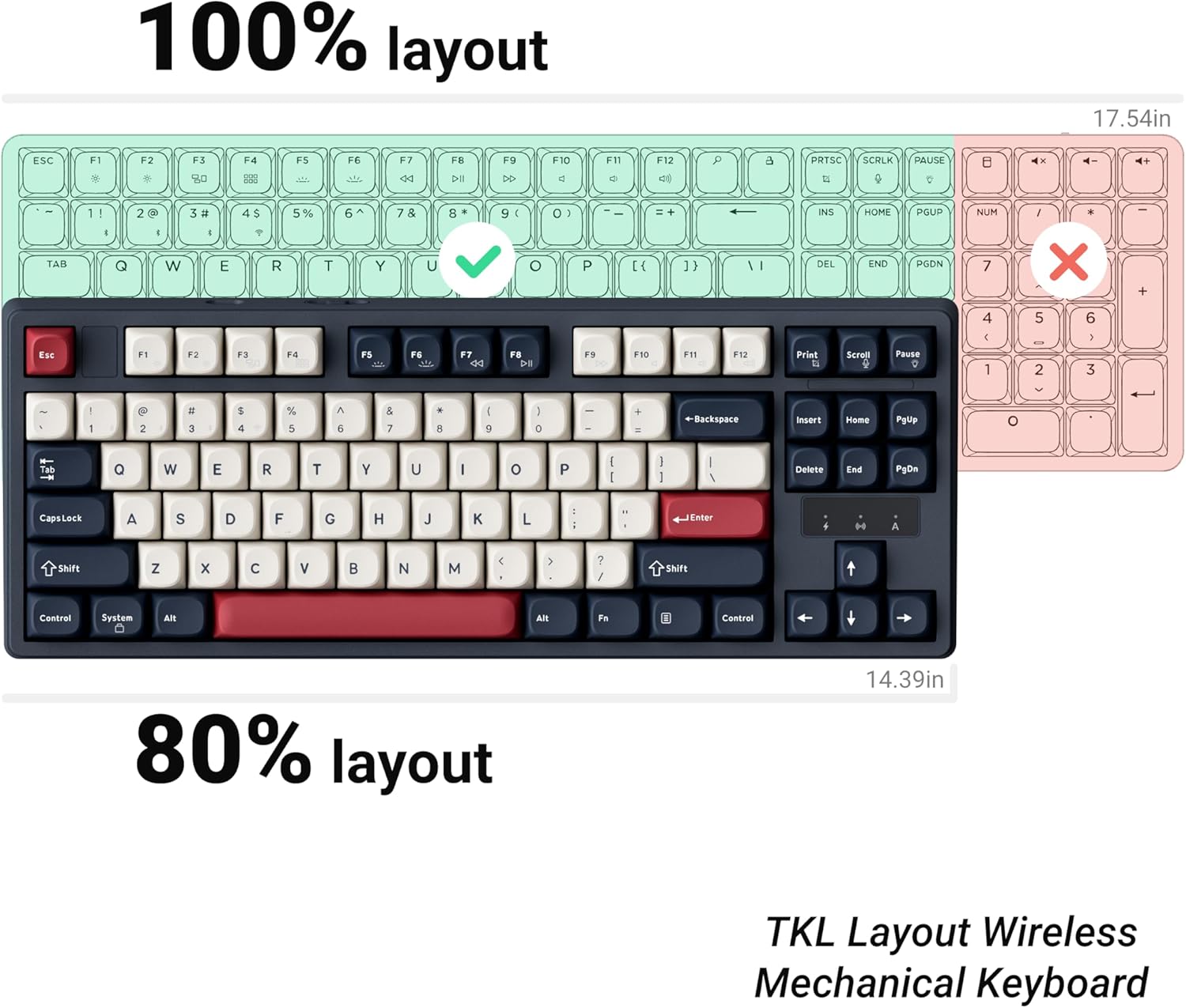
Image 4.2: Comparison of 100% and 80% keyboard layouts, highlighting the compact design of the J4.
- Windows-kompatibilitet: The keyboard functions with standard Windows layouts and includes two programmable blank layers for custom functions.
- macOS Shortcuts: Utilize specific key combinations to replicate macOS functions like Mission Control and Launchpad without needing third-party tools. Refer to the QMK configurator for specific macOS key mappings.
4.3. RGB-baggrundsbelysningskontrol
The J4 keyboard features customizable RGB backlighting. You can adjust lighting effects, colors, and brightness.

Image 4.3: The JamesDonkey J4 keyboard showcasing dens brugerdefinerbare RGB-baggrundsbelysning.
- Use the dedicated light control key (often marked with a lightbulb icon or similar) to cycle through various lighting effects.
- Combine the Fn key with other keys (e.g., arrow keys or specific function keys) to adjust brightness, speed, and color of the RGB effects. Refer to the QMK configurator for a full list of lighting controls.
5. Vedligeholdelse
5.1. Hot-swap-kontakter
The J4 keyboard features hot-swappable sockets, allowing you to change switches without soldering. This enables customization of typing feel.

Image 5.1: The keyboard with keycaps and switches removed, showing the hot-swappable sockets.
- Fjern forsigtigt den ønskede tastaturhætte ved hjælp af den medfølgende tastaftrækker.
- Using the provided switch puller, carefully grip the switch from the top and bottom clips and pull it straight up.
- Juster stifterne på den nye kontakt med hullerne på printkortet.
- Tryk forsigtigt den nye kontakt på plads, indtil den klikker. Sørg for, at stifterne ikke er bøjede.
- Udskift tastaturdækslet.
5.2. Rensning
- Frakobl tastaturet fra computeren, før du rengør det.
- Brug en blød børste eller trykluft til at fjerne støv og snavs mellem tasterne.
- For stubborn dirt, gently remove keycaps and clean with a damp klud og mild sæbeopløsning. Sørg for, at tasterne er helt tørre, før de sættes på igen.
- Wipe the keyboard surface with a soft, lint-free cloth. Avoid harsh chemicals.
6. Fejlfinding
- Tastaturet reagerer ikke:
Ensure the keyboard is properly connected (wired, 2.4G receiver, or Bluetooth paired). Check the mode switch position. Try restarting your computer. - 2.4 GHz / Bluetooth connectivity issues:
Ensure the receiver is plugged in correctly for 2.4G. For Bluetooth, ensure the keyboard is in pairing mode and your device's Bluetooth is enabled. Try re-pairing the device. Ensure the keyboard battery is charged. - Nøglerne virker ikke:
If individual keys are not working, try removing and re-inserting the switch for that key. Ensure the switch pins are straight and not bent. If multiple keys are affected, try a different connection mode or reset the keyboard (refer to QMK documentation for reset procedures). - RGB backlighting not working/incorrect:
Check the lighting control key combinations. Ensure the keyboard battery is charged. Use the QMK web configurator to verify lighting settings. - Tastaturet afbrydes ofte:
Ensure the keyboard is within range of the receiver/Bluetooth device. Avoid interference from other wireless devices. Ensure the keyboard battery is sufficiently charged.
7. Specifikationer
| Feature | Detalje |
|---|---|
| Mærke | JamesDonkey |
| Model | J4 |
| Forbindelsesteknologi | 2.4 GHz trådløs, Bluetooth 5.2, USB-C kablet |
| Tastaturbeskrivelse | Mekanisk |
| Layout | 80% Tenkeyless (87 taster) |
| Afbrydere | Brown Switch (Tactile, 55±15 gf Operation Force, 2.0±0.4 mm Pre-Travel, 4.0±0.4 mm Total Travel, Up to 50M cycles) |
| tasterne | PBT Durable Keycaps |
| Baggrundsbelysning | RGB |
| Kompatible enheder | Laptop, pc, tablet |
| Operativsystemer | Mac, Windows, Linux |
| Batteri | 1 ikke-standard batteri (inkluderet) |
| Varens vægt | 3 pund |
| Pakkedimensioner | 15.7 x 6.9 x 2.2 tommer |
Image 7.1: Detailed Force-Travel Curve for the Brown Switches.

8. Garanti og support
The JamesDonkey J4 Wireless Custom Mechanical Keyboard comes with a manufacturer's warranty. Please refer to the warranty card included in your package or visit the official JamesDonkey webhjemmeside for detaljerede garantivilkår.
For technical support, troubleshooting assistance, or any inquiries regarding your product, please contact JamesDonkey customer service through their official webwebstedet eller de kontaktoplysninger, der er angivet med dit køb.
9. Yderligere ressourcer
9.1. Produktet er slutview Video
Video 9.1: En officiel overview of the JamesDonkey J4 Series keyboard, demonstrating its features and design.
9.2. Keychron J4 Overview Video
Video 9.2: En overview videoshowasing the J4 Wireless Mechanical Keyboard, highlighting its key functionalities and design elements.