1. Introduktion
This manual provides essential instructions for the setup, operation, and maintenance of your Generic GD30 Retro GameStick Console. Please read this manual thoroughly before using the device to ensure proper functionality and to maximize your gaming experience.
The GD30 Retro GameStick Console is a compact gaming system designed to deliver a wide range of classic video games. It features 4K resolution support, dual 2.4G wireless controllers, and 128GB of storage for an extensive game library.
2. Pakkens indhold
Bekræft, at alle nedenstående varer er inkluderet i din pakke:
- 1 x GD30 Retro GameStick Console
- 2 x 2.4G Wireless Controllers
- 1 x USB Receiver for Wireless Controllers
- 1 x HDMI-forlængerkabel
- 1 x USB-strømkabel
- 1 x Brugermanual (dette dokument)

Figur 2.1: Contents of the GD30 Retro GameStick Console package. This image displays the main GameStick console, two white wireless game controllers, an HDMI extension cable, a USB power cable, and a small user manual.
3. Opsætningsvejledning
- Connect the GameStick to your TV: Insert the GD30 GameStick directly into an available HDMI port on your television or monitor. If space is limited, use the provided HDMI extension cable.
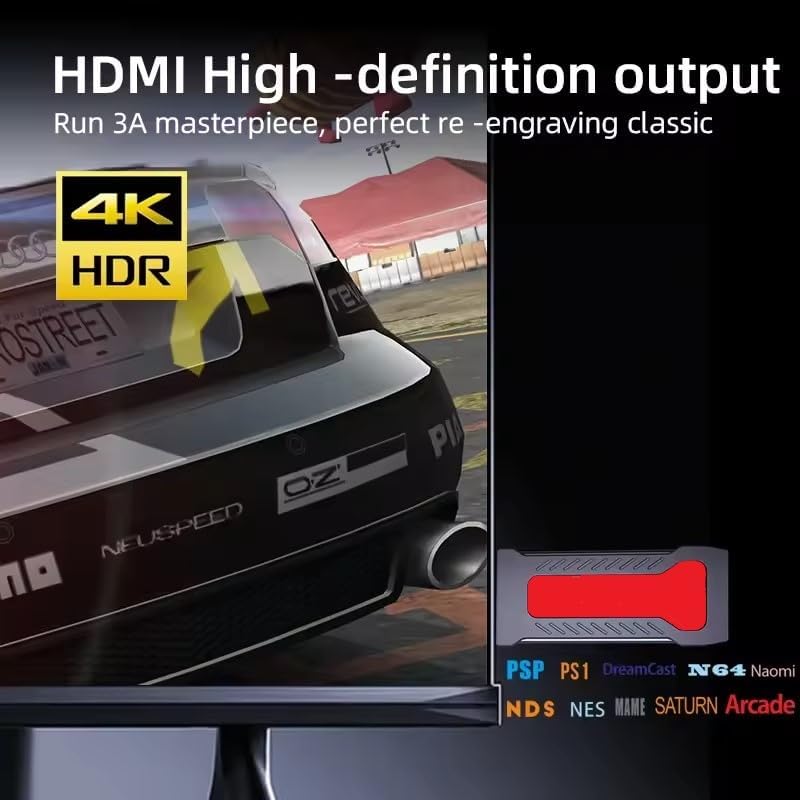
Figur 3.1: The GD30 GameStick console showing its HDMI connector and USB ports. This illustrates how the device connects to a display and receives power.
- Power the GameStick: Connect the USB power cable to the GameStick's USB power input port. Plug the other end of the USB cable into a USB power source (e.g., a USB port on your TV, a USB wall adapter, or a power bank).
- Indsæt USB-modtager: Locate the small USB receiver for the wireless controllers. Insert this receiver into one of the USB ports on the GD30 GameStick.
- Power On Controllers: Insert 2 AAA batteries (not included) into each wireless controller. Turn on the controllers using their respective power switches (if available). The controllers should automatically pair with the GameStick via the USB receiver.
- Vælg HDMI-indgang: On your television, switch the input source to the HDMI port where the GameStick is connected. You should see the GameStick's main menu appear on the screen.
4. Betjeningsvejledning
4.1. Navigering i menuen
- Brug directional pad (D-pad) or venstre analog pind on your wireless controller to move between menu options.
- Tryk på 'A' button (or equivalent action button) to select an option or enter a game.
- Tryk på 'B' button (or equivalent back button) to return to the previous menu or exit a game.
- De 'Start' og 'Select' buttons often have in-game functions or can be used to access system menus during gameplay.
4.2. At spille spil
- From the main menu, navigate to the desired game category or search for a specific game.
- Select the game you wish to play and press the 'A' button to launch it.
- Follow the on-screen instructions or in-game prompts to play.
- To exit a game, typically press a combination of buttons (e.g., 'Start' + 'Select' simultaneously) or refer to the specific game's instructions.
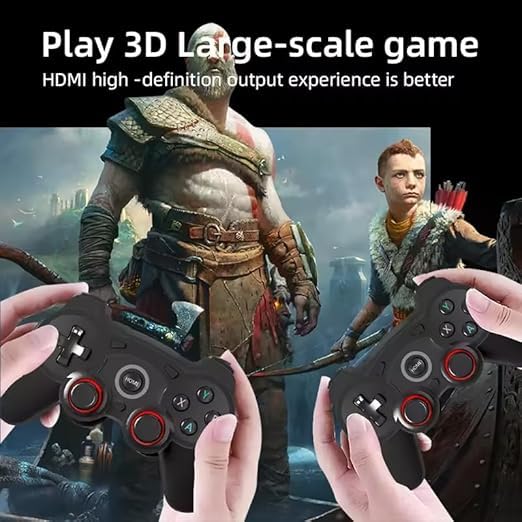
Figur 4.1: Illustration of two users engaging with the GD30 wireless controllers during gameplay. This highlights the dual-player capability of the console.
5. Vedligeholdelse
- Rensning: Use a soft, dry cloth to clean the GameStick console and controllers. Do not use liquid cleaners or abrasive materials.
- Opbevaring: When not in use, store the console and controllers in a cool, dry place away from direct sunlight and extreme temperatures.
- Udskiftning af batteri: Replace controller batteries when performance degrades. Ensure correct polarity when inserting new batteries.
- Softwareopdateringer: Kontroller jævnligt producentens website (if applicable) for any available software updates for the GameStick.
6. Fejlfinding
| Problem | Mulig årsag | Løsning |
|---|---|---|
| Ingen visning på tv'et | Incorrect HDMI input selected; GameStick not powered; Loose HDMI connection. | Ensure TV is on correct HDMI input. Check power cable connection. Re-seat HDMI cable. |
| Controllere reagerer ikke | Low or dead batteries; USB receiver not connected; Controllers not paired. | Replace batteries. Ensure USB receiver is firmly inserted into the GameStick. Power cycle controllers. |
| Game freezes or crashes | Software glitch; Overheating. | Restart the GameStick. Ensure adequate ventilation around the device. |
| Dårlig spilpræstation | System resources strained; Game compatibility issue. | Close any background applications (if applicable). Some games may have higher requirements. |
7. Specifikationer
- Model: GD30
- Lagerkapacitet: 128 GB (expandable, check device for slot type)
- Output opløsning: Op til 4K
- Controllere: 2.4G Dual Wireless
- Forbindelse: HDMI, USB
- Operativsystem: Linux-based (VAYAVAPLAY OS / VGames OS)
- Dimensioner: 12 x 12 x 8 cm (Produktmål)
- Vægt: 450 g
- Strømindgang: USB (5V/1A recommended)
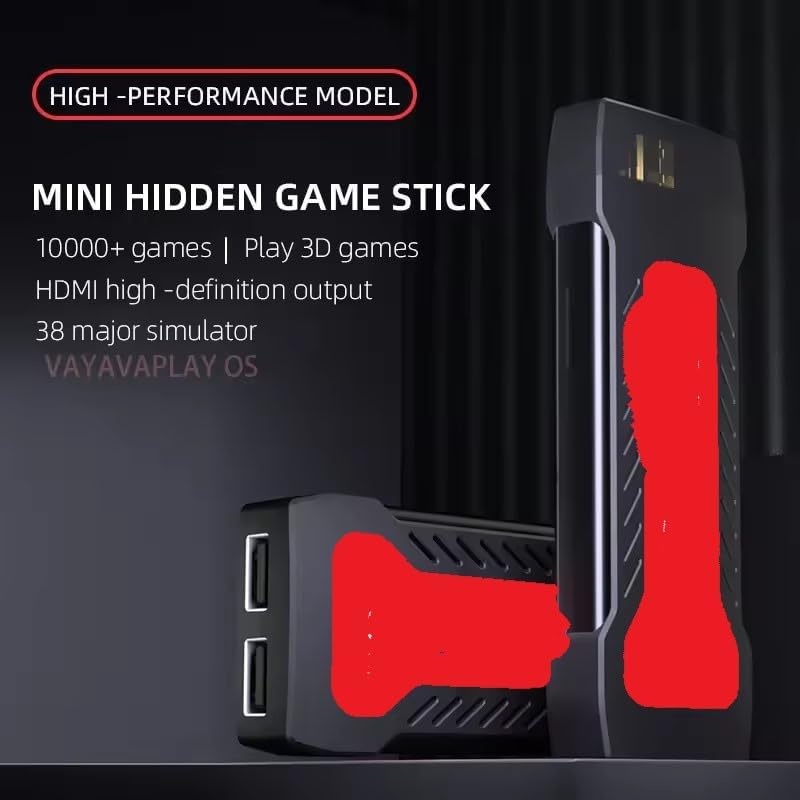
Figur 7.1: The GD30 GameStick console, showcasing its compact form factor and design elements. This image emphasizes the 'Mini Hidden Game Stick' aspect.
8. Garanti og support
This product comes with a standard manufacturer's warranty. Please refer to the warranty card included in your package for specific terms and conditions. For technical support or warranty claims, please contact your retailer or the manufacturer directly.
Note: The product is eligible for a 10-day replacement policy through the retailer. Please retain your proof of purchase for any claims.


