
1. Introduktion
This manual provides essential information for the safe and efficient use of your BOOX Go 7 ePaper Tablet. Please read it thoroughly before operating the device and retain it for future reference.

Figure 1.1: BOOX Go 7 ePaper Tablet
2. Sikkerhedsoplysninger
- Udsæt ikke enheden for ekstreme temperaturer, direkte sollys eller høj luftfugtighed.
- Undgå at tabe eller udsætte enheden for kraftige stød.
- Brug kun det medfølgende USB-kabel til opladning.
- Keep the device away from water and liquids, despite its water-repellent features.
- Forsøg ikke selv at skille enheden ad eller reparere den. Kontakt autoriseret servicepersonale.
3. Pakkens indhold
Bekræft at alle varer er til stede i pakken:
- BOOX Go 7 ePaper Tablet
- USB kabel
- Hurtigstartguide (kan variere fra region til region)

Figure 3.1: BOOX Go 7 Package Contents
4. Enhed overview
4.1 Fysiske komponenter
Familiarize yourself with the main components of your BOOX Go 7 tablet:
- E Ink Screen: 7-inch monochrome display with 300 ppi resolution.
- Forlygte: Adjustable illumination for reading in various lighting conditions.
- Sideskift-knapper: Ergonomically designed buttons for easy navigation.
- USB-C-port: Til opladning og dataoverførsel.
- Power knap: Placeret på den øverste kant.
- Indbygget mikrofon: Til lydindgang.
- Indbyggede dobbelthøjttalere: Til lydudgang.

Figure 4.1: Page-Turn Buttons and Water-Repellent Protection
5. Opsætning
5.1 Indledende opladning
Before first use, fully charge your BOOX Go 7 tablet. Connect the provided USB-C cable to the device and a compatible power adapter (not included) or a computer's USB port. The charging indicator will show the charging status.
5.2 Tænd/sluk
- For at tænde: Press and hold the Power button until the BOOX logo appears.
- For at slukke: Tryk og hold tænd/sluk-knappen nede, og vælg derefter "Sluk" fra indstillingerne på skærmen.
- At sove/vågne: Tryk kort på Power-knappen.
5.3 Netværksforbindelse (Wi-Fi)
- Fra startskærmen skal du stryge nedad fra toppen for at få adgang til panelet Hurtige indstillinger.
- Tryk på Wi-Fi-ikonet for at aktivere Wi-Fi.
- Tryk og hold Wi-Fi-ikonet nede for at åbne Wi-Fi-indstillingerne.
- Vælg det ønskede netværk fra listen, og indtast adgangskoden, hvis du bliver bedt om det.
- Når der er oprettet forbindelse, vil Wi-Fi-ikonet angive en vellykket forbindelse.
6. Betjeningsvejledning
6.1 Grundlæggende navigation
- Touchskærm: Tap, swipe, and pinch to navigate menus, open applications, and interact with content.
- Sideskift-knapper: Use the physical buttons on the side to turn pages in documents and books.
6.2 Reading Documents and Books
The BOOX Go 7 supports various document formats. Open your desired file from the library. Use the page-turn buttons or swipe gestures to navigate through pages. Adjust font size, contrast, and frontlight settings for optimal reading comfort.
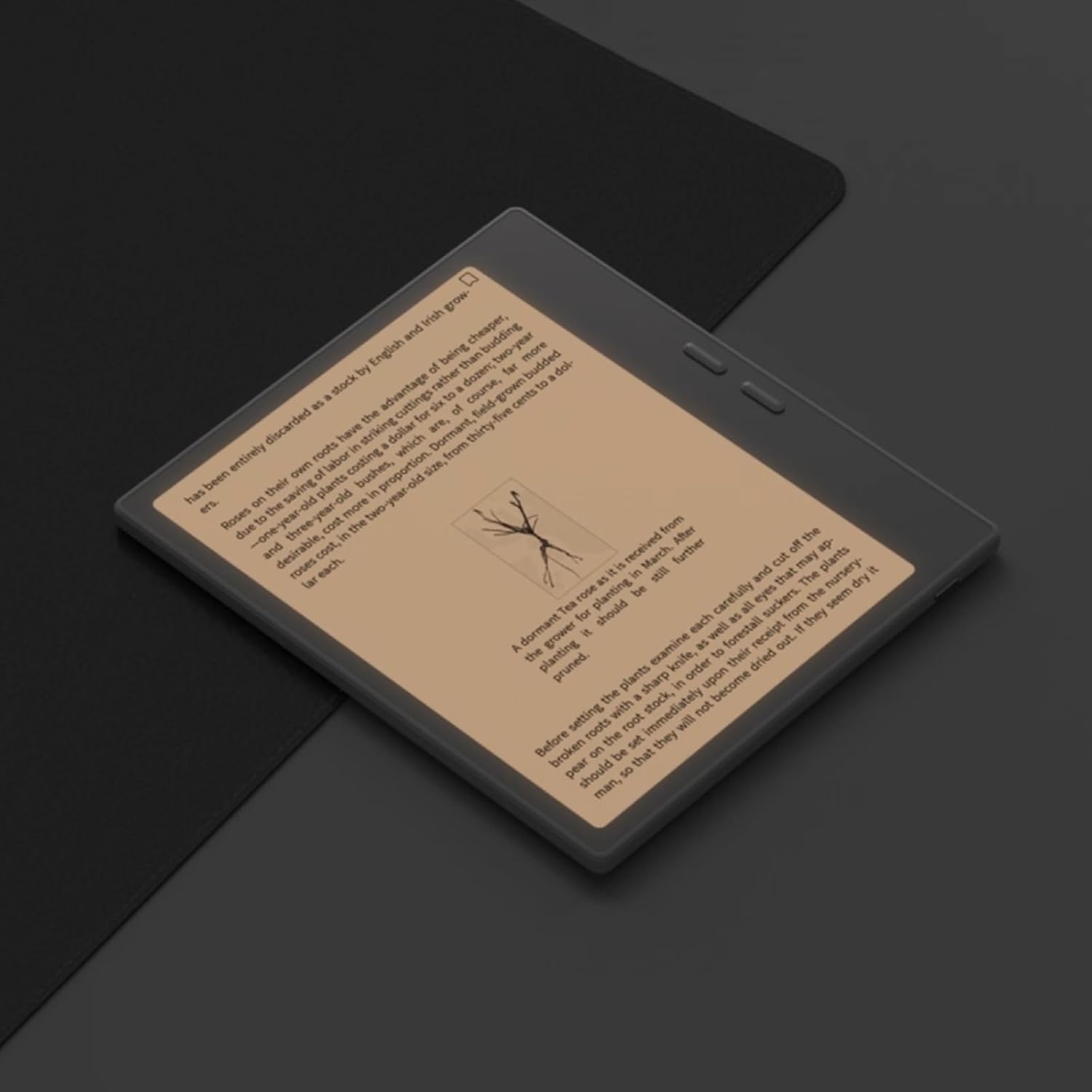
Figure 6.1: Reading with Frontlight
6.3 Using Android Applications
As an Android 13 device, the BOOX Go 7 allows installation of various applications from the Google Play Store. Navigate to the App Store, search for your desired application, and install it. Note that some applications may not be fully optimized for ePaper displays.

Figure 6.2: Various Android Applications on BOOX Go 7
6.4 Note-Taking and Drawing
Utilize the stylus (if included or purchased separately) for note-taking, sketching, and annotating documents. The device offers various templates and tools for creative and organizational tasks.

Figure 6.3: Stylus Use for Note-Taking

Figure 6.4: Handwriting to Text Conversion
7. Vedligeholdelse
7.1 Rengøring af enheden
Use a soft, lint-free cloth to gently wipe the screen and body of the device. Do not use harsh chemicals, abrasive cleaners, or excessive moisture.
7.2 Softwareopdateringer
Regularly check for and install software updates to ensure optimal performance and access to new features. Connect to Wi-Fi and navigate to Indstillinger > System > Systemopdatering for at tjekke for tilgængelige opdateringer.
8. Fejlfinding
- Enheden tænder ikke: Sørg for, at enheden er opladet. Tilslut den til en strømkilde, og prøv igen.
- Skærmen reagerer ikke: Perform a soft reset by holding the Power button for 10-15 seconds.
- Problemer med Wi-Fi-forbindelse: Verify your Wi-Fi password and router settings. Try restarting your router and the device.
- Applikationer der går ned: Ensure applications are updated to their latest versions. Clear the app's cache or reinstall if issues persist.
9. Specifikationer
| Mærke | BOX |
| Modelnavn | Gå 7 |
| Lagerkapacitet | 64 GB |
| Skærmstørrelse | 7 tommer |
| Maksimal skærmopløsning | 300 Pixels per inch |
| Operativsystem | Android 13 |
| Farve | Noir (Sort) |
| Installeret RAM-størrelse | 4 GB |
| Særlige funktioner | USB OTG support, Expandable storage, Stylus support |
| Model årgang | 2025 |
| Batteritype | Lithium-ion |
| Batteriets energiindhold | 8.8 watt-timer |
| Processor mærke | Qualcomm |
| Processorbeskrivelse | Qualcomm Snapdragon |
| Kamera | Intet kamera |
| Sensortype | Gyroskop |
| Item Dimensions (LxWxT) | 15.6L x 0.6W x 13.7T centimeters |
| Indtastningsmetode | Touchscreen with stylus |
| Beskrivelse af grafikkort | Integreret |
| Kompatible enheder | Stylus |
| Display Type | Elektronisk blæk |
| Skærmopløsning | 1280 x 800 pixels |
| Aspektforhold | 16:10 |
| Hardwareforbindelse | USB |
| Trådløs teknologi | Bluetooth, Wi-Fi (802.11ax) |
| Samlet USB-porte | 1 |

Figure 9.1: BOOX Go 7 Energy Label (EPREL-link)
10. Garantioplysninger
The BOOX Go 7 ePaper Tablet comes with a 2 års begrænset garanti. This warranty covers manufacturing defects under normal use. For specific terms and conditions, please refer to the warranty card included in your package or contact customer support.
The standard return policy allows for returns within 30 days of purchase for refund or replacement.
11. Support
For technical assistance, troubleshooting, or warranty claims, please contact BOOX customer service. You can find support resources and submit inquiries through the official BOOX help center.
- Firmwareopdateringer: BOOX commits to at least 3 years of firmware updates for each product.
- Cloud Storage: 10 GB of free cloud storage is provided for each user.
- Svartid: Kundehenvendelser besvares typisk inden for 24 timer.
For mere information, besøg BOOX Brand Store on Amazon.