
Nillkin DZD3JCWZG01CA
Nillkin Foldable Wireless Keyboard with Touchpad and Numeric Pad User Manual
Model: DZD3JCWZG01CA
Produkt overview
The Nillkin Foldable Wireless Keyboard is a portable, full-size keyboard designed for productivity on the go. It features an integrated touchpad and a convertible numeric pad, offering a comprehensive input solution for various devices. Its compact, foldable design ensures easy transport, while robust construction provides durability.

Image: The Nillkin Foldable Wireless Keyboard, showcasing dens kompakte design.
Opsætningsvejledning
1. Opladning af tastaturet
Before initial use, fully charge the keyboard using the provided USB-C cable. Connect the cable to the keyboard's charging port and a compatible USB power source. The charging indicator light will show the charging status. A full charge provides up to 30 hours of typing or 140 days of standby time.

Image: The keyboard connected to a power source, illustrating its long battery life and USB-C charging port.
2. Tænd/sluk
To power on the keyboard, unfold it completely. The keyboard will automatically power on. To power off, fold the keyboard. It will automatically enter sleep mode when folded.
3. Bluetooth-parring
The Nillkin keyboard can connect to up to three devices simultaneously via Bluetooth 5.0.
- Fold tastaturet ud for at tænde den.
- Aktiver Bluetooth on your device (PC, laptop, tablet, smartphone).
- Tryk og hold one of the Bluetooth channel keys (BT1, BT2, or BT3) for 3-5 seconds until the indicator light flashes, indicating pairing mode.
- På din enhed skal du søge efter Bluetooth-enheder og vælge "Nillkin Keyboard" (eller lignende navn) fra listen.
- Følg alle instruktioner på skærmen for at fuldføre parringsprocessen. Indikatorlampen på tastaturet holder op med at blinke, når parringen er gennemført.
- To switch between paired devices, simply press the corresponding Bluetooth channel key (BT1, BT2, or BT3) once. The keyboard will automatically reconnect to the selected device.

Image: The keyboard connected to multiple devices, highlighting its Bluetooth 5.0 multi-device pairing capability.
Betjeningsvejledning
1. Skriveerfaring
The keyboard features a standard QWERTY layout with well-spaced, scissor-structured keys for a comfortable and efficient typing experience. A full row of function keys provides quick access to common commands.

Billede: Detaljeret view of the keyboard layout, emphasizing key structure and function keys.
2. Touchpad-funktionalitet
The integrated sensitive multi-touch touchpad allows for precise navigation and clicking. It supports various multi-touch gestures for enhanced efficiency, including scrolling, swiping, zooming, and application switching. The touchpad also features automatic palm rejection to prevent accidental input during typing.
- Tryk med én finger: Venstre klik
- Tryk med to fingre: Højreklik
- Rul med to fingre: Rul op/ned eller venstre/højre
- Knib for at zoome: Zoom ind/ud
- Note: Specific multi-touch gestures may vary or not be fully supported on iOS and macOS.

Image: A user interacting with the touchpad, illustrating its multi-touch capabilities.
3. Numeric Keypad Mode
The touchpad can be quickly switched to a numeric keypad for efficient data entry. To activate the numeric keypad, press the dedicated numeric keypad toggle key (usually indicated by a calculator icon or "Num Lock" function). Press it again to revert to touchpad mode.

Image: The touchpad transformed into a numeric keypad, ready for number input.
4. Systemkompatibilitet
The keyboard is compatible with a wide range of operating systems, including Android, Windows, iPadOS, macOS, iOS, and Chrome OS. It automatically recognizes the operating system of the connected device for optimal functionality.
5. Portable Workstation Setup
The Nillkin Foldable Wireless Keyboard is designed to create a portable workstation anywhere. Its compact size when folded allows it to be easily carried, and when unfolded, it provides a full-size typing and navigation experience, making it suitable for various environments such as travel, business trips, or cafes.
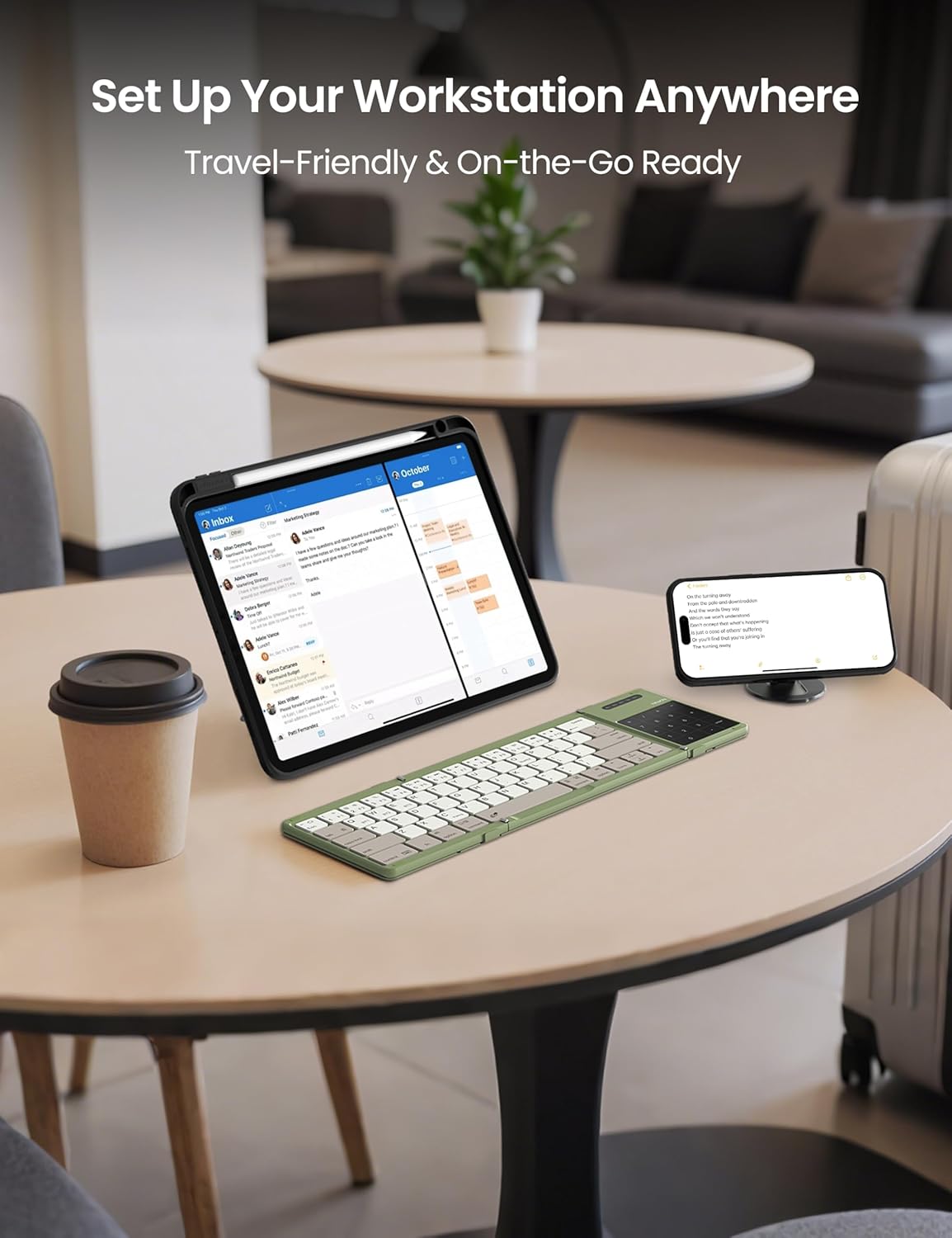
Image: The keyboard in use with multiple devices, illustrating its role in a portable workstation setup.
Opretholdelse
1. Rensning
Brug en blød klud til at rengøre tastaturet.amp cloth. For the silicone leather back, a mild cleaning solution can be used if necessary. Avoid harsh chemicals or abrasive materials that could damage the surface. Ensure the keyboard is powered off and disconnected from any power source before cleaning.
2. Opbevaring
When not in use, fold the keyboard to protect the keys and touchpad. The strong magnetic attraction ensures the keyboard remains securely folded. Store it in the provided storage bag to prevent scratches and dust accumulation.
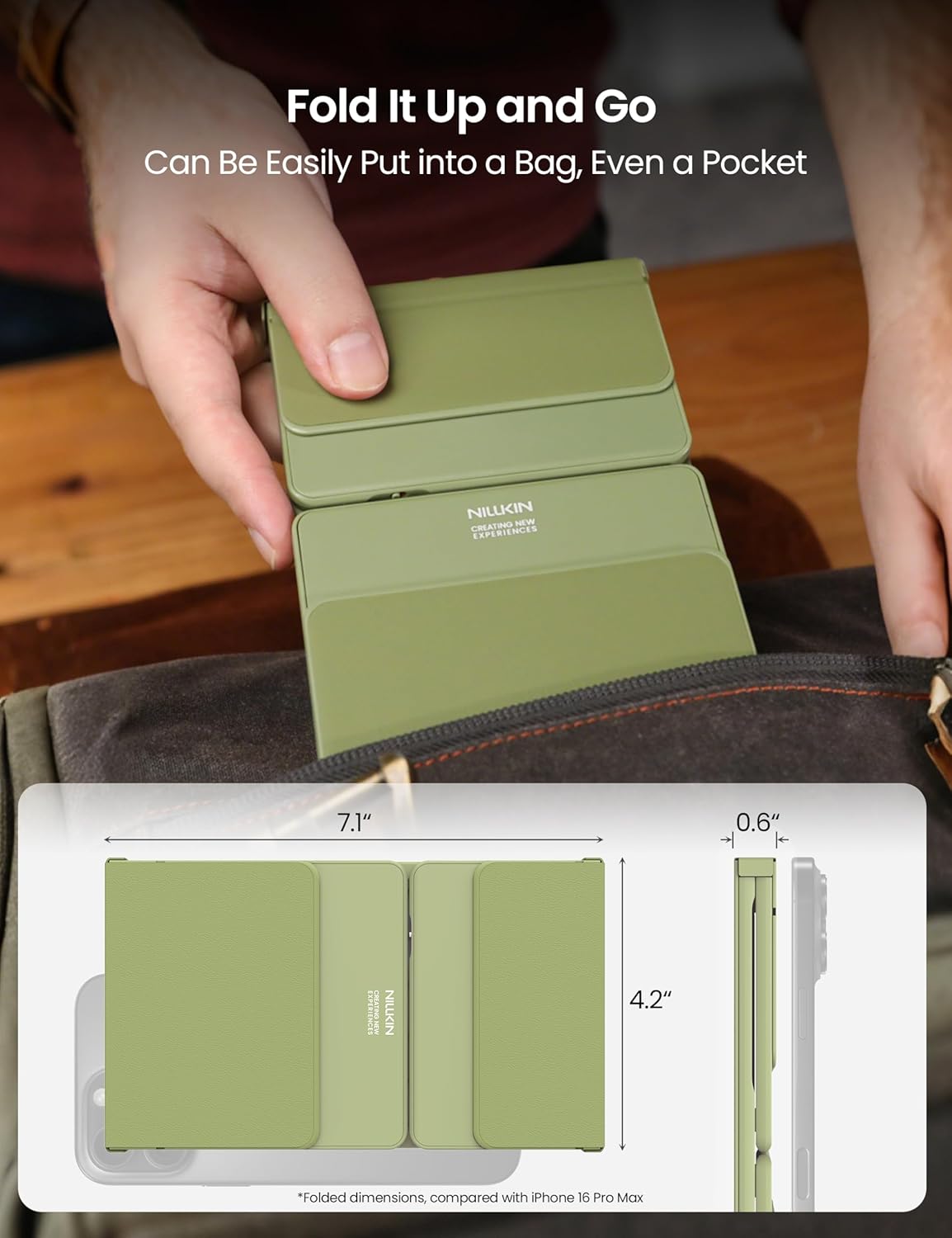
Image: The keyboard folded and ready for storage or transport, demonstrating its portability.
3. Holdbarhed
The keyboard is constructed with a premium silicone leather back, offering superior resistance to wear, scratches, and stains compared to synthetic leather. The robust metal hinge is designed to withstand over 50,000 opening and closing cycles, ensuring long-term reliability.

Billede: Detaljeret view of the keyboard's durable silicone leather material and sturdy metal hinge.
Fejlfinding
Tastatur opretter ikke forbindelse via Bluetooth
- Sørg for at tastaturet er opladet: A low battery can prevent successful pairing. Charge the keyboard fully.
- Check Pairing Mode: Make sure the keyboard is in pairing mode (indicator light flashing) by pressing and holding a BT channel key.
- Device Bluetooth On: Verify that Bluetooth is enabled on your host device.
- Glem enhed: If previously paired, try "forgetting" or "removing" the keyboard from your device's Bluetooth settings and then re-pair.
- Afstand: Ensure the keyboard is within the 10-meter (33 feet) Bluetooth range of your device.
- Interferens: Flyt dig væk fra andre trådløse enheder, der kan forårsage interferens.
Touchpad Not Responding or Gestures Not Working
- Check Numeric Pad Mode: Ensure the touchpad is not in numeric keypad mode. Toggle it back to touchpad mode if necessary.
- Rengør touchpad: Sørg for, at touchpad-overfladen er ren og fri for snavs.
- OS Limitations: Remember that some multi-touch gestures may not be fully supported on iOS and macOS.
- Genstart: Try powering off and on both the keyboard and your host device.
Taster reagerer ikke
- Tjek forbindelsen: Sørg for, at tastaturet er korrekt forbundet via Bluetooth.
- Genoplad: A very low battery might cause intermittent key response.
- Genstart: Power cycle the keyboard and the connected device.
Specifikationer
| Mærke | Nillkin |
| Modelnummer | DZD3JCWZG01CA |
| Forbindelsesteknologi | Bluetooth 5.0 |
| Kompatible enheder | Laptop, PC, Smartphone, Tablet, Smart TV (Android, Windows, iPadOS, macOS, iOS, Chrome OS) |
| Tastaturlayout | QWERTY |
| Antal nøgler | 64 |
| Særlige funktioner | Numeric Pad, Touchpad, Foldable, Rechargeable, Silent Keys |
| Foldede mål (L x B x H) | 18 x 10.7 x 1.5 cm (7.1 x 4.2 x 0.6 tommer) |
| Udfoldede mål (L x B x H) | 34 x 10.7 x 0.8 cm |
| Vægt | 0.2 kg |
| Batterilevetid | Up to 30 hours typing, 140 days standby |
| Materiale | Silicone Leather, ABS |
| Hængslets holdbarhed | Over 50,000 cyklusser |
| Maximum Connection Range | 10 meter (33 fod) |
| Strømkilde | Batteridrevet |
| Hvad er der i æsken | Foldable Wireless Keyboard, USB Cable, Storage Bag, User Manual |
Garantioplysninger
Specific warranty details for the Nillkin Foldable Wireless Keyboard are typically provided with the product packaging or on the official Nillkin webwebsted. Se venligst disse kilder for de mest nøjagtige og opdaterede garantivilkår.
Kundesupport
For any questions, technical assistance, or issues not covered in this manual, please contact Nillkin customer service. Contact information can usually be found on the product packaging, the official Nillkin webhjemmeside eller gennem din forhandler.
Nillkin is committed to providing satisfactory customer service and support for their products.
Relaterede dokumenter - DZD3JCWZG01CA
 |
Havit Bluetooth trådløst numerisk tastatur Smart26 brugermanual Brugermanual til Havit Bluetooth Wireless Number Pad Smart26, med detaljerede oplysninger om funktioner, systemkompatibilitet, emballage, opladningsinstruktioner, brug, Fn-tastekombinationer, strømbesparende funktion og kompatibilitetsnoter. |
 |
Macally BTNUMKEYPRO genopladeligt Bluetooth numerisk tastatur med 35 taster brugervejledning Brugervejledning til Macally BTNUMKEYPRO genopladeligt Bluetooth numerisk tastatur med 35 taster. Lær om opsætning, parring med Mac-, Windows-, iOS- og Android-enheder, grundlæggende hardware og teknisk support. |
 |
Seenda Foldable Bluetooth Keyboard with Touchpad User Manual User manual for the Seenda Foldable Bluetooth Keyboard with Touchpad (Model KTU-402), detailing setup, connection, features, and troubleshooting for iOS, Android, Windows, and Mac operating systems. |
 |
ProtoArc XK01 Foldbart trådløst tastatur i fuld størrelse brugermanual Official user manual for the ProtoArc XK01 foldable full-size wireless keyboard. Learn how to connect via Bluetooth, use multimedia keys, charge, and troubleshoot. |
 |
Brugermanual til foldbart tastatur med touchpad Brugermanual til det foldbare tastatur med touchpad, med detaljerede tilslutningsinstruktioner til iOS, Windows og Android, produktfunktioner, tekniske specifikationer, fejlfinding og garantioplysninger. |
 |
USB Mini Numeric Keyboard (Model 4NB501405) Product Overview A durable, ergonomic USB mini numeric keyboard with 19 keys, RGB backlighting, and plug-and-play functionality for laptops and PCs. Includes specifications and usage notes. |
Ask a question about this manual
Ask about setup, troubleshooting, compatibility, parts, safety, or missing instructions. Manuals+ will review the question and use this page’s manual context to help answer it.