
Indledning
Thank you for choosing the KOORUI S3241XO 31.5-inch 4K OLED Gaming Monitor. This manual provides essential information for setting up, operating, and maintaining your monitor. Please read it thoroughly before use to ensure optimal performance and safety.
Sikkerhedsoplysninger
- Udsæt ikke skærmen for regn eller fugt for at undgå brand eller elektrisk stød.
- Åbn ikke skærmen casing. Der er ingen dele indeni, som brugeren kan servicere. Overlad al service til kvalificeret servicepersonale.
- Placer skærmen på en stabil, plan overflade for at forhindre den i at falde.
- Sørg for tilstrækkelig ventilation omkring skærmen. Bloker ikke ventilationsåbningerne.
- Brug kun den strømadapter og de kabler, der er leveret af producenten.
- Tag stikket til skærmen ud af stikkontakten under tordenvejr eller når den ikke bruges i længere perioder.
- Avoid placing heavy objects on the power cord or monitor cables.
Pakkens indhold
Bekræft at alle varer er til stede i din pakke:
- KOORUI S3241XO 31.5-inch 4K OLED Gaming Monitor
- HDMI 2.1-kabel
- DisplayPort 1.4 Cable (1.8m)
- USB 3.0 AB kabel
- Type-C kabel
- AC strømkabel
- Strømadapter
- Brugermanual
Opsætning
1. Samling af skærm
Følg disse trin for at samle skærmstativet og fastgøre det til skærmpanelet.

Image: The KOORUI S3241XO monitor with its stand, showcasing the display and connectivity options.
2. Tilslutning til enheder
The monitor offers various connectivity options. Ensure your device supports the required output.
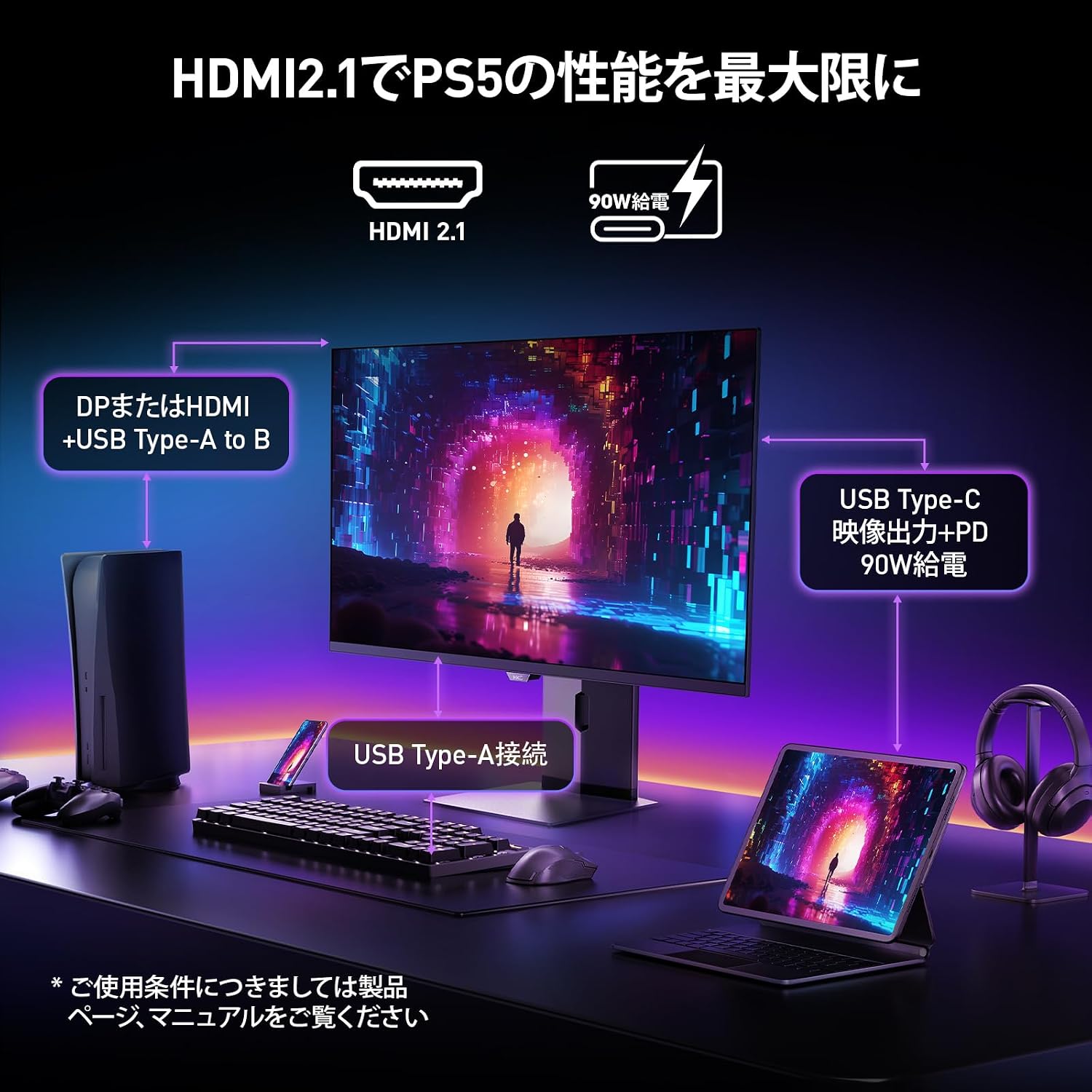
Image: A diagram illustrating how to connect various devices like a PS5, laptop, and peripherals to the monitor using HDMI 2.1, USB Type-C, and USB Type-A ports.
Havn overview:

Billede: Detaljeret view of the monitor's rear input/output ports with numerical labels for identification.
- Strømkabel: Connect the AC power cable to the monitor and a power outlet.
- USB Type-B (opstrøms): Connect to your computer to enable the monitor's USB-A ports.
- USB 3.1 Type-A (x2): Til tilslutning af USB-enheder.
- HDMI 2.1 (x2): Connect to devices supporting HDMI 2.1 for 4K 240Hz output.
- DisplayPort 1.4: Connect to devices supporting DisplayPort 1.4 for 4K 240Hz output.
- Type-C (with PD): Connect to compatible devices for video input and power delivery (up to 90W).
- Hovedtelefonudgang: Til tilslutning af hovedtelefoner eller eksterne højttalere.
Betjeningsvejledning
1. Tænd/sluk
Press the power button, usually located on the back or bottom of the monitor, to turn it on or off.
2. On-Screen Display (OSD) menu
Use the joystick or buttons on the monitor to navigate the OSD menu. The OSD allows you to adjust various settings.
Vigtige OSD-indstillinger:
- Billedindstillinger: Juster lysstyrke, kontrast, skarphed og farvetemperatur.
- Farvetilstande: Select from various preset color modes, including a professional color mode for accurate color reproduction (99% DCI-P3, 100% sRGB, Delta E<2, True 10-bit color).
- Inputkilde: Manually select the input source (HDMI 1, HDMI 2, DisplayPort, Type-C).
- Spilfunktioner: Access specific gaming modes (RPG, FPS, RCG) and settings like FreeSync and G-Sync compatibility.
- Svartid: The monitor features a 0.03ms (OD) response time for rapid image transitions.
- HDR True Black 400: Optimizes black levels for enhanced detail in dark scenes.
- DIC (Digital Image Control) Mode: Enable or disable DIC to prevent ghosting and improve image quality.

Image: Visual representation of the monitor's color accuracy and wide color gamut.

Image: Illustrates the difference in motion clarity at various refresh rates, highlighting the 240Hz 0.03ms response.

Image: Demonstrates the enhanced black levels and detail in dark scenes provided by the KOORUI QD OLED technology compared to a typical LCD.

Image: Shows the effect of Digital Image Control (DIC) mode on reducing ghosting for smoother visuals.
3. Ergonomiske justeringer
Skærmstativet giver mulighed for forskellige justeringer for at optimere dine viewoplevelse:
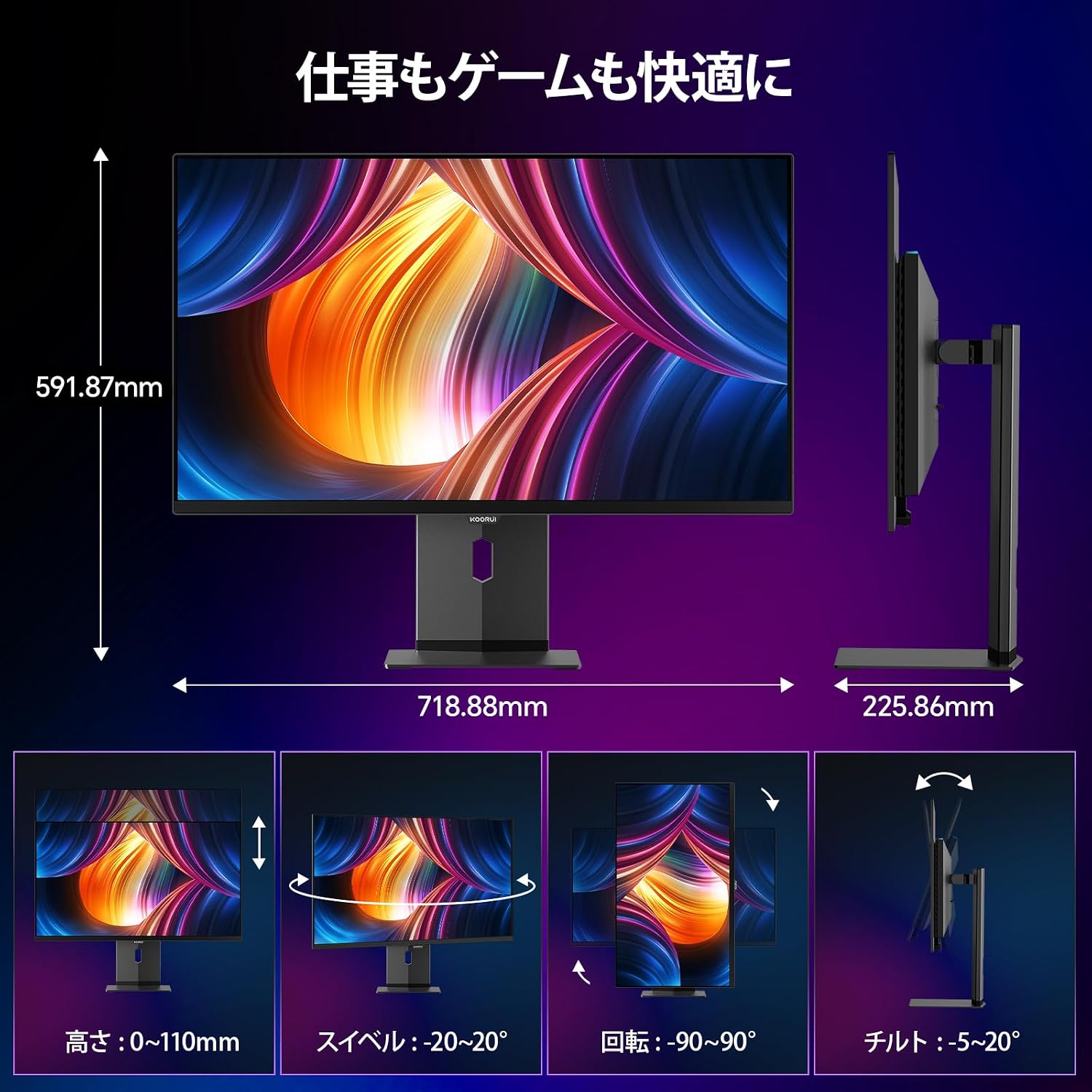
Image: Illustrations of the monitor's adjustable features: height, swivel, pivot (rotation), and tilt.
- Højdejustering: Adjust the display height by up to 110mm.
- Vip: Vip skærmen fra -5° til 20° for komfortabel viewing vinkler.
- Drejelig: Swivel the monitor -20° to 20° horizontally.
- Drejning (rotation): Rotate the screen -90° to 90° for portrait or landscape orientation.
Opretholdelse
1. Rengøring af skærmen
- Tag altid stikket ud af skærmen før rengøring.
- Brug let en blød, fnugfri klud damprengøres med vand eller et mildt, ikke-slibende skærmrensemiddel.
- Sprøjt ikke rengøringsmiddel direkte på skærmen.
- Avoid using benzene, thinner, or any volatile solvents, as they may damage the screen surface.
2. Øjenplejefunktioner
Skærmen har funktioner til at reducere øjenbelastning ved længere tids brug:
- Hardware Blue Light Cut: Reduces harmful blue light emissions without affecting color accuracy.
- Flicker Guard: Eliminerer skærmflimmer for en mere behagelig oplevelse viewoplevelse.

Image: Demonstrates the effectiveness of hardware blue light reduction in preserving natural colors.

Image: Illustrates the difference between Flicker Guard off and on, showing reduced screen flickering.
3. Panel Protection Features
To prevent OLED burn-in, the monitor incorporates proprietary panel protection technologies:
- Pixel Shift: Periodically shifts pixels slightly to prevent static images from causing burn-in.
- Detektion af proceslinjen: Detects static elements like the taskbar and adjusts their brightness to minimize burn-in risk.
- Graphene Sheet + Custom Heatsink: Advanced thermal management to maintain optimal operating temperature.

Image: Visual explanation of pixel shift, taskbar detection, and thermal management for panel protection.
Fejlfinding
Hvis du støder på problemer med din skærm, kan du se følgende almindelige problemer og løsninger:
| Problem | Mulig årsag | Løsning |
|---|---|---|
| Intet billede på skærmen | Strømkabel frakoblet, forkert inputkilde, enhed ikke tændt. | Kontrollér strømtilslutningerne, vælg den korrekte inputkilde via OSD, og sørg for, at den tilsluttede enhed er tændt. |
| Billedflimmer | Flicker Guard disabled, cable issue, graphics card driver issue. | Enable Flicker Guard in OSD, try a different cable, update graphics drivers. |
| Dårlig farvekvalitet | Incorrect color mode, cable issue. | Adjust color settings in OSD, try a different cable. |
| Ingen lyd fra hovedtelefoner | Headphones not properly connected, audio settings on device/monitor. | Ensure headphones are fully plugged in, check audio output settings on your computer and monitor. |
| USB-porte virker ikke | USB Type-B upstream cable not connected. | Connect the USB Type-B cable from the monitor to your computer. |
Specifikationer
| Feature | Specifikation |
|---|---|
| Mærke | KOORUI |
| Modelnummer | S3241XO |
| Skærmstørrelse | 31.5 tommer |
| Paneltype | OLED (QLED) |
| Opløsning | 4K UHD (3840 x 2160 pixels) |
| Opdateringshastighed | 240 Hz |
| Svartid | 0.03 ms (OD) |
| Aspektforhold | 16:9 |
| Kontrastforhold | 1,500,000:1 |
| Lysstyrke | 280 cd/m² |
| Farveskala | 99% DCI-P3, 100% sRGB |
| Farvedybde | Ægte 10-bit (1.07 milliarder farver) |
| HDR-understøttelse | DisplayHDR400 True Black |
| Adaptiv synkronisering | FreeSync and G-Sync Compatible |
| Forbindelse | 2x HDMI 2.1, 1x DisplayPort 1.4, 1x Type-C (with 90W PD), 2x USB-A 3.1, 1x USB-B, 1x Headphone Jack |
| Ergonomi | Height Adjustment (110mm), Tilt (-5° to 20°), Swivel (-20° to 20°), Pivot (-90° to 90°) |
| VESA Mount | 100 x 100 mm |
| Dimensioner (B x H x D) | Approx. 71.9 x 59.2 x 22.6 cm (with stand) |
| Vægt | Ca. 8.3 kg |
| Strømforbrug | 264 Watt (Max) |
Garanti og support
The KOORUI S3241XO monitor comes with a 3 års producentgaranti. The LCD panel itself is covered by a 1-year warranty. For warranty claims or technical support, please contact KOORUI customer service.
KOORUI also offers a free recycling service for monitors. Please refer to the official KOORUI website or contact support for details on how to utilize this service.
For yderligere hjælp, besøg venligst KOORUI Brand Store.