
Minifire MFG25F6Q Pro
Minifire MFG25F6Q Pro 25-inch QHD 300Hz Gaming Monitor User Manual
Model: MFG25F6Q Pro
1. Introduktion
Thank you for choosing the Minifire MFG25F6Q Pro 25-inch QHD 300Hz Gaming Monitor. This manual provides essential information for the safe and efficient use of your new monitor. Please read it thoroughly before installation and operation, and keep it for future reference.
The MFG25F6Q Pro is designed for an immersive gaming experience, featuring a 25-inch QHD (2560x1440) Fast IPS panel, an ultra-high 300Hz refresh rate, and a rapid 1ms MPRT response time. It supports FreeSync Premium technology for tear-free gaming and offers extensive connectivity with HDMI 2.1 and DisplayPort 1.4 inputs, alongside an ergonomic adjustable stand.
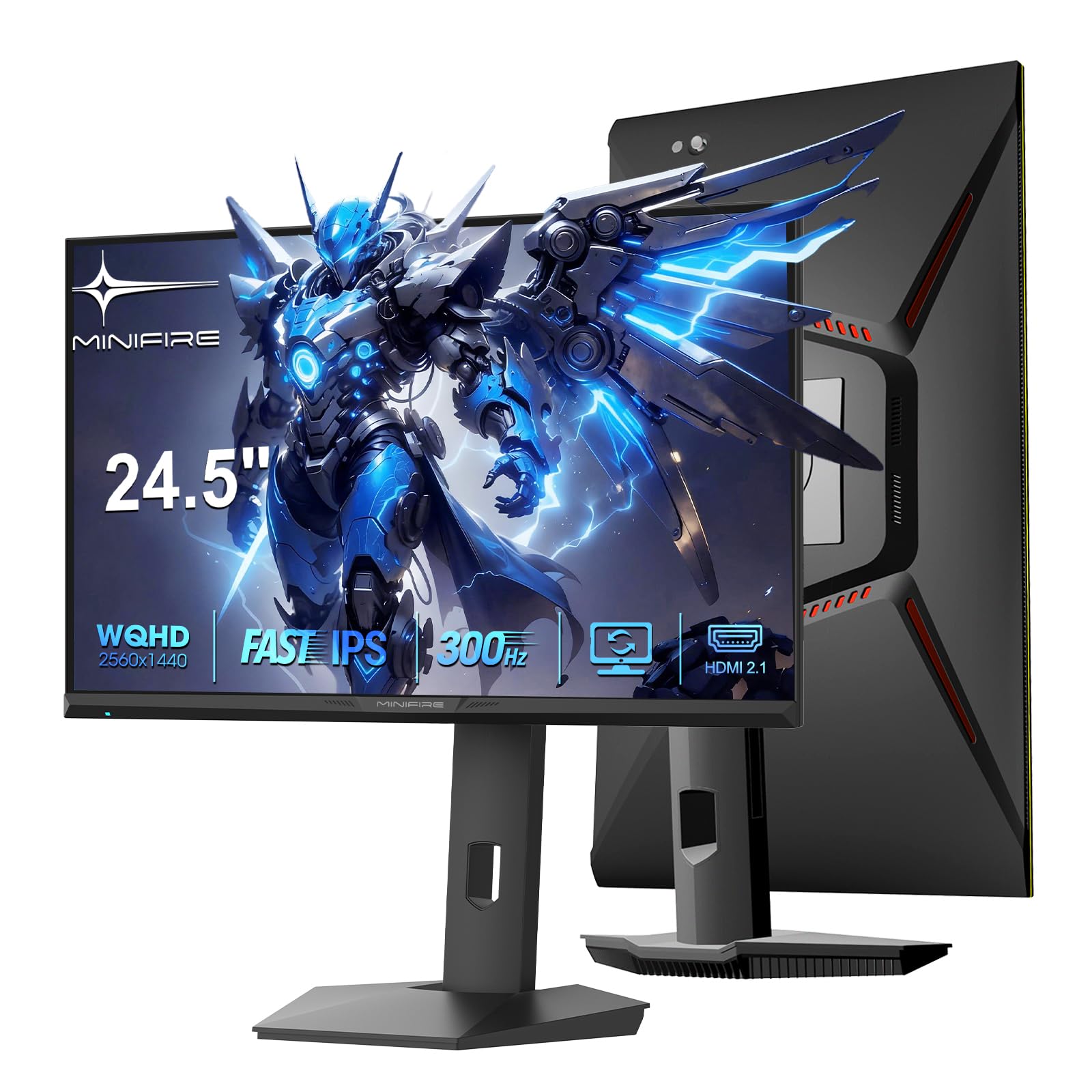
Figure 1: Minifire MFG25F6Q Pro Gaming Monitor Overview
2. Sikkerhedsoplysninger
- Læs alle instruktioner omhyggeligt, inden du bruger skærmen.
- Udsæt ikke skærmen for regn eller fugt for at undgå brand- eller stødfare.
- Åbn ikke skærmen casing. Der er ingen dele indeni, som kan serviceres af brugeren. Overlad al service til kvalificeret personale.
- Placer skærmen på en stabil, plan overflade for at forhindre den i at falde.
- Sørg for tilstrækkelig ventilation omkring skærmen. Bloker ikke ventilationsåbningerne.
- Brug kun den strømadapter, der følger med skærmen.
- Tag stikket til skærmen ud af stikkontakten under tordenvejr eller når den ikke bruges i længere perioder.
- Hold skærmen væk fra direkte sollys, varmekilder og ekstreme temperaturer.
- Rengør skærmen med en blød, fnugfri klud. Undgå at bruge skrappe kemikalier eller slibende rengøringsmidler.
3. Pakkens indhold
Kontroller venligst pakkens indhold for at sikre, at alle varer er til stede og ubeskadigede:
- Minifire MFG25F6Q Pro Gaming Monitor
- Skærmstativ (base og arm)
- DisplayPort-kabel
- Strømadapter
- Brugermanual

Figure 2: Included Accessories and Monitor Dimensions (557mm width, 534mm height with stand, 220mm depth)
4. Opsætning
4.1 Montering af stativ
Følg disse trin for at samle skærmstativet:
- Placer skærmen med forsiden nedad på en blød, ren klud for at forhindre ridser.
- Attach the stand arm to the monitor's VESA mounting area.
- Secure the stand base to the stand arm.
- Sørg for, at alle skruer er spændt sikkert.

Figure 3: Stand Assembly (steps 1-4 on the left) and Joystick Control (right)
4.2 Tilslutning af din skærm
Tilslut skærmen til din computer eller spillekonsol med de relevante kabler:
- Strømtilslutning: Connect the power adapter to the monitor's DC input port, then plug the other end into a power outlet.
- Videoforbindelse:
- For optimal performance (QHD @ 300Hz), use the supplied DisplayPort 1.4 cable to connect to your graphics card.
- Alternatively, use an HDMI 2.1 cable for compatible devices (supports QHD @ 300Hz).
- Lydforbindelse: If desired, connect headphones or external speakers to the 3.5mm audio output jack.

Figure 4: Available Ports (DC, 2x HDMI 2.1, 2x DisplayPort 1.4, Audio Out)
5. Betjeningsvejledning
5.1 Tænd/sluk
Press the joystick button located on the back of the monitor to power it on or off. A short press will turn it on, and a long press will turn it off.
5.2 OSD-menu navigation
The monitor features a convenient joystick control for navigating the On-Screen Display (OSD) menu:
- Trykke: Gå ind i OSD-menuen / Bekræft valg.
- Op ned: Naviger i menuindstillinger.
- Venstre/højre: Juster værdier / Naviger i undermenuer.
Refer to Figure 3 for the joystick control diagram.
5.3 Skærmindstillinger
Juster forskellige skærmindstillinger via OSD-menuen for at optimere din viewoplevelse.
- Opløsning og opdateringshastighed: The monitor supports QHD (2560x1440) resolution at up to 300Hz refresh rate. Ensure your graphics card settings are configured to match these specifications for the best performance.

Figure 5: Key Performance Features (QHD, 300Hz, 1ms)

Figure 6: High Refresh Rate (300Hz) and Fast Response Time (1ms MPRT)

Figure 7: QHD (2560x1440) Resolution provides sharper, more detailed images compared to Full HD.
- Svartid: The monitor features a 1ms MPRT (Moving Picture Response Time) for reduced motion blur. This setting can typically be adjusted in the OSD menu.
- Adaptive Sync (FreeSync Premium): Enable FreeSync Premium in the OSD menu and on your graphics card (if supported) to eliminate screen tearing and stuttering for a smoother gaming experience.

Figure 8: FreeSync Technology for fluid video experience.
- HDR (High Dynamic Range): This technology expands the spatial capacity of dark and light areas, increasing luminance limits and bringing out details in both bright and dark scenes. Enable HDR in the OSD menu and your operating system for compatible content.

Figure 9: HDR Technology enhances image quality by expanding dynamic range.
- Farveindstillinger: The monitor offers rich color reproduction with 130% sRGB and 98% DCI-P3 coverage, and 10-bit color depth. Adjust brightness (350 nits), contrast, and color temperature settings to your preference.
5.4 Ergonomiske justeringer
The monitor stand allows for various adjustments to achieve an optimal viewvinkel:
- Højdejustering: Adjust the monitor height up to 130mm.
- Vip: Tilt the screen from -5° to +20°.
- Drejelig: Swivel the monitor left or right by 20° (L20°~R20°).
- Pivot: Rotate the screen 90° for portrait mode (-90°~+90°).

Figure 10: Ergonomic Stand Adjustments for optimal viewkomfort.
5.5 Multi-Input Management (PIP/PBP)
The monitor supports Picture-in-Picture (PIP) and Picture-by-Picture (PBP) functions, allowing you to display content from multiple sources simultaneously. Access these settings through the OSD menu.

Figure 11: PIP/PBP functionality for displaying multiple sources.
5.6 Game Modes and Features
The monitor includes various preset game modes and features to enhance your gaming experience:
- Pro Game Modes: Select from predefined color settings optimized for different game genres (e.g., FPS, RTS, Standard). These can be further fine-tuned to your personal preferences.

Figure 12: Pro Game Modes for optimized visual settings across various games.
- FPS Aiming Feature: An on-screen crosshair can be enabled to assist with aiming in First-Person Shooter (FPS) games.

Figure 13: FPS Aiming Feature to enhance precision in games.
6. Vedligeholdelse
6.1 Rengøring af monitoren
- Tag altid stikket ud af skærmen før rengøring.
- Brug en blød, fnugfri klud lidt dampened with water to clean the screen. Do not spray cleaner directly onto the screen.
- For stubborn marks, use a screen-specific cleaning solution applied to the cloth, not directly to the screen.
- Tør skærmen c afasinmed en blød, tør klud. Undgå at bruge slibende rengøringsmidler eller opløsningsmidler.
6.2 Generel pleje
- Undgå at placere tunge genstande på skærmen eller dens kabler.
- Udsæt ikke monitoren for ekstreme temperaturer eller fugt.
- If the monitor will be unused for an extended period, unplug it from the power outlet.
7. Fejlfinding
If you encounter issues with your monitor, please refer to the following troubleshooting guide:
| Problem | Mulig årsag | Løsning |
|---|---|---|
| Intet billede på skærmen |
|
|
| Billede flimrer eller er forvrænget |
|
|
| Ingen lyd fra hovedtelefonstikket |
|
|
| "Extreme" response time causes ghosting | Overdrive setting too aggressive. | Adjust the "Response Time" setting in the OSD menu to a lower level (e.g., "Fast" or "Normal") or turn it off if ghosting persists. |
8. Specifikationer
| Feature | Detalje |
|---|---|
| Mærke | Minibrand |
| Skærmstørrelse | 25 tommer |
| Opløsning | 2560 x 1440 pixels (QHD bred 1440p) |
| Aspektforhold | 16:9 |
| Beskrivelse af skærmoverfladen | Anti-genskin |
| Kontrastforhold | 1200:1 |
| Svartid | 1 millisecond (MPRT) |
| Opdateringshastighed | 300 Hz |
| Strømforbrug | 45 watt |
| Display Type | IPS, LCD |
| Viewi vinkel | 178 grader |
| Lysstyrke | 350 nits |
| Color Gamut Value | 130 % sRGB, 98 % DCI-P3 |
| Image Quality Enhancement Technology | FreeSync Premium, HDR |
| Varedimensioner (D x B x H) | 23.6D x 54.5W x 55.7H centimeter |
| Varens vægt | 4.2 kilo |
| Forbindelsesteknologi | DisplayPort, HDMI 2.1 |
| Hardwareforbindelse | HDMI, Display Port |
| Total HDMI-porte | 2 |
| Total Output Ports | 4 (2x HDMI, 2x DP) |
| Produktegenskaber | Dual DisplayPort, Dual HDMI 2.1, 300Hz Refresh Rate, Gaming Screen |
| Specifikke produktanvendelser | Spil |
| Farve | Sort |
| VESA monteringstype | Desk Mount (100x100 mm compatible) |
| Kompatible enheder | Spillekonsol, Computer, Bærbar computer |
| Modelnummer | MFG25F6Q Pro |
| Fabrikant | Minibrand |
9. Garanti og support
9.1 Garantioplysninger
The Minifire MFG25F6Q Pro monitor comes with a 2 års garanti from the date of purchase. This warranty covers manufacturing defects and malfunctions under normal use. Please retain your proof of purchase for warranty claims. The warranty does not cover damage caused by misuse, accidents, unauthorized modifications, or external factors.
9.2 Kundesupport
For technical assistance, warranty claims, or any questions regarding your Minifire monitor, please contact Minifire customer support through the official website or your retailer's support channels. Please have your model number (MFG25F6Q Pro) and purchase details ready when contacting support.
Online support: Visit the official Minifire webwebsted med ofte stillede spørgsmål, driverdownloads og kontaktoplysninger. www.minifire.com (Bemærk: Dette er en pladsholder URL. Please refer to your product packaging or official Minifire documentation for the correct support webwebsted.)