
Indledning
This manual provides detailed instructions for the installation, operation, maintenance, and troubleshooting of your Ossuret 10.1-inch Android 13 Autoradio. This multimedia system is specifically designed for Renault Clio 4 models manufactured between 2012 and 2019, offering advanced features such as GPS navigation, wireless Carplay, Android Auto, Bluetooth, and USB connectivity. Please read this manual thoroughly before installation and use to ensure proper functionality and safety.
Gældende modeller og årgange
This Ossuret Autoradio is compatible with Renault Clio 4 vehicles produced from 2012 to 2019. Please confirm your vehicle's center console matches the compatible configurations shown below before proceeding with installation.

Image: Compatible Renault Clio 4 dashboards (2012-2019) and a visual guide for locating the original power plug.
Pakkens indhold
Bekræft, at alle nedenstående varer er inkluderet i din pakke:
- Main Autoradio Unit
- Ramme
- GPS antenne
- RCA-ledningsnet
- Ekstern mikrofon
- RCA-kabel til bagkameraindgang
- 4-bens USB-kabel
- 6-bens USB-kabel
- Bagcoverramme
- Strømkabel-1
- Strømkabel-2
- Strømkabel-3
- Canbus Decoder (if included or purchased separately)
- Fabriks-USB-adapter
- Radioantenneadapterkabel
- Luftudløbsrammer
- 2*AC-drejeknapper

Billede: Alle komponenter er inkluderet i produktpakken.
Opsætning og installation
Proper installation is crucial for the optimal performance of your autoradio. It is recommended that installation be performed by a qualified professional.
Kontrol før installation
- Sørg for, at køretøjets tænding er slukket, og at batteriet er frakoblet, før installationen påbegyndes.
- Verify the compatibility of the autoradio with your specific Renault Clio 4 model (2012-2019).
- Locate the original car power plug. In some Renault Clio 4 models, it may be found by opening the storage box in front of the passenger seat.
Installationstrin (generel vejledning)
- Fjern forsigtigt den originale bilradio og instrumentbrætbeklædningen.
- Connect the provided power cables, RCA harness, and other necessary cables to the autoradio and the vehicle's wiring. Ensure all connections are secure.
- Installer GPS-antennen på et sted med frit view af himlen, typisk på instrumentbrættet eller under forruden.
- If your vehicle's original radar sound is emitted by the factory speakers, you may need to purchase and install the RN-SS-11 Canbus decoder and a small speaker to retain this functionality.
- Mount the new autoradio unit into the dashboard opening using the provided frame and back cover frame.
- Reconnect the vehicle's battery and test the unit's functionality before fully reassembling the dashboard trim.

Image: Dashboard appearance before and after installation of the Ossuret Autoradio.
Betjeningsvejledning
1. Tænd/sluk og grundlæggende navigation
Press the power button to turn the unit on or off. Use the touchscreen to navigate through the Android 13 interface. The home screen provides access to various applications and settings.
2. Trådløs Carplay / Android Auto
This autoradio supports wireless Carplay and Android Auto via the pre-installed and activated Zlink application. To connect:
- Sørg for, at din smartphones Wi-Fi og Bluetooth er aktiveret.
- Open the Zlink app on the autoradio.
- Follow the on-screen instructions to pair your smartphone via Bluetooth first, then establish the Wi-Fi connection for wireless Carplay or Android Auto.
- Once connected, you can access your phone's navigation, music, calls, and messages directly on the autoradio screen.

Image: Carplay and Android Auto system support.

Billede: Trådløs Carplay og Android Auto-funktionalitet.
3. Bluetooth funktionalitet
The built-in Bluetooth allows for hands-free calling and wireless music streaming.
- Håndfri opkald: Pair your phone via Bluetooth to make and receive calls directly through the autoradio. The integrated microphone captures your voice, and car speakers provide audio.
- Synkronisering af telefonbog: Download your mobile phone's contacts to the autoradio for easy access.
- Lydstreaming: Play music from your paired smartphone wirelessly.

Image: Bluetooth music streaming interface.
4. USB-forbindelse
Connect external storage devices via the USB ports to play video and audio files. The unit supports USB devices up to 2TB.
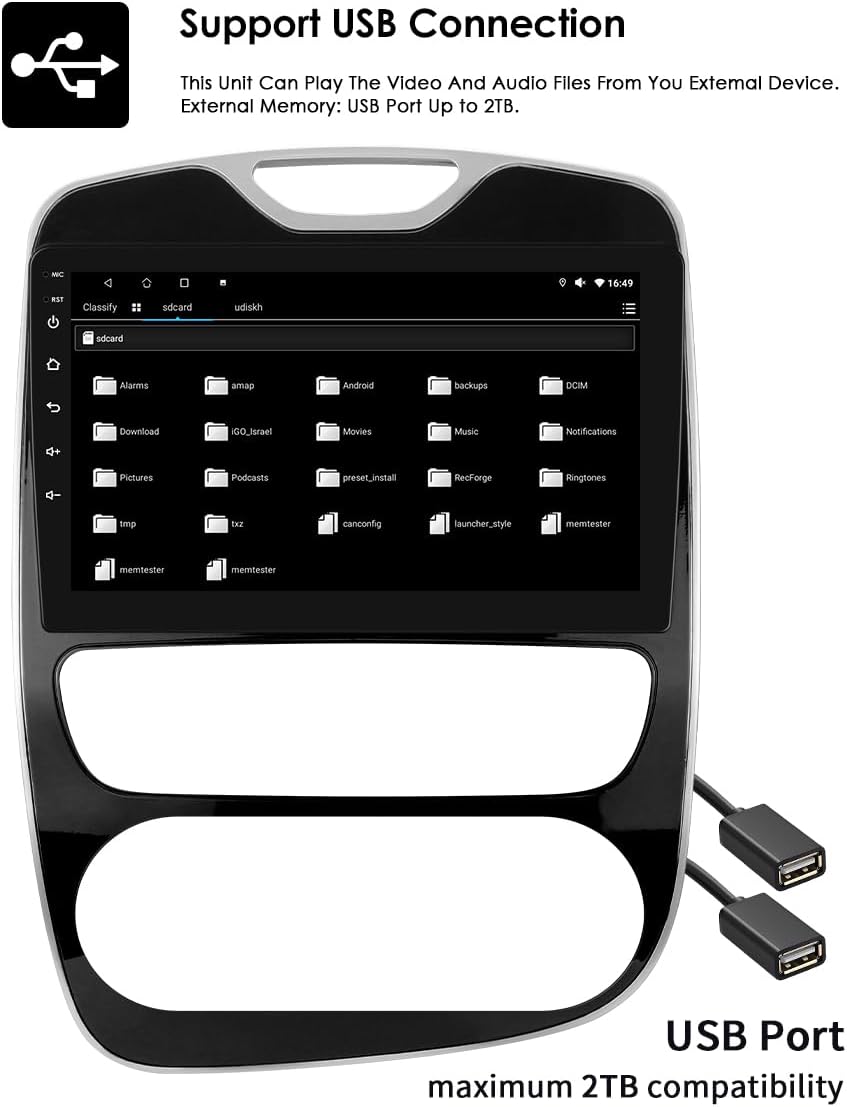
Image: USB connection support for media playback.
5. 10.1-inch Capacitive Touch Screen
The large 10.1-inch capacitive touch screen offers multi-touch functionality, providing a sensitive and flexible user experience. Its clear and translucent display ensures excellent visibility.

Image: Multi-touch capacitive screen functionality.
6. GPS-navigation
The autoradio features an integrated GPS navigator running on Android OS. It supports 2D/3D map views, dual-zone functionality (allowing navigation while playing music), offline map data, and various online navigation applications.
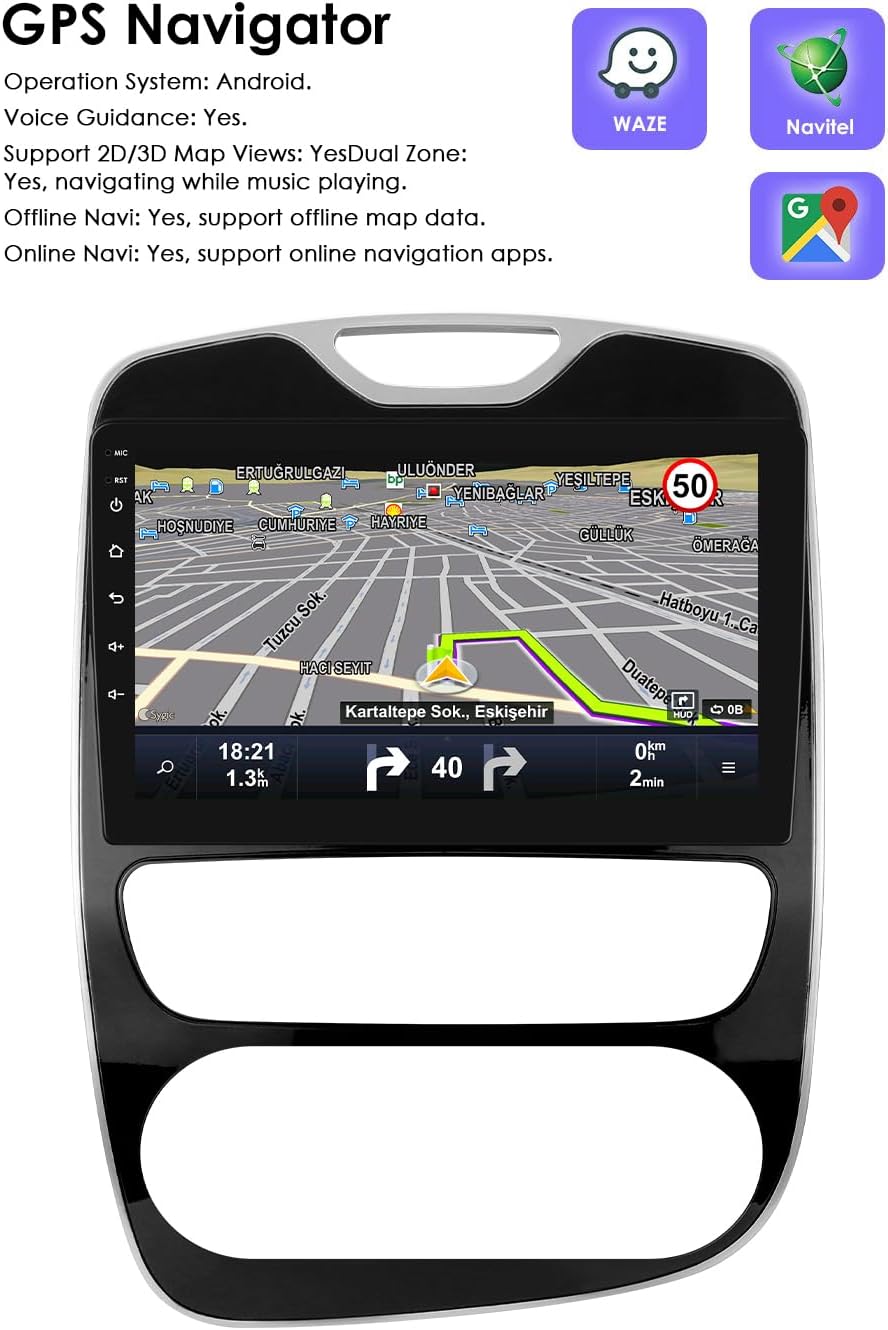
Billede: GPS-navigationsgrænseflade.
7. Ratbetjening (SWC)
The unit is compatible with your vehicle's factory steering wheel controls. This allows you to easily change tracks, channels, and adjust volume, minimizing distractions while driving.

Image: Steering Wheel Control icon.
8. Delt skærmvisning
Utilize the split-screen feature to display multiple applications simultaneously, such as navigation and music, or an ADAS camera view alongside other functions.

Image: Split Screen Display functionality.
9. Stemmekontrol
The system features enhanced voice control sensitivity, allowing for convenient hands-free operation of various functions, such as navigation and calling.
Image: Voice control interaction with the autoradio.
10. Backup kamera input
The autoradio supports a rearview camera input. When the vehicle is put into reverse, the display automatically switches to the camera interface, showing blind spots and assisting with parking maneuvers.

Image: Backup Camera support icon.
11. Multimedieafspilning
The unit supports a wide range of multimedia formats:
- Musikformater: MP3, WMA, AAC, RM, FLAC osv.
- Videoformater: MPEG-1/2/4, H264, H263, VC1, RV, RMVB, DivX, Sorenson Spark, VP8 AVS Stream, etc.

Image: Multimedia playback capabilities.
12. FM-radiofunktion
Access and tune into FM radio stations. The interface allows for easy station selection and saving presets.

Image: FM Function icon.
13. Spejllink
The Mirror Link function allows you to mirror your smartphone's screen directly onto the autoradio display, providing access to your phone's apps and content on a larger screen.

Billede: Mirror Link-funktionalitet.
14. Built-in DSP with 48 EQ Adjustment
The integrated Digital Sound Processor (DSP) allows for precise audio customization with 48 equalization adjustments, enabling you to fine-tune the sound output to your preference.

Image: 48 EQ Adjustment interface.
Opretholdelse
To ensure the longevity and optimal performance of your Ossuret Autoradio, follow these maintenance guidelines:
- Rensning: Brug en blød, tør klud til at rengøre skærmen og ydersiden. Undgå slibende rengøringsmidler eller opløsningsmidler, der kan beskadige overfladen.
- Softwareopdateringer: Periodically check for available software updates to ensure the system runs efficiently and has the latest features and security patches.
- Temperatur: Undgå at udsætte enheden for ekstreme temperaturer, både varme og kolde, da dette kan påvirke dens elektroniske komponenter.
- Forbindelser: Sørg for, at alle kabler og forbindelser er sikre. Løse forbindelser kan føre til periodiske problemer.
Fejlfinding
If you encounter issues with your autoradio, refer to the following common problems and solutions:
- Unit does not power on or blows fuses:
- Check all power connections and ensure they are correctly wired.
- Verify the vehicle's fuses. If fuses repeatedly blow, there might be a short circuit or incorrect wiring. Consult a professional.
- Ensure the original car power plug is correctly located and connected (refer to the Setup section for potential location).
- Wireless Carplay/Android Auto disconnects or does not work:
- Ensure your smartphone's Wi-Fi and Bluetooth are active and properly paired with the autoradio.
- Check the Zlink application status on the autoradio.
- Restart both the autoradio and your smartphone.
- Ensure there are no other devices interfering with the Wi-Fi or Bluetooth connection.
- Steering wheel controls are not functioning:
- Verify that the steering wheel control wires are correctly connected to the autoradio.
- Access the autoradio's settings to configure or calibrate the steering wheel controls.
- No radar sound from the vehicle after installation:
- If your original vehicle's radar sound was emitted through the factory speakers, you will need to purchase and install the RN-SS-11 Canbus decoder and a small speaker to restore this functionality.
- USB connection issues (e.g., device not recognized, intermittent connection):
- Ensure the USB cable is securely connected to both the autoradio and the external device.
- Try a different USB cable or external device to rule out a faulty accessory.
- Tjek file system format of your USB device; some formats may not be supported.
- GPS signal is weak or inaccurate:
- Sørg for, at GPS-antennen er installeret på et sted med frit view af himlen, fri for forhindringer.
- Check the GPS antenna connection to the autoradio.
Specifikationer
| Mærke | Ossuret |
| Modelnummer | 6946cbde-ec23-470d-9f79-e4a4ffba77b7 |
| Farve/størrelse | 10.1 inches, 2GB RAM + 64GB Storage |
| Operativsystem | Android 13 |
| Forbindelsesteknologi | Bluetooth, USB, Wi-Fi |
| Særlige funktioner | Wireless Carplay/Android Auto, GPS Navigation, Steering Wheel Control, Split Screen, Voice Control, Backup Camera Input, Built-in DSP (48 EQ) |
| Kompatible enheder | Smartphone |
| Connector Type | USB, 3.5 mm jack, HDMI |
| Lydudgangstilstand | Stereoanlæg |
| Surround Sound Kanalkonfiguration | 2.0 |
| Videokodning | RM |
Garanti & Support
Your Ossuret Autoradio comes with a 1 års producentgaranti. Denne garanti dækker fejl i materialer og udførelse ved normal brug.
For technical support, warranty claims, or further assistance, please contact your retailer or the Ossuret customer service department. Please have your product model number and purchase information ready when contacting support.
Information regarding spare parts availability and software updates is not available at this time. Please refer to the manufacturer's official website or contact support for the most current information.