
Indledning
The MAGIC-REFINER G6 is a versatile wireless gaming mouse designed for optimal performance across various applications, including gaming, office work, and general computer use. It features tri-mode connectivity (2.4GHz wireless, Bluetooth, and wired USB-C), a high-precision PixArt PAW3311 sensor with up to 24000 DPI, and a lightweight ergonomic design. This manual provides detailed instructions for setting up, operating, and maintaining your G6 mouse.

Image: The MAGIC-REFINER G6 Wireless Gaming Mouse in black, shown with its USB wireless dongle.
Opsætning
Pakkens indhold
- MAGIC-REFINER G6 Wireless Gaming Mouse
- USB-C ladekabel
- 2.4GHz USB Wireless Dongle (stored in the mouse base)
- Set of 6 DIY Anti-slip Grip Tapes
- Brugermanual
Oplader musen
Before first use, it is recommended to fully charge the mouse. Connect the supplied USB-C cable to the mouse's front port and the other end to a USB power source (e.g., computer USB port, USB wall adapter). The mouse can be used while charging in wired mode.
Tilslutning af musen
The G6 mouse supports three connection modes: 2.4GHz wireless, Bluetooth, and wired USB-C. The connection mode can be switched using the button on the back of the mouse.
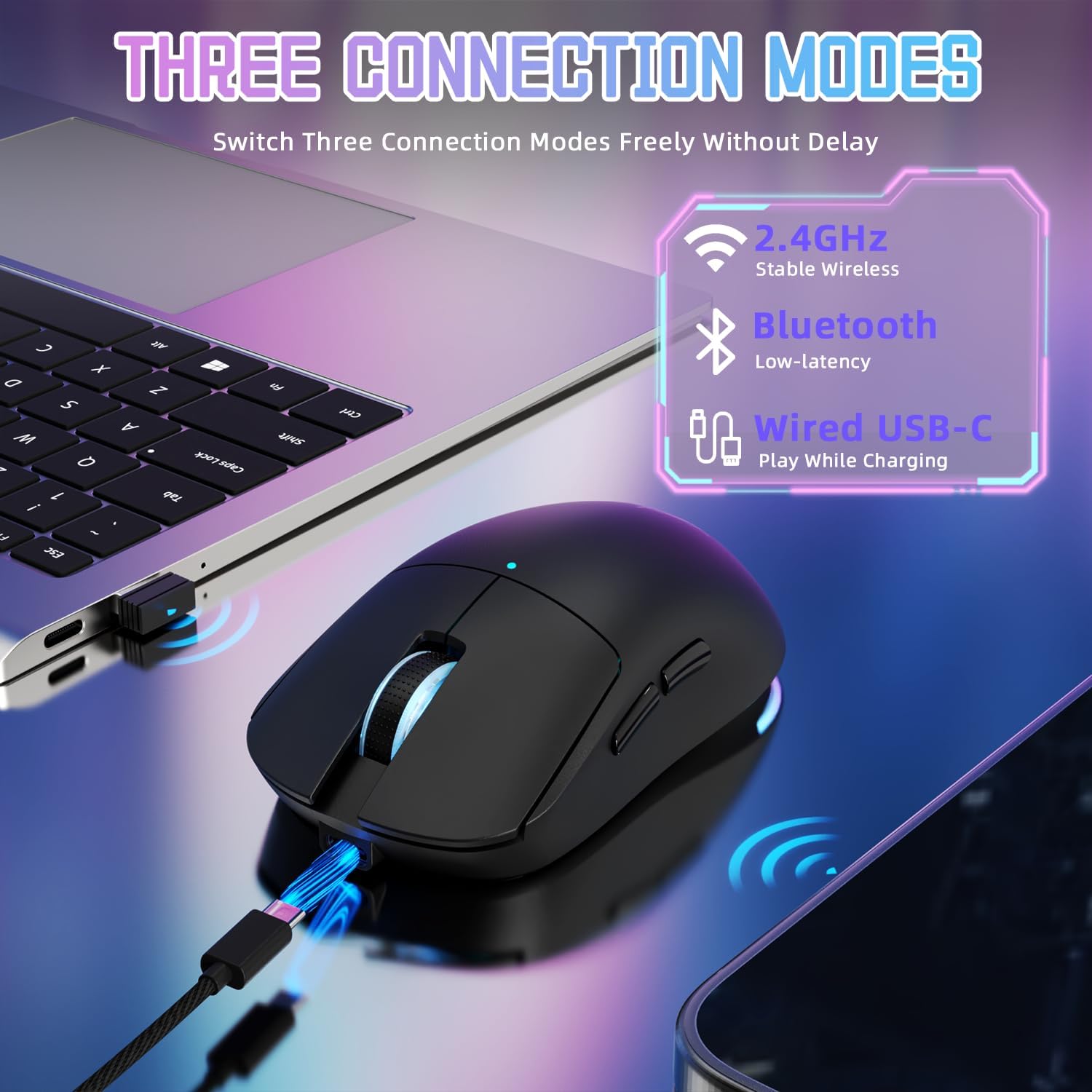
Image: Illustration of the three connectivity options for the G6 mouse: 2.4GHz wireless, Bluetooth, and wired USB-C.
- 2.4 GHz trådløs tilstand:
- Find den trådløse USB-dongle, der er opbevaret i rummet på undersiden af musen.
- Sæt donglen i en ledig USB-port på din computer.
- Switch the mode selector on the mouse to the '2.4G' position. The mouse should connect automatically.
- Bluetooth-tilstand:
- Switch the mode selector on the mouse to the 'BT' position.
- Åbn Bluetooth-indstillingerne på din computer eller enhed, og søg efter nye enheder.
- Select 'MAGIC-REFINER G6' from the list of available devices to pair.
- Kablet USB-C-tilstand:
- Connect the supplied USB-C cable to the mouse and to your computer's USB port.
- Musen skifter automatisk til kablet tilstand og begynder at oplade.
Installation af driversoftware
For advanced customization of DPI settings, polling rate, button assignments, and RGB lighting effects, download and install the official MAGIC-REFINER G6 driver software from the manufacturer's website. The software allows for personalized configuration to enhance your user experience.

Image: The customizable driver software interface for the G6 mouse, showing options for light settings, button settings, performance settings, and macro management.
Betjeningsvejledning
Knap funktioner
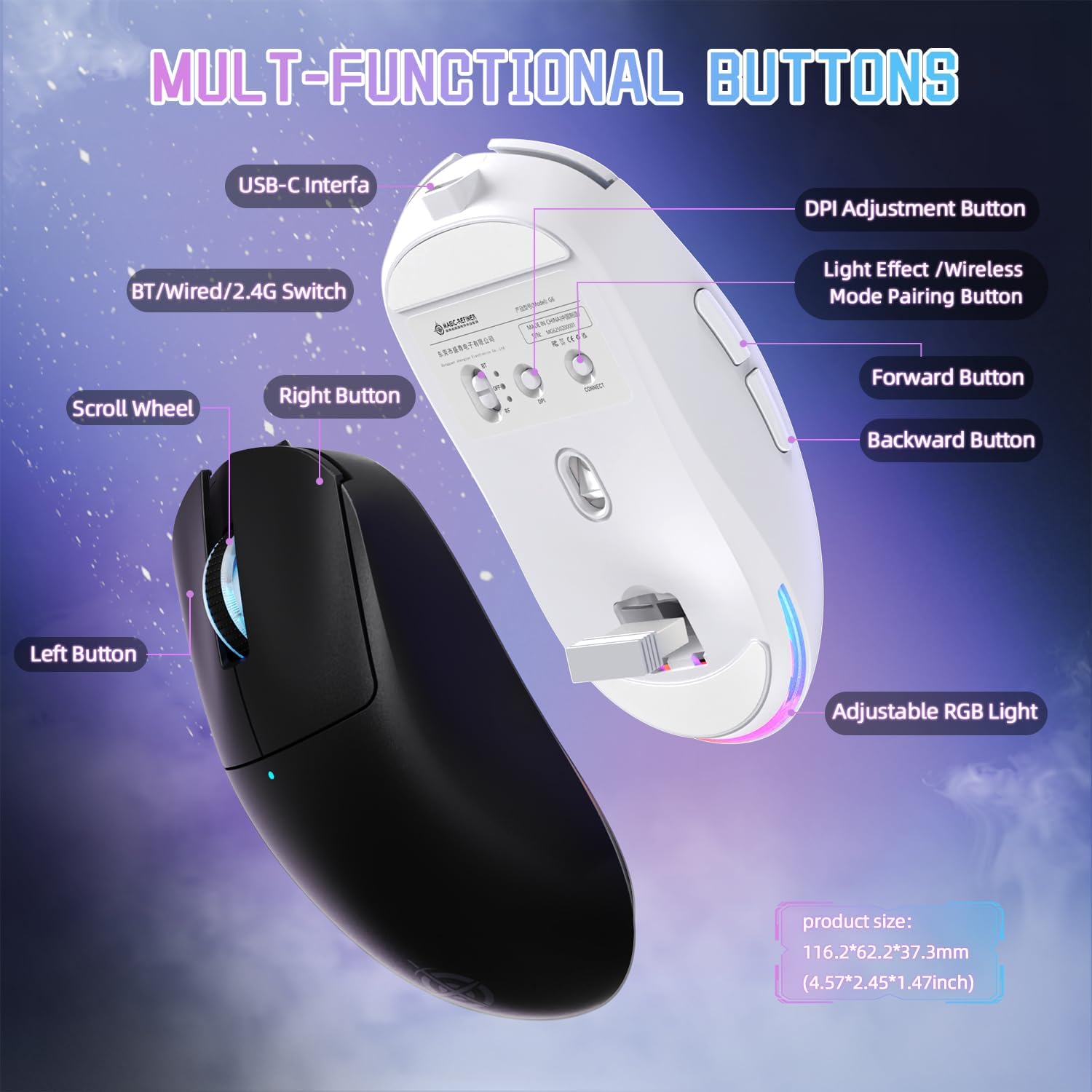
Image: Detailed diagram illustrating the multi-functional buttons of the G6 mouse, including Left, Right, Scroll Wheel, Forward, Backward, DPI Adjustment, Light Effect/Wireless Mode Pairing, and the USB-C interface.
- Venstre knap: Standard klikfunktion.
- Højre knap: Standard højreklikfunktion.
- Scrollhjul: Rul op/ned og midterklik-funktion.
- Frem-knap: Navigerer fremad i web browsere eller file opdagelsesrejsende.
- Baglæns knap: Navigerer baglæns i web browsere eller file opdagelsesrejsende.
- DPI-justeringsknap: Skifter gennem forudindstillede DPI-niveauer.
- Light Effect / Wireless Mode Pairing Button (Bottom): Controls RGB lighting effects and initiates wireless pairing.
- Power Toggle Switch (Bottom): Switches between 2.4G, OFF, and Bluetooth modes.
DPI justering
The G6 mouse offers 6 levels of adjustable DPI, up to 24000 DPI. You can cycle through the preset DPI levels (800-1600-2400-3200-6400-24000) by pressing the DPI adjustment button located on the top of the mouse. For fine-tuning and custom DPI settings, use the driver software.
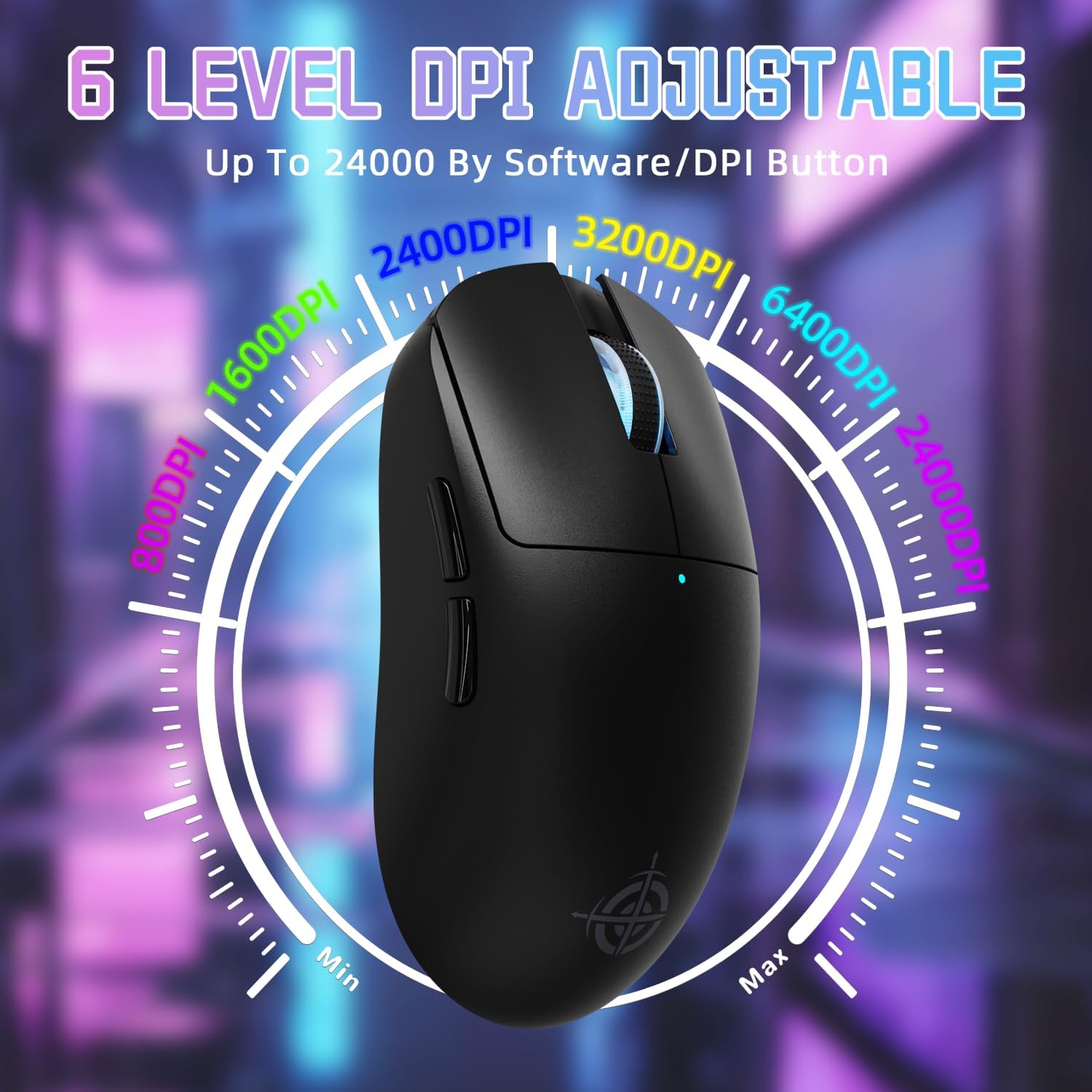
Image: Visual representation of the 6 adjustable DPI levels (800, 1600, 2400, 3200, 6400, 24000) available on the G6 mouse.
Afstemningshastighedsjustering
The polling rate can be configured via the driver software, offering options up to 1000Hz (1ms response time) for optimal gaming performance. Default polling rates for different modes are:
- 2.4GHz Wireless Mode: 125/250/500/1000Hz
- USB-C Wired Mode: 125/250/500/1000Hz
- Bluetooth-tilstand: 125Hz
RGB lysstyring
The rear RGB ambient light on the mouse can be adjusted using the dedicated button on the bottom of the mouse. This button allows you to cycle through various lighting effects and colors. Further customization is available through the driver software.
Applying Grip Tape
The included anti-slip grip tapes can be applied to the mouse surface to enhance grip, absorb hand sweat, and provide a personalized aesthetic. Ensure the mouse surface is clean and dry before applying the tapes for optimal adhesion.
Opretholdelse
Batteristyring
The G6 mouse is equipped with a 750mAh high-capacity battery, providing over 150 hours of battery life on a single charge. To maximize battery lifespan:
- Charge the mouse when the battery indicator light shows low power.
- Undgå at aflade batteriet helt ofte.
- If not using the mouse for an extended period, switch it to the 'OFF' position using the toggle switch on the bottom.

Image: Internal components of the G6 mouse highlighting the durable HUANO micro switches (rated for 20 million clicks) and the 750mAh rechargeable battery.
Rensning
Brug en blød, tør og fnugfri klud til at rengøre din mus. Tør genstridigt snavs let af.ampRengør kluden med vand eller en mild rengøringsopløsning. Undgå at bruge skrappe kemikalier, slibende rengøringsmidler eller at sprøjte væsker direkte på musen.
Fejlfinding
- Musen svarer ikke:
- Sørg for, at musen er opladet.
- Check the power toggle switch on the bottom of the mouse is in the correct position (2.4G or BT).
- For 2.4 GHz-tilstand skal du sørge for, at USB-donglen er korrekt tilsluttet en fungerende USB-port. Prøv en anden USB-port.
- For Bluetooth mode, ensure Bluetooth is enabled on your device and the mouse is paired correctly. Try re-pairing.
- Sørg for, at USB-C-kablet er korrekt tilsluttet til både musen og computeren, hvis du bruger kabelbaseret tilstand.
- Genstart din computer.
- Markørbevægelsen er uregelmæssig eller upræcis:
- Rengør den optiske sensor på undersiden af musen.
- Sørg for at bruge musen på en passende overflade (f.eks. en musemåtte).
- Adjust the DPI settings using the DPI button or driver software.
- RGB-belysning virker ikke:
- Press the light effect button on the bottom of the mouse to cycle through modes.
- Check settings in the driver software.
- Cannot install driver software:
- Sørg for, at dit operativsystem er kompatibelt med softwaren.
- Download the latest version of the driver from the official MAGIC-REFINER webwebsted.
- Temporarily disable antivirus or firewall software during installation if issues persist.
Specifikationer
| Feature | Detalje |
|---|---|
| Model | G6 |
| Forbindelse | 2.4G trådløs, Bluetooth, USB-C kablet |
| Sensor | PixArt PAW3311 Optisk Sensor |
| DPI niveauer | 800-1600-2400-3200-6400-24000 (Adjustable) |
| Afstemningsfrekvens | Up to 1000Hz (Configurable via software) |
| Sporingshastighed | 300 IPS |
| Acceleration | 35G |
| Afbrydere | HUANO mikroafbrydere (10 millioner klik) |
| Batterikapacitet | 750mAh |
| Batterilevetid | 150+ timer |
| Vægt | 75 g ± 3 g |
| Dimensioner | 116.2 x 62.2 x 37.3mm (4.57 x 2.45 x 1.47 inches) |

Image: Close-up of the PixArt PAW3311 gaming sensor, highlighting its 24000 DPI, 1K Hz polling rate, 300 IPS tracking speed, and 35G max acceleration.
Garanti og support
Garantioplysninger
The MAGIC-REFINER G6 Wireless Gaming Mouse comes with a standard manufacturer's warranty. Please refer to the warranty card included in your product packaging or visit the official MAGIC-REFINER webhjemmeside for detaljerede garantivilkår.
Kundesupport
For technical assistance, troubleshooting, or any product-related inquiries, please contact MAGIC-REFINER customer support through their official webwebstedet eller kontaktoplysningerne i din produktdokumentation. Du kan også besøge MAGIC-REFINER Store on Amazon for mere information.