
Macally BTZKEYA
MACALLY BTZKEYA Bluetooth Wireless Keyboard for Mac (JIS Layout) - Rechargeable, Multi-Device Pairing Instruction Manual
Model: BTZKEYA
Indledning
Welcome to the Macally family. Thank you for purchasing the ACEBTKEY series keyboard. Our mission is to provide visually appealing, high-quality, and affordable peripherals and accessories to satisfy our customers. To achieve this, we create innovative and practical products, prioritizing ease of use above all else.
This manual provides comprehensive instructions for setting up, operating, and maintaining your new Macally BTZKEYA Bluetooth Wireless Keyboard. Please read it thoroughly to ensure optimal performance and longevity of your device.
Pakkens indhold
- Macally BTZKEYA Bluetooth Wireless Keyboard
- USB-C til USB-A opladerkabel
- Brugervejledning
Systemkrav
- Bluetooth-enabled computer, laptop, smartphone, or tablet.
- Mac OS X or later.
- A USB-A port on your laptop or desktop PC for charging the keyboard.
- If your laptop or desktop PC only has USB-C ports, a USB-C to USB-A hub or adapter is required for charging.
Produkt overview
The Macally BTZKEYA keyboard is designed for efficiency and comfort, featuring a full-size layout with a numeric keypad and dedicated macOS shortcut keys. Its slim profile and scissor-switch keys provide a quiet and responsive typing experience.

Figur 1: The Macally BTZKEYA keyboard's slim profile and integrated kickstand. The keyboard is only 0.8 inches (approx. 2cm) thick.

Figur 2: The keyboard features 111 scissor-switch keys and 14 dedicated shortcut keys for macOS, enhancing productivity.

Figur 3: Scissor-switch keycaps provide a smooth, tactile, and quiet typing experience.

Figur 4: The keyboard supports multi-sync Bluetooth, allowing pairing with up to three devices like MacBook, iMac, iPad, and iPhone, with a wireless range of 30 feet.
Opsætning
Opladning af tastaturet
Before initial use, ensure the keyboard is fully charged. The built-in rechargeable battery provides extended usage.
- Connect the USB-A end of the included cable to a USB-A port on your computer, laptop, or a USB-compatible AC adapter.
- Connect the USB-C end to the USB-C charging port located on the side of the keyboard.
- Note: This cable is for charging only. The keyboard will not function as a wired device when connected via this cable.
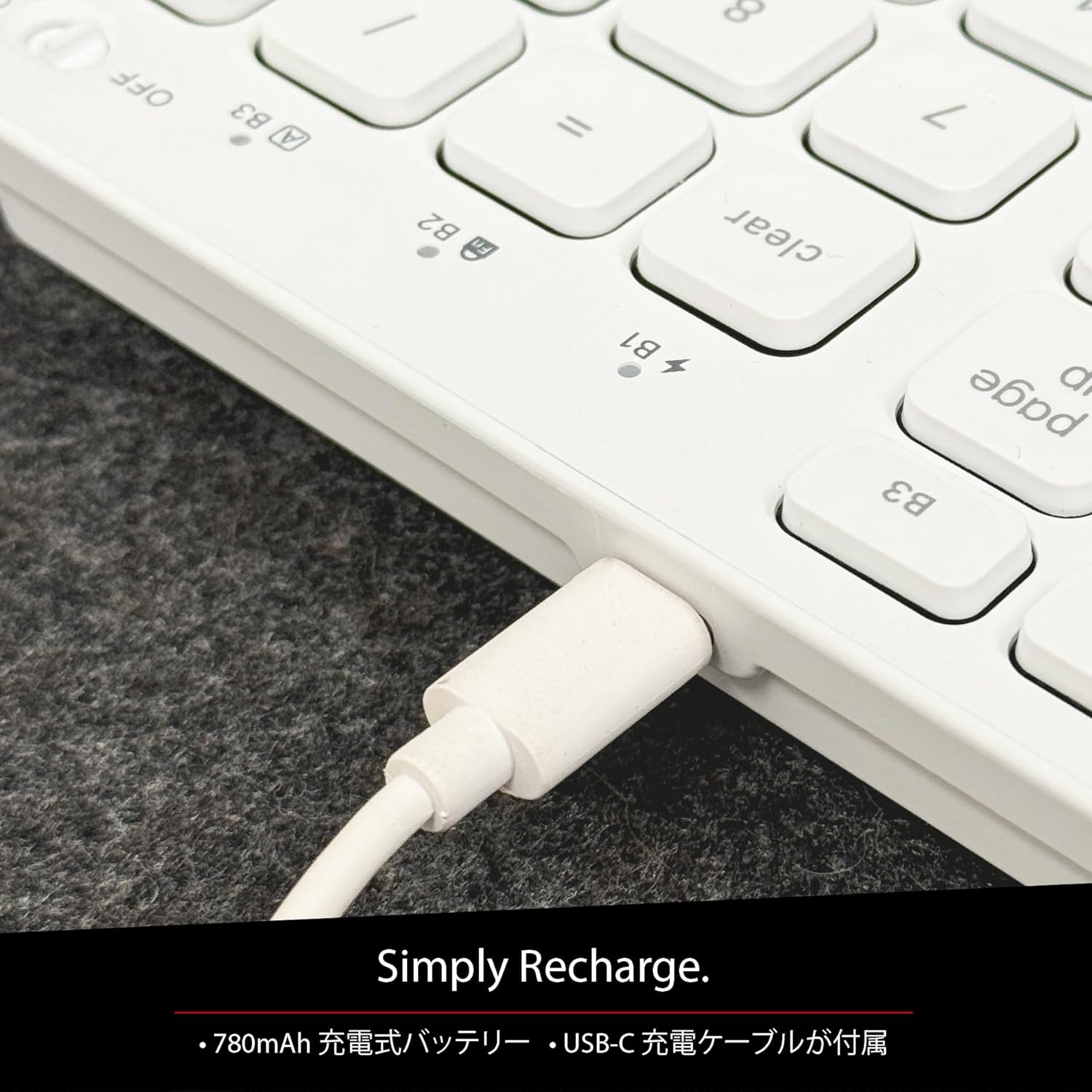
Figur 5: The USB-C charging port for easy recharging. The keyboard includes a 780mAh rechargeable battery.
LED-indikatorer for opladning:
- Rød LED: Opladning i gang.
- Grøn LED: Fuldt opladet.
- All Bluetooth Channel LEDs flashing: Batteriet er lavt.
Bluetooth -parringsprocedure
The keyboard can be paired with up to three Bluetooth-enabled devices. The number keys 1, 2, and 3 on the top row (not the numeric keypad) are labeled B1, B2, and B3, representing the Bluetooth channels.
Ensure the keyboard is powered on and sufficiently charged before starting the pairing process. The power switch is a slide button located on the side of the keyboard (Red for Off, Green for On).
Steps to Pair (using Bluetooth Channel 1 (B1) as an example):
- On the device you wish to connect (laptop, desktop, tablet, smartphone, etc.), open the Bluetooth settings screen.
- På tastaturet skal du trykke og holde nede fn og tryk derefter på 1 key (B1) to select Bluetooth Channel 1.
- Next, press and hold the fn key and simultaneously press the P key. This will put the keyboard into pairing mode, and the B1 LED will flash rapidly.
- On your device's Bluetooth settings screen, click or tap the device name "ACEBTKEY" to initiate pairing.
- Once pairing is complete, the B1 LED on the keyboard will remain steadily lit in blue.
To connect to a second or third device, follow the same procedure using B2 (fn+2) or B3 (fn+3).
Keyboard Setup Assistant (For Mac Users)
If your Bluetooth keyboard is not immediately recognized by macOS, the Keyboard Setup Assistant will automatically launch, prompting you to specify the keyboard type. Follow the on-screen instructions.
- When prompted, press the Z nøgle.
- Tryk derefter på ? nøgle.
- Confirm that "ANSI" is selected as the keyboard type and click "Done".
If keys do not respond or different characters are entered than printed, you may need to manually launch the Keyboard Setup Assistant:
- Open "System Settings" or "System Preferences".
- Select "Keyboard" and click "Change Keyboard Type".
- When the "Keyboard Setup Assistant" window appears, click "Continue" and follow the on-screen instructions.
Betjeningsvejledning
Switching Between Multiple Devices
After pairing all your devices with the keyboard, you can easily switch between them:
- Tryk og hold på fn nøgle.
- Mens du holder fn, press the desired Bluetooth channel key (B1, B2, eller B3).
- Release both keys. The keyboard will switch to the selected device.
Shortcut and Function Keys
The F-row (function key row) at the top of the keyboard defaults to shortcut mode. These keys perform functions indicated by the small white icons or text printed on them (e.g., play, pause, cut, copy).
To use standard function keys (F1, F2, etc.), press the desired function key while holding down the fn nøgle.
You can toggle between shortcut mode and standard F1-F12 function keys at any time by pressing fn + Esc. After switching, if you wish to use a shortcut function, press the desired shortcut key while holding down the fn nøgle. Presser fn + Esc again will return the keyboard to shortcut mode.
F-Key Functions:
| Fungere | Mac OSX | Windows | iOS | Android |
|---|---|---|---|---|
| fn+esc (Toggle F-row mode) | ✓ | ✓ | ✓ | ✓ |
| Skærmens lysstyrke ned | ✓ | ✓ | ||
| Skærmens lysstyrke op | ✓ | ✓ | ||
| Skære | ✓ | ✓ | ✓ | ✓ |
| Kopi | ✓ | ✓ | ✓ | ✓ |
| Indsæt | ✓ | ✓ | ✓ | ✓ |
| Forrige spor | ✓ | ✓ | ✓ | ✓ |
| Afspil/pause | ✓ | ✓ | ✓ | ✓ |
| Næste spor | ✓ | ✓ | ✓ | ✓ |
| Stum | ✓ | ✓ | ✓ | ✓ |
| Lydstyrke ned | ✓ | ✓ | ✓ | ✓ |
| Lydstyrke op | ✓ | ✓ | ✓ | ✓ |
| Trykke | ✓ | |||
| Mac: Eject Mac / Windows: Media Eject | ✓ | ✓ | ||
| Area Capture (Screenshot) | ✓ | |||
| Skærmtastatur | ✓ | |||
| Søg | ✓ | ✓ | ✓ | ✓ |
| Hjem-knap | ✓ | ✓ | ||
| Menu | ✓ | |||
| Låse | ✓ | ✓ | ✓ | ✓ |
Vigtig bemærkning: Standard function keys (F1-F12) may have special functions assigned by the connected operating system or currently running programs.
Strømbesparende tilstand
The keyboard is designed with power-saving features. Based on an average of 3 hours of daily use, the built-in rechargeable battery can last up to 3 months on a single charge.
Opretholdelse
To ensure the longevity and optimal performance of your Macally BTZKEYA keyboard, please follow these maintenance guidelines:
- Keep the device away from liquids, moisture, and water.
- Use the device only within the specified temperature range of 0°C (32°F) to 40°C (104°F).
- Clean the keyboard regularly with a soft, dry cloth. Avoid using harsh chemicals or abrasive materials.
- Do not disassemble the device. Disassembly will void the warranty.
- When disposing of the product, do not treat it as general waste. Take it to your nearest recycling center for proper disposal.
Fejlfinding
Parringsproblemer:
- If pairing fails, delete all existing pairing records for the keyboard on your device and attempt to reconnect.
- Sørg for, at tastaturet er fuldt opladet og tændt.
- Sørg for, at din enheds Bluetooth er aktiveret og synlig.
Key Response Issues:
- If keys do not respond or different characters are entered than printed, manually launch the Keyboard Setup Assistant on your Mac (refer to the "Keyboard Setup Assistant" section under Setup).
- Ensure the keyboard is within the 30-foot wireless range of your device.
Generel kompatibilitet:
- While designed for Mac, this keyboard is also compatible with Windows PCs. However, some functions may behave differently depending on the operating system or running programs.
Specifikationer
| Feature | Detalje |
|---|---|
| Mærke | Macally |
| Modelnummer | BTZKEYA |
| Antal nøgler | 111 keys (Mac layout) |
| Key Switch Type | Sakse-afbryder |
| Forbindelsesteknologi | Bluetooth |
| Understøttelse af flere enheder | Op til 3 enheder |
| Batterikapacitet | 780mAh (genopladeligt) |
| Opladningsport | USB-C |
| Produktdimensioner | 42 x 14 x 2 cm |
| Produktets vægt | 650 g |
| Anbefalet brug | Multimedia, Everyday Use, Personal, Education, Student, Business |
Garantioplysninger
Macally Peripherals warrants this product against defects in title, materials, and workmanship for a period of one year from the date of purchase. If a defect is found in the product, Macally's sole obligation and your sole remedy will be to repair or replace the product.
This is a limited warranty applicable only to the product accompanied by this user guide. This warranty does not apply in the following cases:
- Misbrug eller forkert brug af produktet.
- Exposure to abnormal electrical or environmental conditions.
- Use under conditions not considered normal use.
- Disassembly of the device.
Macally Peripherals' liability arising from this warranty and sale is limited to a refund of the purchase price. Macally is not responsible for the cost of procuring substitute products or services, lost profits, or any other consequential, incidental, direct, or indirect damages. These limitations apply even if the limited remedies fail of their essential purpose.
Teknisk support
For technical assistance, please contact Macally support during the following hours:
- Driftstider: Monday to Friday, 9 AM to 5 PM (Pacific Standard Time)
- E-mail: techsupport@macally.com
When contacting support, please have your product model number (BTZKEYA) and purchase information ready.
FCC-overensstemmelseserklæring
Denne enhed overholder del 15 af FCC-reglerne. Betjening er underlagt følgende to betingelser: (1) Denne enhed må ikke forårsage skadelig interferens, og (2) denne enhed skal acceptere enhver modtaget interferens, inklusive interferens, der kan forårsage uønsket drift.
Ændringer eller modifikationer, der ikke udtrykkeligt er godkendt af den part, der er ansvarlig for overholdelse af reglerne, kan ugyldiggøre brugerens ret til at betjene udstyret.
Dette udstyr er blevet testet og fundet i overensstemmelse med grænserne for en klasse B digital enhed i henhold til del 15 af FCC-reglerne. Disse grænser er designet til at give rimelig beskyttelse mod skadelig interferens i en boliginstallation. Dette udstyr genererer, bruger og kan udstråle radiofrekvensenergi og kan, hvis det ikke installeres og bruges i overensstemmelse med instruktionerne, forårsage skadelig interferens i radiokommunikation. Der er dog ingen garanti for, at der ikke vil forekomme interferens i en bestemt installation. Hvis dette udstyr forårsager skadelig interferens på radio- eller tv-modtagelse, hvilket kan fastslås ved at slukke og tænde for udstyret, opfordres brugeren til at forsøge at korrigere interferensen ved hjælp af en eller flere af følgende foranstaltninger:
- Drej eller flyt modtagerantennen.
- Øg afstanden mellem udstyret og modtageren.
- Tilslut udstyret til en stikkontakt på et andet kredsløb end det, som modtageren er tilsluttet.
- Kontakt forhandleren eller en erfaren radio/tv-tekniker for at få hjælp.
Denne enhed er blevet vurderet til at opfylde generelle krav til RF-eksponering. Enheden kan bruges under bærbare eksponeringsforhold uden begrænsninger.
Produktvideoer
Macally BTZKEYA Bluetooth Keyboard Overview
Denne video giver et generelt overblikview of the Macally BTZKEYA Bluetooth keyboard, highlighting its features and design.
Macally Mac Bluetooth Keyboard - Premium Multi-Device
A detailed look at the Macally Bluetooth keyboard for Mac, emphasizing its premium build and multi-device capabilities.
Macally SLIMKEYPROA Keyboard Features
This video showcases the features of the Macally SLIMKEYPROA keyboard, which shares similar design and functionality with the BTZKEYA model.
Macally BLSlimkeyproA Keyboard Demonstration
A demonstration of the Macally BLSlimkeyproA keyboard, highlighting its compact design and key features.
Macally ACEBTKEYSGCB Keyboard Overview
Denne video giver en overview of the Macally ACEBTKEYSGCB keyboard, showcasindens design og funktionalitet.
Macally SLIMKEYPRO Manual Guide
A visual guide to the Macally SLIMKEYPRO, offering insights into its usage and features.