
1. Introduktion
The MEETION DirectorD-KB is a wireless ergonomic keyboard designed for comfortable and natural typing. It features a scientific wave key design and a built-in firm wrist rest to support your hands during extended use. This keyboard offers broad compatibility with Windows and macOS devices through a 2.4GHz wireless connection.

Image: The MEETION DirectorD-KB Wireless Ergonomic Keyboard positioned on a wooden desk, showcasing its wave-curved design and integrated wrist rest.
2. Pakkens indhold
Sørg for at alle varer er til stede i pakken:
- 1 x MEETION DirectorD-KB Wireless Ergonomic Keyboard
- 1 x brugermanual
- 1 x USB-A 2.4GHz Wireless Receiver
- 1 x USB-C adapter
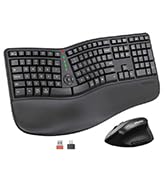
Image: Contents of the MEETION DirectorD-KB package, including the keyboard, user manual, USB-A receiver, and USB-C adapter.
3. Opsætningsvejledning
3.1. Batteriinstallation
- Find batterirummet på undersiden af tastaturet.
- Åbn batterirummets dæksel.
- Sæt to AAA-batterier (medfølger ikke) i batterirummet, og sørg for at polerne vender korrekt.
- Luk batterirummets dæksel forsvarligt.

Image: The underside of the keyboard showing the battery compartment for two AAA batteries and details on power saving features.
3.2. Tilslutning af modtageren
- Locate the USB-A 2.4GHz wireless receiver, typically found in the slot inside the keyboard's battery compartment or in the accessory pouch.
- For devices with a USB-A port: Plug the USB-A receiver directly into an available USB-A port on your computer.
- For devices with a USB-C port: Attach the provided USB-C adapter to the USB-A receiver, then plug the combined unit into an available USB-C port on your computer.
- The keyboard is plug-and-play and should connect automatically.
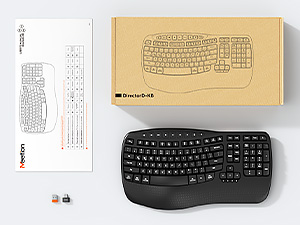
Image: Step-by-step guide on connecting the USB-A receiver with the USB-C adapter to a computer's USB-C port.
3.3. Tænder
After installing batteries and connecting the receiver, slide the power switch on the keyboard to the 'ON' position. The keyboard is now ready for use.
4. Betjeningsvejledning
4.1. Ergonomic Design and Wrist Rest
The keyboard features a wave-shaped key layout and a firm, integrated wrist rest. This design guides your hands and wrists into a natural, relaxed typing position, reducing strain during long typing sessions.

Image: A user's hands resting comfortably on the integrated wrist rest while typing on the ergonomic keyboard.
4.2. Adjustable Tilt
Utilize the adjustable tilt legs on the underside of the keyboard to find your preferred typing angle. Different angles can further enhance comfort and reduce wrist fatigue.

Billede: Side profiles of the keyboard demonstrating three different adjustable tilt angles for personalized comfort.
4.3. Dual System Layout (Windows/macOS)
The keyboard supports both Windows and macOS layouts. To switch between operating systems:
- Trykke FN + Q til Windows layout.
- Trykke FN + W. til macOS-layout.
4.4. Multimedietaster
The keyboard includes dedicated and combined multimedia keys for quick access to functions like volume control, media playback, and more.
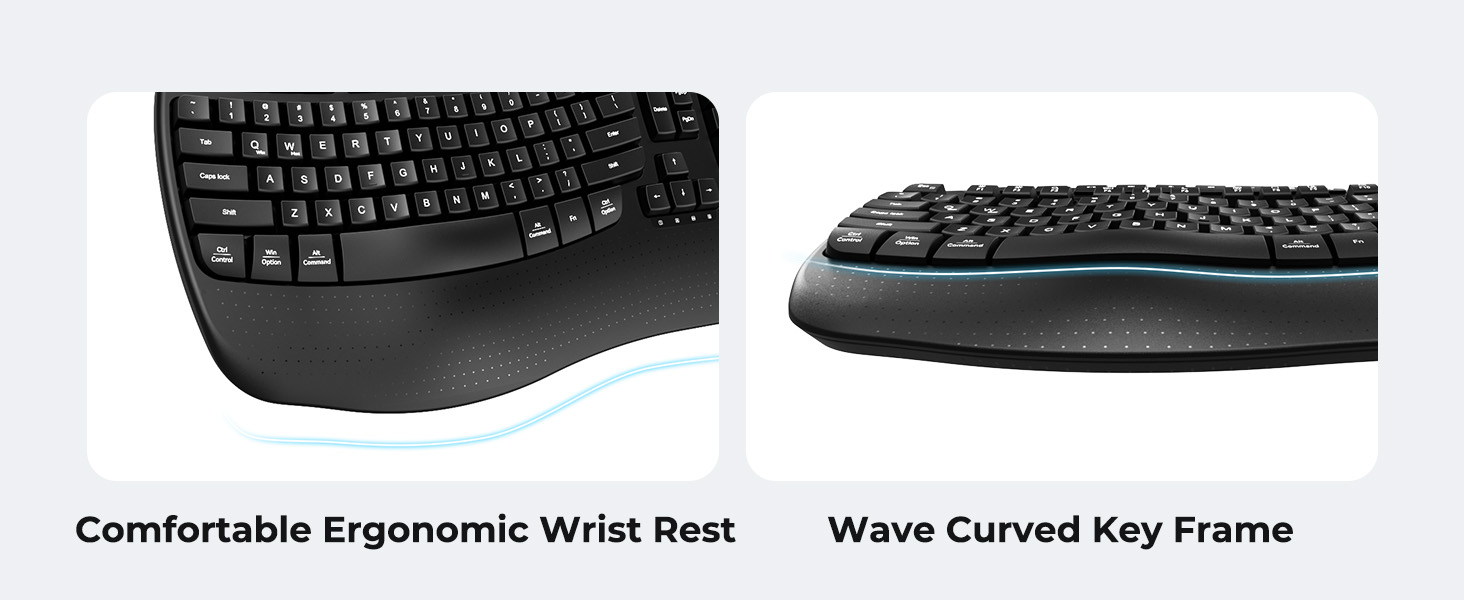
Image: A visual representation of the independent and combined multimedia keys available on the keyboard.
4.5. Intelligent strømbesparelse
The keyboard features an auto-sleep mode to conserve battery life. After 20 minutes of inactivity, it will enter hibernation. To wake it up, simply press any key.

Image: Close-up of the keyboard's indicator lights, showing status for Num Lock, Caps Lock, FN Lock, and low battery warning.
5. Vedligeholdelse
For at sikre dit tastaturs levetid og optimale ydeevne skal du følge disse retningslinjer for vedligeholdelse:
- Rensning: Brug en blød, tør klud til at tørre tastaturets overflade af. For en grundigere rengøring, brug en let tør klud.amp cloth with mild soap can be used, ensuring no liquid enters the keycaps or internal components.
- Undgå væsker: Udsæt ikke tastaturet for overdreven fugt, og spild ikke væsker på det.
- Opbevaring: Opbevar tastaturet et køligt, tørt sted væk fra direkte sollys og ekstreme temperaturer.
- Udskiftning af batteri: Replace batteries promptly when the low battery indicator appears to maintain consistent performance.
6. Fejlfinding
If you encounter issues with your MEETION DirectorD-KB keyboard, refer to the following common solutions:
- Tastaturet reagerer ikke:
- Kontroller om tastaturet er tændt.
- Ensure the batteries are correctly installed and not depleted. Replace if necessary.
- Verify that the USB receiver is securely plugged into your computer's USB port (or via the USB-C adapter).
- Prøv at tilslutte receiveren til en anden USB-port.
- Genstart din computer.
- Forsinket eller intermitterende forbindelse:
- Ensure the keyboard is within the effective range of the receiver (typically up to 10 meters).
- Minimize interference from other wireless devices by moving them further away.
- Undgå at placere modtageren i nærheden af store metalgenstande.
- Taster fungerer ikke korrekt:
- Kontrollér for eventuelle fysiske forhindringer under tastaturerne.
- Ensure the correct operating system layout (Windows/macOS) is selected using FN+Q or FN+W.
7. Specifikationer
| Feature | Detalje |
|---|---|
| Mærke | MØDE |
| Modelnummer | DirectorD-KB |
| Forbindelsesteknologi | 2.4G Wireless (USB-A, USB-C Adapter) |
| Kompatible enheder | Laptop, PC (Windows XP/7/8/10/11 & macOS X 10.6 or later) |
| Tastaturlayout | QWERTY |
| Antal nøgler | 113 |
| Særlige funktioner | Ergonomic, Hotkeys and Media Keys, Integrated Stand, Wave Keys, Wrist Rest |
| Produktmål (L x B x H) | 17.39 cm x 9.43 cm x 1.81 cm |
| Materiale | Plast |
| Strømkilde | Batteridrevet (2 x AAA, medfølger ikke) |
8. Officiel produktvideo
Video: En officiel produktvideoasing the features and ergonomic design of the MEETION DirectorD-KB Wave Ergonomic Wireless Keyboard. (Duration: 0:39)
9. Garanti og support
This MEETION DirectorD-KB Wireless Ergonomic Keyboard comes with a 1-year manufacturer's warranty.
For further assistance, troubleshooting, or warranty claims, please visit the official MEETION store or contact customer support.
Official MEETION Store: MØDE Butik på Amazon