
1. Produktet er slutview
The Zunate X99H Motherboard is designed for high-performance desktop computing, supporting LGA 2011-3 CPUs including E5 V3, E5 V4, i7 58xx, and i7 68xx series processors. It features four DDR4 DIMM slots, allowing for a maximum memory capacity of 128GB, with support for DDR4 2666, 2400, and 2133MHz memory types. This mATX form factor motherboard includes M.2 NVMe and SATA3 interfaces for storage, USB 3.0 connectivity, and integrated HD multimedia and VGA interfaces for display output. The design incorporates solid capacitors for enhanced stability and extended lifespan.

Figure 1: Zunate X99H Motherboard - Top View. This image displays the overall layout of the motherboard, including the LGA 2011-3 CPU socket, four DDR4 DIMM slots, PCIe slots, and various headers and ports.
2. Opsætning og installation
Follow these steps for proper installation of your Zunate X99H Motherboard and its components.
2.1 CPU installation
- Forbered CPU-sokkelen: Gently lift the CPU retention lever on the LGA 2011-3 socket.
- Juster CPU'en: Carefully align your LGA 2011-3 CPU (E5 V3/V4, i7 58xx/68xx series) with the socket, ensuring the triangular markers on the CPU and socket match. Do not force the CPU into place.
- Sikr CPU'en: Lower the CPU into the socket. Close the retention lever until it clicks into place.
- Installer CPU-køler: Apply thermal paste (if not pre-applied) and install your compatible CPU cooler according to its manufacturer's instructions.

Figure 2: CPU Socket Compatibility. This image emphasizes the LGA 2011-3 CPU socket, compatible with E5 V3/V4 and i7 58xx/68xx series processors, and shows the 8-pin and 24-pin power sockets.
2.2 Installation af hukommelse (RAM)
- Open DIMM Latches: Open the retention clips at both ends of the DDR4 DIMM slots.
- Align RAM Modules: Align the notch on your DDR4 memory module with the key in the DIMM slot.
- Indsæt RAM: Tryk godt ned i begge ender af hukommelsesmodulet, indtil fastholdelsesklipsene klikker på plads.
- Install Multiple Modules: For optimal performance, refer to your CPU and memory manufacturer's guidelines for dual or quad-channel memory configuration.

Figure 3: Memory Support. This image highlights the four DDR4 DIMM slots, capable of supporting up to 128GB of DDR4 2666/2400/2133MHz memory.
2.3 Installation af lagerenhed
- M.2 NVMe/SATA SSD:
- Find M.2-slottet på bundkortet.
- Indsæt M.2 SSD'en i stikket i en vinkel.
- Tryk forsigtigt SSD'en ned, og fastgør den med den medfølgende skrue.
- Ensure the jumper switch for the M.2 interface is set correctly for either Serial ATA or PCIE protocol, depending on your M.2 device.
- Serial ATA (SATA) Devices:
- Connect one end of a SATA data cable to a SATA port on the motherboard (2 x SATA2.0, 1 x SATA3.0).
- Tilslut den anden ende af SATA-datakablet til din SATA-harddisk eller SSD.
- Tilslut et SATA-strømkabel fra din strømforsyning (PSU) til SATA-enheden.
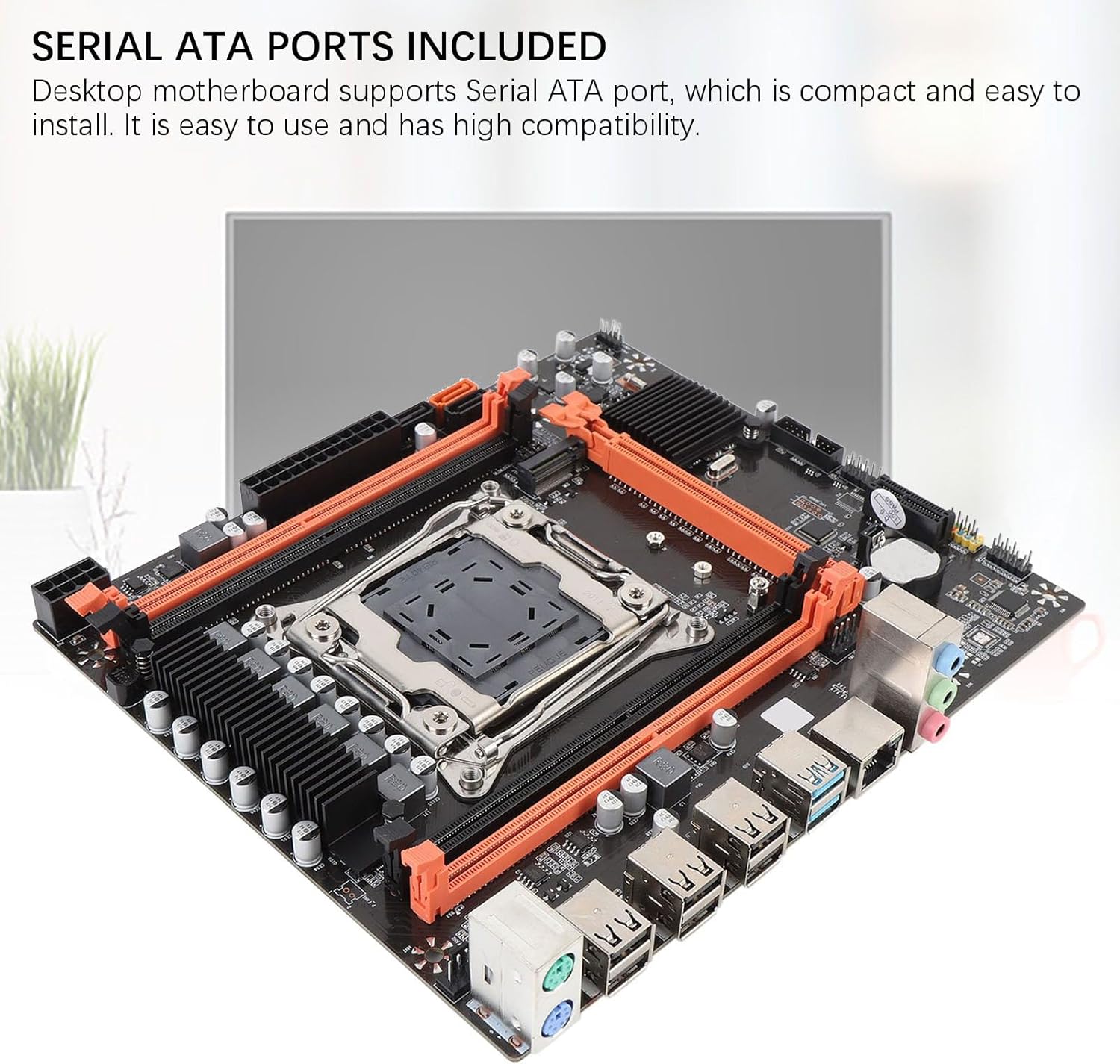
Figure 4: Storage Connectivity. This image shows the Serial ATA ports and the M.2 slot, supporting NGFF and NVME protocols for various storage solutions.
2.4 Strømforbindelser
- 24-bens ATX strømforsyning: Connect the main 24-pin power cable from your PSU to the 24-pin power socket on the motherboard.
- 8-bens CPU-strøm: Connect the 8-pin (or 4+4 pin) CPU power cable from your PSU to the 8-pin power socket near the CPU.
2.5 Perifere forbindelser
- Grafikkort: Insert your PCI Express 16X graphics card into the designated slot and secure it.
- Frontpanelstik: Connect the power switch, reset switch, HDD LED, power LED, and front panel USB/audio headers to their respective pins on the motherboard. Refer to the motherboard's silkscreen labels for correct orientation.
- USB-enheder: Connect USB 2.0 and USB 3.0 devices to the rear I/O panel ports.
- Netværk: Connect an Ethernet cable to the RJ45 network interface.
- Vise: Connect your monitor to the graphics card or the integrated HD multimedia/VGA interfaces if using integrated graphics (CPU dependent).

Figure 5: Rear I/O Panel. This image provides a clear view of the motherboard's rear input/output ports, including USB 2.0, USB 3.0, RJ45 network, and audio jacks.
3. Betjeningsvejledning
Når alle komponenter er installeret og tilsluttet, kan du tænde dit system.
- Første gang tændt: Ensure all power cables are securely connected. Press the power button on your PC case.
- BIOS/UEFI-adgang: Under opstart skal du gentagne gange trykke på den angivne tast (ofte DEL, F2, eller F10) to enter the BIOS/UEFI setup utility. Here you can configure boot order, system time, and other advanced settings.
- Installation af operativsystem: Indsæt installationsmediet til dit operativsystem (USB-drev eller dvd), og følg vejledningen på skærmen for at installere dit foretrukne operativsystem.
- Driver installation: After OS installation, install the necessary drivers for your motherboard (chipset, network, audio, USB, etc.) from the manufacturer's website or provided media.
4. Vedligeholdelse
Regelmæssig vedligeholdelse er med til at sikre dit bundkorts og pc-systems lange levetid og stabile ydeevne.
- Fjernelse af støv: Periodically clean dust from inside your PC case, especially from fans, heatsinks, and motherboard components, using compressed air. Ensure the system is powered off and unplugged before cleaning.
- Kabelstyring: Ensure internal cables are neatly routed to improve airflow and prevent obstruction.
- BIOS/UEFI-opdateringer: Tjek producentens website for BIOS/UEFI updates. Updates can improve compatibility, stability, and performance. Follow update instructions carefully.
- Komponentkontroller: Occasionally check that all components (RAM, graphics card, storage drives) are securely seated in their slots.

Figure 6: Stable Performance Components. This image highlights the solid capacitors used on the motherboard, contributing to its stability and extended lifespan.
5. Fejlfinding
Hvis du støder på problemer, kan du overveje følgende almindelige fejlfindingstrin:
- Ingen strøm:
- Sørg for, at strømforsyningen er tændt og tilsluttet en fungerende stikkontakt.
- Verify that the 24-pin and 8-pin power cables are securely connected to the motherboard.
- Kontroller forbindelsen mellem tænd/sluk-knappen og bundkortet på frontpanelet.
- Ingen visning:
- Confirm that your monitor is connected to the correct display output (graphics card or integrated graphics port).
- Sæt grafikkortet og RAM-modulerne i igen.
- Test with a single RAM module in different slots.
- Ensure the CPU cooler is properly installed and connected.
- Systemustabilitet/nedbrud:
- Check for overheating. Ensure CPU cooler and case fans are functioning.
- Verify RAM compatibility and stability (e.g., run memory diagnostic tools).
- Sørg for, at alle drivere er opdaterede.
- Kontroller for løse strøm- eller datakabler.
- Lagring ikke fundet:
- For SATA-drev skal du kontrollere data- og strømkabelforbindelserne.
- For M.2 drives, ensure it is fully seated and secured, and the M.2 jumper is set correctly for its protocol (NVMe or SATA).
- Check BIOS/UEFI settings to ensure SATA ports are enabled and M.2 detection is configured.

Figure 7: Expansion Capabilities. This image highlights the M.2 slot, supporting NGFF and NVME protocols, and other expansion slots like PCIe x16 and PCIe x1, along with HD multimedia and VGA interfaces.
6. Specifikationer
| Feature | Specifikation |
|---|---|
| Bundkortstruktur | M-ATX |
| Chipsæt | X99H |
| CPU socket | LGA 2011-3 |
| Understøttede CPU-typer | Intel E5 V3/V4 series, i7 58xx/68xx series |
| Hukommelsessokler | 4 x DDR4 DIMM-moduler |
| Maksimal hukommelseskapacitet | 128 GB |
| Hukommelsestyper | DDR4 2666MHz, 2400MHz, 2133MHz |
| Onboard Network Card | Yes (RJ45 interface) |
| Grafikkortslot | 1 x PCI Express 16X |
| Udvidelsesslots | 1 x PCIE x1, 1 x NVME M.2 Interface (Serial ATA, PCIE with Jumper Switch) |
| USB-grænseflader (bagside) | 6 x USB 2.0, 2 x USB 3.0 |
| USB Pins (Internal) | 1 set USB3.0, 1 set USB2.0 |
| Serial ATA Ports | 2 x Serial ATA2.0, 1 x Serial ATA3.0 |
| Stikkontakter | 1 x 8-bens, 1 x 24-bens |
| Indbygget batteri | CR2032x1 240mah |
| I / O-grænseflader | PS/2 Keyboard/Mouse Universal Interface, 1 x RJ45 Network Interface, HD multimedia, VGA |
7. Garanti og support
For warranty information and technical support, please refer to the official Zunate webwebsted eller kontakt din forhandler.
- Fabrikant: Zunate
- Modelnummer: Zunatear2wnouip9
- Online support: Besøg Zunate Store on Amazon for product information and potential support links. For direct manufacturer support, search for "Zunate official website" online.
- Returpolitik: This product may be subject to a 30-day return/replacement policy. Please check with your retailer for specific details.