
1. Introduktion
This manual provides instructions for the FONGWAH Desktop Gen 2 UHF RFID Reader/Writer, Model U6-CU-91. This device is designed for reading and writing UHF RFID tags compliant with EPC C1G2 and ISO18000-6C protocols. It offers keyboard emulation output, a configuration tool for settings, and an SDK for custom software development. The reader is suitable for various RFID application systems.
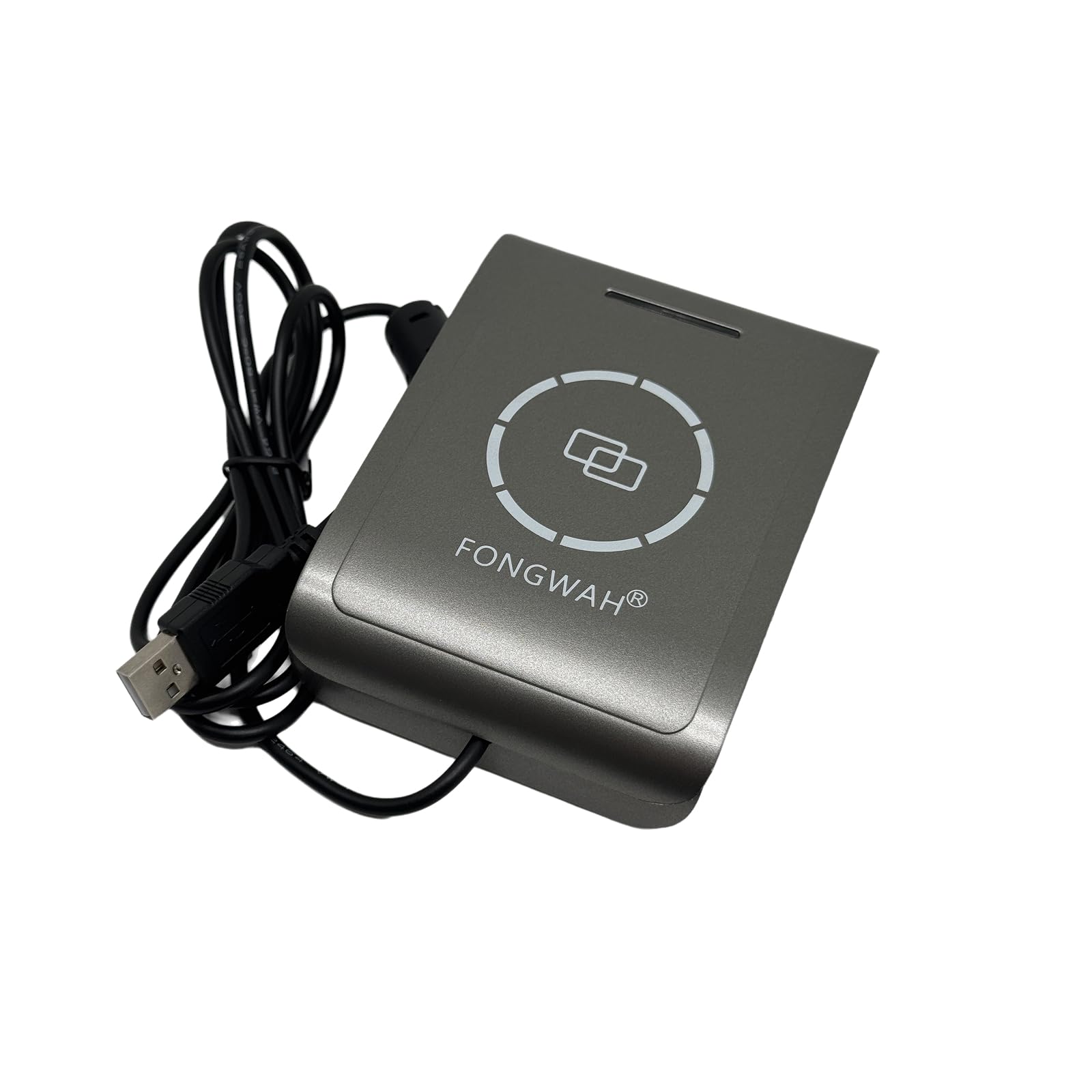
Image: FONGWAH Desktop Gen 2 UHF RFID Reader/Writer, a compact grey device with a USB cable.
2. Produktfunktioner
- Læseafstand: Up to 39 inches (depending on tag og miljø).
- Tastaturemulering: Reads UHF tags and outputs data directly as keyboard input.
- Konfigurationsværktøj: Allows users to easily set frequency range, data output format, and write tags.
- Software Development Kit (SDK): Includes DLL files and programming examples for custom software applications.
- Protokoloverholdelse: Supports EPC C1G2 and ISO18000-6C standards.
- Forbindelse: USB interface for PC connection.

Image: Diagram illustrating UHF reader functionality, including keyboard emulation output, configuration tool, and SDK for development.
3. Specifikationer
| Parameter | Værdi |
|---|---|
| Model | U6-CU-91 (updated from WRD-130-U1) |
| Frekvens | Set frequency on demand (US 902-928MHz, EU 865-868MHz, JP 916-921MHz, TW 922-928MHz, etc.) |
| RF Power Output | 0-26 dBm |
| Antenne | 3dBi |
| Læseafstand | Op til 39 tommer (100 cm) |
| Protokoller | EPC C1 Gen 2 / ISO 18000-6C |
| Forsyning Voltage | USB port 3-7V DC |
| Driftstemperatur | +32°F til +122°F (0°C til +50°C) |
| Dimension | 4.72 * 3.35 * 0.9 inch (120 * 85 * 23 mm) |
| Vægt | 250 gram |
| Forbindelsesteknologi | USB |
| Operativsystem | Windows, Linux, Android |

Image: Detailed product parameters for the FONGWAH U6-CU-91 UHF Reader.
4. Opsætning
4.1 Pakkens indhold
Bekræft, at din pakke indeholder følgende varer:
- FONGWAH Desktop Gen 2 UHF RFID Reader/Writer (U6-CU-91)
- SDK (Software Development Kit) disk
- 2 UHF tags (Alien 9662 H3)

Image: Contents of the product package, including the smart card reader, SDK disk, and two UHF tags.
4.2 Tilslutning af enheden
- Connect the USB cable from the UHF RFID Reader/Writer to an available USB port on your PC.
- The device is plug-and-play and should be recognized automatically by your operating system (Windows, Linux, Android).
- The indicator light on the reader will illuminate upon successful connection.

Image: The UHF reader connected to a laptop via its USB cable, illustrating compatible systems.
5. Betjeningsvejledning
5.1 Læsning Tags via Keyboard Emulation
The FONGWAH UHF Reader's default setting is to read EPC codes via keyboard emulation. This means the reader acts like a keyboard, typing the tag's EPC code directly into any active text field on your computer.
- Ensure the reader is connected to your PC.
- Open a text editor, spreadsheet, or any application with a text input field.
- Place a compatible UHF tag on the reader's sensing area.
- The EPC code of the tag will be automatically typed into the active text field.
Video: Demonstration of reading UHF tags effortlessly with the FONGWAH reader using keyboard emulation.
5.2 Using the Configuration Tool (for advanced settings)
For changing advanced settings such as frequency range, data output format, or writing tags, use the provided configuration tool.
- Insert the SDK disk into your computer or download the latest software from the official FONGWAH webwebsted.
- Navigate to the SDK folder and open the file navngivet 'UHF Reader Config V1.1'.
- In the configuration software, select 'USB' mode and click 'Connect' to establish communication with the reader.
- Adjust settings such as 'Auto read UID', 'Read card mode' (LED, Beep, Check UID), 'Scan Time', 'Same Card' delay, and 'Set frequency range' as needed. Click 'Set' after each change.
- To read or write EPC data, navigate to the 'UHF/EPC' tab.
- Placer tag on the reader. To read, click 'Read Tag'. To write, enter the desired data in the 'Write Tag' field and click 'Write Tag'.
Video: Instructions on how to write EPC data to UHF tags using the FONGWAH UHF reader's configuration tool.
5.3 Software Development Kit (SDK)
The SDK provides DLL files and programming examples for users with programming skills to integrate the reader with their own software applications. Refer to the SDK documentation for detailed programming guides.
6. Supported Cards/Tags
The FONGWAH Desktop Gen 2 UHF RFID Reader/Writer supports a variety of UHF chips, including:
- Alien-H3/H4/H9
- Impinj M4/M5
- UCODE G2iL, UCODE G2iM
- UCODEG2 XL, UCODEG2 XM
- And other UHF chips compliant with EPC C1G2 and ISO18000-6C.
Image: List of supported UHF card and tag types compatible with the reader.
7. Ansøgninger
The UHF reader is widely applied in various RFID application systems, including but not limited to:
- Smart warehouse inventory management
- Logistics and supply chain tracking
- Automatic weighting systems
- Access control systems (door control, car parking control, hotel access control)
- Anti-counterfeit solutions
- Assembly line management
- Retail and apparel management
- Transportation systems


Billeder: Eks.amples of application scenarios including supply chain, warehouse management, and parking access control.
8. Vedligeholdelse
To ensure the longevity and optimal performance of your FONGWAH UHF RFID Reader/Writer, follow these maintenance guidelines:
- Rensning: Brug en blød, tør klud til at rengøre enheden. Undgå at bruge skrappe kemikalier, opløsningsmidler eller slibende rengøringsmidler.
- Opbevaring: Opbevar enheden et køligt, tørt sted væk fra direkte sollys og ekstreme temperaturer.
- Håndtering: Håndter enheden forsigtigt for at undgå fysisk skade. Undgå at tabe den eller udsætte den for kraftige stød.
- Kabelpleje: Do not bend or crimp the USB cable excessively. Ensure the cable is not under tension.
9. Fejlfinding
If you encounter issues with your FONGWAH UHF RFID Reader/Writer, consider the following troubleshooting steps:
- Enhed ikke genkendt:
- Ensure the USB cable is securely connected to both the reader and the PC.
- Prøv at tilslutte til en anden USB-port på din pc.
- Genstart din computer.
- Check Device Manager (Windows) to see if the device is listed and if there are any driver issues.
- Tags Læser ikke:
- Sørg for tag is a compatible UHF tag (EPC C1G2, ISO18000-6C).
- Placer tag directly on the reader's sensing area.
- Verify that the configuration tool settings are correct, especially the frequency range.
- Check for any metallic objects or strong electromagnetic interference near the reader that might affect performance.
- Keyboard Emulation Not Working:
- Ensure a text input field is active and focused in your application.
- Confirm that the 'USB keyboard disable' option is not enabled in the configuration tool if you intend to use keyboard emulation.
- Skrivning Tags Fails:
- Sørg for tag is writable and not locked.
- Verify the data entered in the configuration tool is in the correct format.
- Check the RF Power Output setting in the configuration tool.
10. Garanti og support
FONGWAH products are designed for reliability and performance. For technical support, including assistance with integrating the reader with your software or updating library files, please contact us directly through Amazon's messaging system. Our support team is available to assist with any product-related inquiries.
Se venligst din købsdokumentation for specifikke garantivilkår.