
1. Introduktion
This manual provides detailed instructions for the installation, operation, and maintenance of your Roinvou 2+64G Android Car Radio. This unit is designed specifically for KIA Picanto TA models manufactured between 2011 and 2016, offering advanced features such as wireless CarPlay, Android Auto, GPS navigation, Bluetooth connectivity, and a 9-inch full HD touchscreen display.
Please read this manual thoroughly before installation and use to ensure proper function and to maximize your experience with the product. Keep this manual for future reference.
2. Kompatible modeller
This Roinvou Android Car Radio is compatible with the following vehicle model:
- KIA Picanto TA (2011-2016)
The unit features a 9-inch capacitive touchscreen with 2GB RAM and 64GB internal storage, running an updated Android system.
3. Opsætning og installation
3.1. Pakkens indhold
Kontroller, at alle dele er til stede i pakken, før installationen påbegyndes:

Image showing the main head unit, power cable, RCA cable, USB cable, installation tool, GPS antenna, microphone, and rear camera.
- Roinvou Android Car Radio Head Unit (9-inch screen)
- Strømkabel
- RCA-kabel
- USB kabel
- Installationsværktøj
- GPS antenne
- Mikrofon
- Rear Camera (AHD)
- Omvendt linje
- Accessories (various connectors and mounting hardware)
3.2. Ledninger og forbindelser
Refer to the wiring diagram for proper connection of all cables. Ensure all connections are secure before powering on the unit.

Diagram illustrating the wiring ports for the power cable, RCA cable, USB cable, camera input, and GPS antenna.
- Strømkabel: Tilslut til køretøjets strømledningsnet.
- RCA-kabel: Til lyd-/videoindgangs-/udgangsforbindelser.
- USB-kabel: For data transfer, charging, and Android Auto/CarPlay wired connections.
- Kamera input: Connect the provided AHD rear camera.
- GPS-antenne: Monter på et sted med klar himmel view for optimal signalmodtagelse.
3.3. Ledningsføring til bakkamera
Properly connect the reversing camera as shown in the diagram. The reverse input cable must be plugged in even if the camera is not used, as it affects Bluetooth and Wi-Fi signal reception.

Diagram showing how to connect the red cable to the positive terminal of the car's reverse light cable and the black cable to the negative terminal. The other two red extension cables are not needed.
- Red Cable (①): Connects to the positive terminal of the car's reverse light cable.
- Black Cable (②): Connects to the negative terminal of the car's reverse light cable.
- Note: There is no need to connect the other two red extension cables (③ and ④).
3.4. CANBUS Connection (Steering Wheel Control)
The method for enabling steering wheel controls depends on whether your vehicle uses a CANBUS decoder.

Instructions for connecting CANBUS, detailing steps for vehicles with and without a CANBUS decoder to enable steering wheel controls.
- Without CANBUS Decoder:
Connect the plugs or the steering wheel control wires (Key1/Key2) in the power cable to the corresponding port or wire of your original car. Then, navigate to Settings > Car Settings > General (Enter SWC setting interface) and perform a manual match to activate the button functions.
- With CANBUS Decoder:
Connect the CANBUS before powering on the machine. Then, navigate to Settings > Car Settings > Factory (000000) > CarType Setting to ensure SWC works properly. First, select the brand of the CANBUS decoder, then select the matching model and year according to the actual situation.
4. Betjeningsvejledning
4.1. CarPlay & Android Auto & Mirror Link
The unit supports both wired and wireless connections for Apple CarPlay and Android Auto, as well as Mirror Link functionality.

Image displaying the icons for Apple CarPlay, Android Auto, and Mirror Link, indicating support for both wireless and wired connections via Bluetooth and USB.
- Apple CarPlay (Wireless/Wired): Connect your iPhone via Bluetooth for wireless CarPlay or via USB for wired connection. Access navigation, music, calls, and messages.
- Android Auto (Wireless/Wired): Connect your Android phone via Bluetooth for wireless Android Auto or via USB for wired connection. Access navigation, music, calls, and Google Assistant.
- Mirror Link:
- iOS-telefoner: Connect via Wi-Fi for one-way control projection (phone screen displayed on head unit).
- Android-telefoner: Connect via USB and Wi-Fi for two-way control (control phone from head unit and vice-versa).
4.2. GPS Navigation & Wi-Fi Connection
The unit features integrated GPS for navigation and Wi-Fi for online services.

Image showing the car radio display with a navigation map, along with icons for music and video streaming, and a car driving on a road with GPS signals.
- GPS-navigation: Supports both online and offline navigation. You can download offline maps from the Play Store.
- Wi-Fi: Connect to a Wi-Fi hotspot to access online maps, download applications, stream music, and watch live TV programs.
4.3. Bluetooth & EQ Settings
Utilize Bluetooth for hands-free communication and customize your audio experience with the equalizer.
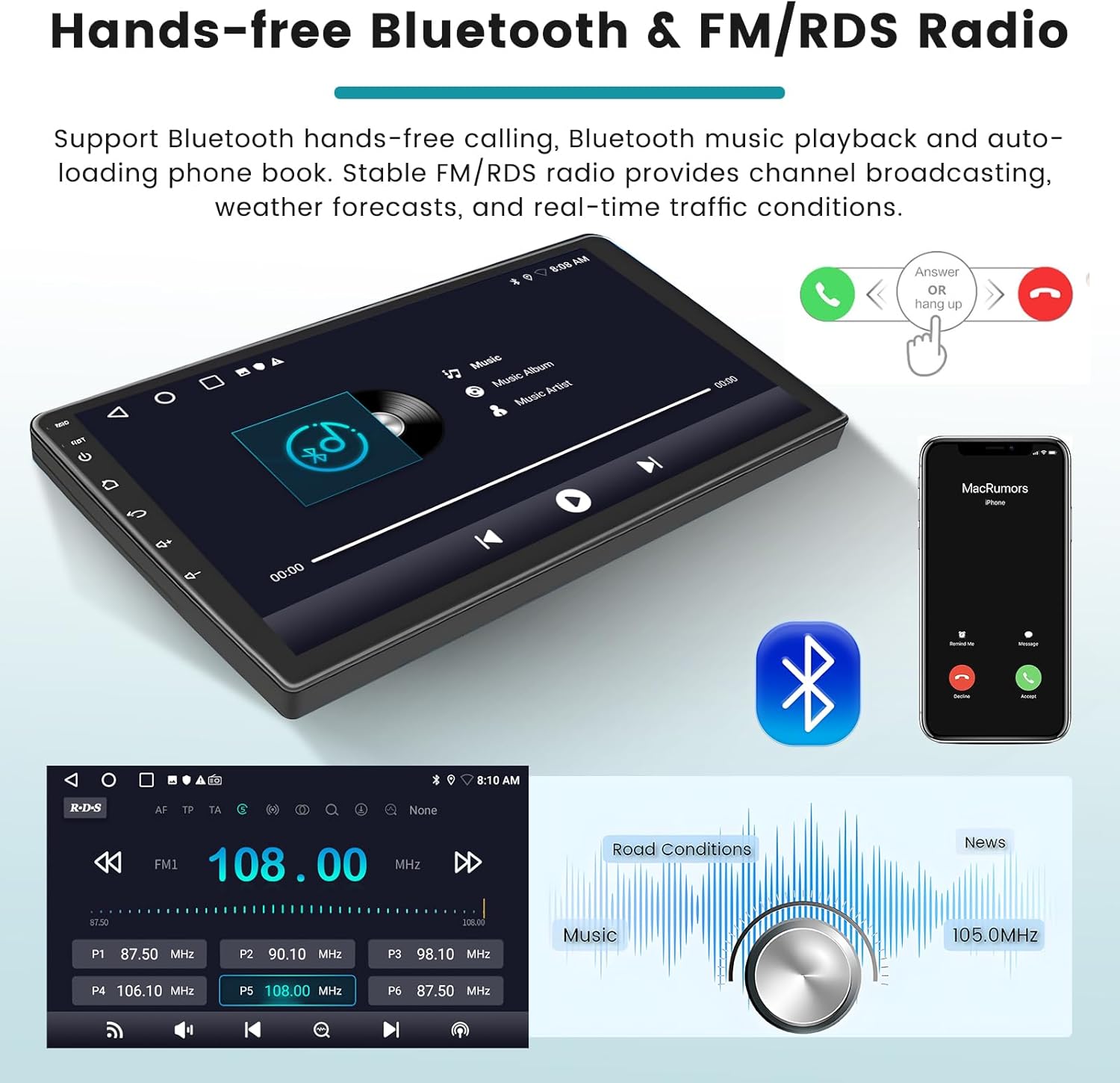
Image showing the car radio display during a Bluetooth call, a phone displaying a call, a Bluetooth logo, and an FM radio interface with EQ settings.
- Bluetooth:
- Håndfri opkald: Make and receive calls directly from the unit with clear audio.
- Musikstreaming: Stream audio from your paired device. Song titles and artist names will display on the touchscreen.
- Telefonbog: Auto-loading phone book for easy access to contacts.
- EQ (Equalizer): Customize sound output with various preset sound modes (Classic, Pop, Rock, Jazz, etc.) or create your own custom settings.
4.4. Ratbetjening (SWC)
Once properly configured (refer to Section 3.4), your vehicle's steering wheel controls can be used to operate the car radio, enhancing driving safety.

Billede, der viser et bilradiodisplay med en bagende view camera feed, icons for various functions like volume, navigation, and Bluetooth, and a steering wheel with control buttons.
- Activate SWC in the settings menu to map your steering wheel buttons to functions like volume control, track skipping, and call management.
4.5. FM/RDS-radio
Enjoy high-quality radio broadcasts with FM/RDS functionality.
- FM/RDS Reception: Tune into your favorite FM stations. RDS (Radio Data System) provides additional information such as station name, song title, and traffic announcements where available.
- The radio offers optimized sound quality for an enhanced listening experience.
4.6. User Interface Themes
Personalize your car radio's appearance with a variety of user interface themes.
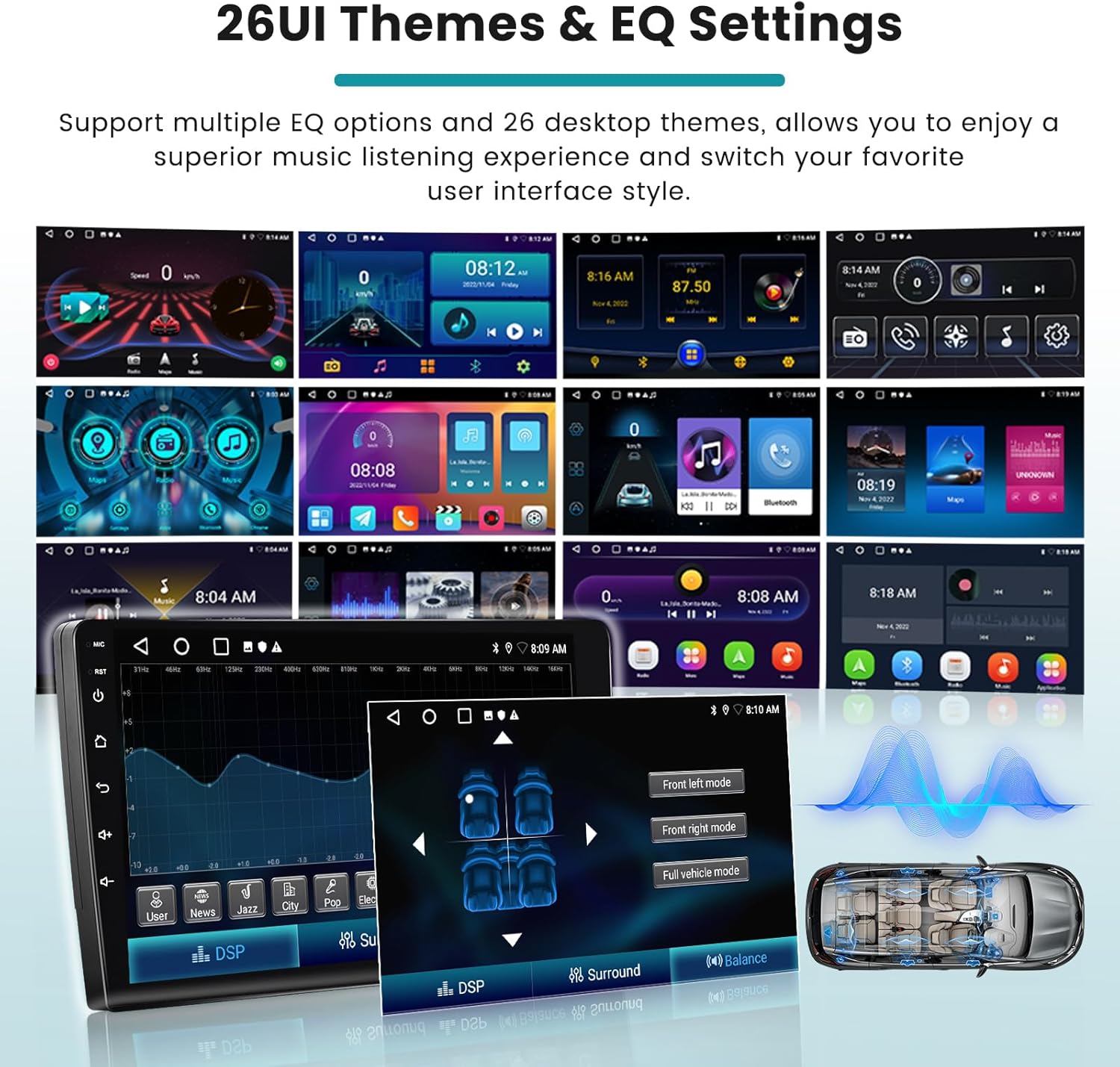
Billedvisningasing multiple desktop interface themes and detailed equalizer settings available on the car radio.
- The unit supports 26 different desktop interface themes, allowing you to select a style that suits your preference.
- Opdelt skærm: The split-screen function allows simultaneous use of two applications, such as navigation and music playback.
5. Vedligeholdelse
To ensure the longevity and optimal performance of your Roinvou Android Car Radio, follow these maintenance guidelines:
- Rengøring af skærm: Brug en blød, fnugfri klud til forsigtigt at tørre berøringsskærmen af. Ved genstridige pletter, tør let afampRengør kluden med vand eller et skærmsikkert rengøringsmiddel. Undgå slibende materialer eller barske kemikalier.
- Softwareopdateringer: Periodically check for available software updates through the unit's settings menu. Updates can improve performance, add new features, and fix bugs.
- Miljøforhold: Undgå at udsætte enheden for ekstreme temperaturer, direkte sollys i længere perioder eller for høj fugtighed.
- Kabelforbindelser: Regularly check all cable connections to ensure they are secure and free from damage. Loose connections can lead to intermittent issues.
- Ventilation: Sørg for, at enhedens ventilationsområder ikke er blokerede for at forhindre overophedning.
6. Fejlfinding
Hvis du støder på problemer med din bilradio, kan du se følgende almindelige problemer og løsninger:
| Problem | Mulig årsag | Løsning |
|---|---|---|
| Enheden tænder ikke. | Løs strømforbindelse, sprunget sikring, problem med bilbatteri. | Kontroller strømkabelforbindelserne. Undersøg bilens sikringer. Sørg for, at bilens batteri er opladet. |
| Ingen lydudgang. | Lydstyrken er for lav, mute aktiveret, forkert lydkilde, løse højttalerledninger. | Øg lydstyrken. Kontroller, om lydløs er aktiv. Vælg den korrekte lydkilde. Kontroller højttalerledningernes forbindelser. |
| GPS-signalet er svagt eller mistet. | GPS-antennen er forkert installeret eller blokeret. | Ensure GPS antenna is mounted in a clear, unobstructed location. Check antenna connection. |
| Bluetooth/Wi-Fi-problemer. | Incorrect pairing, interference, reverse input cable not connected. | Re-pair device. Ensure no other devices are interfering. Verify the reverse input cable is connected (even if no camera is used). |
| Ratbetjeningen virker ikke. | Incorrect wiring, CANBUS settings not configured. | Refer to Section 3.4 for CANBUS and wiring instructions. Reconfigure SWC settings. |
| Touchscreen reagerer ikke. | Softwarefejl, skærmskade. | Genstart enheden. Hvis problemet fortsætter, skal du kontakte kundesupport. |
If the problem persists after attempting these solutions, please contact Roinvou customer support for further assistance.
7. Produktspecifikationer
| Feature | Detalje |
|---|---|
| Mærke | Roinvou |
| Modelnummer | A7226A3796A4MI2EU31T |
| Kompatible bilmodeller | KIA Picanto TA (2011-2016) |
| Skærmstørrelse | 9 tommer |
| Hukommelse (RAM) | 2 GB |
| Lager (ROM) | 64 GB |
| Operativsystem | Android (updated system) |
| Forbindelsesteknologi | Bluetooth, USB, Wi-Fi, FM RDS |
| Særlige funktioner | CarPlay, Android Auto, Mirror Link, EQ, GPS, SWC, 26 UI Themes, Touchscreen |
| Kompatible enheder | Smartphone |
| Connector Type | RCA, USB type A |
| Lydudgangstilstand | APE/FLAC/WAV/MP3/WMA |
| Surround Sound-kanaler | 4 |
| Videokodning | MKV/RMVB/AVI/MP4/MDV |
| Udgangseffekt | 45 watt |
8. Garanti og support
Roinvou provides comprehensive support for its products.
- Producentgaranti: Produktet leveres med en 24 måneders producentgaranti.
- Online support: Lifetime online assistance is available for inquiries.
- Svartid: Supporthenvendelser besvares typisk inden for 24 timer.
- Sælger: wenheyou (Fulfilled by Amazon)
For warranty claims or technical assistance, please contact the seller or Roinvou customer service directly.