
1.Overview
The Microsoft Surface Pro 2-in-1 Laptop/Tablet (2025) is a versatile device designed to adapt to various computing needs. It functions as both a powerful laptop and a flexible tablet, powered by the Snapdragon X Plus (8 Core) processor and running Windows 11 Copilot+ PC.
Key features include a brilliant 12-inch PixelSense touchscreen display, up to 16 hours of battery life, and an integrated AI engine capable of 45 trillion operations per second for smooth, responsive performance. This device is built to enhance productivity, creativity, and entertainment.

Image: Microsoft Surface Pro 2-in-1 Laptop/Tablet (2025) in Ocean color, showcasing its sleek design with the detachable keyboard and kickstand.
2. Hvad er der i æsken
Upon unboxing your Microsoft Surface Pro, verify that all the following items are included:
- Surface Pro Device
- USB-C ladekabel
- Hurtig startguide (QSG)
- Sikkerheds- og garantidokumenter
Note: A power unit (charger) is not included and must be purchased separately. The minimum wattage to charge Surface Pro is 27W.

Image: The contents of the Surface Pro box, including the device, USB-C charging cable, and essential documentation.

Image: A visual reminder that the power unit for the Surface Pro is sold separately, specifying a minimum of 27W USB Power Delivery.
3. Opsætning
Follow these steps to set up your new Microsoft Surface Pro:
- Oplad enheden: Connect the USB-C charging cable to your Surface Pro and a compatible power adapter (sold separately). Allow the device to charge for at least 30 minutes before initial use.
- Tænd: Tryk og hold tænd/sluk-knappen, der er placeret øverst på enheden, nede, indtil Microsoft-logoet vises på skærmen.
- Indledende konfiguration: Follow the on-screen prompts to select your language, region, and connect to a Wi-Fi network. You will also be guided through setting up your Windows account and other preferences.
- Fastgør tilbehør (valgfrit): If you have a Surface Pro Keyboard or Surface Slim Pen (sold separately), attach them now. The keyboard connects magnetically to the bottom edge of the tablet.

Image: The Microsoft Surface Pro (2025) in Ocean color, showing the initial Windows 11 setup screen, prompting for keyboard layout and network connection.
4. Betjeningsvejledning
The Surface Pro offers flexible operating modes:
Tablet-tilstand
Use the device as a standalone tablet for touch-based interactions, browsing, and media consumption. The 12-inch touchscreen is highly responsive.

Image: The Surface Pro (2025) used in tablet mode, showcasing its vibrant 12-inch PixelSense display while streaming video content.
Laptop-tilstand
Attach the Surface Pro Keyboard (sold separately) to transform your device into a full-fledged laptop. The integrated kickstand allows for adjustable viewing vinkler.
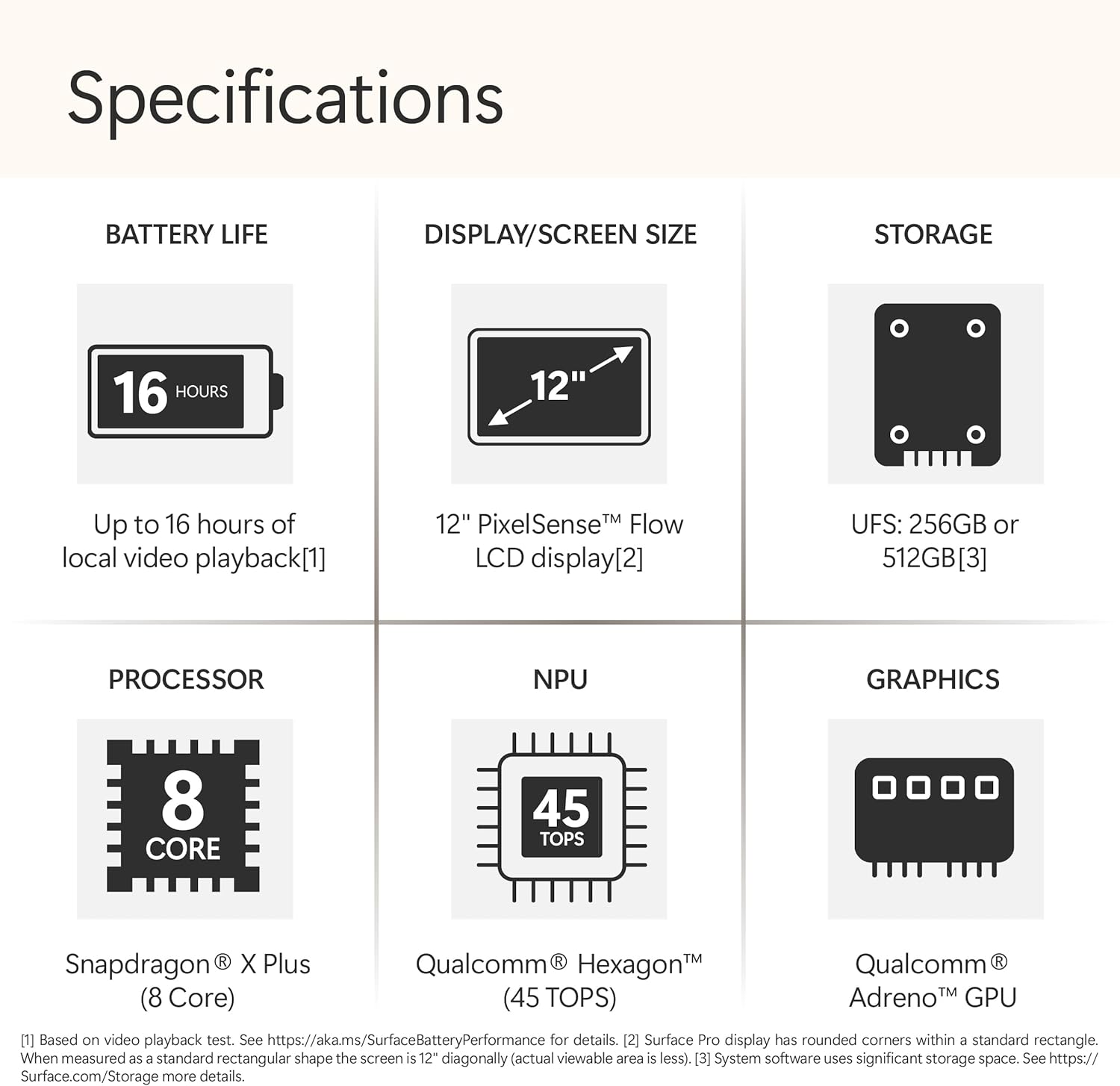
Image: The Surface Pro (2025) configured as a laptop with its detachable keyboard, illustrating its use for productivity tasks.
Using the Surface Slim Pen (Optional)
The Surface Slim Pen (sold separately) provides precise input for writing, drawing, and navigating. It can be magnetically attached to the device for storage and charging.

Image: A user interacting with the Surface Pro (2025) using the Surface Slim Pen, highlighting its utility for note-taking and creative work.
Copilot+ PC-funktioner
Leverage the built-in AI capabilities of Windows 11 Copilot+ PC for enhanced productivity and creativity. These features include:
- Minde om: Instantly find anything you've seen on your PC.
- Windows Search: Confidently find files and information faster.
- Kreative værktøjer: Utilize AI-powered tools for writing, summarizing, and image creation.
Video: An official Microsoft video demonstrating the 'Recall' feature on Copilot+ PC, showing how users can quickly find past activities and content on their device.
Video: En officiel Microsoft-videopræsentationasing the improved Windows Search functionality on Copilot+ PC, highlighting its speed and efficiency in finding files and information.
5. Funktioner
The Microsoft Surface Pro (2025) is engineered with advanced features for optimal performance and user experience:
- Processor: Powered by the Snapdragon X Plus (8 Core) processor, delivering fast and efficient performance for demanding tasks.
- AI-motor: Features an AI engine with up to 45 trillion operations per second (TOPS) for intelligent task handling and Copilot+ PC experiences.
- Vise: 12-inch PixelSense touchscreen display with 2196 x 1464 pixels resolution, 16:10 aspect ratio, and 400 Nit maximum brightness.
- Hukommelse og opbevaring: Equipped with 16GB RAM and 512GB SSD storage for amplet plads og problemfri multitasking.
- Batterilevetid: Up to 16 hours of typical device usage, allowing for all-day productivity and entertainment.
- Forbindelse: Includes Wi-Fi 6E (802.11ax) and Bluetooth 5.1 for high-speed wireless connections. Features 2 USB-C ports with USB4® and Thunderbolt™ 4 technology.

Image: An icon representing the impressive 16-hour battery life of the Surface Pro (2025).

Billede: En detaljeret view of the 12-inch PixelSense Flow LCD display, highlighting its visual clarity.

Image: A diagram illustrating the Snapdragon X Plus (8 Core) processor, emphasizing its powerful computing capabilities.

Image: A diagram of the Qualcomm Hexagon NPU, highlighting its 45 TOPS for advanced AI processing.
6. Specifikationer
| Attribut | Detalje |
|---|---|
| Mærke | Microsoft |
| Modelnavn | Surface Pro |
| Modelnummer | EP2-33676 |
| Operativsystem | Windows 11 Home |
| Processor | Snapdragon X Plus (8 Core) |
| Processorhastighed | 3.4 GHz |
| RAM-hukommelse installeret | 16 GB |
| Hukommelseslagringskapacitet | 512 GB SSD |
| Skærmstørrelse | 12 tommer |
| Skærmopløsning Maksimal | 2196 x 1464 pixel |
| Display Type | LCD |
| Aspektforhold | 16:10 |
| Maximum Display Brightness | 400 Nit |
| Vis opdateringshastighed | 60 Hz |
| Grafik coprocessor | Adreno |
| Trådløs teknologi | Wi-Fi 6E (802.11ax), Bluetooth 5.1 |
| Samlet USB-porte | 2 (USB-C with USB4® and Thunderbolt™ 4) |
| Batteriets gennemsnitlige levetid | 16 timer |
| Battericelletype | Lithium Ion |
| Emnedimensioner (L x B x Tykkelse) | 11.55 cm L x 8.24 cm B x 1.43 cm T |
| Farve | Ocean |
| Front Photo Sensor Resolution | 2.07 MP |
| Rear Facing Camera Photo Sensor Resolution | 10 MP |
| Videooptagelsesopløsning | 10 megapixel |

Image: A diagram illustrating the physical dimensions of the 12-inch Surface Pro, including its length, width, and thickness.
7. Vedligeholdelse
For at sikre din Surface Pros lange levetid og optimale ydeevne skal du følge disse vedligeholdelsesretningslinjer:
- Rensning: Brug en blød, fnugfri klud til at rengøre skærmen og ydersiden. Tør let ved genstridige pletter.ampen the cloth with water or an approved screen cleaner. Avoid harsh chemicals.
- Softwareopdateringer: Søg regelmæssigt efter og installer Windows-opdateringer for at sikre, at din enhed har de nyeste sikkerhedsrettelser og forbedringer af ydeevnen. Gå til Indstillinger > Windows-opdatering.
- Batteripleje: To maximize battery lifespan, avoid fully discharging the battery frequently. It is recommended to keep the battery charge between 20% and 80% when possible.
- Lagerstyring: Periodisk vedrview og slet unødvendige files and applications to free up storage space and maintain performance.
- Miljøforhold: Operate your Surface Pro within recommended temperature ranges. Avoid exposing it to extreme heat, cold, or direct sunlight.
8. Fejlfinding
If you encounter issues with your Surface Pro, try these common troubleshooting steps:
- Enheden reagerer ikke: Tryk på tænd/sluk-knappen og hold den nede i 10-15 sekunder for at udføre en tvungen nedlukning, og tryk derefter på den igen for at genstarte.
- Problemer med Wi-Fi-forbindelse: Ensure Wi-Fi is enabled in Settings. Try restarting your router and the Surface Pro. If the issue persists, forget the network and reconnect.
- Batteri oplades ikke: Verify that the USB-C charging cable and power adapter are securely connected and functioning correctly. Try a different power outlet or adapter if available.
- Touchskærm reagerer ikke: Restart the device. If the issue continues, check for available Windows updates or consider recalibrating the touchscreen in device settings.
- Accessory Not Detected: Ensure the accessory (e.g., keyboard, pen) is properly attached or paired via Bluetooth. Check the accessory's battery level.
9. Garanti og support
Your Microsoft Surface Pro (2025) comes with a 1-year manufacturer's limited warranty. This warranty covers defects in materials and workmanship under normal use.
For detailed warranty information, product support, or to register your device, please visit the official Microsoft Support website or refer to the safety and warranty documents included in your product packaging.
Fabrikant: Microsoft
Online support: support.microsoft.com/surface