
Indledning
This manual provides comprehensive instructions for the LogiLink ID0212 Wireless 28-Key Bluetooth 5.0 Scissor Mechanism Keyboard. It covers setup, operation, maintenance, and troubleshooting to ensure optimal performance and user experience. Please read this manual thoroughly before using the device.
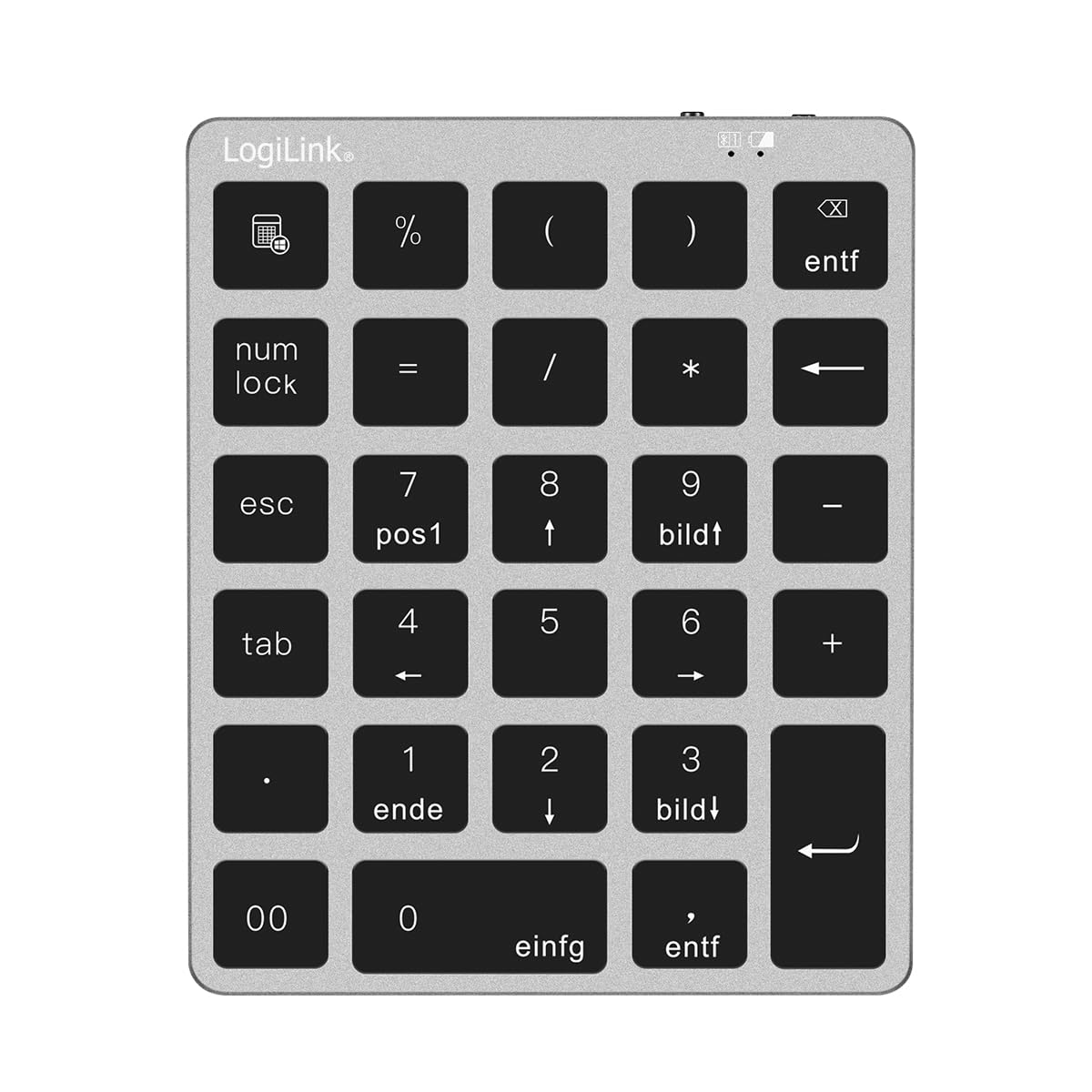
Figure 1: LogiLink ID0212 Wireless 28-Key Bluetooth 5.0 Scissor Mechanism Keyboard. This image shows the overall design of the numeric keypad.
Pakkens indhold
Sørg for at alle varer er til stede i pakken:
- LogiLink ID0212 Wireless 28-Key Bluetooth 5.0 Keyboard
- USB-C ladekabel
- Brugervejledning (dette dokument)
Opsætning
1. Opladning af tastaturet
Oplad tastaturet helt før første brug. Tilslut det medfølgende USB-C-kabel til tastaturets opladningsport og den anden ende til en USB-strømkilde (f.eks. computerens USB-port eller USB-vægadapter).
- LED-indikatoren vil vise rød under opladning.
- The LED indicator will turn off or change color (depending on model) when fully charged.
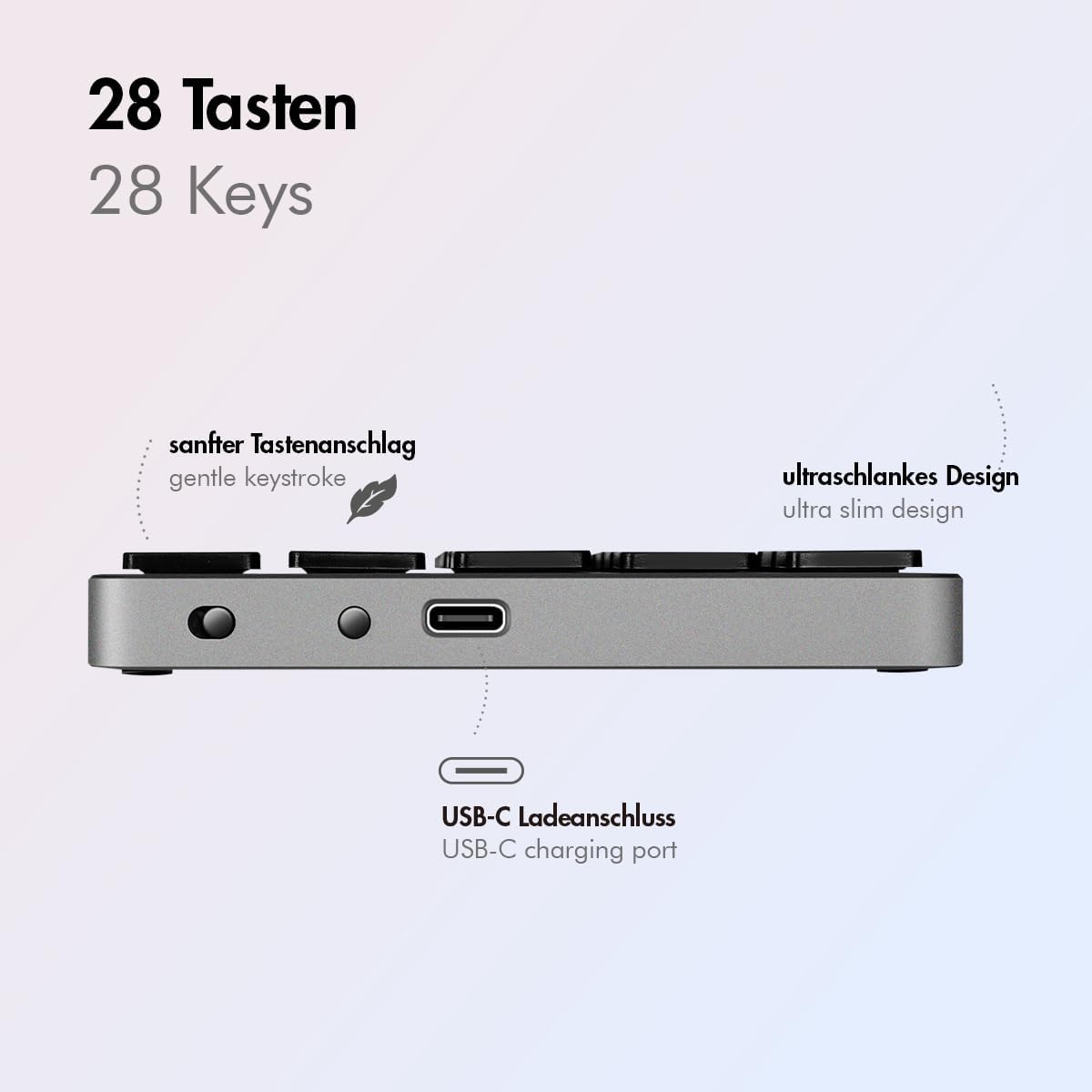
Figur 2: Side view of the LogiLink ID0212 keyboard showing the USB-C charging port. This image highlights the location of the charging port and the ultra-slim design.

Figur 3: Detaljeret view of the LogiLink ID0212 keyboard's side profile, indicating the USB-C charging port, gentle keystroke mechanism, and ultra-slim design.
2. Bluetooth-parring
Follow these steps to connect your LogiLink ID0212 keyboard via Bluetooth 5.0:
- Sørg for, at tastaturet er opladet og tændt.
- Activate Bluetooth on your device (computer, tablet, smartphone).
- Put the keyboard into pairing mode. Look for a small button on the back or side, or a key combination like Fn+C (common for Bluetooth keyboards). The LED indicator will flash blå when in pairing mode.
- Søg efter tilgængelige Bluetooth-enheder på din enhed.
- Select "LogiLink ID0212" or a similar name from the list of found devices.
- If prompted, enter the pairing code displayed on your screen using the LogiLink ID0212 keyboard and press Indtast.
- Once paired, the blue LED indicator will stop flashing and remain solid for a few seconds, then turn off. The keyboard is now ready for use.
The keyboard supports a stable connection up to 10 meters (33 feet) and is compatible with iOS, Android, Windows, MacOS, Chrome OS, and iPadOS.
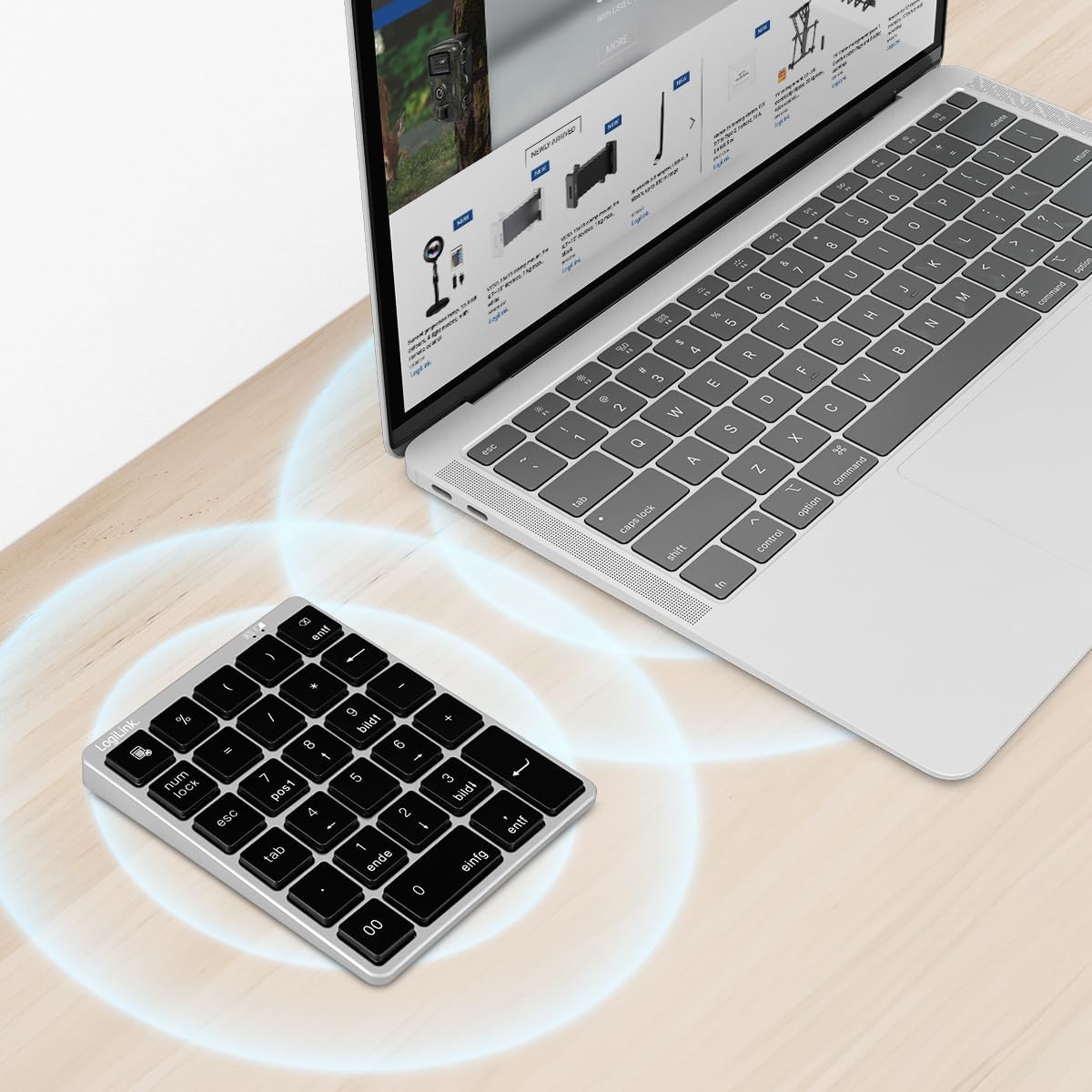
Figure 4: The LogiLink ID0212 keyboard positioned next to a laptop, illustrating its wireless connectivity. This image demonstrates the keyboard's use in a typical workspace setup.
Betjeningsvejledning
Grundlæggende nøglefunktioner
The LogiLink ID0212 features 28 keys designed for efficient data entry and calculations. Key functions include:
- Numeriske taster (0-9)Standardnummerindtastning.
- Aritmetiske operatorer (+, -, *, /)Til beregninger.
- Decimalpunkt (.): For fractional numbers.
- NumLock: Toggles the numeric keypad function. When NumLock is active, the green LED indicator will be on.
- ESC: Escape key, typically used to cancel operations or close menus.
- Slet (DEL): Deletes characters.
- Lommeregnerknap: Launches the calculator application on compatible operating systems.
- Tab: Moves the cursor to the next tab stop or field.
- Home/End/PgUp/PgDn: These keys (often labeled as 'pos1', 'ende', 'bildt', 'bildl' or similar) provide navigation functions.
The scissor mechanism keys provide a gentle and quiet keystroke, enhancing typing comfort.

Figure 5: The LogiLink ID0212 keyboard in active use, demonstrating its compact layout and key functions alongside a laptop. This image provides a clear view of the keypad's design and key labels.
LED-indikatorer
The keyboard features LED indicators to provide status information:
- Rød LED: Indicates the keyboard is charging.
- Blå LED: Flashes during Bluetooth pairing mode; solid when successfully paired (then turns off).
- Grøn LED: Indicates that NumLock is active.
Opretholdelse
Rensning
Sådan bevarer du tastaturets udseende og funktionalitet:
- Brug en blød, tør og fnugfri klud til at tørre overfladen af.
- Til genstridigt snavs, let dampRengør kluden med vand eller en mild rengøringsopløsning. Undgå for meget fugt.
- Do not use abrasive cleaners, solvents, or aerosol sprays directly on the keyboard.
Batteripleje
The integrated 140 mAh lithium battery provides long-lasting power. To prolong battery life:
- Oplad tastaturet med det medfølgende USB-C-kabel.
- Undgå at aflade batteriet helt ofte.
- Hvis tastaturet opbevares i længere tid, skal det oplades til ca. 50% og opbevares et køligt og tørt sted.
Fejlfinding
Keyboard Not Connecting/Pairing
- Tjek batteriniveau: Ensure the keyboard is sufficiently charged. Charge it if the red LED indicates low battery.
- Genindtast parringstilstand: Turn the keyboard off and on, then re-enter Bluetooth pairing mode (blue LED flashing).
- Device Bluetooth: Ensure Bluetooth is enabled on your computer/device and it's discoverable.
- Glem enhed: On your device, remove or "forget" the keyboard from your Bluetooth device list, then attempt to pair again.
- Afstand: Ensure the keyboard is within the 10-meter (33 feet) operating range of your device.
- Interferens: Gå væk fra andre trådløse enheder, der kan forårsage interferens.
Taster reagerer ikke
- Forbindelse: Verify the keyboard is still connected via Bluetooth (blue LED should not be flashing).
- NumLock: If numeric keys are not working as expected, check the green NumLock LED. Press the NumLock key to toggle its state.
- Genstart enhed: Sometimes, restarting your computer or device can resolve input issues.
- Kompatibilitet: While compatible with many OS, specific key functions might behave differently on certain systems (e.g., some special characters on macOS, as noted in reviews).
Opladningsproblemer
- Kabeltjek: Ensure the USB-C cable is securely connected to both the keyboard and the power source.
- Strømkilde: Try a different USB port or power adapter.
- Rød LED: Confirm the red LED illuminates when charging. If not, the cable or port might be faulty.
Specifikationer
| Feature | Detalje |
|---|---|
| Modelnummer | ID0212 |
| Nøgler | 28 keys (NumLock, ESC, Delete, Calculator button) |
| Nøglemekanisme | Saksemekanisme |
| Forbindelse | Bluetooth 5.0 |
| Driftsområde | Op til 10 meter (33 fod) |
| Batteri | 140 mAh lithiumbatteri |
| Opladningsport | USB-C |
| LED-indikatorer | Red (Charging), Blue (Pairing/Connected), Green (NumLock) |
| Materiale | Aluminium + ABS |
| Farve | Space Grey |
| Dimensioner (L x B x H) | 12.1 x 10 x 1.3 cm (4.76 x 3.94 x 0.51 tommer) |
| Vægt | 95 gram (0.21 lbs) |
| Kompatibilitet | iOS, Android, Windows, MacOS, Chrome OS, iPadOS |
| Inkluderede komponenter | USB-C kabel |
| Oprindelsesland | Kina |
Garantioplysninger
Specific warranty details for the LogiLink ID0212 keyboard are typically provided at the point of purchase or included with the product packaging. Please refer to your purchase documentation or the official LogiLink webwebstedet for de mest nøjagtige og opdaterede garantivilkår.
Kundesupport
If you encounter issues not covered in this manual or require further assistance, please contact LogiLink customer support. You can usually find contact information, FAQs, and additional resources on the official LogiLink webwebsted:
When contacting support, please have your product model number (ID0212) and purchase information ready.