
Hyzom WiFi Extender Signal Booster
Brugermanual til Hyzom WiFi-forstærkersignalforstærker
Model: WiFi Extender Signal Booster
Brand: Hyzom
1. Introduktion
The Hyzom WiFi Extender Signal Booster is designed to expand your existing wireless network coverage, eliminating Wi-Fi dead zones and providing a stronger, more reliable signal throughout your home. It features an advanced 2.4GHz Bionic Chip and four external high-gain antennas for enhanced penetration and ultra-speed connectivity. This device supports a wide range of network devices including smartphones, laptops, gaming consoles, smart speakers, and streaming devices.
Hvad er der i æsken
- WiFi Booster
- Brugervejledning (dette dokument)
2. Opsætningsvejledning
Follow these steps to set up your Hyzom WiFi Extender Signal Booster. For a visual guide, please refer to the installation video below.
2.1. Vejledning til videoinstallation
Official installation guide for the Hyzom WiFi Extender, demonstrating setup method 1 via mobile phone.
2.2. Step-by-Step Setup (Mobile Phone Method)
Power On the Extender:
Plug the Extender into a power socket near your wireless router. Wait for the Power light to come on, indicating it's ready for setup.

Image: The Hyzom WiFi Extender plugged into a wall outlet, showing its four antennas and indicator lights.
Connect to Extender's Wi-Fi Network:
Use your smartphone to search for Wi-Fi networks. Connect to the Extender's Wi-Fi network, which should appear as "Hyzom-2.4G". This is an open network and does not require a password for initial connection.
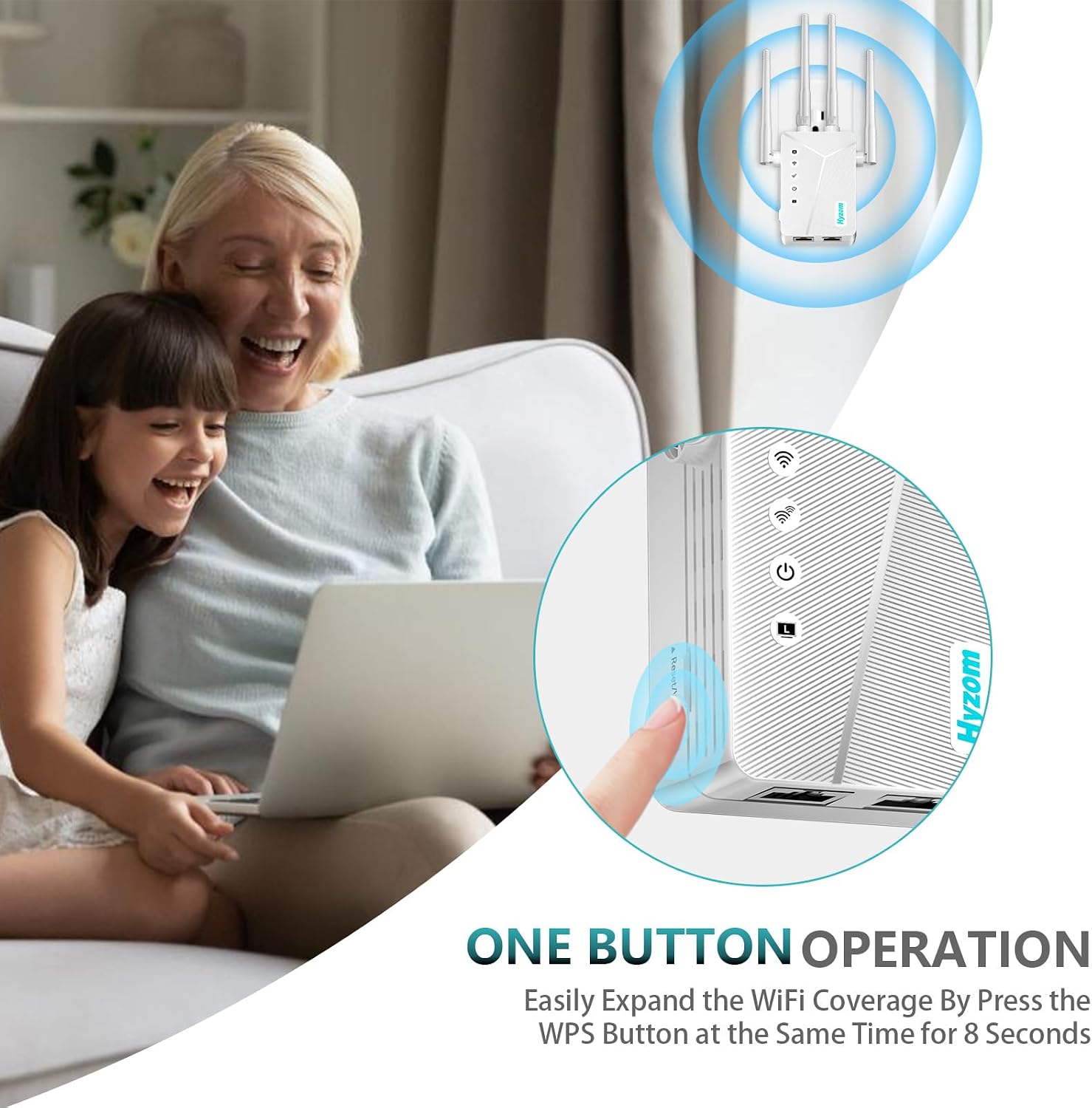
Image: A hand pressing the WPS button on the Hyzom WiFi Extender, illustrating the one-button operation for easy setup.
Adgangsopsætningsside:
Start din web browser (e.g., Chrome, Safari) and enter "192.168.188.1" in the address field. This will take you to the Extender's login page.
Login to Extender:
Enter the default password "admin" and click "Login". If access fails, please ensure you are connected to the correct SSID "Hyzom-2.4G".
Vælg repeatertilstand:
On the operating modes page, select "Repeater Mode" and click "Next".
Select Main Router Network:
The Extender will scan for available Wi-Fi networks. Select your main home Wi-Fi network (the one you want to extend) from the list.
Enter Main Router Password:
Type the password of your main router's Wi-Fi network and click "Next".
Set Extender SSID and Password (Optional):
You can set a new SSID (network name) and password for your extended network. If you prefer not to modify it, the Extender's SSID will default to your router name plus "-2.4G" (e.g., "My_Home_Network-2.4G") and use the same password as your main router. Proceed to the next step if you don't want to change it.
Confirm and Connect:
Review the wireless information. Click "Start Connect" and wait approximately 20 seconds for the Extender to apply settings and connect. Once the signal indicator lights up, the relay is successful.
Connect to Extended Network:
Connect your devices to the new Extender's SSID (e.g., "My_Home_Network-2.4G") using the password you set (or your main router's password if not changed). Enjoy an enhanced Wi-Fi experience!

Image: Various people using their devices, illustrating boosted WiFi coverage throughout the home.
3. Driftstilstande
The Hyzom WiFi Extender supports multiple operating modes to suit various networking needs:
- Repeater-tilstand: Extends existing Wi-Fi coverage by relaying the signal from your main router. This is the most common mode for extending range.
- Brotilstand: Connects wired devices to your wireless network.
- Klienttilstand: Allows a wired device to connect to a wireless network.
- Adgangspunkttilstand: Creates a new Wi-Fi hotspot from a wired internet connection.
- Wireless Router Mode: Functions as a primary router, providing Wi-Fi and managing network traffic.
Du kan skifte mellem disse tilstande via web management interface (192.168.188.1) after initial setup.

Image: A detailed diagram highlighting the key features of the Hyzom WiFi Extender, including its four high-gain antennas, advanced central processor, WPS button, WAN/LAN port, wide coverage, 300Mbps speed, and five working modes.
4. Vedligeholdelse
- Opbevar enheden i et godt ventileret område for at forhindre overophedning.
- Undgå at placere extenderen i nærheden af store metalgenstande, betonvægge eller andre elektroniske enheder, der kan forårsage interferens.
- Tjek regelmæssigt for firmwareopdateringer på producentens website for at sikre optimal ydeevne og sikkerhed.
- Rengør enheden regelmæssigt med en blød, tør klud. Brug ikke flydende rengøringsmidler.
5. Fejlfinding
5.1. No Connection from the New Network?
If you are unable to access the network after connecting to the new extended network, ensure that you entered the correct password for your main router during the setup process. The extended network's password is typically the same as your main router's password unless you explicitly changed it during setup.
5.2. Signal Strength Issues?
If you are experiencing problems with signal strength or dead zones, consider the following:
- Optimal placering: Move the extender to the best position, which is halfway between your router and the area that has poor Wi-Fi signal.

Image: A house floor plan illustrating the coverage areas of both the main router and the extended Wi-Fi signal from the Hyzom Extender, emphasizing optimal placement for full coverage.
- Interferens: Signal can drop due to external influences such as microwave ovens, cell towers nearby, a neighbor's Wi-Fi on the same channel, walls, and partitions in a building made of certain materials. Try to minimize these interferences.
6. Specifikationer
| Feature | Detalje |
|---|---|
| Mærke | Hyzom |
| Model | WiFi Extender Signal Booster |
| Standard for trådløs kommunikation | 802.11n |
| Connector Type | RJ45 |
| Kompatible enheder | Smartphones, Laptops, Gaming Consoles, Smart Speakers, Streaming Devices, WiFi-enabled Devices |
| Pakkedimensioner | 7.4 x 3.86 x 2.4 tommer |
| Varens vægt | 6.4 ounce |
| Fabrikant | Hyzom |
| ASIN | B0DXT5Y29K |
| Dato først tilgængelig | 30. december 2024 |
7. Garanti og support
For warranty information and technical support, please refer to the contact details provided with your product packaging or visit the official Hyzom webwebsted. Gem din købskvittering for garantikrav.
Ask a question about this manual
Ask about setup, troubleshooting, compatibility, parts, safety, or missing instructions. Manuals+ will review the question and use this page’s manual context to help answer it.