
1. Introduktion
The MARVO KG955W Shogo 63 is a compact 60% mechanical gaming keyboard designed for versatility and performance. It features tri-mode connectivity (wired, 2.4GHz wireless, and Bluetooth), yellow linear pre-lubed switches, customizable RGB backlighting, and full-key anti-ghosting. This manual provides instructions for setting up, operating, and maintaining your keyboard.
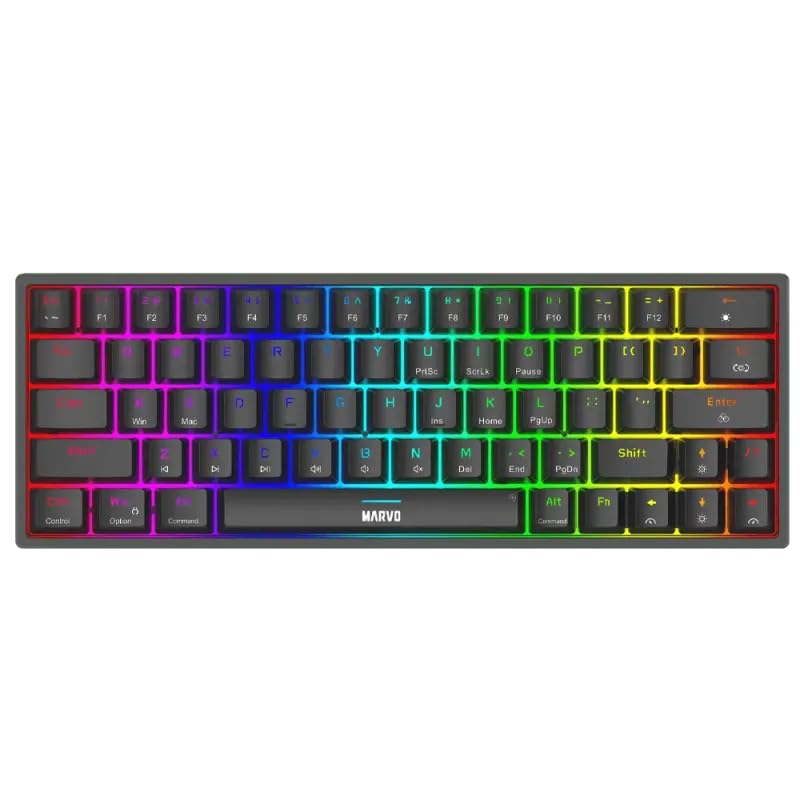
Billede 1.1: Top-down view of the MARVO KG955W keyboard showcasinmed dens kompakte 60% layout og levende RGB-baggrundsbelysning.
2. Pakkens indhold
Tjek venligst pakken for følgende varer:
- MARVO KG955W Shogo 63 Wireless Mechanical Gaming Keyboard
- Detachable 1.6m braided Type-C USB Cable
- 2.4GHz Wireless Receiver (USB dongle)
- Brugervejledning (dette dokument)
3. Opsætning og tilslutning
The KG955W keyboard offers three connectivity modes: Wired, 2.4GHz Wireless, and Bluetooth.
3.1. Kablet forbindelse
- Connect the detachable Type-C USB cable to the keyboard's USB-C port.
- Tilslut den anden ende af USB-kablet til en ledig USB-port på din computer.
- The keyboard will automatically be detected and ready for use. The keyboard will also charge in wired mode.
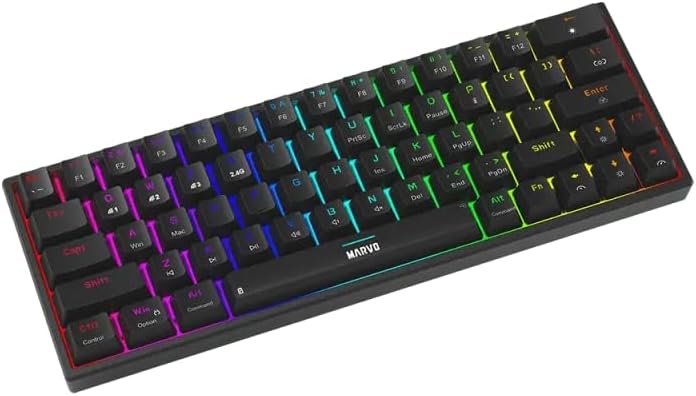
Billede 3.1: Side view of the keyboard showing the USB-C port for wired connection and charging.
3.2. 2.4 GHz trådløs forbindelse
- Find 2.4 GHz USB-modtageren (donglen) i pakken.
- Sæt 2.4 GHz USB-modtageren i en ledig USB-port på din computer.
- On the keyboard, switch the mode selector (usually on the back or side) to the 2.4G wireless mode.
- Tastaturet burde oprette forbindelse automatisk. Hvis ikke, tryk på Fn + R for at starte parring.
3.3. Bluetooth-forbindelse
- Skift tilstandsvælgeren på tastaturet til Bluetooth-tilstand.
- Tryk og hold Fn + Q, Fn + W, eller Fn + E i 3-5 sekunder for at aktivere parringstilstand for henholdsvis Bluetooth-enhed 1, 2 eller 3. Indikatorlampen blinker hurtigt.
- Aktiver Bluetooth på din computer eller enhed, og søg efter nye enheder.
- Select "MARVO KG955W" (or similar name) from the list of available devices to pair.
- Når parringen er afsluttet, holder indikatorlampen på tastaturet op med at blinke og lyser konstant.
The keyboard can store up to three Bluetooth profiles, allowing quick switching between devices using Fn + Q/W/E.
4. Betjeningsvejledning
The KG955W is a 60% compact keyboard, meaning some functions are accessed via the Fn tastekombinationer.
4.1. Funktionstastkombinationer (Fn-tast)
Hold nede Fn key and press the corresponding key for secondary functions:
- Fn + 1-0, -, =: F1-F12 functions (check keycaps for specific mappings).
- Fn + P: Skærmudskrift
- Fn + [ {: Hjem
- Fn + ] }: Slut
- Fn + ; :: Side op
- Fn + ' ": Side ned
- Fn + Piletaster: Media controls (e.g., volume up/down, play/pause, next/previous track). Refer to keycap legends.
- Fn + WinLås/oplås Windows-tasten.
4.2. RGB-baggrundsbelysningskontrol
The keyboard features customizable RGB backlighting. Use the following combinations to control the lighting effects:
- Fn + \ |: Change lighting mode.
- Fn + ↑: Øg lysstyrken.
- Fn + ↓: Reducer lysstyrken.
- Fn + ←: Reducer belysningshastigheden.
- Fn + →: Øg belysningshastigheden.
- Fn + mellemrumstasten: Skift baggrundsbelysningens farve (for statiske tilstande).
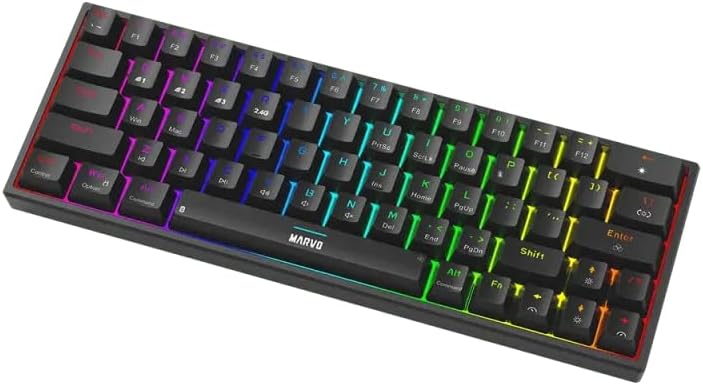
Image 4.1: The keyboard displaying its customizable RGB backlighting in a dynamic pattern.
4.3. Batteristatus
The keyboard has an integrated battery for wireless operation. An indicator light will typically show low battery status or charging status. Refer to the specific LED indicators on your keyboard for details.
5. Vedligeholdelse
Korrekt vedligeholdelse sikrer dit tastaturs levetid og ydeevne.
- Rensning: Brug en blød, tør klud til at tørre tastaturoverfladen af. Brug trykluft til at fjerne støv og snavs mellem tasterne for at opnå en grundigere rengøring. Undgå at bruge skrappe kemikalier eller slibende materialer.
- Opbevaring: Opbevar tastaturet et køligt, tørt sted væk fra direkte sollys og ekstreme temperaturer.
- Kabelpleje: Handle the detachable USB-C cable carefully. Avoid bending or twisting it excessively.

Image 5.1: Illustration of a hot-swappable switch, demonstrating the ease of maintenance and customization for individual key switches.
6. Fejlfinding
If you encounter issues with your MARVO KG955W keyboard, refer to the following common solutions:
| Problem | Løsning |
|---|---|
| Tastaturet svarer ikke (kablet) |
|
| Keyboard not responding (2.4GHz Wireless) |
|
| Tastaturet svarer ikke (Bluetooth) |
|
| RGB-belysningen virker ikke eller er forkert |
|
| Nøglerne registreres ikke eller dobbelttastes ikke |
|
7. Specifikationer
| Feature | Detalje |
|---|---|
| Modelnavn | MARVO KG955W Shogo 63 |
| Tastaturtype | Mechanical, 60% TKL (Tenkeyless) |
| Afbrydere | Yellow Linear, Pre-lubed, Hot-swappable |
| Forbindelse | Wired (USB-C), 2.4GHz Wireless, Bluetooth (Tri-mode) |
| Anti-Ghosting | Full-key Anti-Ghosting |
| Baggrundsbelysning | Customizable RGB |
| Kabel | Detachable 1.6m braided Type-C USB |
| Materiale | Plast |
| Vægt | 460 gram |
| Kompatibel OS | Windows (also compatible with other systems via Bluetooth/2.4G) |
| Antal nøgler | 63 |
8. Garantioplysninger
The MARVO KG955W Shogo 63 Wireless Mechanical Gaming Keyboard comes with a 6 måneders garanti fra købsdatoen. Denne garanti dækker fabrikationsfejl og funktionsfejl ved normal brug. Den dækker ikke skader forårsaget af misbrug, ulykker, uautoriserede ændringer eller normal slitage. Gem venligst din købsbevis i tilfælde af garantikrav.
9. Support
For technical support, troubleshooting assistance beyond this manual, or warranty inquiries, please contact MARVO customer service through their official website or the retailer where the product was purchased. Please have your product model number (KG955W) and proof of purchase ready when contacting support.