
DOOGEE TabA9
DOOGEE Tab A9 Android 15 Tablet User Manual
Model: Tab A9 | Brand: DOOGEE
1. Introduktion
Thank you for choosing the DOOGEE Tab A9 Android 15 Tablet. This manual provides essential information for setting up, operating, and maintaining your device. Please read it thoroughly to ensure optimal performance and longevity of your tablet.
The DOOGEE Tab A9 is a 10-inch tablet running on the latest Android 15 system, powered by a Unisoc T310 quad-core processor. It features 12GB RAM, 64GB ROM (expandable up to 2TB), a 6580mAh battery, dual speakers, 8MP AI camera, 5MP front camera, and supports Face ID.

Billede: Forside og bagside view of the DOOGEE Tab A9 tablet, highlighting its 6580mAh battery, 5G WiFi, 10.1-inch IPS display, Android 15, 12GB RAM, 64GB ROM, and Unisoc T310 processor.
2. Hvad er der i æsken
- DOOGEE Tab A9 tablet
- Oplader
- Type-C USB-kabel
3. Enhedslayout
Familiarize yourself with the physical components of your DOOGEE Tab A9 tablet.

Billede: Side view of the DOOGEE Tab A9 tablet, illustrating the placement of buttons and ports such as the power button, volume rocker, and USB-C port.
- Power knap: Placeret på siden, bruges til at tænde/slukke eller vække/slukke enheden.
- Lydstyrkeknapper: Juster lydstyrken.
- USB Type-C-port: Til opladning og dataoverførsel.
- 3.5 mm lydstik: Til tilslutning af hovedtelefoner.
- Frontkamera (5 MP): Located above the screen, for video calls and selfies.
- Bagkamera (8 MP): Placeret på bagsiden, til at tage billeder og videoer.
- Dobbelte højttalere: Located on the sides/bottom for enhanced audio experience.
4. Opsætning
4.1 Indledende tænding
- Tryk og hold på Power knap until the DOOGEE logo appears.
- Følg vejledningen på skærmen for at vælge dit sprog, oprette forbindelse til Wi-Fi og konfigurere din Google-konto.
4.2 Opladning af tabletten
Connect the provided Type-C USB cable to the tablet's charging port and the other end to the charger. Plug the charger into a power outlet. The battery icon on the screen will indicate charging status.

Image: Visual representation of the 6580mAh large battery and 10W fast charging capability of the DOOGEE Tab A9 tablet.
4.3 Indsættelse af et Micro SD-kort (valgfrit)
The tablet supports storage expansion up to 2TB via a Micro SD card (not included). Locate the SIM/SD card tray on the side of the tablet. Use the provided ejector tool to open the tray and insert the Micro SD card as shown in the diagram (refer to device layout section for tray location). Ensure the tablet is powered off before inserting or removing the card.
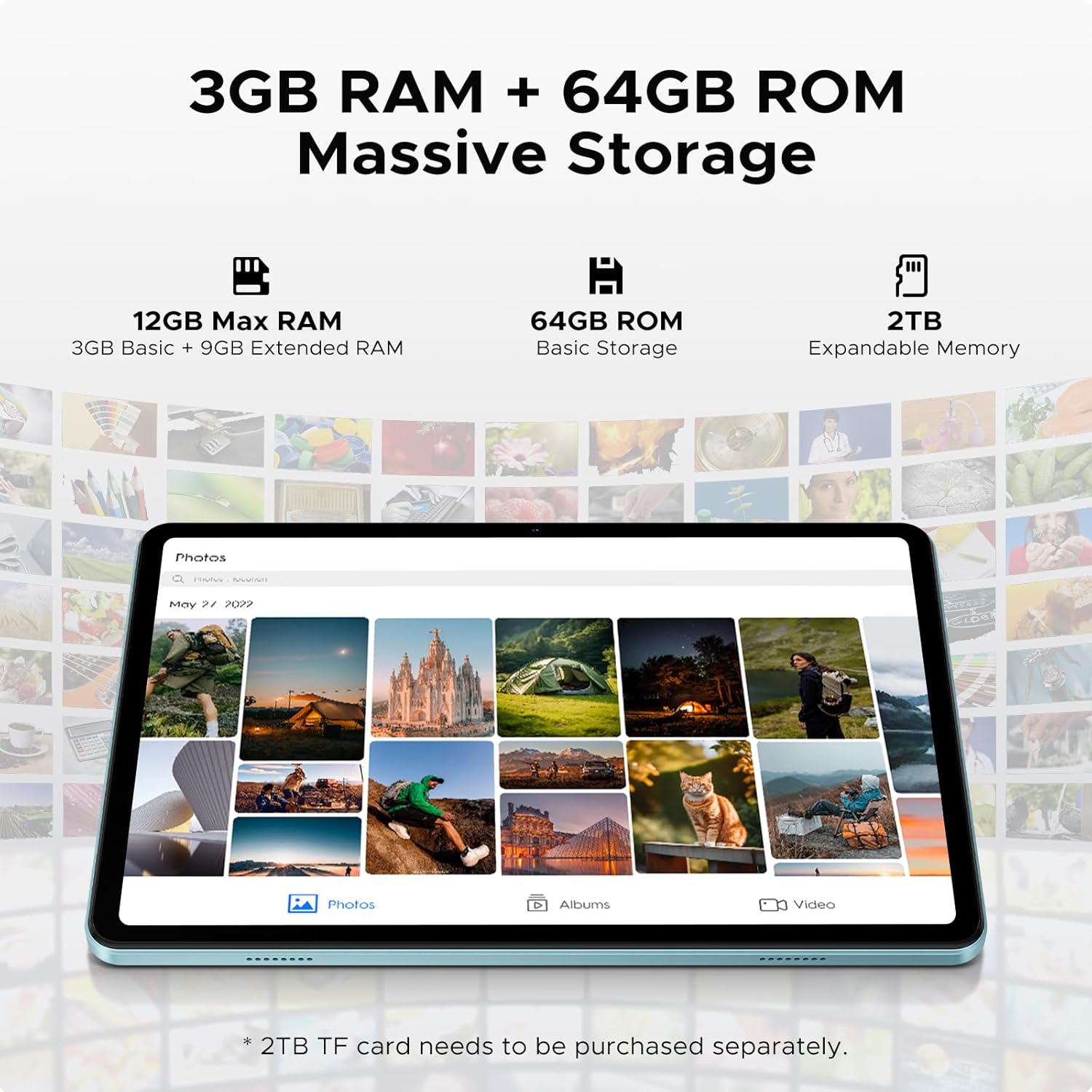
Image: Details on the tablet's 12GB Max RAM (3GB Basic + 9GB Extended RAM) and 64GB ROM Basic Storage, with a note about 2TB Expandable Memory via TF card (sold separately).
5. Betjeningsvejledning
5.1 Grundlæggende navigation
- Røre: Tryk på et ikon eller en indstilling for at vælge det.
- Stryg: Træk fingeren hen over skærmen for at rulle gennem sider eller indhold.
- Knib-for-at-zoome: Brug to fingre til at zoome ind eller ud på billeder eller web sider.
5.2 Tilslutning til Wi-Fi
- Gå til Indstillinger > Netværk og internet > Wi-Fi.
- Tænd Wi-Fi. Tabletten vil scanne efter tilgængelige netværk.
- Vælg det ønskede netværk, og indtast adgangskoden, hvis du bliver bedt om det.
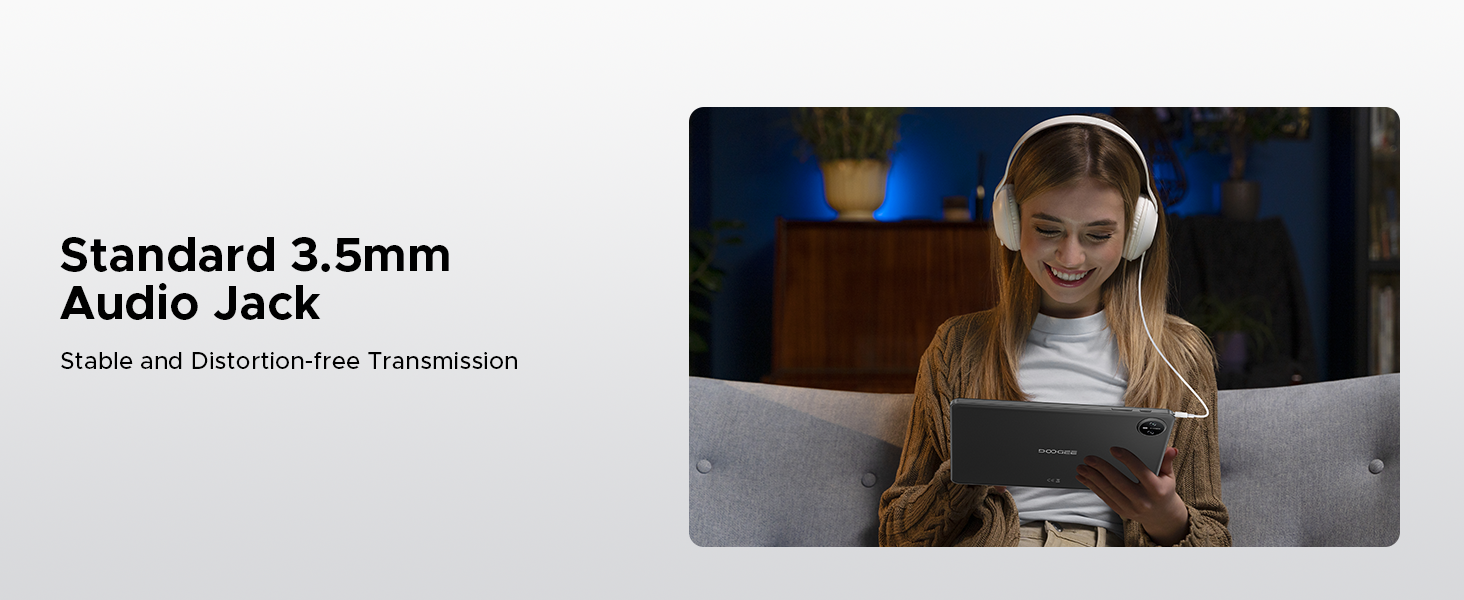
Image: Diagram illustrating the benefits of Faster WiFi 5 connectivity, including low latency, anti-congestion, wide coverage, low power consumption, and high speed.
5.3 Brug af Face ID
The DOOGEE Tab A9 supports facial recognition for quick and secure unlocking.
- Gå til Indstillinger > Sikkerhed og privatliv > Ansigtslås.
- Følg instruktionerne på skærmen for at registrere dit ansigt.
- Once registered, you can unlock your tablet by simply looking at the front camera.
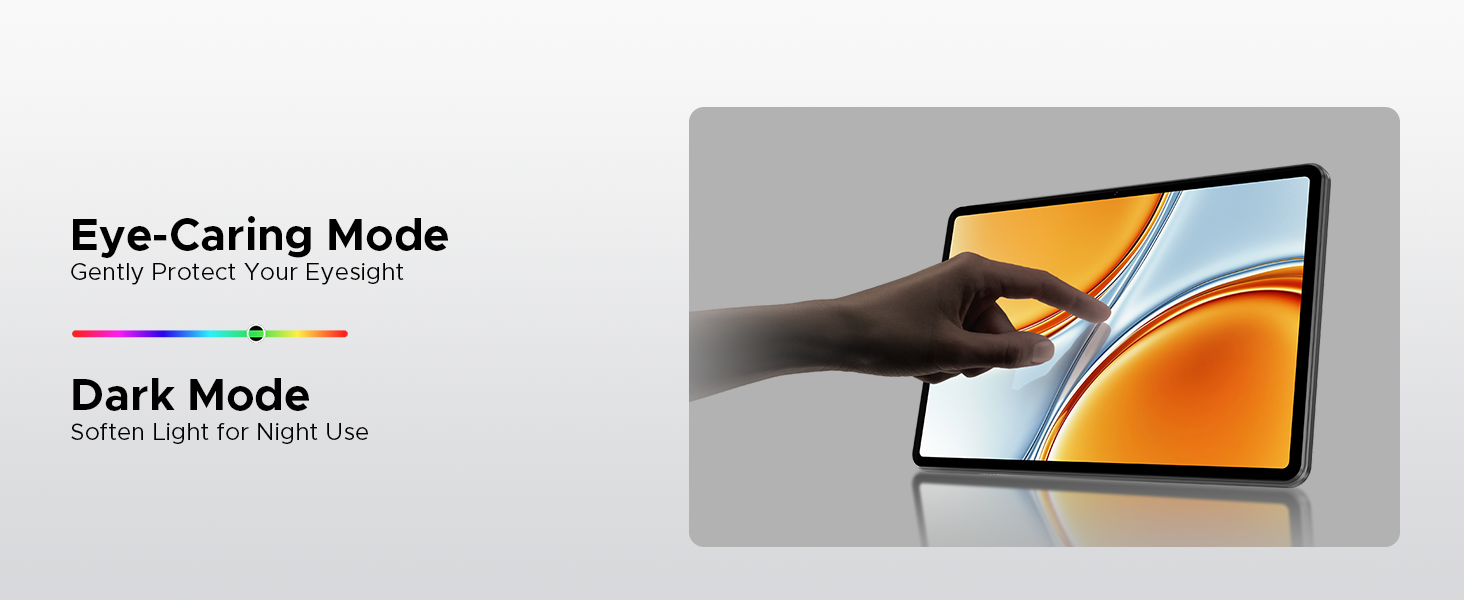
Image: A visual demonstrating the Facial Recognition Unlock feature for effortless access to the tablet.
5.4 Kamerabetjening
Capture moments with the 8MP rear camera and 5MP front camera.
- Åbn Kamera anvendelse.
- Tryk på udløserknappen for at tage et billede.
- Skift mellem forreste og bageste kamera ved hjælp af kameraskifterikonet.
- Explore various modes like Beauty Mode for enhanced photos.

Image: Depiction of the 8MP main camera and 5MP front camera, highlighting their use for capturing lively moments and video calls.
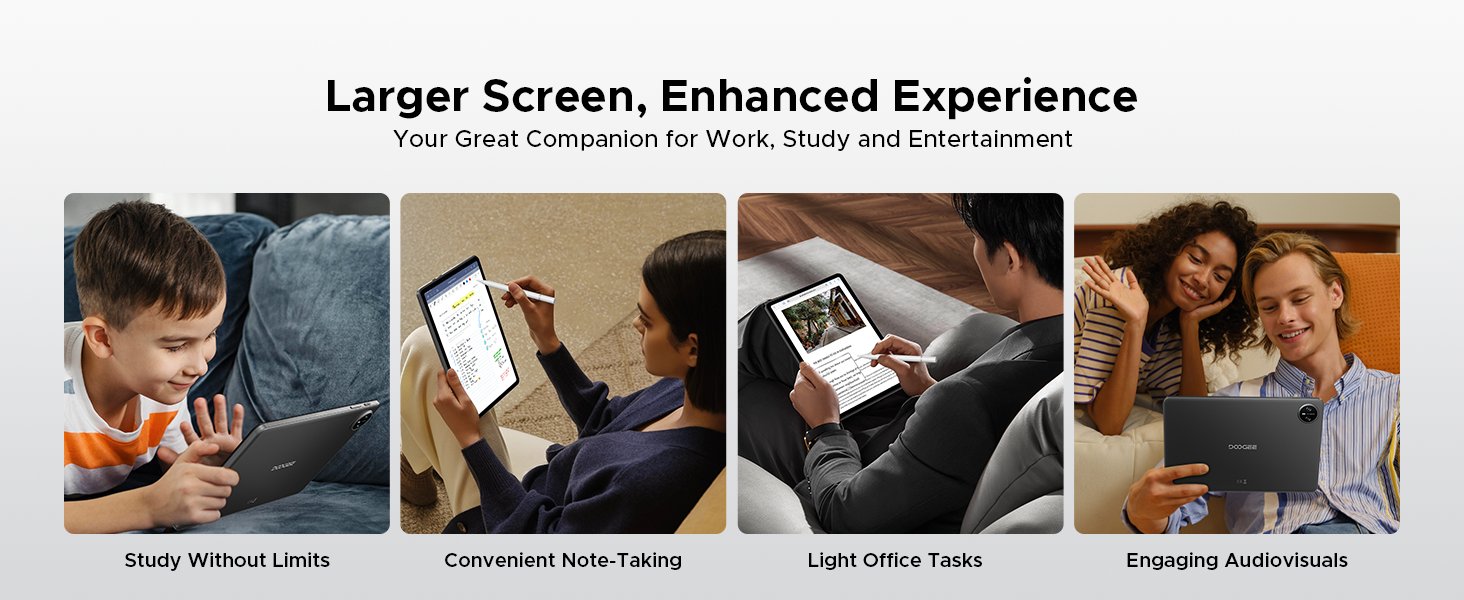
Image: A visual demonstrating the "Beauty Mode" feature for enhancing photos.
5.5 Multitasking på delt skærm
The tablet supports efficient split-screen multitasking, allowing you to use two apps simultaneously.
- Åbn den første app, du vil bruge.
- Stryg op fra bunden af skærmen og hold nede for at få adgang til de seneste apps.
- Tap the app icon at the top of the app's card and select "Split screen".
- Vælg den anden app fra dine seneste apps eller appskuffen.
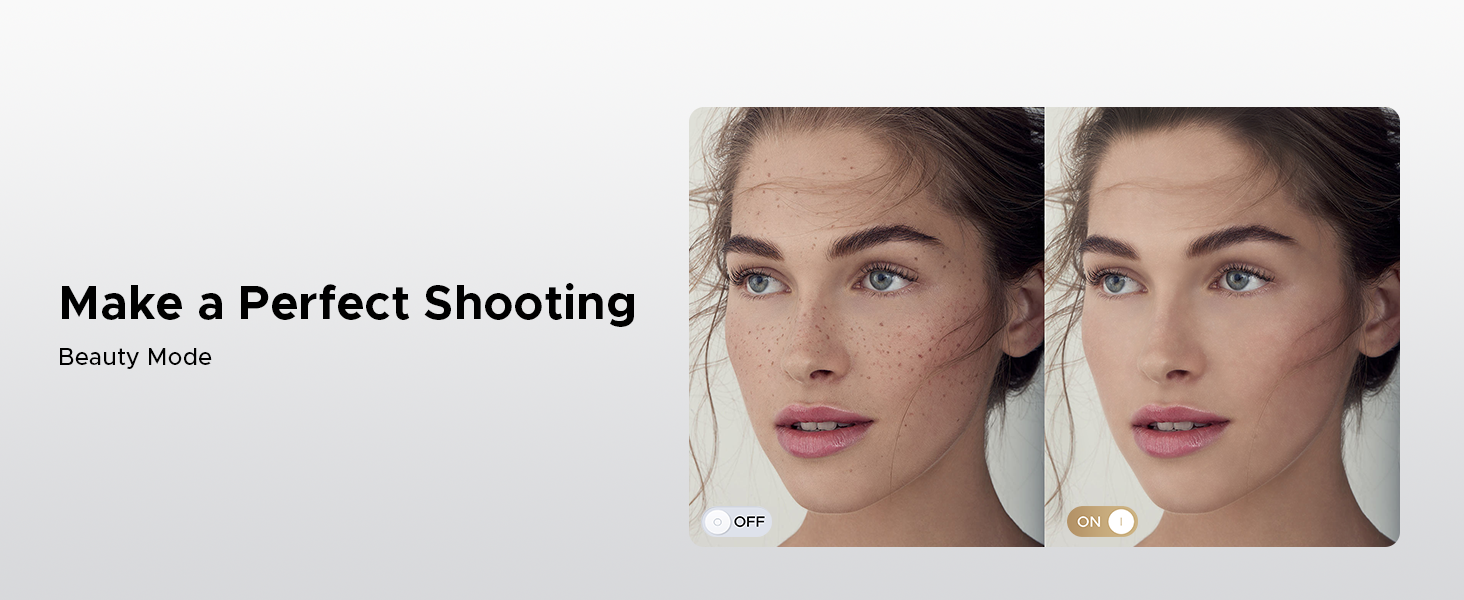
Image: A user demonstrating efficient split-screen multitasking on the DOOGEE Tab A9 tablet, with two applications open side-by-side.
6. Nøglefunktioner
6.1 Android 15-system
The DOOGEE Tab A9 runs on the latest Android 15, offering enhanced performance, improved app launch speeds, and a more secure privacy management system.
Image: The Android 15 system logo, emphasizing intelligence, seamlessness, and security.
Image: Features of the Fortified Privacy Shield in Android 15, including precision permission control, robust data encryption, timely security patches, and proactive app screening.
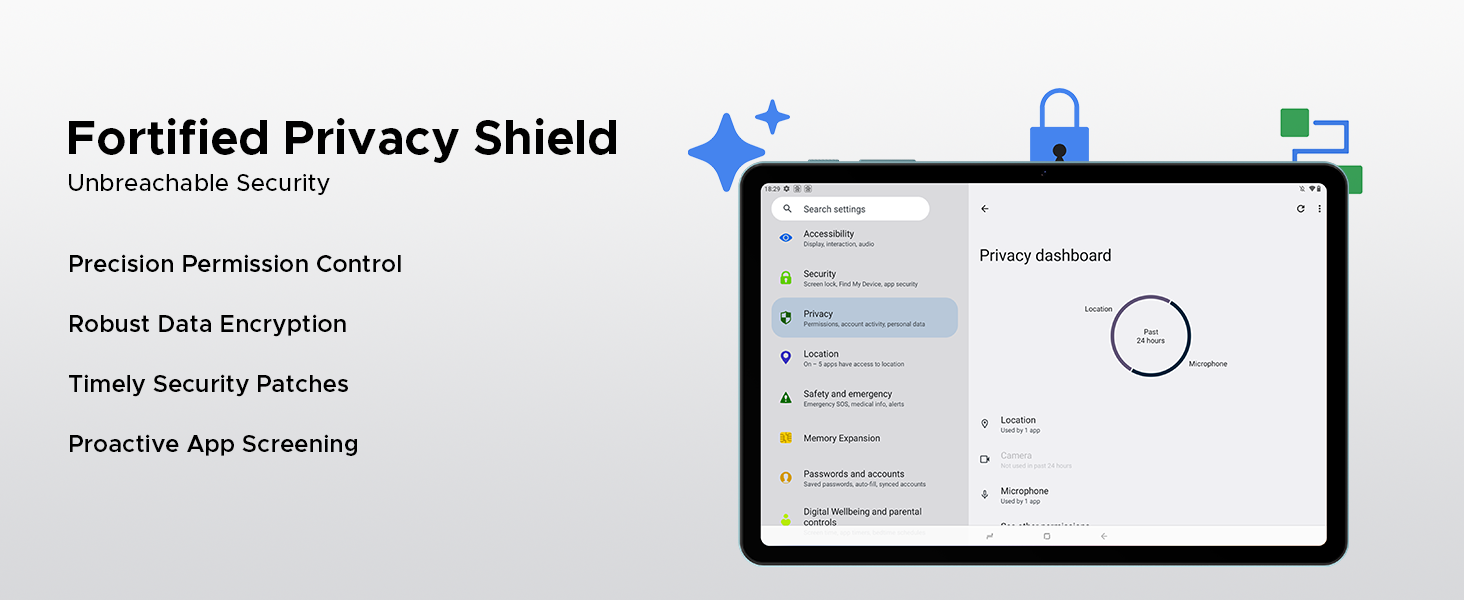
Image: Illustrations of additional Android 15 features such as Bedtime Mode, Multi-user System, and Parental Control.
6.2 Unisoc T310 Quad-Core Processor
Equipped with the Unisoc T310 processor, the tablet delivers smooth performance for daily tasks, web browsing, and office software, while maintaining low power consumption.

Billede: Diagramvisningasing the Unisoc T310 Quad-Core Processor, highlighting its powerful quad-core design, 2.0GHz ultimate frequency, and 12nm advanced process technology.
6.3 10.1" IPS HD Display
Nyd et bredt felt af view and vibrant colors on the 10.1-inch IPS HD display with 1280x800 resolution.
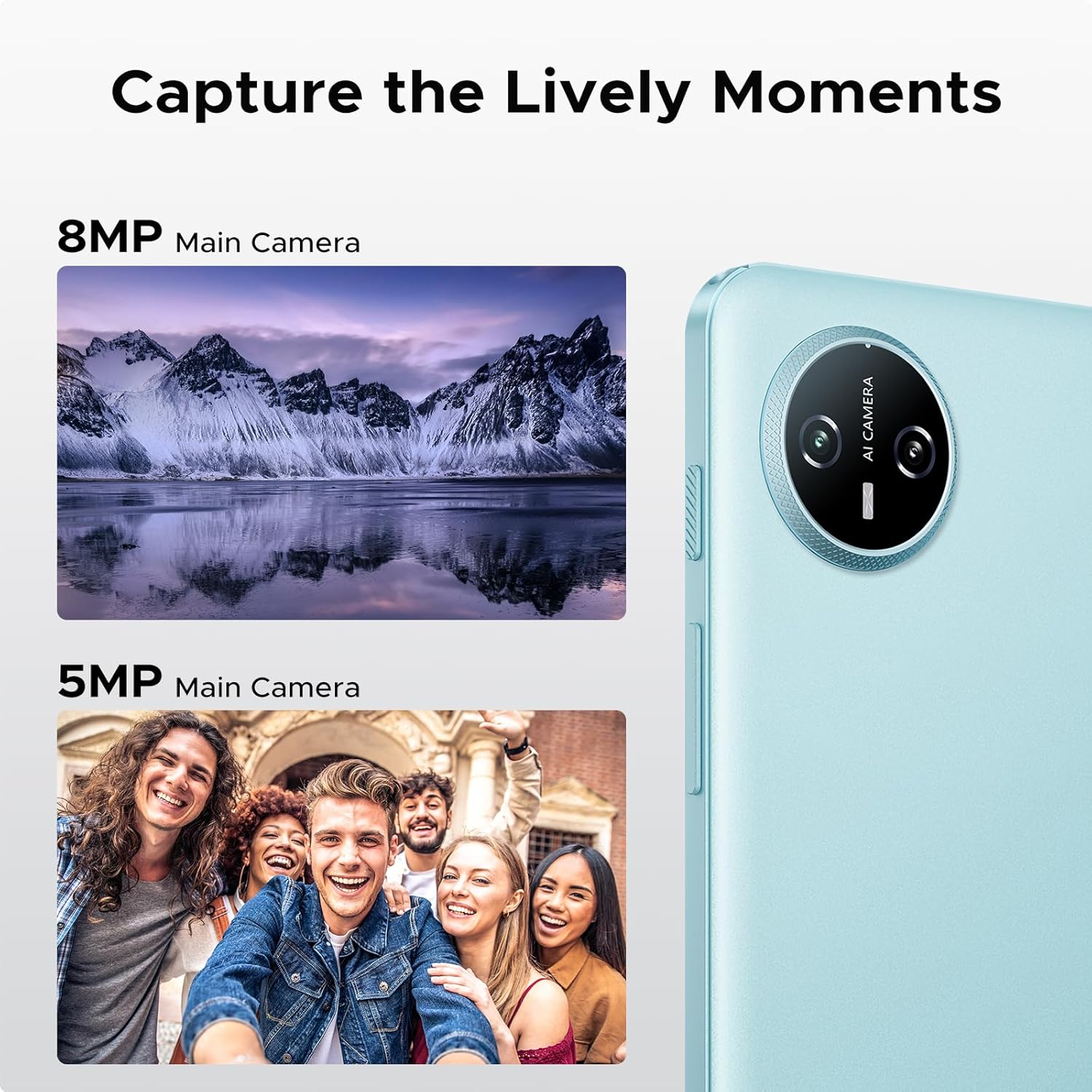
Image: Specifications of the 10.1-inch IPS HD display, including 1280*800 resolution, 16:10 aspect ratio, 80.2% screen-to-body ratio, 1200:1 contrast, 16.7 million screen colors, and 2.5D cover glass.
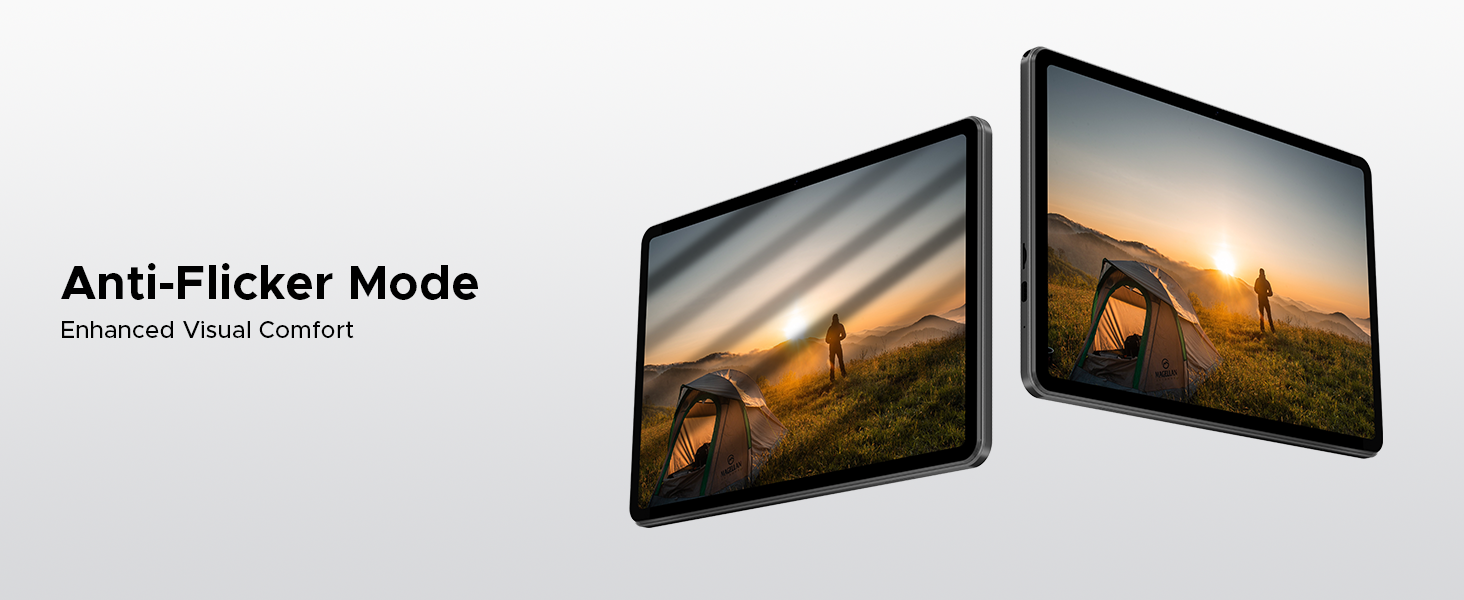
Image: Visuals explaining Eye-Caring Mode to gently protect eyesight and Dark Mode to soften light for night use.
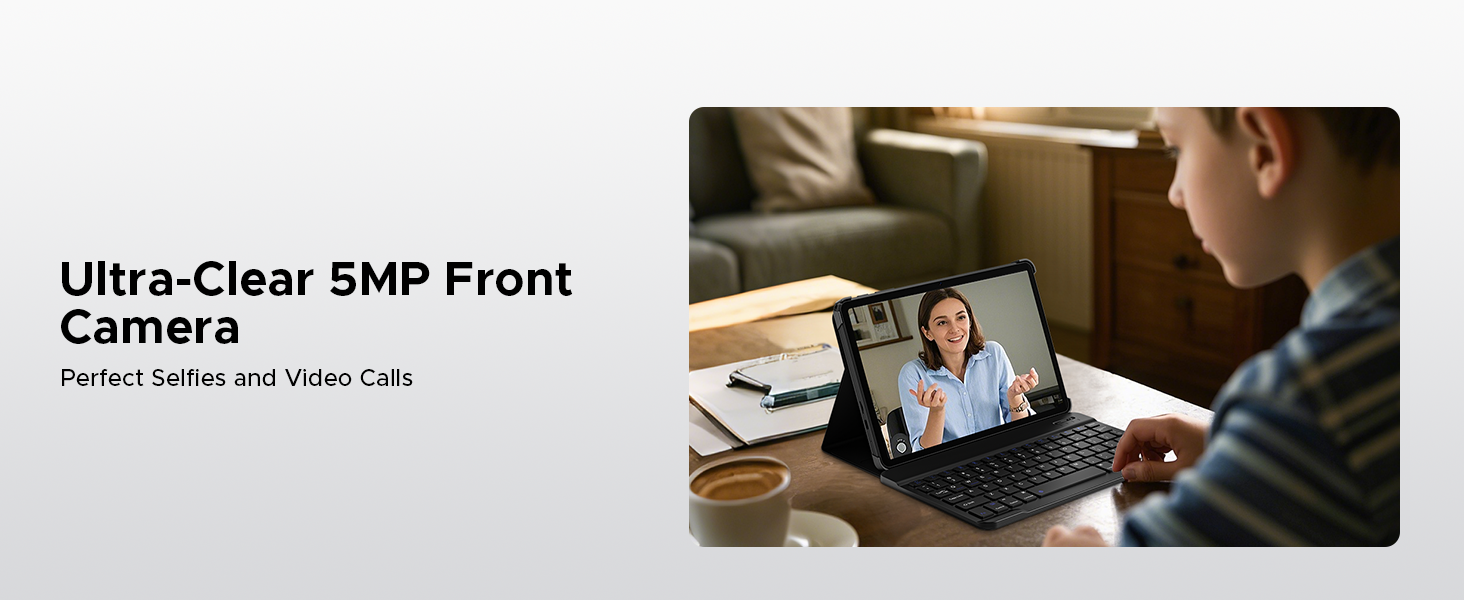
Image: Various usage scenarios for the tablet, including studying, note-taking, light office tasks, and engaging with audiovisuals.
6.4 dobbelte højttalere
Experience crystal-clear sound with the premium 1217 BOX dual speakers.

Image: Illustration of the 1217 BOX Dual Speakers, indicating sound follows the picture for an immersive experience.
6.5 Built-in WPS Office
The tablet comes with built-in PC-level WPS Office for seamless productivity on-the-go, supporting Word, Excel, and PowerPoint documents.

Image: Tablets displaying WPS Word, Excel, and PPT applications, demonstrating the built-in PC-level WPS Office suite.
7. Vedligeholdelse og pleje
- Keep the tablet dry. Moisture can damage the internal circuits.
- Avoid extreme temperatures. High temperatures can shorten the life of electronic devices and deform certain plastics.
- Do not drop, knock, or shake the tablet. Rough handling can break internal circuit boards and fine mechanics.
- Brug kun godkendte opladere og tilbehør.
- Rengør skærmen med en blød, fnugfri klud. Undgå at bruge skrappe kemikalier.
8. Fejlfinding
| Problem | Mulig løsning |
|---|---|
| Tabletten vil ikke tænde. | Sørg for, at batteriet er opladet. Tilslut opladeren, og vent et par minutter, før du forsøger at tænde igen. |
| Skærmen reagerer ikke. | Perform a forced restart by holding the power button for about 10-15 seconds. If the issue persists, contact support. |
| Problemer med Wi-Fi-forbindelse. | Restart your Wi-Fi router. Go to Settings > Network & internet > Wi-Fi and try reconnecting. Forget the network and re-add it if necessary. |
| Apps går ned eller fryser. | Clear the cache of the problematic app (Settings > Apps > [App Name] > Storage & cache > Clear cache). If it continues, uninstall and reinstall the app. Ensure sufficient storage space. |
| Batteriet aflades hurtigt. | Reduce screen brightness, close unused apps running in the background, disable unnecessary notifications, and turn off Wi-Fi/Bluetooth when not in use. |
9. Specifikationer
- Model: Fane A9
- Operativsystem: Android 15
- Processor: Unisoc T310 Quad-Core, 1.8 GHz
- VÆDDER: 12 GB (3 GB basis + 9 GB udvidet)
- Intern opbevaring: 64 GB ROM
- Udvidelig lagerplads: Up to 2TB via Micro SD (TF card)
- Vise: 10.1-inch IPS HD, 1280 x 800 pixels
- Bagkamera: 8 MP AI kamera
- Forreste kamera: 5 MP
- Batteri: 6580mAh Lithium Polymer
- Forbindelse: 5G Wi-Fi, Bluetooth
- Porte: USB Type-C, 3.5 mm lydstik
- Dimensioner: 24.25 x 16.09 x 0.97 cm
- Vægt: 900 g
- Særlige funktioner: Face ID, OTG Support, Dual Speakers, GMS Certified
10. Officielle produktvideoer
Watch these official videos for more information and visual guides on your DOOGEE Tab A9 tablet.
DOOGEE Tab A9 Android tablets
Denne video giver en overview of the DOOGEE Tab A9 Android tablet, showcasindens design og nøglefunktioner.
DOOGEE Tablet Android 15-Tab A9
A detailed look at the DOOGEE Tab A9, highlighting its Android 15 operating system and user experience.
DOOGEE 10 Inch Tablet Tab A9 Android Tablets
This video focuses on the 10-inch display and overall design of the DOOGEE Tab A9, suitable for various uses.
DOOGEE Tab A9 Android 15 Tablet
A concise video highlighting the key selling points of the DOOGEE Tab A9 Android 15 Tablet.
11. Garanti og support
DOOGEE provides comprehensive support for its products.
- Garanti: This product typically comes with a 2-year limited warranty. Please refer to your purchase documentation for specific terms and conditions.
- Returnerer: A 30-day money-back guarantee and free return policy may apply. Check with your retailer for details.
- Kundeservice: For technical assistance or customer support, please visit the official DOOGEE webwebstedet eller kontakt deres kundeservicekanaler.
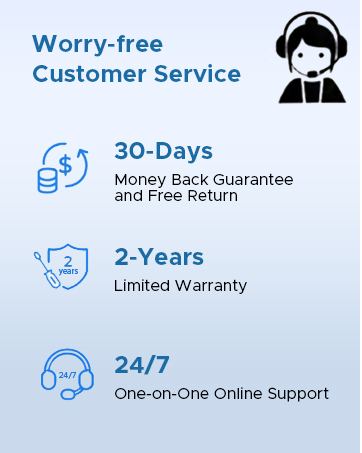
Image: Information on DOOGEE's customer service, including 30-day money back guarantee, 2-year limited warranty, and 24/7 online support.
Ask a question about this manual
Ask about setup, troubleshooting, compatibility, parts, safety, or missing instructions. Manuals+ will review the question and use this page’s manual context to help answer it.