
1. Introduktion
The Teamgee 15.6" Laptop Screen Extender S5 Pro is designed to expand your laptop's display capabilities, providing a triple monitor setup for enhanced productivity. This device features dual 15.6-inch Full HD 1080P IPS displays and an integrated 10000mAh power bank, offering a versatile and portable solution for various work environments.
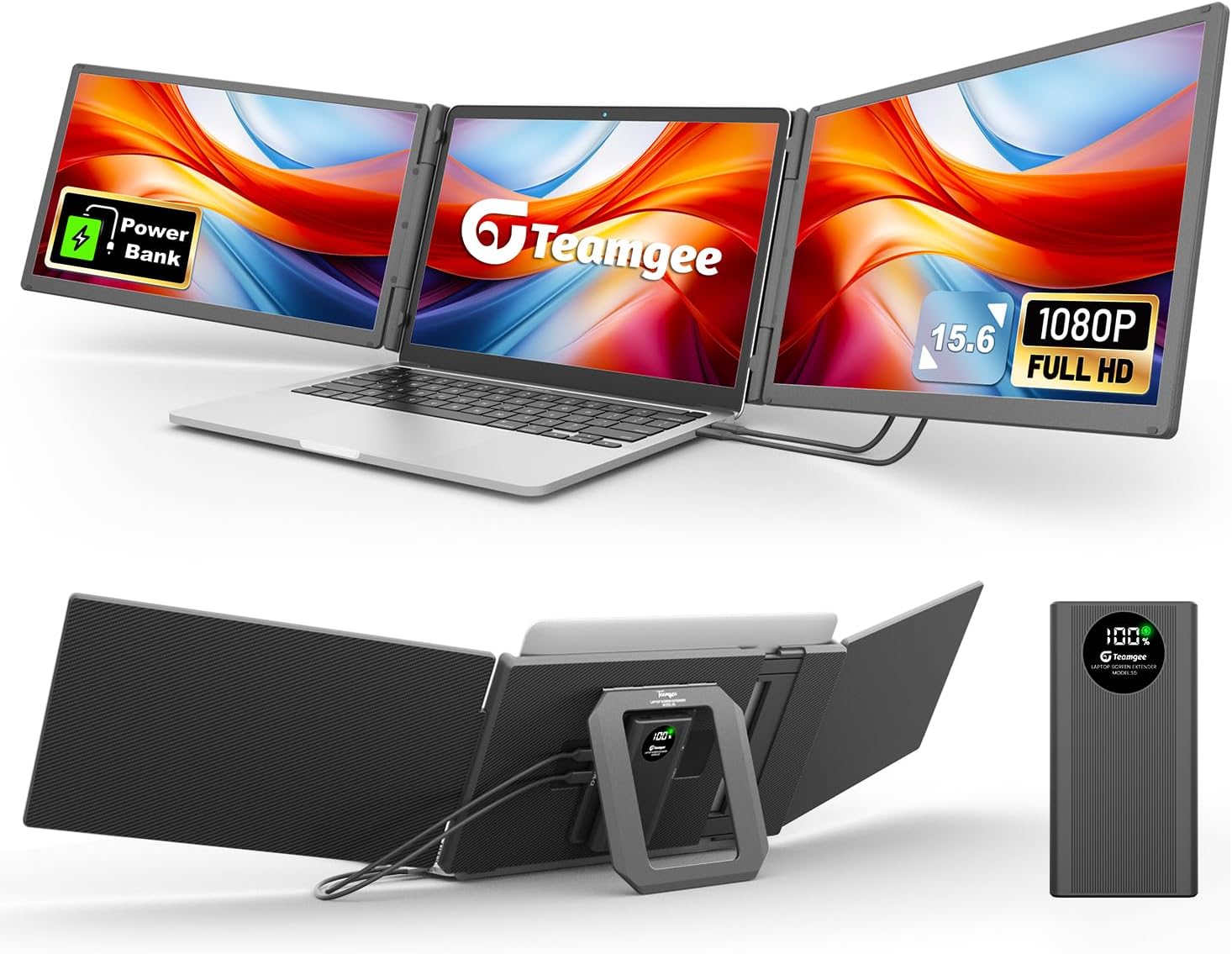
Image: The Teamgee S5 Pro screen extender attached to a laptop, providing a triple display setup.
2. Pakkens indhold
Kontroller venligst, at alle nedenstående varer er inkluderet i din pakke. Hvis der mangler eller er beskadigede varer, bedes du kontakte kundesupport.
- Teamgee 15.6" Laptop Screen Extender Unit
- Integrated 10000mAh Detachable Power Bank
- USB-C til USB-C kabler (x2)
- HDMI to USB-C Cable (x1)
- USB-A til USB-C-kabel (x1)
- Strømadapter
- Bæretaske
- Brugermanual

Image: All components included in the Teamgee S5 Pro product package.
3. Produktfunktioner
- Dual 15.6-inch FHD 1080P IPS Displays: Experience clear visuals with 1920x1080 resolution, 120% sRGB color coverage, and 300 nits brightness.
- Integrated 10000mAh Detachable Power Bank: Provides extended power for the screens and can be used as a standalone power bank for other devices.
- Indbyggede højttalere: Delivers integrated audio output.
- Universal kompatibilitet: Supports macOS, Windows, ChromeOS, Android, Surface devices, and various gaming consoles.
- Justerbar Viewi vinkler: Each screen can rotate up to 180 degrees for flexible positioning.
- Stabilt design: Features a sturdy square stand and rear bracket, suitable for laptops ranging from 13 to 17 inches.

Image: Visual representation of the display specifications and screen size.
4. Opsætningsvejledning
Follow these steps to set up your Teamgee S5 Pro screen extender:
- Udfold og positioner: Carefully unfold the screen extender and place it on a stable surface. Position your laptop within the central bracket. The sturdy stand and rear bracket are designed to support laptops between 13 and 17 inches.
- Tilslut kabler: Identify the appropriate connection method for your laptop based on its available ports.
Forbindelsesmetoder:
The Teamgee S5 Pro offers multiple connection options to ensure broad compatibility.
- A. Laptop with 2 Full-function Type-C Ports:
Connect Screen 1 and Screen 2 using two USB-C to USB-C cables. Ensure your laptop's Type-C ports support video output (DisplayPort Alternate Mode) and power delivery.

Image: Connection diagram for laptops with dual full-function Type-C ports.
- B. Laptop with Full-function Type-C + HDMI Ports:
Connect Screen 1 using a USB-C to USB-C cable. Connect Screen 2 using an HDMI to USB-C cable. The HDMI port on your laptop provides video, and the USB-C on the extender receives it.

Image: Connection diagram for laptops with one full-function Type-C and one HDMI port.
- C. Laptop with HDMI + USB-A or Non-full-function Type-C Ports:
Connect Screen 1 using an HDMI to USB-C cable. For Screen 2, use the H5 Adapter (included) plugged into a USB-A or non-full-function Type-C port on your laptop, then connect a USB-C to USB-C cable from the adapter to Screen 2.

Image: Connection diagram for laptops with HDMI and USB-A or non-full-function Type-C ports.
- Tænd: Press the power button on the screen extender unit. The screens should power on.
- Installer drivere (hvis nødvendigt): For some operating systems or specific connection types, you may need to install display drivers. Refer to the included quick guide or the Teamgee support webwebsted for download af drivere.
- Konfigurer skærmindstillinger: Access your laptop's display settings to arrange the screens (extend or duplicate), adjust resolution, and set primary display as desired.
5. Betjeningsvejledning
5.1 Tænd/sluk
Press the power button located on the main unit to turn the screen extender on or off. The screens will illuminate when powered on.
5.2 Screen Orientation and Adjustment
Each external screen can be rotated up to 180 degrees independently. Adjust the screens to your preferred viewing angle. Use your laptop's display settings to configure the screen layout (e.g., extend display to the left or right, duplicate display).
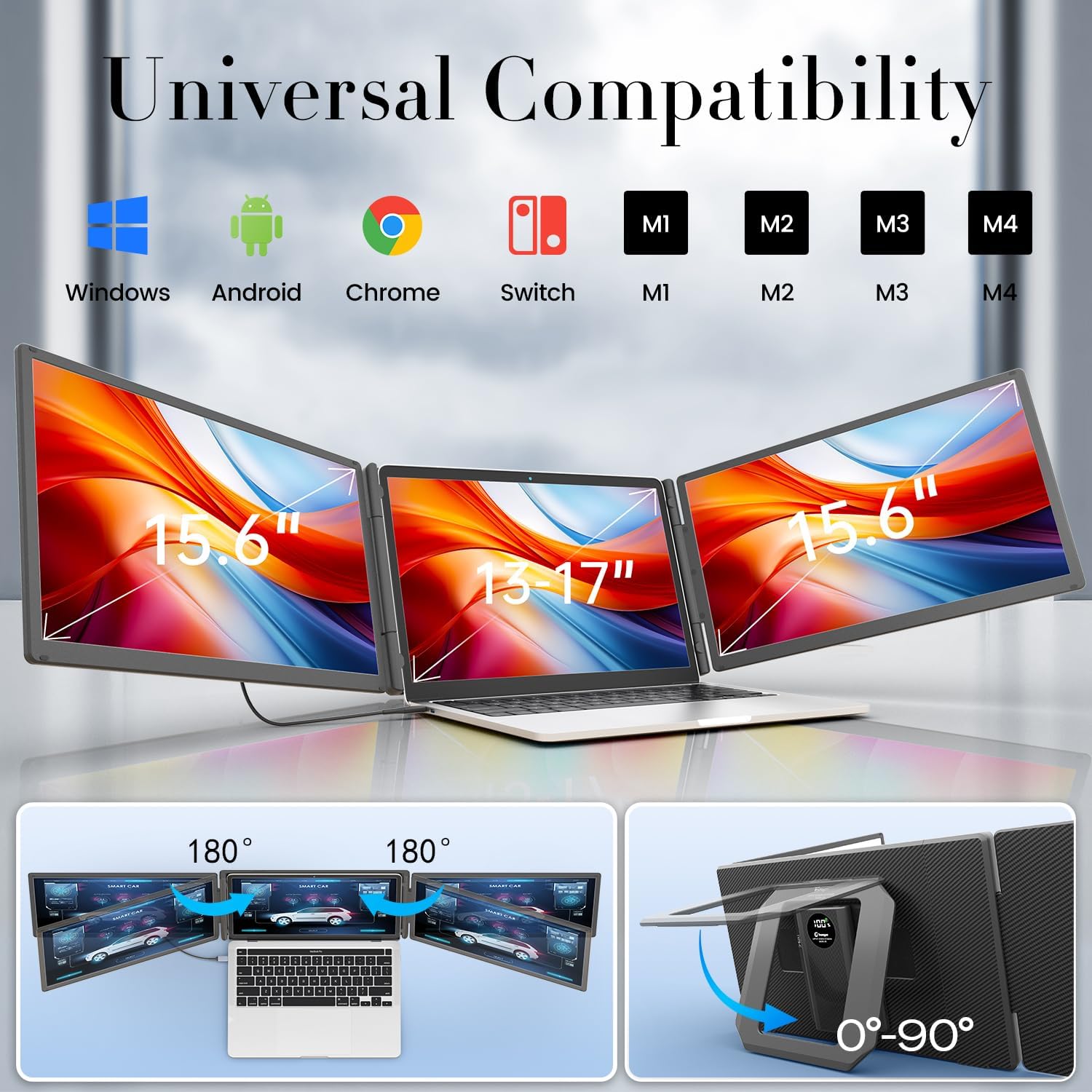
Image: Demonstrates the 180-degree rotation capability of the screens and the adjustable stand.
5.3 Powerbankens funktionalitet
The integrated 10000mAh power bank provides power to the screens and can be detached for use as a standalone power source for other USB-powered devices. It helps prevent laptop battery drain during extended use.
- Opladning af Power Bank: Connect the included power adapter to the power bank's charging port. The display on the power bank will show the charging status.
- Detaching/Attaching: The power bank can be easily detached from the main unit for separate use or reattached when needed.
- Standalone brug: Use the USB ports on the power bank to charge your phone, tablet, or other compatible devices.
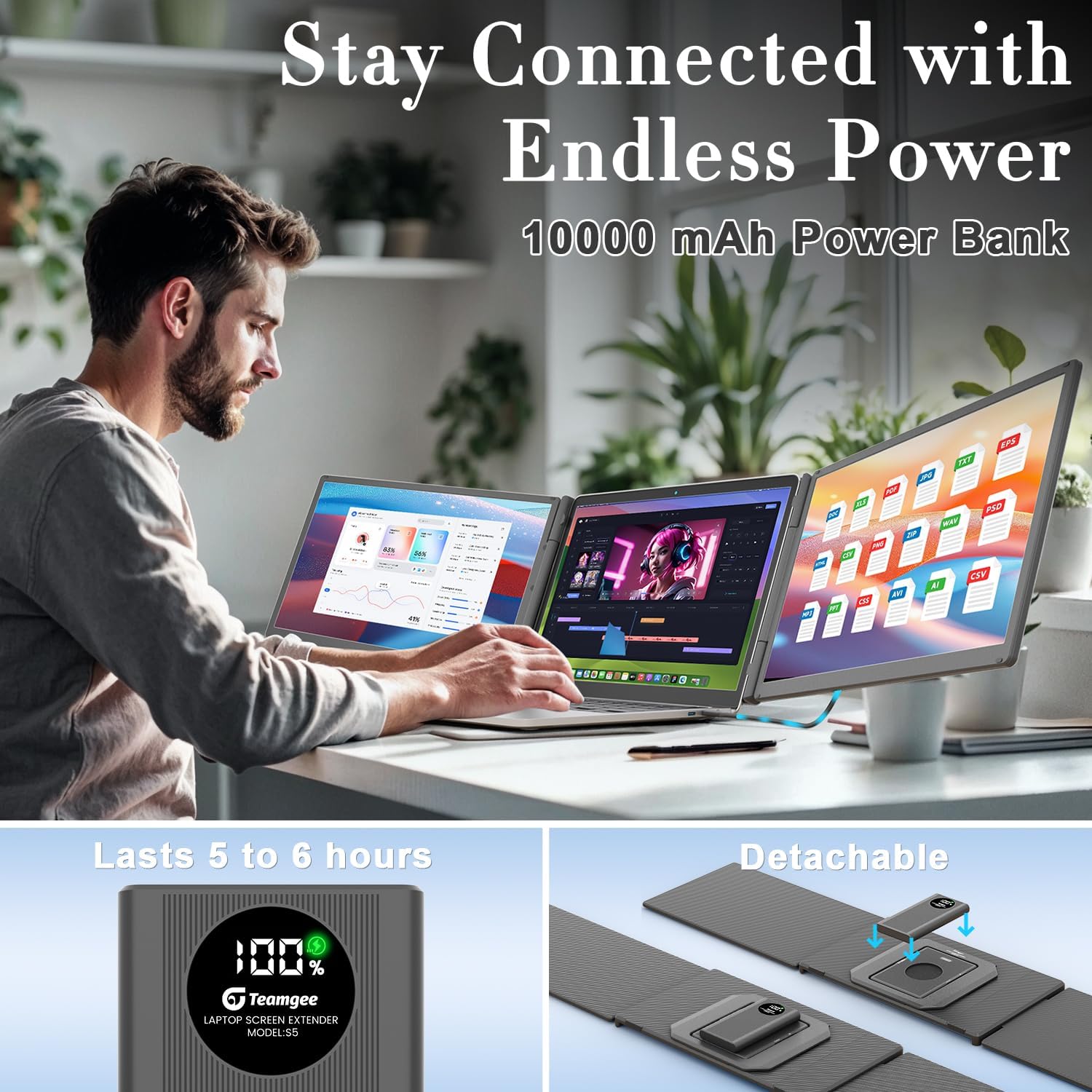
Image: The screen extender with its detachable 10000mAh power bank.
5.4 Lydudgang
The screen extender features built-in speakers. Audio will be routed through the extender when connected. You can adjust the volume through your laptop's sound settings or the extender's control buttons (if available).
6. Kompatibilitet
The Teamgee S5 Pro is designed for broad compatibility:
- Laptop Size: Fits laptops with screen sizes between 13 and 17 inches (diagonal).
- Operativsystemer: Compatible with macOS, Windows, ChromeOS, and Android.
- Enheder: Supports various laptops, Microsoft Surface devices, and gaming consoles.
7. Vedligeholdelse og pleje
- Rensning: Use a soft, dry, lint-free cloth to clean the screens and exterior surfaces. Avoid using abrasive cleaners, solvents, or aerosol sprays.
- Opbevaring: When not in use, fold the screen extender and store it in the provided carrying case to protect it from dust and scratches.
- Håndtering: Handle the device with care. Avoid dropping it or applying excessive force to the screens or hinges.
- Temperatur: Udsæt ikke enheden for ekstreme temperaturer eller direkte sollys i længere perioder.
8. Fejlfinding
If you encounter issues with your Teamgee S5 Pro, please refer to the following common solutions:
- No Display / No Signal:
- Ensure all cables are securely connected to both the screen extender and your laptop.
- Verify that your laptop's Type-C ports are full-function (support video output and power delivery) if using Type-C connections.
- Confirm the screen extender is powered on and the power bank has sufficient charge.
- Check your laptop's display settings (e.g., Windows Display Settings, macOS System Preferences > Displays) to ensure the external monitors are detected and configured to 'Extend' or 'Duplicate' your display.
- Try restarting your laptop with the extender connected.
- One Screen Not Working:
- Inspect the specific cable connecting the non-working screen for damage or loose connections.
- Ensure the power bank is adequately charged, as insufficient power can sometimes affect one screen.
- If using an adapter (e.g., H5 Adapter), ensure it is correctly plugged in and functioning.
- Laptop Battery Drains Quickly:
- The integrated power bank is designed to mitigate laptop battery drain. Ensure the power bank is fully charged before use.
- For prolonged sessions, connect the screen extender to an external power source using the provided power adapter.
- Stability Issues with Laptop:
- Ensure your laptop is within the recommended 13-17 inch size range for optimal fit and stability.
- Verify that the laptop is securely seated in the central bracket and the rear stand is properly extended.
- Note that the design prioritizes stability for traditional laptops; very thin or unusually shaped laptops may require careful positioning.
- Ingen lyd fra højttalere:
- Check your laptop's sound output settings to ensure the Teamgee S5 Pro is selected as the audio device.
- Adjust the volume levels on both your laptop and the screen extender (if applicable).
9. Specifikationer
| Feature | Detalje |
|---|---|
| Modelnummer | S5 Pro |
| Skærmstørrelse | Dobbelt 15.6 tommer |
| Opløsning | 1920 x 1080 pixels (FHD 1080p) |
| Billedlysstyrke | 300 Candela |
| Aspektforhold | 16:9 |
| Skærmoverflade | Blank |
| Farveskala | 120 % sRGB |
| Power Bank Kapacitet | 10000mAh |
| Total USB Ports (on hub) | 2 |
| Produktdimensioner | 10.3 x 17.1 x 3.3 tommer |
| Varens vægt | 9.35 pund |
| Fabrikant | Shenzhen Baijiayoupu Technology Co., Ltd. |
10. Garanti og support
10.1 Produktgaranti
The Teamgee 15.6" Laptop Screen Extender S5 Pro comes with a 1-års garanti fra købsdatoen. Denne garanti dækker fabrikationsfejl og sikrer, at produktet fungerer som tilsigtet ved normal brug. Gem venligst din købsbevis til garantikrav.
10.2 Kundesupport
For any questions, technical assistance, or warranty inquiries, please contact Teamgee customer support. You can typically reach support via the seller's homepage on the platform where you purchased the product. Our team is available to provide assistance.
For the most up-to-date support information, please visit the official Teamgee webwebstedet eller din forhandlers supportside.