
Indledning
This manual provides essential information for the setup, operation, maintenance, and troubleshooting of your Onn 22 inch 1080P 100 Hz FHD LED Monitor. Please read this guide thoroughly before using the product to ensure optimal performance and safety.
The Onn 22 inch FHD LED Monitor is designed for a variety of applications, offering a vivid 1920x1080 resolution, a 100Hz refresh rate, and a 6.5ms response time for efficient performance. Its slim profile and T-shaped base are ideal for saving desk space.
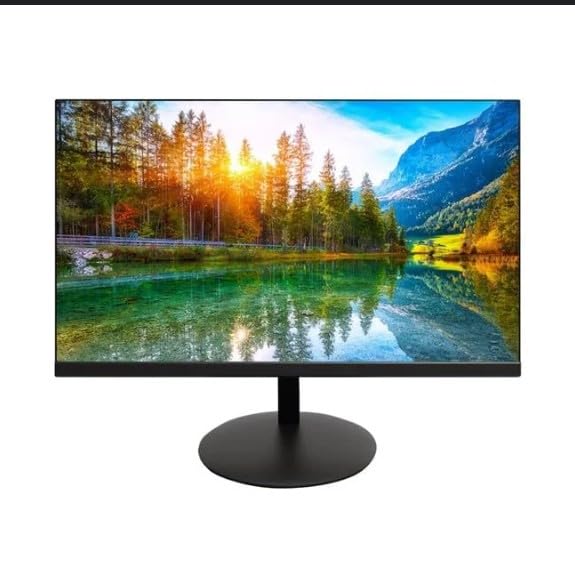
The image shows the Onn 22 inch FHD LED Monitor, highlighting its 100Hz refresh rate and 1080p resolution. The monitor features a slim design and a T-shaped base.
Opsætningsinstruktioner
- Udpakning: Carefully remove the monitor and all accessories from the packaging. Ensure all components are present: monitor, T-shaped base, HDMI cable, and power adapter.
- Samling af stativet: Attach the T-shaped base to the monitor. The design is screw-less for easy assembly. Ensure it is securely fastened.
- Tilslutning til en enhed:
The monitor supports both HDMI and VGA inputs. Connect the provided HDMI cable from your computer's HDMI output to the HDMI IN port on the monitor. Alternatively, use a VGA cable for VGA input.

This image displays the rear panel of the Onn monitor, illustrating the available input ports: HDMI IN, VGA IN, and the DC 12V power input. These ports are essential for connecting the monitor to a computer or other devices.
- Strømtilslutning: Connect the power adapter to the DC 12V input port on the monitor, then plug the adapter into a power outlet.
- Justering af skærmen: The monitor is capable of swivel, tilt, rotation, and height adjustment. Adjust the screen to your preferred viewvinkel for ergonomisk komfort.
- Opsætning af dobbelt skærm: This monitor is suitable for a fully functioning dual monitor setup. Connect a second monitor using the appropriate cables and configure your operating system's display settings.
Betjeningsvejledning
- Tænd/sluk: Press the power button, usually located on the bottom or back of the monitor, to turn it on or off.
- Valg af input: If the monitor does not automatically detect the input source, use the On-Screen Display (OSD) menu buttons to manually select between HDMI and VGA inputs.
- OSD-menunavigation: Use the physical buttons on the monitor (typically on the back or bottom edge) to navigate the OSD menu. This allows you to adjust settings such as brightness, contrast, color temperature, and input source.
- Opløsning og opdateringshastighed: The monitor supports a native resolution of 1920x1080 at a 100Hz refresh rate. Ensure your computer's display settings are configured to these specifications for the best visual experience.
- Adaptiv synkronisering: The monitor features Adaptive Sync for gaming, which helps to reduce screen tearing and stuttering. Ensure this feature is enabled in your graphics card settings if supported.
Opretholdelse
- Rengøring af skærmen: Tør forsigtigt skærmen af med en blød, fnugfri klud. Tør forsigtigt genstridige mærker afampen the cloth with water or a non-abrasive, monitor-specific cleaning solution. Avoid spraying liquids directly onto the screen.
- Rengøring af Casing: Brug en blød, tør klud til at rengøre skærmenasing. Do not use strong detergents or solvents, as they may damage the finish.
- Ventilation: Sørg for, at skærmens ventilationsåbninger ikke er blokerede for at forhindre overophedning.
- Opbevaring: Når skærmen ikke er i brug i længere perioder, skal den opbevares køligt og tørt, væk fra direkte sollys og ekstreme temperaturer.
Fejlfinding
- Ingen strøm:
- Kontroller, om strømkablet er tilsluttet korrekt til både skærmen og stikkontakten.
- Kontroller, at stikkontakten fungerer korrekt.
- Intet signal:
- Sørg for, at videokablet (HDMI eller VGA) er korrekt tilsluttet til både skærmen og computeren.
- Select the correct input source using the monitor's OSD menu.
- Kontroller, om din computer er tændt og ikke i dvaletilstand.
- Flickering Screen or Poor Image Quality:
- Kontroller videokablet for skader eller løse forbindelser.
- Adjust the resolution and refresh rate settings on your computer to match the monitor's specifications (1920x1080, 100Hz).
- Nulstil skærmens indstillinger til fabriksindstillingerne via OSD-menuen.
- Knapper reagerer ikke:
- Unplug the monitor from the power outlet, wait for 30 seconds, and then plug it back in.
If problems persist, please refer to the support information provided in the "Support and Warranty" section.
Specifikationer
| Mærke | Onn |
| Modelnummer | 100140681 |
| Modelnavn | OTTO |
| Skærmstørrelse | 21.5 tommer |
| Display Type | LED, LCD |
| Opløsning | 1920 x 1080 (FHD 1080p) |
| Opdateringshastighed | 100 Hz |
| Svartid | 6.5 millisekunder |
| Hardware-interface | HDMI, VGA |
| Særlige funktioner | Højdejustering |
| Viewi vinkel | 160 grader |
| Aspektforhold | 16:9 |
| Produktdimensioner | 49.2 x 20 x 37.2 cm; 3.24 kg |
Support og garanti
For technical support, product inquiries, or warranty information, please visit the official Onn support webwebsted eller kontakt deres kundeservice.
- Officiel støtte Webwebsted: onnsupport.ca
- Garanti: Specific warranty details may vary by region and purchase date. Please refer to the documentation included with your product or visit the support webwebstedet for de seneste garantioplysninger.