
Indledning
This manual provides comprehensive instructions for the ASHATA 12 Key Programmable Mechanical Gaming Keyboard. This compact, one-handed keypad is designed for versatility, featuring programmable keys, customizable RGB lighting, and hot-swappable mechanical switches. It connects via a Type-C USB interface, ensuring broad compatibility with various operating systems. Please read this manual thoroughly before using the product to ensure proper operation and longevity.

Billede: Top-down view of the ASHATA 12 Key Mechanical Gaming Keyboard, showcasing its compact design and 12 black keycaps.
Pakkens indhold
Bekræft, at alle nedenstående varer er til stede i din pakke. Hvis der mangler eller er beskadigede varer, bedes du kontakte kundesupport.
- 1 x ASHATA 12 Key Mechanical Gaming Keyboard
- 1 x Type-C USB-kabel
- 1 x Keycap aftrækker

Image: The included Type-C USB cable and a green keycap puller, essential tools for keyboard maintenance and customization.
Specifikationer
| Feature | Detalje |
|---|---|
| Mærke | ASHATA |
| Modelnummer | ASHATA8hggapme4i-12 |
| Nøglenummer | 12 nøgler |
| Switch Type | Red Mechanical Switch (Hot-Swappable) |
| Forbindelse | Type-C Wired USB |
| Materiale | Akryl + ABS |
| Kompatibel OS | Linux, OS X, Windows, Raspberry Pi |
| Særlige funktioner | Programmable, RGB Lighting, Hot-Swappable |
Opsætningsinstruktioner
Follow these steps to set up your ASHATA 12 Key Mechanical Gaming Keyboard:
- Tilslut kablet: Insert the Type-C end of the provided USB cable into the port on the side of the keyboard.
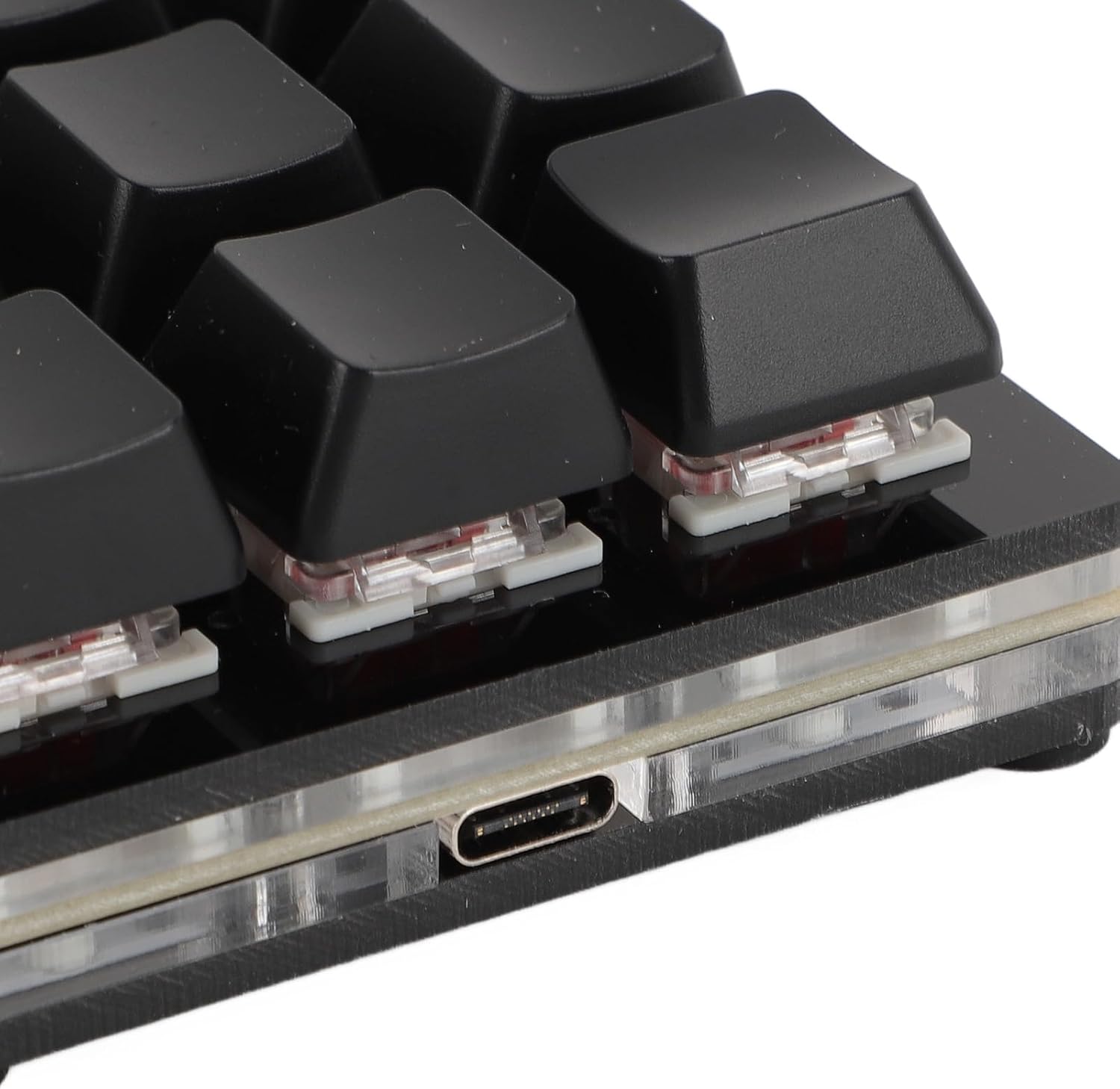
Billede: Nærbillede view of the Type-C USB port located on the side of the keyboard for connection.
- Tilslut til computer: Sæt standard USB-A-enden af kablet i en ledig USB-port på din computer.

Image: The ASHATA 12 Key Mechanical Gaming Keyboard connected to a laptop, demonstrating its plug-and-play functionality.
- Driver installation: The keyboard is plug-and-play and typically does not require specific driver installations. Your operating system should automatically recognize the device.
- Indledende test: Open a text editor or a program that accepts keyboard input and press a few keys to confirm basic functionality.
Betjeningsvejledning
The ASHATA 12 Key Mechanical Gaming Keyboard is designed for customizable input.
Nøglefunktioner overview
This keyboard supports various programmable functions, including:
- Keyboard Function (standard key presses)
- Mouse Function (e.g., click, scroll)
- Multimedia Function (e.g., play/pause, volume)
- String Function (inputting predefined text strings)
- Game Function (specific game commands)
- Macro Definition Function (complex sequences of actions)

Image: An illustrative diagram highlighting the six main programmable functions: Keyboard, Mouse, Multimedia, String, Game, and Macro Definition.
RGB belysning
The keyboard features customizable RGB lighting. Specific instructions for adjusting lighting modes and turning it off will be available through the programming software.
Hot-swap-switche
The hot-swappable design allows you to change mechanical switches without soldering.
- Fjern tastehætte: Brug den medfølgende tastaftrækker til forsigtigt at fjerne den ønskede tast.
- Fjern kontakt: Use a switch puller (not included, but often comes with replacement switches) to carefully extract the mechanical switch from its socket.
- Indsæt ny kontakt: Align the pins of the new mechanical switch with the holes on the PCB and press firmly until it clicks into place. Ensure pins are not bent.

Billede: Et nærbillede view showing a mechanical switch with a red stem and a detached black keycap, illustrating the hot-swappable feature.
- Udskift tastehætte: Place the keycap onto the new switch.
Programmering og tilpasning
To fully utilize the programmable features of your ASHATA keyboard, you will need to use the dedicated programming software. This software allows you to:
- Assign custom functions to each of the 12 keys.
- Create and assign macros for complex command sequences.
- Juster RGB-lyseffekter og farver.
- Save and load different key layouts/profiles.
Note: The specific software and download instructions are typically provided by the manufacturer or seller. Please refer to the product listing or manufacturer's website for the download link and detailed software usage guide. The keyboard has a memory function, so settings are saved directly to the device and do not require reconfiguration after initial setup.
Vedligeholdelse og pleje
Korrekt vedligeholdelse sikrer dit tastaturs levetid og optimale ydeevne.
- Rensning: Use a soft, dry cloth to wipe the surface of the keyboard. For deeper cleaning, remove keycaps using the provided puller and use compressed air to clear debris from between switches. Avoid using harsh chemicals or abrasive materials.
- Opbevaring: Opbevar tastaturet et køligt, tørt sted væk fra direkte sollys og ekstreme temperaturer.
- Håndtering: Avoid dropping the keyboard or exposing it to liquids. Do not attempt to disassemble the keyboard beyond removing keycaps and switches, as this may void the warranty.
Fejlfinding
Hvis du støder på problemer med dit tastatur, kan du se følgende almindelige problemer og løsninger:
- Tastatur genkendes ikke af computeren:
- Sørg for, at USB-kablet er korrekt tilsluttet til både tastaturet og computeren.
- Prøv at tilslutte tastaturet til en anden USB-port på din computer.
- Test tastaturet på en anden computer for at udelukke et computerspecifikt problem.
- Genstart din computer.
- Tasterne reagerer ikke eller skriver forkert:
- Check for physical obstructions under the keycaps.
- If using custom key assignments, verify your settings in the programming software.
- For hot-swapped switches, ensure the switch is fully seated and its pins are not bent.
- RGB-belysningen virker ikke:
- Sørg for, at tastaturet er korrekt tilsluttet og har strøm.
- Check the RGB settings within the programming software.
Produkt overview Video
Se denne korte video for et visuelt overblikview of the ASHATA 12 Key Mechanical Gaming Keyboard.
Video: A brief demonstration of the ASHATA 12 Key Mechanical Gaming Keyboard's features and functionality.
Garanti og support
This product comes with a standard manufacturer's warranty. For detailed warranty information, including terms and conditions, please refer to the documentation included with your purchase or contact the seller directly.
For technical support, troubleshooting assistance, or inquiries about replacement parts, please contact ASHATA customer service through the platform where you purchased the product or visit the official ASHATA webwebsted.