
1. Produktet er slutview
The GNCC 2K Light Bulb Security Camera GL1 offers advanced home surveillance with the convenience of a standard light bulb. This device integrates a high-resolution 2K camera with a functional light, providing comprehensive monitoring for both indoor and outdoor environments. Key features include 355° pan and tilt capabilities, full-color night vision, smart motion detection, two-way audio communication, and flexible storage options.

Billede: Overview of the GNCC 2K Light Bulb Security Camera GL1, highlighting its design and primary function as a security device integrated into a light bulb form factor.
2. Pakkeliste
Kontroller, at alle komponenter er til stede i pakken, før du fortsætter installationen.
- GNCC 2K Light Bulb Security Camera GL1
- Instruktionsmanual
- Power Adapter (for initial setup or specific installations)
- E26/E27 Socket Extender (if needed for deeper light fixtures)

Image: Contents of the GNCC GL1 Light Bulb Security Camera package, including the camera, user manual, and socket extender.
3. Opsætning og installation
The GNCC GL1 camera is designed for quick and tool-free installation, fitting into standard E26/E27 light sockets. Ensure the power to the light fixture is off before installation.
3.1 Fysisk installation
- Sluk: Turn off the power to the light fixture where the camera will be installed.
- Fjern eksisterende pære: Carefully remove any existing light bulb from the socket.
- Installer kamera: Screw the GNCC GL1 camera into the E26/E27 light socket. If the fixture's design obstructs the camera's view or movement, use the provided E26/E27 socket extender.
- Tænd: Genopret strømmen til lysarmaturet. Kameraet vil tænde og starte sin opstartssekvens.

Image: Demonstrates the easy, tool-free installation of the GNCC GL1 camera by screwing it into a standard light socket, with an optional extender shown.
3.2 App Connection (Osaio App)
The GNCC GL1 camera requires connection to a 2.4GHz Wi-Fi network via the Osaio app. It is not compatible with 5GHz networks.
- Download app: Download the "Osaio" app from your smartphone's app store (iOS or Android).
- Opret konto: Open the Osaio app and follow the on-screen instructions to create a new account or log in.
- Tilføj enhed: Tap the "+" icon in the app to add a new device. Select the GNCC GL1 camera from the list.
- Opret forbindelse til Wi-Fi: Follow the app's prompts to connect the camera to your 2.4GHz Wi-Fi network. Ensure your phone is also connected to the 2.4GHz network during this process.
- Færdiggørelse: Når der er forbindelse, ændres kameraets statusindikator, og du vil se livefeedet i appen.

Image: Step-by-step visual guide for connecting the GNCC GL1 camera to the Osaio app via Bluetooth for quick setup.
For a visual guide on the setup process, please refer to the following video:
Video: A detailed demonstration of the GNCC GL1 Light Bulb Security Camera, including its features and setup process.
4. Betjeningsvejledning
4.1 Live View og panorering/tilt-kontrol
Access the live video feed through the Osaio app. Use the on-screen controls to pan (horizontal rotation) and tilt (vertical movement) the camera to adjust the viewing angle. The camera offers a 355° panoramic view.

Image: The Osaio app interface showing controls to turn the integrated light bulb function of the GL1 camera ON or OFF.
4.2 Light Functionality
The integrated light can be controlled via the Osaio app. You can turn the light ON/OFF, adjust brightness (if supported by the app version), and set schedules for automatic operation. The light also functions as a deterrent when motion is detected.
4.3 2K Video Quality and Night Vision
The camera provides clear 2K resolution video. It features both infrared night vision for standard low-light conditions and full-color night vision, which activates the integrated LED light to capture detailed, color images even in darkness.
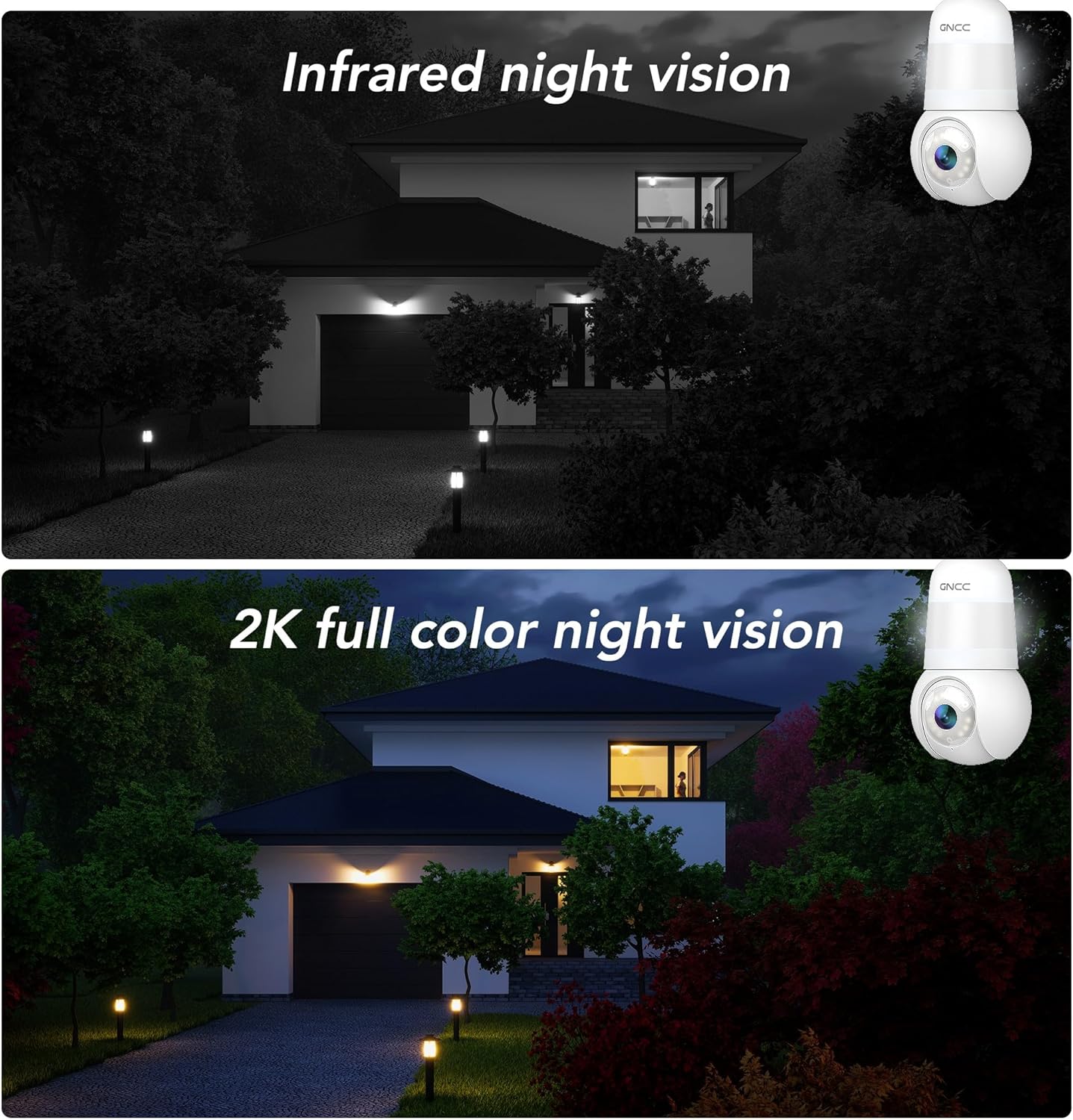
Image: A visual comparison demonstrating the difference between traditional infrared night vision (black and white) and the GNCC GL1's 2K full-color night vision, which illuminates the scene for clearer detail.

Image: A side-by-side comparison illustrating the superior detail and clarity of 2K (4MP) video resolution compared to standard 1080P resolution from the GNCC GL1 camera.
4.4 Smart Motion Detection and Alerts
The camera is equipped with smart motion detection. When motion is detected, the camera can send instant notifications to your smartphone via the Osaio app. You can customize sensitivity settings within the app to reduce false alerts.

Image: The Osaio app displaying a "1 Second Message Push" notification, indicating rapid alerts for detected motion or sound events.

Image: Illustrates the GNCC GL1 camera's real-time alert capabilities, including motion alerts, spotlight activation, and two-way speaker function, acting as a deterrent.
4.5 Tovejslyd
Utilize the built-in microphone and speaker for two-way audio communication. This allows you to speak to visitors or deter intruders directly through the Osaio app.

Image: Depicts the two-way audio feature with noise cancellation, enabling clear communication through the camera from a mobile device.
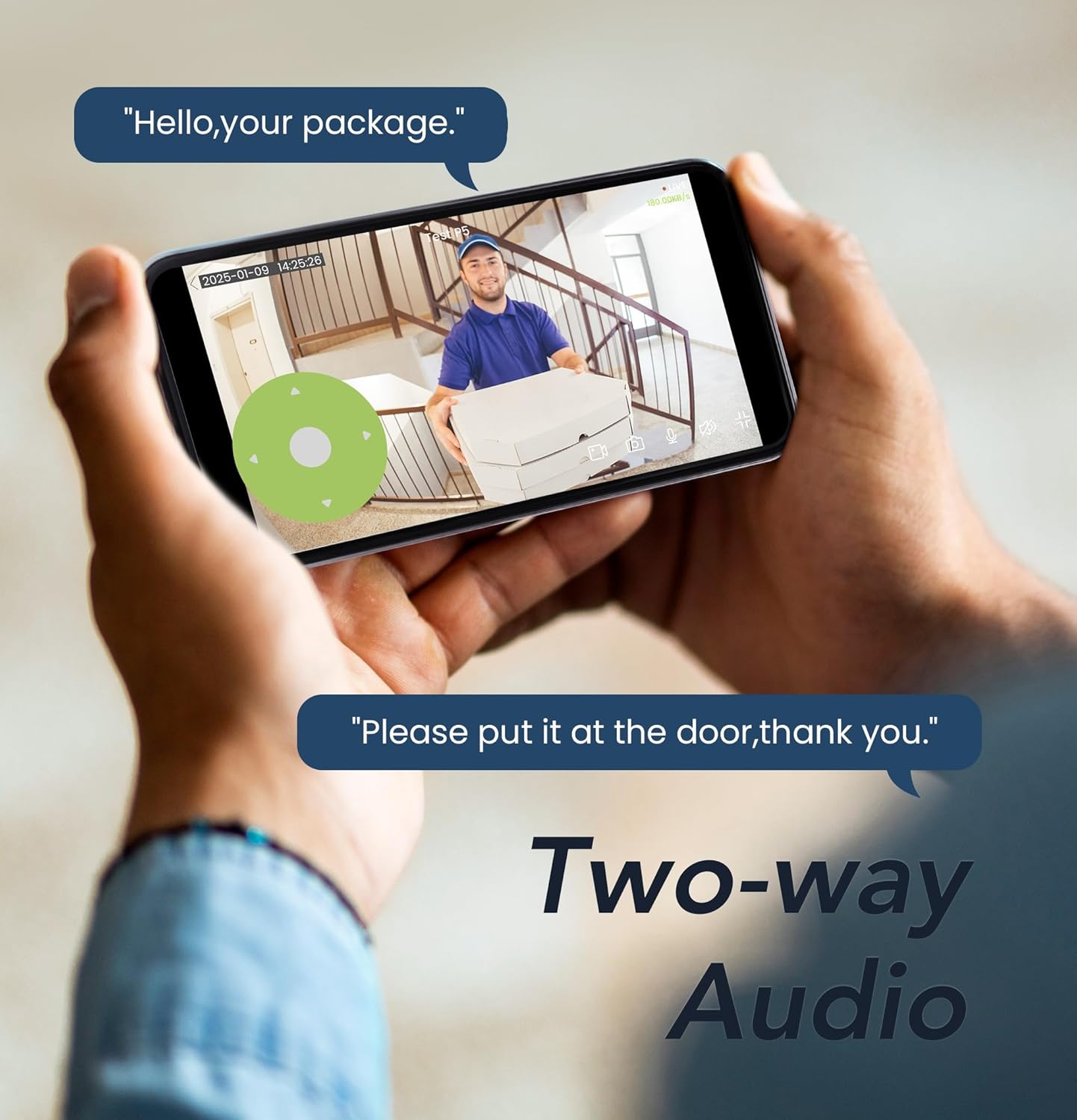
Image: A user interacting with a delivery person via the GNCC GL1 camera's two-way audio feature, demonstrating remote communication.
4.6 Lagringsmuligheder
The GNCC GL1 camera supports two storage methods:
- Lokal opbevaring: Insert a microSD card (up to 128GB, not included) into the camera for continuous or event-based recording. The camera supports loop recording, overwriting the oldest footage når kortet er fuldt.
- Cloud Storage: Optional encrypted cloud storage is available through subscription plans via the Osaio app. This provides secure off-site backup of your recordings.

Image: Explains the loop recording feature and available storage options, including local microSD card support (up to 128GB) and optional cloud storage plans.
4.7 Smart Home-integration
The GNCC GL1 camera is compatible with Amazon Alexa and Google Assistant, allowing for voice control and integration into your smart home ecosystem. Refer to the Osaio app for specific integration instructions.

Image: Highlights the multiplatform compatibility of the GNCC GL1 camera, showing its integration with Google Home and Amazon Alexa for enhanced control and accessibility.