
WEMAX B0DRG7XFWP
WEMAX Google TV Projector User Manual
Model: B0DRG7XFWP
1. Introduktion
Thank you for choosing the WEMAX Google TV Projector. This compact and versatile projector is designed to deliver a high-quality cinematic experience in your home or on the go. Featuring official Netflix licensing, native 1080P resolution with 4K support, and integrated Google TV, it provides seamless access to a vast library of entertainment. This manual will guide you through the setup, operation, and maintenance of your new projector.
2. Sikkerhedsoplysninger
Læs venligst alle sikkerhedsinstruktioner omhyggeligt, inden du bruger projektoren. Gem denne manual til senere brug.
- Strømforsyning: Brug kun den medfølgende strømadapter. Sørg for, at lydstyrkentage opfylder de krav, der er angivet på adapteren.
- Ventilation: Bloker ikke ventilationsåbningerne. Sørg for tilstrækkelig plads omkring projektoren for korrekt luftgennemstrømning og for at forhindre overophedning.
- Varme: The projector may become warm during operation. This is normal. Avoid touching the lens or hot surfaces.
- Øjensikkerhed: Se ikke direkte ind i projektorlinsen, når lamp er tændt. Det skarpe lys kan forårsage øjenbelastning eller skade.
- Placering: Placer projektoren på en stabil, plan overflade. Undgå at placere den i direkte sollys, i nærheden af varmekilder eller i omgivelser med høj luftfugtighed eller støv.
- Rensning: Afbryd strømmen før rengøring. Brug en blød, tør klud. Brug ikke flydende rengøringsmidler eller aerosolrengøringsmidler.
- Service: Forsøg ikke at reparere projektoren selv. Overlad al service til kvalificeret personale.
3. Pakkens indhold
Bekræft at alle varer er til stede i din pakke:
- WEMAX Google TV Projector
- Strømledning
- Fjernbetjening
- Strømadapter
- Brugervejledning (dette dokument)
- Garantikort
4. Produktet er slutview
Projektor komponenter
Familiarize yourself with the main components of your WEMAX Google TV Projector.
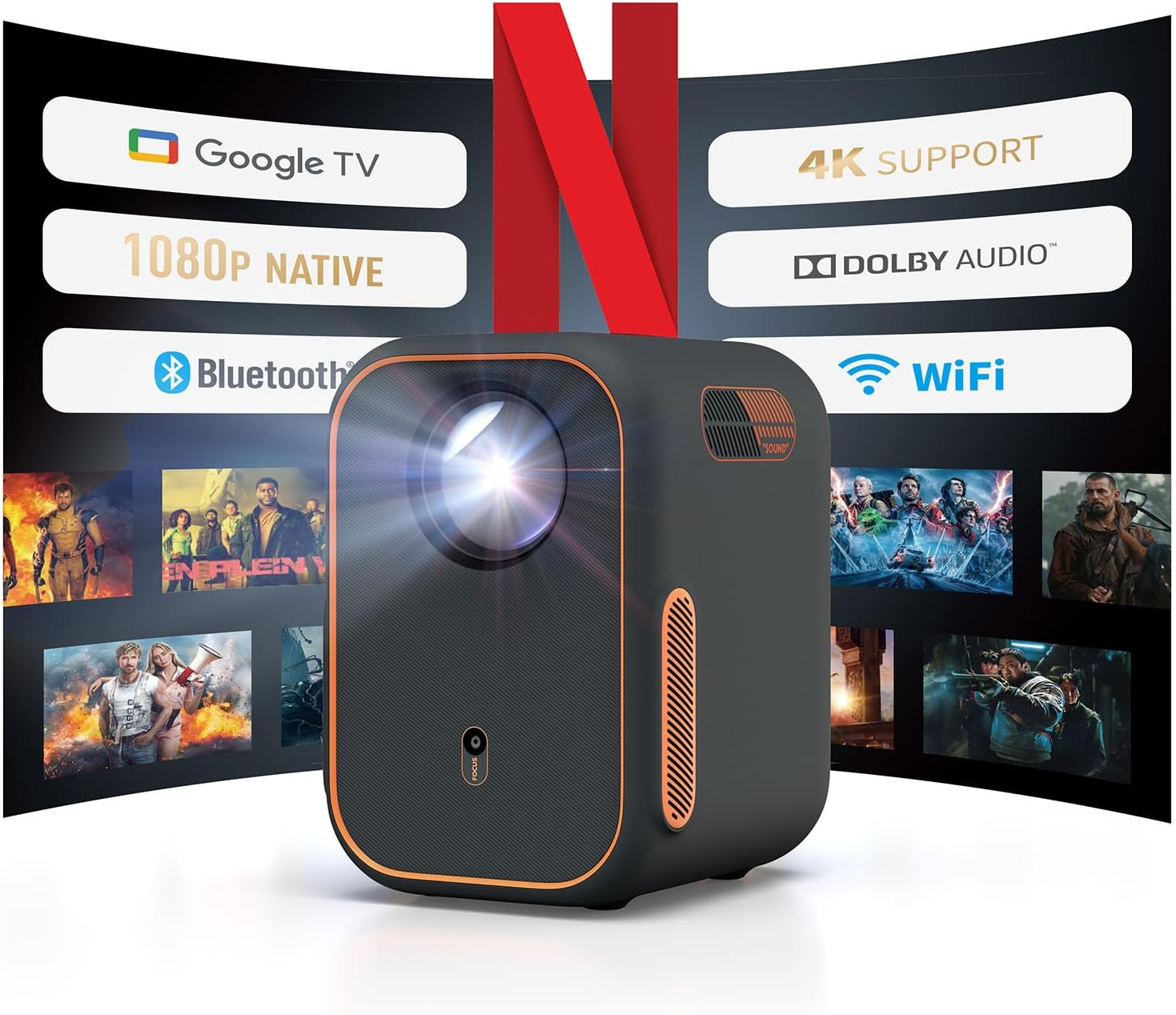
Figur 4.1: Forside view of the WEMAX Google TV Projector highlighting its key features like Google TV, 1080P Native resolution, 4K support, Dolby Audio, Bluetooth, and WiFi connectivity.
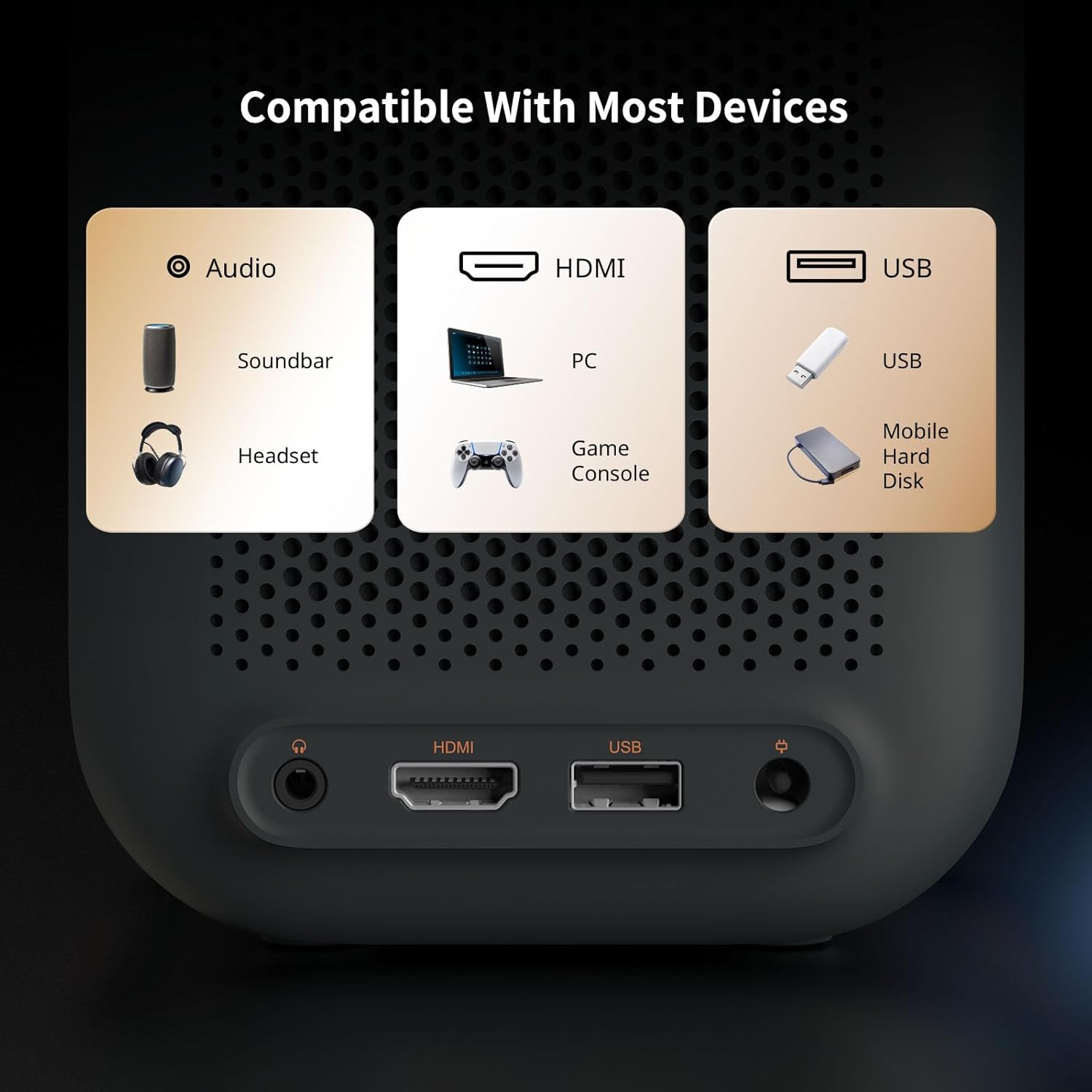
Figure 4.2: Rear panel of the projector displaying the Audio 3.5mm port, HDMI ARC port, and USB port for connecting various devices.
Nøglefunktioner
- Google TV-integration: Officially licensed Netflix, Prime Video, YouTube, and access to over 10,000 apps.
- Høj opløsning: Native 1080P with HDR10 and 4K content support for sharp, detailed visuals.
- Smart kalibrering: Features Auto Focus, Auto Keystone Correction, Intelligent Obstacle Avoidance, and Intelligent Screen Alignment for effortless setup.
- Lyd: Built-in 2x3W speakers with Dolby Audio support and Bluetooth connectivity for external audio devices.
- Forbindelse: Dual-band 2.4G/5G WiFi, HDMI ARC, USB, and Audio ports for multi-device compatibility.
- Holdbart design: Fully-enclosed light engine reduces black spots and extends lifespan to 40,000 hours.
5. Opsætning
Initial Power-On and Placement
- Place the projector on a stable surface, ensuring the lens faces the projection surface (wall or screen).
- Connect the power adapter to the projector's power input and plug it into an electrical outlet.
- Tryk på tænd/sluk-knappen på projektoren eller fjernbetjeningen for at tænde den.

Figure 5.1: The compact design of the projector allows for flexible placement in various environments.
Automatisk billedjustering
The WEMAX Google TV Projector features intelligent projection technology for quick and easy setup:
- Autofokus: The projector automatically adjusts the image clarity within approximately 4 seconds.
- Automatisk keystone-korrektion: Distorted images caused by angled projection are automatically corrected for a rectangular display.
- Intelligent undgåelse af forhindringer: The projection size and position will adjust to avoid objects in the projection path.
- Intelligent skærmjustering: The projector can automatically align the image to fit precisely within a projection screen.

Figure 5.2: The 4-in-1 intelligent projection technology simplifies setup and ensures an optimal viewoplevelse.
Google TV-opsætning
Upon first use, follow the on-screen prompts to set up Google TV:
- Vælg dit foretrukne sprog.
- Opret forbindelse til dit Wi-Fi-netværk ved at vælge det på listen og indtaste adgangskoden.
- Sign in with your Google account to access personalized recommendations, apps, and services.
- Follow instructions to set up Google Assistant and other preferences.

Figure 5.3: The Google TV interface provides one-click access to popular streaming services.
6. Betjening
Navigerer i Google TV
Use the remote control to navigate the Google TV interface. The home screen provides access to your installed apps, personalized content recommendations, and search functions.
- Stemmestyring: Press the Google Assistant button on the remote and speak commands to search for content, control playback, or adjust settings.
- Appadgang: Select icons for Netflix, Prime Video, YouTube, and other streaming services directly from the home screen.
Tilslutning af eksterne enheder
Projektoren understøtter forskellige eksterne enheder:
- HDMI: Connect gaming consoles (Xbox, PS4/PS5), laptops, PCs, or DVD players via the HDMI ARC port.
- USB: Tilslut USB-drev til medieafspilning.
- Bluetooth: Pair with external soundbars, speakers, or headphones for enhanced audio.
- Wi-Fi-skærmspejling: Wirelessly cast content from your phone or laptop using the dual-band 2.4G/5G WiFi.

Figure 6.1: Seamless wireless connectivity for screen mirroring and external audio.
Adjusting Display Size
The projector can create a display from 40 to 120 inches. Adjust the distance from the projection surface to change the screen size. The automatic focus and keystone correction will adapt to the new size.
| Skærmdimensioner (SD) | Relativ afstand (D) |
|---|---|
| 40" | 3.5 fod |
| 60" | 5.2 fod |
| 80" | 6.9 fod |
| 100" | 8.7 fod |
| 120" | 10.5 fod |
7. Vedligeholdelse
Korrekt vedligeholdelse sikrer projektorens levetid og optimale ydeevne.
- Rengøring af linser: Use a soft, lint-free cloth specifically designed for optical lenses. Gently wipe the lens to remove dust or smudges. Avoid harsh chemicals or abrasive materials.
- Ventilation: Kontrollér regelmæssigt, at ventilationsåbningerne er fri for støv og snavs. Brug en blød børste eller trykluft til at rengøre dem, hvis det er nødvendigt.
- Generel rengøring: Tør projektorens yderside af med en blød, tør klud. Brug ikke flydende rengøringsmidler direkte på enheden.
- Opbevaring: Når projektoren ikke er i brug i længere perioder, skal den opbevares køligt og tørt, væk fra direkte sollys og ekstreme temperaturer.
The WEMAX Google TV Projector features a fully-enclosed optical engine, which significantly reduces dust accumulation and helps prevent black spots on the projection, contributing to a longer lifespan of up to 40,000 hours.

Figure 7.1: The fully-sealed optical engine design prevents dust ingress, ensuring clear images and extended product life.
8. Fejlfinding
Hvis du støder på problemer med din projektor, kan du se følgende almindelige problemer og løsninger:
| Problem | Mulig årsag | Løsning |
|---|---|---|
| Ingen strøm | Netledning ikke tilsluttet; problem med stikkontakten | Sørg for, at netledningen er korrekt tilsluttet. Prøv en anden stikkontakt. |
| Intet billede / Blank skærm | Input source not selected; Cable connection issue; Projector in standby mode | Check HDMI/USB connections. Ensure correct input source is selected. Press power button to wake from standby. |
| Billedet er sløret | Out of focus; Lens dirty | Allow auto-focus to engage. Clean the projector lens. |
| Image is Distorted (Trapezoid) | Projektoren er ikke vinkelret på skærmen | Allow auto keystone correction to adjust. Reposition projector if necessary. |
| Ingen lyd | Lydstyrken er for lav; Slået fra; Ekstern lydenhed er ikke tilsluttet/valgt | Increase volume. Check mute setting. Ensure Bluetooth speaker is paired or HDMI audio is correctly routed. |
| Problemer med Wi-Fi-forbindelse | Forkert adgangskode; Router for langt væk; Netværksforstyrrelser | Verify Wi-Fi password. Move projector closer to router. Restart router and projector. |
| Fjernbetjeningen virker ikke | Lave/døde batterier; Blokering mellem fjernbetjening og projektor | Udskift batterierne. Sørg for, at der er frit udsyn til projektorens IR-modtager. |
9. Specifikationer
Detailed technical specifications for the WEMAX Google TV Projector:
| Feature | Specifikation |
|---|---|
| Mærke | WEMAX |
| Model | B0DRG7XFWP |
| Skærmopløsning | Native 1920 x 1080 (1080P Full HD) |
| 4K support | Ja |
| Lysstyrke | 150 ISO Lumen |
| Kontrastforhold | 1500:1 |
| Light Engine Lifespan | 40,000 timer |
| Forbindelsesteknologi | Audio 3.5mm, Bluetooth, HDMI ARC, USB, Dual-band 2.4G/5G WiFi |
| Særlige funktioner | Auto Focus, Auto Obstacle Avoidance, Auto Screen Alignment, Auto Keystone Correction, Built-In Speaker, Portable |
| Indbyggede højtalere | 2 x 3W with Dolby Audio |
| Støjniveau | ≤30dB |
| Produktdimensioner | 5.55 x 4.8 x 6.89 tommer |
| Varens vægt | 4.55 pund |
| Farve | Mørkegrå |
| Anbefalede anvendelser | Erhverv, Uddannelse, Gaming, Hjemmebiograf |
10. Garanti og support
Your WEMAX Google TV Projector comes with a standard warranty. Please refer to the included Warranty Card for specific terms and conditions regarding coverage and duration.
Kundesupport
For technical assistance, troubleshooting, or any inquiries regarding your WEMAX product, please contact our customer support team:
- E-mail: support@wemax.com
- Svartid: Quick response typically within 24 hours.

Figure 10.1: WEMAX Customer Support contact details.