
1. Introduktion
This instruction manual provides essential information for the proper installation, operation, and maintenance of your WONLINK AX600 USB WLAN Stick, Model WL-NA1605. This device is designed to provide wireless network (Wi-Fi) and Bluetooth connectivity to your personal computer, desktop, or laptop running Windows 10 or Windows 11. Please read this manual thoroughly before using the product.
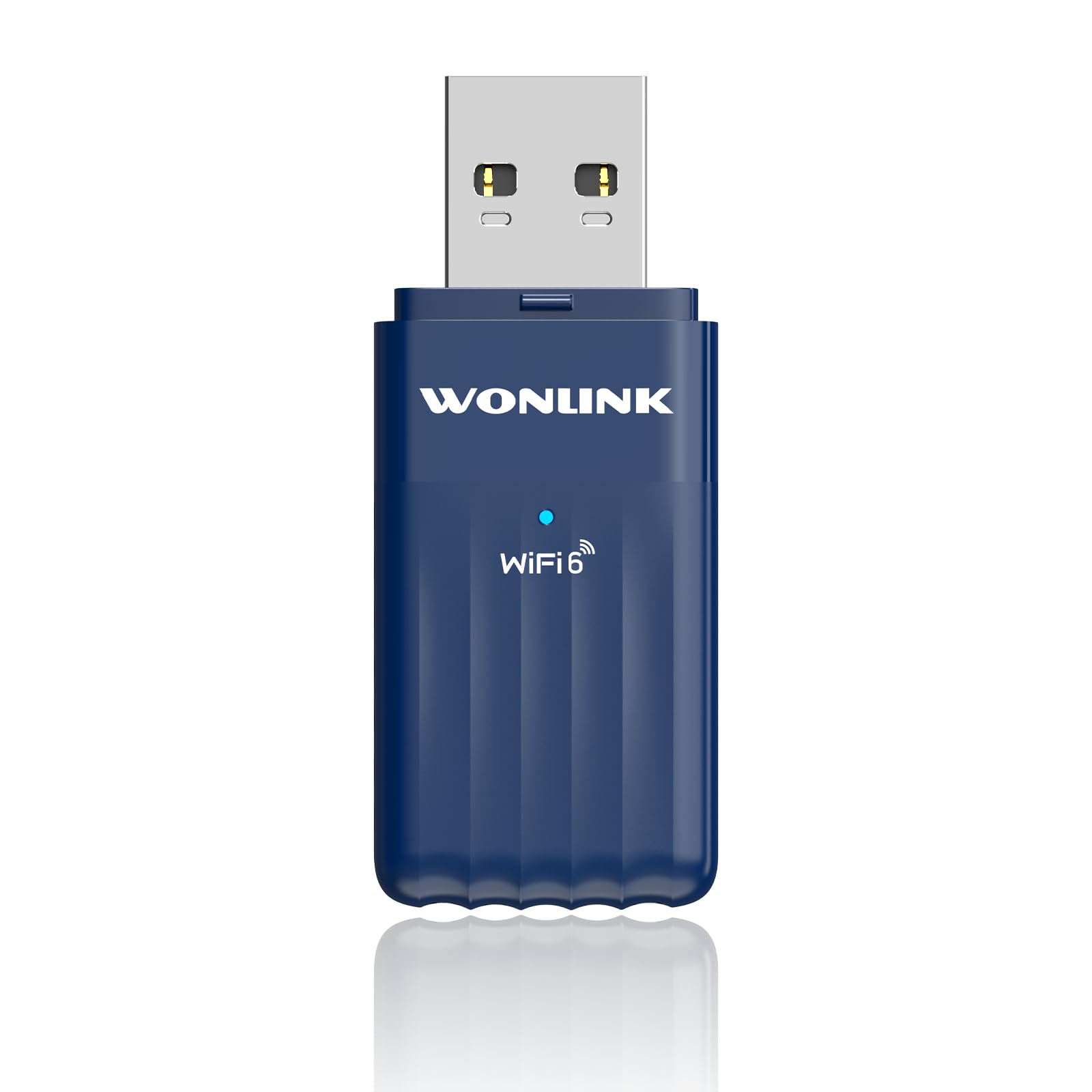
Image 1.1: The WONLINK AX600 USB WLAN Stick, a compact device for wireless connectivity.
2. Pakkens indhold
Bekræft at alle varer er til stede i pakken:
- 1 x WONLINK AX600 USB WLAN Stick (Model WL-NA1605)
- 1 x Brugsanvisning (dette dokument)
3. Specifikationer
| Feature | Detalje |
|---|---|
| Mærke | WONLINK |
| Modelnummer | WL-NA1605 |
| Dataoverførselshastighed | Op til 900 Mbps (AX600) |
| Interface | USB (USB 2.0 compatible, USB 3.0 recommended for optimal performance) |
| Forbindelsesprotokol | Wi-Fi 6 (802.11ax), Bluetooth 5.3 |
| Frekvensbånd | 2.4 GHz and 5 GHz (Dual Band) |
| Kompatible enheder | PC, Desktop, Laptop |
| Operativsystemkompatibilitet | Windows 11, Windows 10 |
| Dimensioner | Cirka 2 x 3 x 8 cm |
| Vægt | Cirka 40 gram |
| Farve | Blå |

Image 3.1: Product label showing model number WL-NA1605 and other regulatory information.
4. Opsætningsvejledning
Follow these steps to install the WONLINK AX600 USB WLAN Stick on your computer:
- Indsæt adapteren: Plug the WONLINK USB WLAN Stick into an available USB port on your PC, desktop, or laptop. For optimal performance, use a USB 3.0 port if available.
- Driver Installation (Windows 10/11):
- Upon insertion, Windows 10/11 should automatically detect the device and prompt you to install drivers.
- If prompted, allow Windows to run the installation file directly from the adapter. This method ensures driver installation even without an internet connection.
- Alternatively, Windows Update may automatically download and install the necessary drivers.
- If automatic installation fails, you may need to download the latest drivers from the official WONLINK support website (refer to the manufacturer's website for specific driver downloads).
- Verifikation: After installation, check Device Manager to ensure the Wi-Fi and Bluetooth adapters are recognized and functioning correctly. Look under "Network adapters" for the Wi-Fi component and "Bluetooth" for the Bluetooth component.
5. Betjeningsvejledning
5.1 Tilslutning til et Wi-Fi-netværk
- Ensure the adapter is properly installed and recognized by your operating system.
- Click on the Wi-Fi icon in the system tray (usually in the bottom-right corner of your screen).
- En liste over tilgængelige Wi-Fi-netværk vises. Vælg dit ønskede netværk.
- Klik på "Opret forbindelse", og indtast netværkssikkerhedsnøglen (adgangskoden), hvis du bliver bedt om det.
- Når der er oprettet forbindelse, vil Wi-Fi-ikonet angive en aktiv forbindelse.
5.2 Tilslutning af Bluetooth-enheder
- Ensure the adapter is properly installed and recognized.
- Gå til Windows-indstillinger > Enheder > Bluetooth og andre enheder.
- Slå Bluetooth til.
- Put your Bluetooth device (e.g., headphones, mouse, keyboard) into pairing mode. Refer to your device's manual for specific pairing instructions.
- On your PC, click "Add Bluetooth or other device" and select "Bluetooth".
- Vælg din enhed på listen, og følg eventuelle vejledninger på skærmen for at fuldføre parringsprocessen.
6. Fejlfinding
Hvis du støder på problemer, kan du bruge følgende almindelige løsninger:
- Ingen Wi-Fi eller Bluetooth registreret:
- Sørg for, at adapteren er korrekt tilsluttet en fungerende USB-port. Prøv en anden USB-port.
- Check Device Manager for any error symbols next to the network or Bluetooth adapters. Reinstall drivers if necessary.
- Genstart din computer.
- Slow Wi-Fi speed:
- Ensure you are connected to the 5GHz band if your router supports it and you are within range, as it generally offers higher speeds.
- Reduce interference by moving the adapter or your computer closer to the Wi-Fi router.
- Opdater din routers firmware.
- Bluetooth-enhed parres ikke:
- Sørg for, at din Bluetooth-enhed er i parringstilstand.
- Make sure the device is within range (typically 10 meters or 33 feet).
- Fjern alle tidligere parrede forekomster af enheden fra din computers Bluetooth-indstillinger, og prøv at parre igen.
- Genstart både din computer og Bluetooth-enheden.
7. Vedligeholdelse
To ensure the longevity and optimal performance of your WONLINK AX600 USB WLAN Stick:
- Hold adapteren ren og fri for støv. Brug en blød, tør klud til rengøring.
- Undgå at udsætte adapteren for ekstreme temperaturer, fugtighed eller direkte sollys.
- Forsøg ikke selv at skille enheden ad eller reparere den. Dette kan ugyldiggøre garantien.
- Opbevar adapteren et sikkert sted, når den ikke er i brug, for at forhindre fysisk skade.
8. Garanti og support
WONLINK products are designed for reliability and performance. This product comes with a standard manufacturer's warranty. For specific warranty terms and conditions, please refer to the warranty card included with your purchase or visit the official WONLINK website. For technical support, driver downloads, or further assistance, please visit the WONLINK support page or contact customer service through the details provided on the product packaging or webwebsted.
9. Sikkerhedsoplysninger
- Do not use this device near water or in excessively humid environments.
- Opbevares utilgængeligt for børn.
- Undgå at tabe eller udsætte enheden for kraftige stød.
- Dispose of electronic waste responsibly according to local regulations. The crossed-out wheeled bin symbol indicates that the product should not be disposed of with household waste.