
1. Introduktion
Welcome to the MAXHUB E21 Series 86-inch Digital Board user manual. This document provides essential information for the safe and efficient operation of your new interactive display. The MAXHUB E21 Series is designed to enhance collaboration, presentations, and interactive learning environments with its advanced features and intuitive interface. Please read this manual thoroughly before using the product and retain it for future reference.
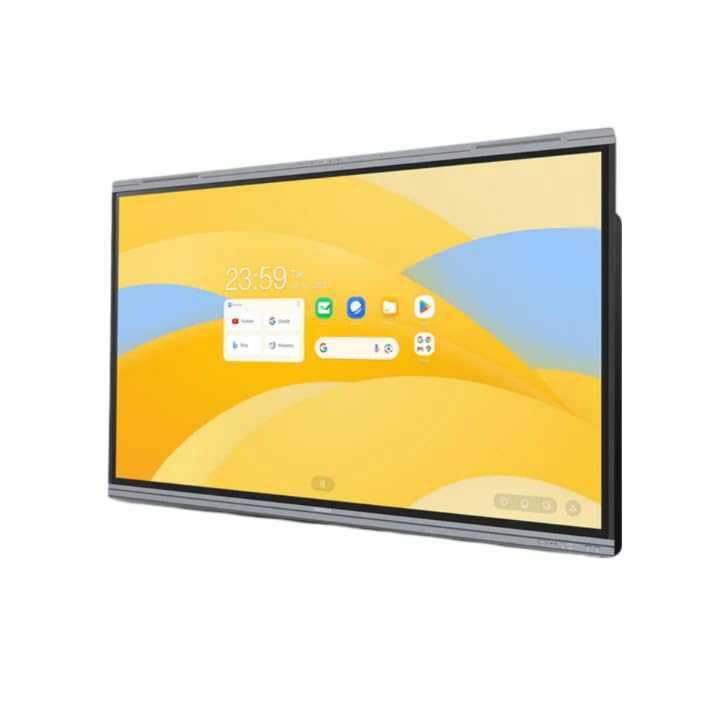
Figure 1: MAXHUB E21 Series 86-inch Digital Board in a classroom environment.
2. Sikkerhedsoplysninger
To ensure safe operation and prevent damage to the device, please observe the following safety precautions:
- Strømforsyning: Use only the specified power adapter and ensure the power outlet is properly grounded.
- Ventilation: Bloker ikke ventilationsåbningerne. Sørg for tilstrækkelig plads omkring enheden for korrekt luftgennemstrømning.
- Placering: Install the digital board on a stable surface or mount it securely to a wall using appropriate hardware. Avoid placing it in direct sunlight, near heat sources, or in areas with high humidity or dust.
- Rensning: Afbryd strømmen før rengøring. Brug en blød, tør klud. Brug ikke flydende rengøringsmidler eller aerosolrengøringsmidler.
- Håndtering: Handle the display with care. Avoid strong impacts or pressure on the screen.
- Service: Forsøg ikke selv at servicere produktet. Overlad al service til kvalificeret servicepersonale.
3. Pakkens indhold
Please check the package contents upon unboxing. If any items are missing or damaged, contact your dealer immediately.
- MAXHUB E21 Series 86-inch Digital Board
- Strømkabel
- Stylus Pen(s)
- Fjernbetjening
- Wall Mount Bracket (optional, may vary by region/package)
- Brugervejledning (dette dokument)
4. Opsætning
4.1 Fysisk installation
The MAXHUB Digital Board can be installed on a mobile stand or wall-mounted. Follow the instructions provided with your specific stand or wall mount kit. Ensure the installation is secure and level.
4.2 Tilslutning af strøm
- Connect the power cable to the AC IN port on the digital board.
- Sæt den anden ende af strømkablet i en jordet stikkontakt.
- Press the power button, usually located on the side or bottom of the display, to turn on the device.
4.3 Første opsætning og netværksforbindelse
Upon first power-on, the system will guide you through the initial setup process, including language selection, time zone, and network configuration.
- Wi-Fi: Vælg dit Wi-Fi-netværk på listen, og indtast adgangskoden.
- Ethernet: Connect an Ethernet cable to the LAN port for a wired network connection.

Figure 2: Main interface of the MAXHUB E21 Series Digital Board.
5. Betjeningsvejledning
5.1 Grundlæggende navigation
The MAXHUB E21 Series runs on Android 13.0. Navigate the interface using touch gestures or the remote control.
- Tryk på: Vælg et element, eller åbn et program.
- Stryg: Rul gennem menuer eller sider.
- Knib/spredning: Zoom ind eller ud på indhold.
- Langt tryk: Få adgang til kontekstmenuer eller flyt ikoner.
5.2 Intelligent Touch Functionality
The digital board supports up to 40 touch points, allowing multiple users to interact simultaneously.
- Use your finger or the provided stylus for precise interaction.
- The system can differentiate between finger touch and stylus input for various functions (e.g., writing vs. erasing).
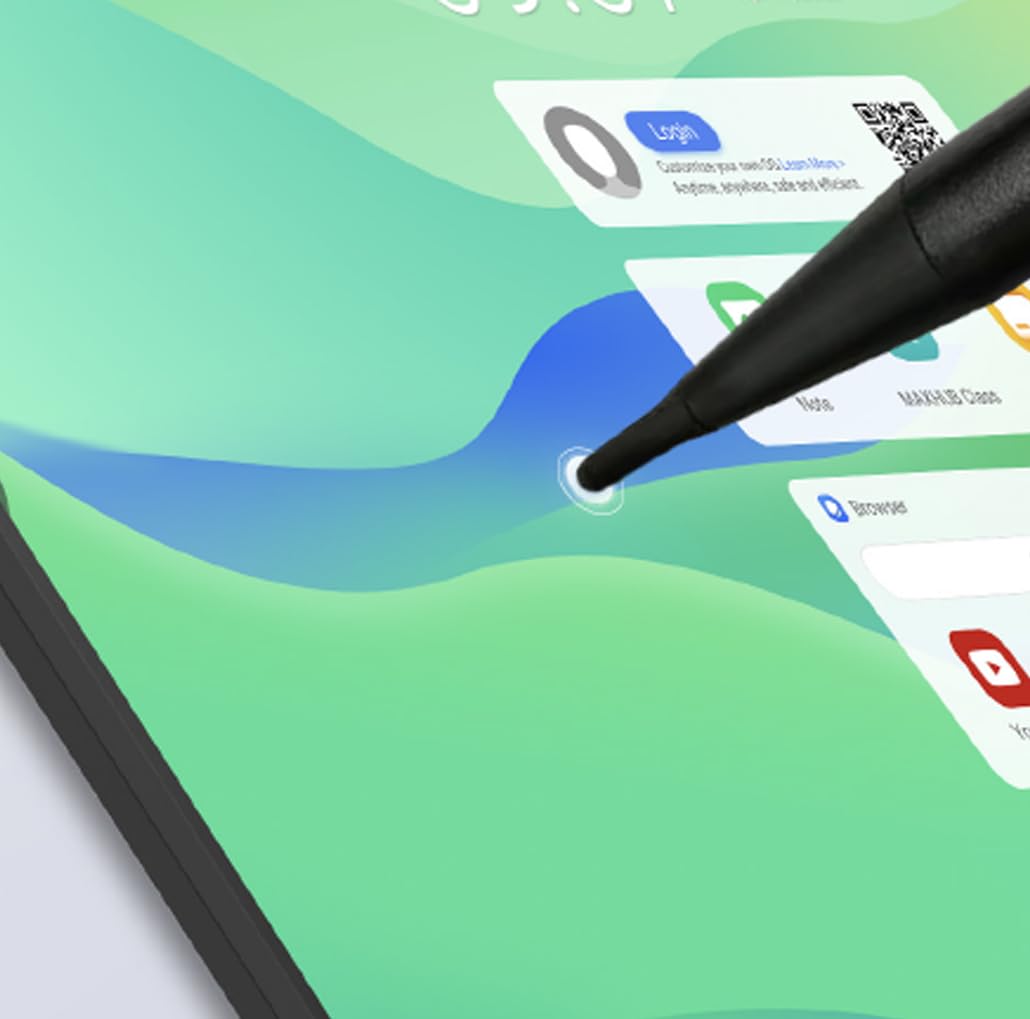
Figure 3: Stylus interaction on the digital board.
5.3 Using the Whiteboard Application
Access the built-in whiteboard application for interactive writing, drawing, and annotation.
- Select different pen colors, thicknesses, and tools from the toolbar.
- Use multi-touch gestures for zooming and panning the canvas.
- Save your whiteboard sessions for later review eller deling.
5.4 Connectivity (Type-C)
The Type-C port offers versatile connectivity for various peripherals.
- Dataoverførsel: Connect external storage devices.
- Display output: Connect to external monitors (if supported by specific port).
- Strømforsyning: Charge compatible devices.
- Lyd/video: Connect compatible audio/video devices.

Figure 4: Type-C connectivity options.
6. Nøglefunktioner
The MAXHUB E21 Series 86-inch Digital Board is equipped with advanced features for superior performance and user experience:
- Expansive Ultra-HD Display: An 86-inch screen with 3840x2160 (4K) resolution delivers stunning visuals and vibrant colors, ideal for large meeting spaces and classrooms.
- Eyes Care Technology: Features TÜV-certified Low Blue Light and Flicker-Free technology to ensure a comfortable viewing experience during extended use, reducing eye strain.
- Precision Touch Features: Intelligent touchscreen technology supports up to 40 simultaneous touch points, enabling seamless multi-user collaboration and precise interaction.
- Avanceret operativsystem: Powered by Android 13.0 OS, combined with 8GB RAM and 64GB ROM, for fast, smooth operations, enhanced processing capabilities, and ample opbevaring.
- Powerful Audio System: Integrated dual 20W speakers provide rich, clear, and impactful sound, enhancing multimedia presentations and video conferencing.
- Holdbar og pålidelig: Engineered for long-lasting performance with a 50,000-hour backlight life, ensuring consistent brightness and reliability over time.
7. Vedligeholdelse
7.1 Rengøring af skærmen
To clean the screen, first power off the device and unplug the power cable. Use a soft, lint-free cloth slightly dampened with water or a screen-specific cleaning solution. Do not spray liquid directly onto the screen.
7.2 Generel rengøring
Wipe the frame and back panel with a soft, dry cloth. Avoid using abrasive cleaners or solvents.
7.3 Softwareopdateringer
Periodically check for system software updates through the device's settings menu to ensure optimal performance and access to the latest features and security patches.
8. Fejlfinding
If you encounter issues with your MAXHUB Digital Board, refer to the following common problems and solutions:
| Problem | Mulig årsag | Løsning |
|---|---|---|
| Ingen strøm | Power cable not connected; Power outlet faulty; Device off | Ensure power cable is securely connected; Test power outlet; Press power button |
| Intet display | Device in standby mode; Input source incorrect | Wake up the device; Check input source settings |
| Touchscreen reagerer ikke | Screen dirty; Software glitch; Calibration issue | Clean the screen; Restart the device; Recalibrate touch (if option available) |
| Ingen lyd | Volume too low; Muted; External audio device connected | Increase volume; Unmute; Disconnect external audio or select internal speakers |
| Problemer med Wi-Fi-forbindelse | Forkert adgangskode; Routerproblem; Signalforstyrrelser | Verify password; Restart router; Move closer to router or reduce interference |
If the problem persists, please contact MAXHUB customer support for assistance.
9. Specifikationer
Detailed technical specifications for the MAXHUB E21 Series 86-inch Digital Board:
| Feature | Specifikation |
|---|---|
| Mærke | MAXHUB |
| Modelnummer | E21-serien |
| Skærmstørrelse | 86 tommer |
| Opløsning | 3840x2160 (4K UHD) |
| Operativsystem | Android 13.0 |
| VÆDDER | 8 GB |
| Lager (ROM) | 64 GB |
| Berøringspunkter | Op til 40 |
| Lydudgang | 2 x 20W højtalere |
| Baggrundsbelysning liv | 50,000 timer |
| Human Interface Input | Touchskærm |
| Farve | Grå |
10. Garanti og support
Your MAXHUB E21 Series Digital Board comes with a standard manufacturer's warranty. Please refer to the warranty card included in your package or visit the official MAXHUB webhjemmeside for detaljerede garantivilkår.
For technical support, service, or inquiries, please contact MAXHUB customer service through their official channels. Have your product model and serial number ready when contacting support.