
1. Produktet er slutview
The KOORUI G2722P is a 27-inch QHD (2560x1440) gaming monitor designed for an immersive visual experience. It features a Fast IPS panel with a 200Hz refresh rate and a 1ms response time, ensuring smooth and responsive gameplay. The monitor supports HDR 400 for enhanced contrast and color depth, and Adaptive Sync technology to minimize screen tearing and stuttering. Its ergonomic stand allows for height, tilt, and pivot adjustments, and it is VESA 75x75mm compatible for flexible mounting options.

The KOORUI G2722P monitor integrated into a typical gaming environment.
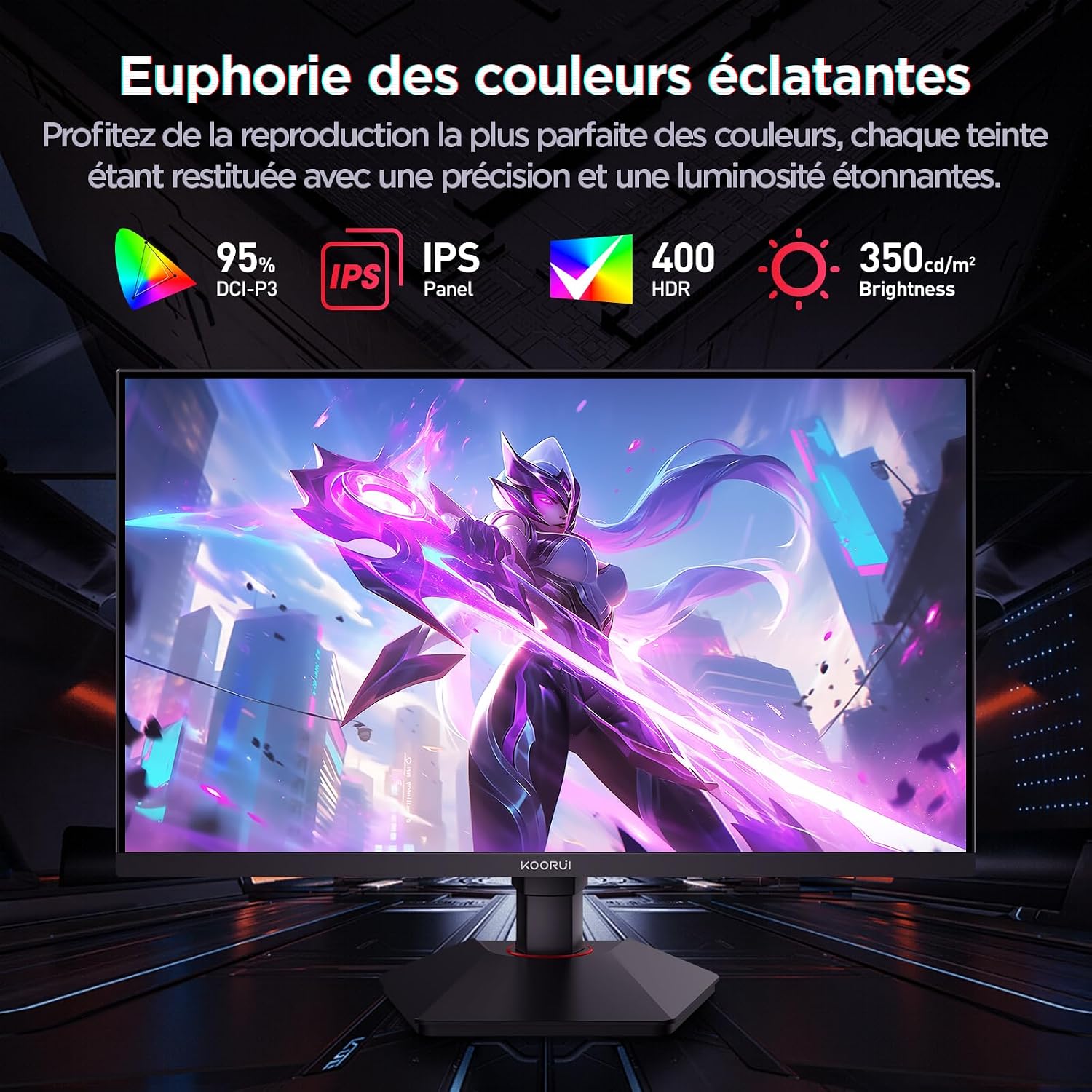
This image highlights the monitor's color capabilities, including 95% DCI-P3 color gamut, IPS panel technology, HDR 400 support, and 350 cd/m² brightness.
2. Sikkerhedsoplysninger
- Læs alle instruktioner omhyggeligt, inden du bruger skærmen.
- Udsæt ikke skærmen for regn eller fugt for at undgå brand- eller stødfare.
- Åbn ikke skærmen casing. Der er ingen dele indeni, som kan serviceres af brugeren. Overlad al service til kvalificeret personale.
- Placer skærmen på en stabil, plan overflade for at forhindre den i at falde.
- Hold skærmen væk fra direkte sollys, varmekilder og ekstreme temperaturer.
- Sørg for tilstrækkelig ventilation omkring skærmen. Bloker ikke ventilationsåbningerne.
- Brug kun den strømadapter og de kabler, der er medfølgende eller anbefalet af producenten.
- Tag stikket til skærmen ud af stikkontakten under tordenvejr eller når den ikke bruges i længere perioder.
3. Pakkens indhold
Bekræft at alle varer er til stede i pakken:
- KOORUI G2722P Monitor
- Monitorstativ (base og hals)
- Strømadapter og strømkabel
- DisplayPort (DP)-kabel
- Brugervejledning (dette dokument)
- Skruer til montering af stativ
4. Samling af skærm
4.1 Montering af stativet
- Placer forsigtigt skærmen med forsiden nedad på en blød, ren klud for at undgå ridser.
- Attach the stand neck to the back of the monitor until it clicks into place or is secured with screws (refer to specific instructions in the included quick start guide).
- Fastgør stativets base til stativets hals, og fastgør den med den medfølgende skrue.
- Løft forsigtigt skærmen op, og placer den på et stabilt bord.
4.2 VESA-montering
The monitor supports VESA 75x75mm mounting. To use a VESA mount:
- Fjern stativet, hvis det allerede er monteret.
- Attach your VESA-compatible mount (sold separately) to the 75x75mm screw holes on the back of the monitor using appropriate screws.
- Ensure the mount is securely fastened before releasinskærmen.

This image demonstrates the monitor's ergonomic adjustments (height, tilt, pivot) and provides a visual reference for stand attachment points.
5. Tilslutning af skærmen
Tilslut skærmen til din computer eller andre enheder ved hjælp af de tilgængelige porte.
- Strømtilslutning: Connect the power cable to the power adapter, then connect the adapter to the monitor's power input and a wall outlet.
- Videoforbindelse:
- For optimal performance (QHD @ 200Hz), use the provided DisplayPort (DP 1.4) cable to connect the monitor to your graphics card.
- Alternatively, use an HDMI 2.0 cable to connect to an HDMI port on your device.
- Lydudgang: Connect external speakers or headphones to the 3.5mm audio output jack on the monitor if you wish to use the monitor's audio passthrough.

This image displays the rear of the monitor, highlighting the available connectivity options: two HDMI 2.0 ports, one DisplayPort 1.4, an audio output jack, and the VESA 75x75mm mounting pattern.
6. Betjening af monitoren
6.1 Tænd/sluk
- Tryk på tænd/sluk-knappen på skærmen for at tænde eller slukke den.
- Strømindikatorlampen lyser, når skærmen er tændt.
6.2 On-Screen Display (OSD) menu
The OSD menu allows you to adjust various monitor settings. Typically, buttons are located on the back or bottom right of the monitor.
- Tryk på en af OSD-knapperne for at aktivere menuen.
- Use the navigation buttons (usually directional or a joystick) to browse through menu options.
- Tryk på valgknappen for at åbne en undermenu eller bekræfte en indstilling.
- Tryk på afslutningsknappen for at lukke OSD-menuen.
7. Skærmindstillinger
7.1 Opløsning og opdateringshastighed
The monitor supports a native resolution of 2560x1440 (QHD) and a maximum refresh rate of 200Hz. Ensure your graphics card and operating system are configured to use these settings for the best experience.

This image illustrates the difference in motion clarity between a 75Hz and a 200Hz refresh rate, emphasizing the 1ms response time for reduced blur and ghosting.
7.2 Adaptive Sync (FreeSync)
This monitor supports Adaptive Sync technology (compatible with AMD FreeSync) to synchronize the monitor's refresh rate with your graphics card's frame rate, eliminating screen tearing and reducing stuttering.
- Enable Adaptive Sync in the monitor's OSD menu.
- Ensure Adaptive Sync (or FreeSync) is enabled in your graphics card control panel.

This image visually compares the display with Adaptive Sync enabled versus disabled, demonstrating how Adaptive Sync eliminates screen tearing for a smoother visual experience.
7.3 HDR 400
The monitor supports HDR 400, providing a wider dynamic range for brighter whites and deeper blacks, resulting in more vibrant and realistic images.
- Enable HDR in your operating system's display settings and in the monitor's OSD menu if available.
7.4 Farveindstillinger
The Fast IPS panel offers excellent color reproduction and wide viewing vinkler.
- Adjust color temperature, gamma, and saturation through the OSD menu to suit your preferences.
- The monitor features a 178-degree wide viewing angle, ensuring consistent color and image quality from various perspectives.
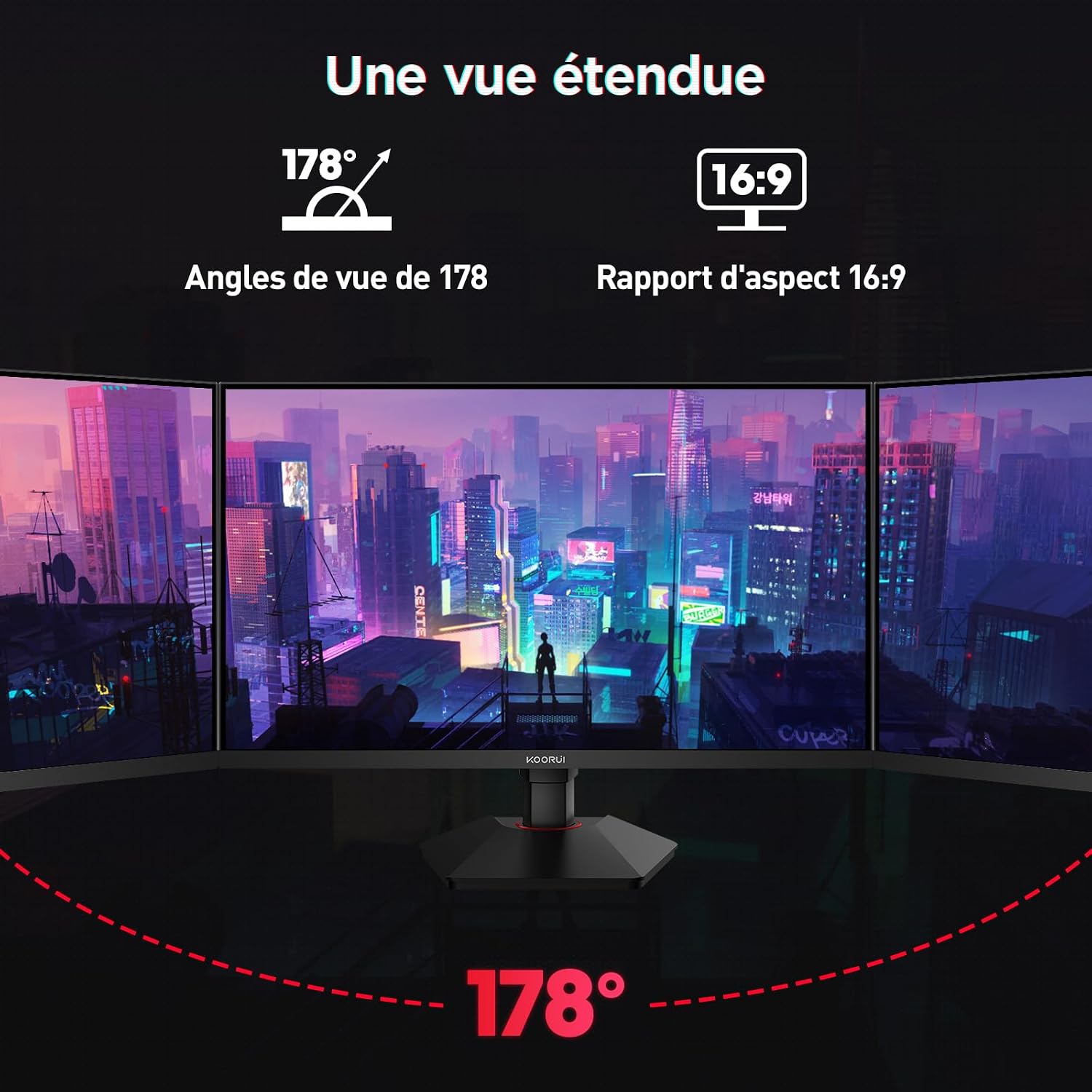
This image demonstrates the monitor's wide 178-degree viewing angle, illustrating how the display maintains clarity and color consistency even when viewed from extreme angles, ideal for multi-monitor setups.
8. Ergonomiske justeringer
Skærmstativet giver mulighed for forskellige justeringer for at optimere dine viewkomfort:
- Højdejustering: Adjust the monitor height by up to 100mm by gently pushing or pulling the monitor up or down.
- Justering af hældning: Tilt the screen from -5° (forward) to +20° (backward) to find your preferred viewvinkel.
- Drejning (rotation): Rotate the screen 90° to switch between landscape and portrait orientations.
This image illustrates the full range of ergonomic adjustments available: 100mm height adjustment, -5° to +20° tilt, and 90° pivot rotation for optimal viewkomfort.
9. Øjenplejefunktioner
The KOORUI G2722P monitor incorporates features designed to reduce eye strain during prolonged use:
- Flimmerfri teknologi: Reduces screen flickering, which can cause eye fatigue.
- Lavt blåt lysfilter: Minimizes harmful blue light emissions to protect your eyes. This feature can usually be adjusted or enabled/disabled in the OSD menu.
10. Vedligeholdelse
Korrekt vedligeholdelse sikrer din skærms levetid og optimale ydeevne.
- Rengøring af skærmen: Tør forsigtigt skærmen af med en blød, fnugfri klud. Brug en skærmspecifik rengøringsopløsning på kluden, ikke direkte på skærmen, til genstridige pletter.
- Rengøring af Casing: Brug en blød, tør klud til at rengøre skærmenasing. Undgå at bruge slibende rengøringsmidler eller opløsningsmidler.
- Håndtering: Undgå at berøre skærmen direkte med fingrene eller skarpe genstande. Placer ikke tunge genstande på skærmen.
11. Fejlfinding
Hvis du støder på problemer med din skærm, kan du se følgende almindelige problemer og løsninger:
| Problem | Mulig løsning |
|---|---|
| Intet billede på skærmen |
|
| Billede flimrer eller tearing |
|
| Ingen lyd fra lydudgangen |
|
| Monitor not reaching 200Hz |
|
12. Specifikationer
Key technical specifications for the KOORUI G2722P monitor:
| Feature | Specifikation |
|---|---|
| Skærmstørrelse | 27 tommer |
| Paneltype | Næsten IPS |
| Opløsning | QHD (2560 x 1440) |
| Opdateringshastighed | 200 Hz |
| Svartid | 1 ms |
| HDR-understøttelse | HDR 400 |
| Adaptiv synkronisering | FreeSync |
| Kontrastforhold | 1000:1 (statisk) |
| Lysstyrke | 350 cd/m² |
| Viewi vinkel | 178° (H/V) |
| Farveskala | 95 % DCI-P3 |
| Videoindgange | 2x HDMI 2.0, 1x DisplayPort 1.4 |
| Lydudgang | 1x 3.5 mm lydudgang |
| VESA-kompatibilitet | 75x75 mm |
| Strømforbrug | 19 Watts (Typical) |
| Ergonomi | Height, Tilt, Pivot Adjustment |

This diagram provides the physical dimensions of the monitor, including width, height, and depth.
For detaljerede energioplysninger henvises til EPREL-databasen: https://eprel.ec.europa.eu/qr/2216313
13. Garanti og support
The KOORUI G2722P monitor comes with a 2 års producentgaranti. Denne garanti dækker fejl i materialer og udførelse ved normal brug.
For technical support, warranty claims, or further assistance, please contact KOORUI customer service through their official webwebstedet eller forhandleren, hvor produktet blev købt.