
1. Introduktion
Thank you for choosing the MEETION BTM011 Ergonomic Wireless Bluetooth Vertical Mouse. This device is designed to provide a comfortable and efficient computing experience by promoting a natural hand position, reducing wrist strain. It offers versatile connectivity options for multiple devices and adjustable precision to suit various tasks.

The ergonomic design of the MEETION vertical mouse helps maintain a natural hand and wrist posture, reducing discomfort compared to traditional mice.
2. Pakkens indhold
- MEETION BTM011 Ergonomic Wireless Bluetooth Vertical Mouse
- USB 2.4G Receiver (stored in the mouse battery compartment)
- USB-A til USB-C adapter
- Brugermanual
3. Produktet er slutview
Familiarize yourself with the various components and buttons of your MEETION BTM011 mouse.

Detaljeret view of the mouse components, including the Mode Switching Button, Power Switch (ON/OFF), Low Battery Indicator, Charging Indicator, DPI Speed Switch Button, 2.4G Connection Indicator, Bluetooth 1 Connection Indicator, and Bluetooth 2 Connection Indicator.
- Venstre knap: Standard venstreklikfunktion.
- Højre knap: Standard højreklikfunktion.
- Scrollhjul: Til at scrolle op og ned.
- Frem-knap: Navigerer fremad i web browsere eller file opdagelsesrejsende.
- Tilbage knap: Navigerer baglæns i web browsere eller file opdagelsesrejsende.
- DPI-knap: Justerer markørfølsomheden.
- Knap til tilstandsskift: Switches between 2.4G, Bluetooth 1, and Bluetooth 2 modes.
- Tænd/sluk-knap (tænd/sluk): Tænder eller slukker for musen.
- Batterirum: Located at the bottom, for 1x AA battery and USB receiver storage.
4. Opsætningsvejledning
4.1 Batteriinstallation
Musen kræver et AA-batteri (medfølger ikke).
- Find batteridækslet i bunden af musen.
- Skub dækslet åbent.
- Isæt et AA-batteri, og sørg for at polariteten vender korrekt (+/-).
- Luk batterirummets dæksel forsvarligt.

Insert one AA battery into the compartment. The USB receiver is also stored here.
4.2 Tænd/sluk
Slide the power switch located on the bottom of the mouse to the "ON" position to turn it on. Slide to "OFF" to conserve battery when not in use.
4.3 Forbindelsestilstande
The MEETION BTM011 mouse supports three connection modes: 2.4GHz wireless (via USB receiver) and two independent Bluetooth 5.3 channels (BT1 and BT2). You can connect to up to three devices simultaneously and switch between them.

The mouse supports 2.4G wireless and two Bluetooth 5.3 connections for seamless switching between devices.
4.4 2.4GHz USB Connection
- Tag USB-modtageren ud af musens batterirum.
- Insert the USB receiver into an available USB-A port on your computer. If your computer only has USB-C ports, use the provided USB-A to USB-C adapter.
- Tænd musen ved hjælp af tænd/sluk-knappen.
- Press the Mode Switching Button until the 2.4G Connection Indicator (green light) lights up. The mouse should now be connected.
4.5 Bluetooth-forbindelse (BT1 / BT2)
- Tænd musen ved hjælp af tænd/sluk-knappen.
- Press the Mode Switching Button to select either Bluetooth 1 (BT1) or Bluetooth 2 (BT2). The corresponding blue indicator light will blink, indicating pairing mode.
- On your device (computer, laptop, tablet, smartphone), go to Bluetooth settings.
- Søg efter new devices. You should find "Meetion_MS_BT1" or "Meetion_MS_BT2".
- Select the device to pair. Once paired, the blue indicator light will stop blinking and remain solid for a few seconds.

Visual guide for connecting the mouse via 2.4G USB receiver and Bluetooth modes.
5. Betjeningsvejledning
5.1 DPI-justering
The mouse features 4 adjustable DPI levels: 1200, 1600, 2400, and 3200. Press the DPI Switch Button (located behind the scroll wheel) to cycle through these settings. Each press changes the cursor speed, allowing you to select the precision suitable for your task.
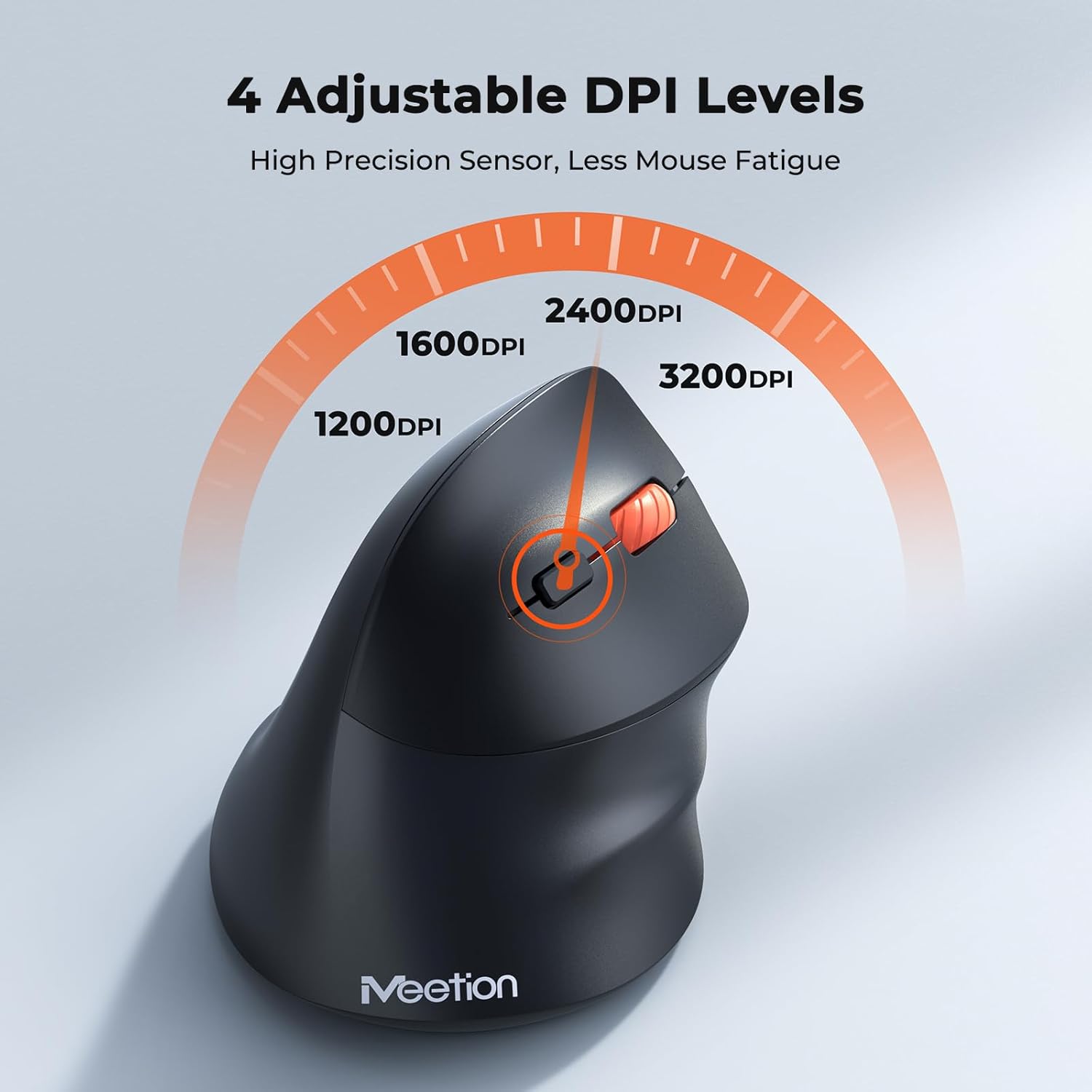
Adjust the DPI to match your preference for cursor speed and precision.
5.2 Skift mellem flere enheder
To switch between connected devices, simply press the Mode Switching Button located on the bottom of the mouse. The corresponding indicator light (green for 2.4G, blue for BT1/BT2) will illuminate to show the active connection.
5.3 Frem/Tilbage-knapper
Use the Forward and Back buttons, conveniently located on the side of the mouse, for quick navigation in web browsere, file explorers og andre applikationer, der understøtter disse funktioner.
6. Strømstyring
6.1 Automatisk dvaletilstand
To conserve battery life, the mouse will automatically enter sleep mode after 20 minutes of inactivity. This intelligent feature helps extend the battery's operational time.
6.2 Waking the Mouse
To wake the mouse from sleep mode, simply press any button. It will instantly reconnect to the last active device.
6.3 Batterilevetid
With typical usage, a single AA battery can power the mouse for up to 3 months. Actual battery life may vary based on usage patterns and battery quality.
7. Vedligeholdelse
To ensure optimal performance and longevity of your mouse, follow these maintenance guidelines:
- Rensning: Brug en blød, tør klud til at tørre musens overflade af. Ved genstridigt snavs kan du bruge en let tør klud.amp En klud kan bruges, men sørg for, at der ikke kommer fugt ind i enheden. Undgå skrappe kemikalier eller slibende rengøringsmidler.
- Udskiftning af batteri: Replace the AA battery when the low battery indicator lights up or when mouse performance degrades. Always dispose of used batteries responsibly.
- Opbevaring: Når musen ikke er i brug i længere perioder, skal den slukkes og opbevares et tørt og køligt sted.
8. Fejlfinding
If you encounter issues with your MEETION BTM011 mouse, refer to the following solutions:
| Problem | Løsning |
|---|---|
| Musen reagerer ikke |
|
| Markørbevægelsen er uregelmæssig eller langsom |
|
| Kan ikke oprette forbindelse via Bluetooth |
|
| Forward/Back buttons not working |
|
9. Specifikationer
| Feature | Detalje |
|---|---|
| Model | BTM011 |
| Forbindelse | 2.4 GHz trådløs, Bluetooth 5.3 (BT1, BT2) |
| DPI niveauer | 1200 / 1600 / 2400 / 3200 |
| Knapper | 7 (Left, Right, Scroll Wheel, Forward, Back, DPI Switch, Mode Switch) |
| Strømkilde | 1x AA-batteri (medfølger ikke) |
| Auto-søvn | Efter 20 minutters inaktivitet |
| Kompatibilitet | Windows, Mac OS, Linux, Android, iOS (for iPad/iPhone) |
| Materiale | Plast |
| Dimensioner (ca.) | 4.4 x 3.29 x 2.74 tommer (11.18 x 8.36 x 6.96 cm) |
10. Garanti og support
10.1 Garantioplysninger
MEETION products are designed and manufactured to the highest quality standards. This product is covered by a limited warranty against defects in materials and workmanship. Please retain your proof of purchase for warranty claims. Specific warranty terms may vary by region; refer to your local retailer or the official MEETION webwebsted for detaljer.
10.2 Kundesupport
For technical assistance, troubleshooting, or general inquiries, please contact MEETION customer support:
- E-mail: service@meetion.com
- Webwebsted: Visit the official MEETION webwebsted for ofte stillede spørgsmål og yderligere ressourcer.