
1. Introduktion
Thank you for choosing the Cuifati Bluetooth Transparent Mouse. This device offers dual-mode connectivity (Bluetooth 5.0 and 2.4G USB receiver), RGB backlighting, and a rechargeable design for versatile use with PCs, laptops, and tablets. This manual provides detailed instructions for setup, operation, maintenance, and troubleshooting to ensure optimal performance.
2. Pakkens indhold
Kontroller venligst, at alle varer er til stede i din pakke:
- 1 x Cuifati Bluetooth Transparent Mouse
- 1 x opladningskabel (Type-C)
- 1 x USB-modtager (2.4G)
- 1 x brugermanual

Image: Contents of the Cuifati mouse package, including the mouse, Type-C charging cable, and 2.4G USB receiver.
3. Specifikationer
| Feature | Detalje |
|---|---|
| DPI-indstillinger | 800, 1200, 1600 |
| Transmissionstilstande | 2.4G trådløs, Bluetooth 5.0 |
| Batterikapacitet | 400mAh Li-ion batteri |
| Musens dimensioner | Approx. 113.5 x 58 x 25mm (±2mm) |
| Opladningsmetode | Type-C USB |
| Operation Voltage | 3.3V-4.2V |
| Operating Current (Light mode) | ≤25mA |
| Operating Current (Non-lighting mode) | ≤8mA |
| 2.4G systemkrav | Windows XP/7/8/10+, Android 4.4+, OS X 10.5+, Linux Kernel 2.6+2, Chrome OS |
| Bluetooth-systemkrav | Windows 8/10, Android 5.0+, OS X 10.10+ (Bluetooth 4.0 and above adapter required) |
| Materiale | PC |
4. Opsætning
4.1. Opladning af musen
Before first use, fully charge the mouse. Connect the provided Type-C charging cable to the mouse's charging port and the other end to a USB power source (e.g., computer USB port, USB wall adapter). A full charge typically takes 2-3 hours.

Image: The Cuifati mouse being charged via its Type-C port, indicating a 2-3 hour charging time.
4.2. Tilslutning via 2.4G USB-modtager
- Locate the USB receiver, usually stored within the mouse's magnetic cover or packaging.
- Sæt USB-modtageren i en ledig USB-port på din computer eller enhed.
- Turn on the mouse and switch it to 2.4G mode (refer to Section 5.1 for mode switching).
- Musen burde automatisk oprette forbindelse til din enhed.

Image: The transparent design of the Cuifati mouse, showing the internal components and the USB receiver slot.
4.3. Forbindelse via Bluetooth 5.0
- Turn on the mouse and switch it to Bluetooth mode (refer to Section 5.1 for mode switching).
- On your device (PC, laptop, tablet), navigate to the Bluetooth settings.
- Aktivér Bluetooth, og søg efter nye enheder.
- Select "Cuifati Mouse" or a similar name from the list of available devices to pair.
- Følg eventuelle anvisninger på skærmen for at fuldføre parringsprocessen.
Note: You cannot use Bluetooth mode and 2.4G USB mode simultaneously. Ensure only one mode is active at a time.
5. Betjeningsvejledning
5.1. Tænd/sluk og tilstandsskift
The mouse features a switch on its underside to power it on/off and select the connection mode. Slide the switch to the desired position for 2.4G or Bluetooth connectivity, or to the 'Off' position to conserve battery.
5.2. DPI-justering
The mouse supports three DPI (Dots Per Inch) settings: 800, 1200, and 1600. Press the DPI button (usually located near the scroll wheel or on the underside) to cycle through these settings and adjust cursor sensitivity to your preference.
5.3. RGB-lysstyring
The mouse features various RGB lighting effects. A dedicated lighting switch key, typically on the underside or a side button, allows you to cycle through 11 different lighting modes or turn off the lights completely. This enhances the aesthetic appeal during use.
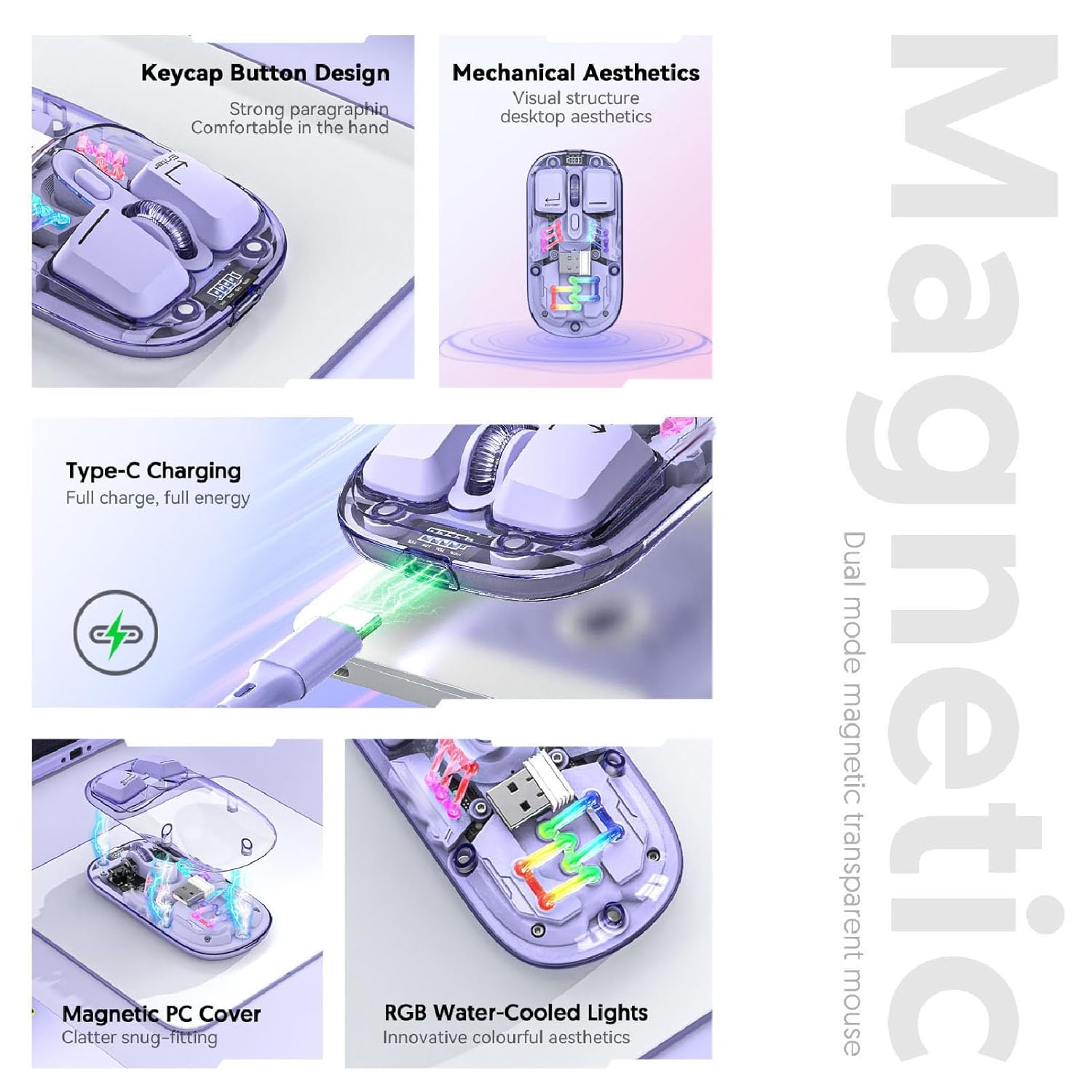
Billede: En komposit view highlighting the RGB lighting, Type-C charging, and magnetic cover design of the mouse.
5.4. Display for batteriniveau
The mouse is equipped with a power display to check the remaining battery level at any time. This display typically uses indicator lights to show the charge status:
- 4 lys tændt: 100% batteri
- 3 lys tændt: 75% batteri
- 2 lys tændt: 50% batteri
- 1 lys tændt: 25% batteri

Image: Close-up of the Cuifati mouse's battery level display, illustrating how indicator lights correspond to charge percentage.
5.5. Automatic Energy Saving
To conserve battery life, the mouse features an automatic sleep function:
- Let søvn: After 60 seconds of no operation, the mouse enters a light sleep state.
- Dyb søvn: If no operation occurs for 10 minutes, the mouse enters a deep sleep mode.
- Vågn op: To wake the mouse from sleep, simply move it or press any button.
Note: Actual power saving performance may vary based on usage habits.

Image: Visual representation of the mouse's power-saving states: light sleep after 60 seconds, deep sleep after 10 minutes, and how to wake it up.
6. Vedligeholdelse
6.1. Rensning
To maintain the mouse's appearance and functionality, regularly clean its surfaces. Use a soft, dry, lint-free cloth. For stubborn dirt, slightly dampen the cloth with water or a mild, non-abrasive cleaner. Avoid using harsh chemicals or abrasive materials that could damage the transparent shell or internal components.

Image: The Cuifati mouse with its magnetic top cover detached, revealing the internal structure for potential cleaning or maintenance.
6.2. Batteripleje
The built-in Li-ion battery is designed for long-term use. To prolong battery life:
- Undgå at aflade batteriet helt ofte.
- Charge the mouse using the provided Type-C cable.
- Opbevar musen et køligt og tørt sted, når den ikke er i brug i længere perioder.
7. Fejlfinding
If you encounter issues with your Cuifati mouse, please refer to the following common solutions:
- Musen svarer ikke:
- Sørg for, at musen er tændt.
- Kontroller batteriniveauet og oplad om nødvendigt.
- Verify the correct connection mode (2.4G or Bluetooth) is selected.
- For 2.4G skal du sørge for, at USB-modtageren er tilsluttet korrekt. Prøv en anden USB-port.
- For Bluetooth skal du sørge for, at Bluetooth er aktiveret på din enhed, og at musen er parret. Prøv at parre igen.
- Markørbevægelsen er uregelmæssig eller langsom:
- Rengør den optiske sensor på undersiden af musen.
- Sørg for at bruge musen på en passende overflade (ikke meget reflekterende eller gennemsigtig).
- Adjust the DPI setting (refer to Section 5.2).
- RGB-lys virker ikke:
- Sørg for, at musen er tændt.
- Press the lighting switch key to cycle through modes or turn them on (refer to Section 5.3).
- Tjek batteriniveauet; lavt batteriniveau kan deaktivere belysningen.
- Cannot connect via Bluetooth and 2.4G simultaneously:
- This is expected behavior. The mouse is designed to operate in one mode at a time. Switch to the desired mode using the selector switch.
8. Garanti og support
The Cuifati Bluetooth Transparent Mouse comes with a standard manufacturer's warranty. Please refer to the warranty card included in your package or visit the official Cuifati webhjemmeside for detaljerede garantivilkår.
For technical support, product inquiries, or warranty claims, please contact Cuifati customer service through their official channels. Contact information can typically be found on the product packaging or the manufacturer's webwebsted.