
GOODEE YG600-Movin
GooDee Smart 4K Projector YG600-Movin User Manual
Model: YG600-Movin
1. Introduktion
Thank you for choosing the GooDee Smart 4K Projector YG600-Movin. This manual provides essential information for setting up, operating, and maintaining your projector to ensure optimal performance and longevity. Please read it thoroughly before use.
2. Hvad er der i æsken
- GooDee Smart 4K Projector YG600-Movin
- Projektor linsedæksel
- Rengøringssæt
- HDMI kabel
- Strømledning
- Fjernbetjening
- Brugervejledning (dette dokument)
3. Produktet er slutview
The GooDee YG600-Movin is a smart 4K projector designed for home theater and outdoor use, featuring 5G Wi-Fi, Bluetooth 5.2, Dolby Audio, and built-in streaming apps. It delivers a native 1080P resolution with 800 ANSI lumens brightness and supports up to a 400-inch display.

Billede: Forside view of the GooDee Smart 4K Projector YG600-Movin, showcasing dens kompakte design og objektiv.
3.1. Betjeningselementer og porte
The projector features intuitive controls on its top panel and a variety of input/output ports on the rear for versatile connectivity.
Billede: Top view of the projector showing the power button, navigation keys, and focus adjustment dial.

Billede: Bagside view of the projector displaying various ports including HDMI, USB, AV, and audio output.
- Øverste panelkontroller: Power button, navigation buttons (up, down, left, right, OK), menu button, back button, and focus adjustment dial.
- Bageste porte: 2x HDMI inputs, 2x USB inputs, 1x AV input, 1x Audio output (3.5mm headphone jack).
4. Opsætning
4.1. Placering
Place the projector on a stable, flat surface. Ensure there is adequate ventilation around the device. For optimal viewPlacer projektoren direkte foran din projektionsoverflade (væg eller lærred).
4.2. Strømtilslutning
Tilslut det medfølgende netkabel til projektorens strømindgang og derefter til en stikkontakt.
4.3. Parring med fjernbetjening
When using the remote control for the first time, it may need to be paired with the projector. Follow the on-screen instructions that appear upon initial power-on. Typically, this involves holding specific buttons on the remote close to the projector until the remote's light flashes, indicating successful pairing.
Video: This video demonstrates how to select the language and navigate the system settings on the GooDee Smart Projector, including the remote control pairing process.
4.4. Fokus- og Keystone-justering
Adjust the focus dial on the projector to achieve a clear image. Use the keystone correction feature (manual adjustment via the projector's menu or remote) to correct distorted images if the projector is not perfectly perpendicular to the screen. The projector supports horizontal and vertical keystone adjustments.

Image: A vibrant peacock image projected, highlighting the 800 ANSI lumens brightness and 4K support of the GooDee projector.
4.5. Netværksforbindelse (Wi-Fi)
To access smart features and streaming apps, connect your projector to a Wi-Fi network. Navigate to the 'Settings' menu, select 'Network & Internet', and choose your preferred 5G or 2.4G Wi-Fi network. Enter the password if required.

Image: A split screen showing the difference between 2.4G Wi-Fi and 5G Wi-Fi connection speeds for the projector, with 5G offering a smoother experience.
Video: This video demonstrates the Wi-Fi and Bluetooth connectivity features of the GooDee Smart Projector.
5. Betjeningsvejledning
5.1. Navigering i menuen
Use the navigation buttons on the projector's top panel or the remote control to browse through the main menu. The main menu provides access to various functions such as input selection, media playback, and settings.
5.2. Using Built-in Apps
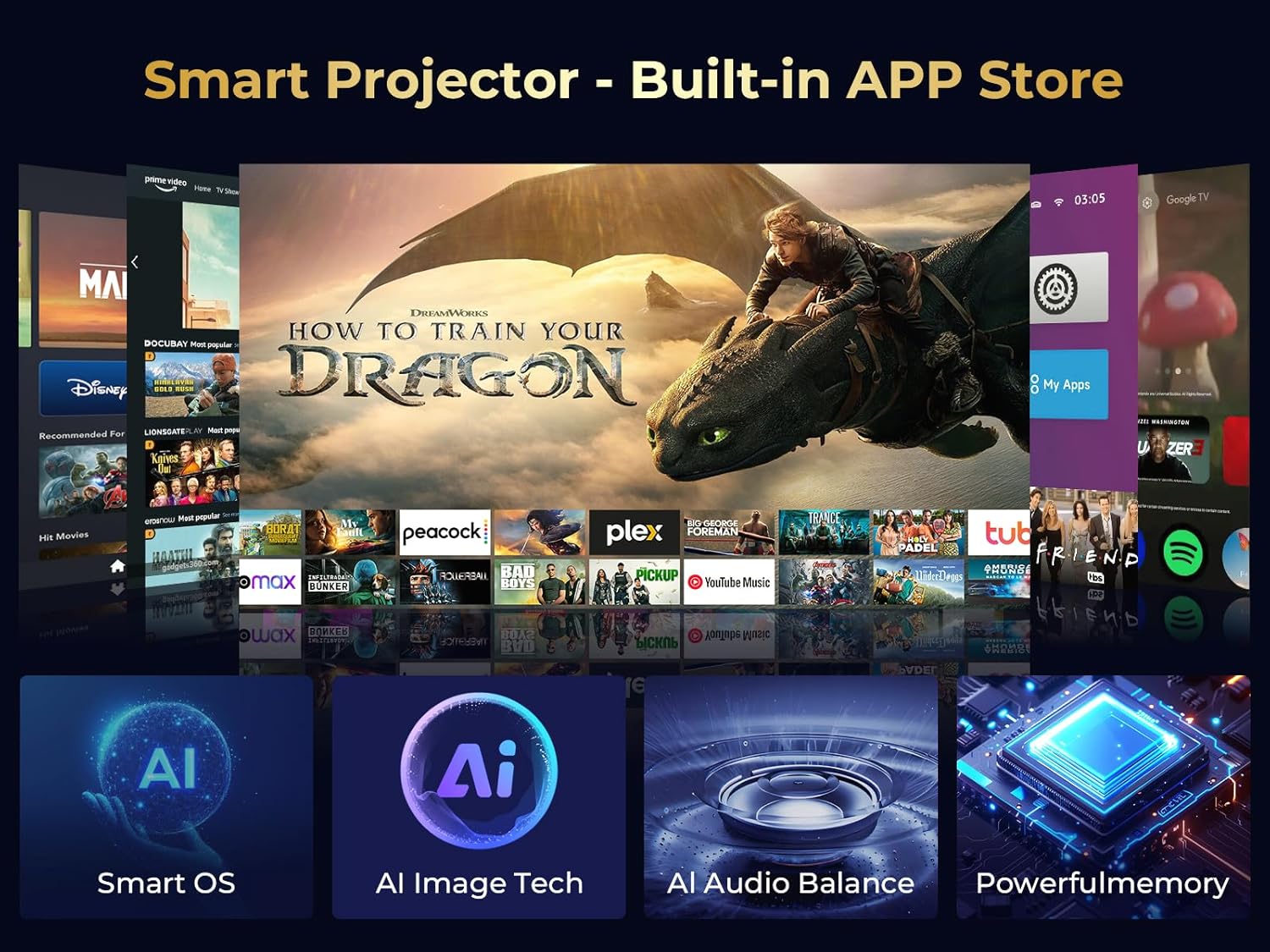
The projector comes with pre-installed streaming applications like Prime Video and YouTube. Access these apps directly from the main menu to enjoy movies and shows without needing external devices. More apps can be downloaded from the App Store.

Image: A visual representation of the GooDee Smart Projector's interface with various streaming apps like Prime Video and YouTube, highlighting its built-in app store.
Video: This video showcases the GooDee Smart Projector's ability to run apps like Netflix directly, demonstrating its smart features.
5.3. Tilslutning af eksterne enheder
Projektoren understøtter flere inputkilder:
- HDMI: Connect devices like TV sticks, gaming consoles, or laptops using the two HDMI ports.
- USB: Plug in USB drives to play movies, music, or view photos and office documents.
- AV: Use the AV port for older devices with composite video output.
5.4. Skærmspejling
The projector supports wireless screen mirroring for iOS, Android, and Windows devices. Note that due to copyright protection, some streaming apps may not support screen mirroring from mobile phones.
5.5. Bluetooth Audio
Connect external Bluetooth speakers or headphones to the projector for an enhanced audio experience. The projector features Bluetooth 5.2 and Dolby Audio for clear and powerful stereo surround sound.

Image: The GooDee projector connected wirelessly to Bluetooth speakers, illustrating its Dolby Audio and Bluetooth 5.2 capabilities for an immersive sound experience.
5.6. Zoomfunktion
The projector offers a 50%-100% zoom function, allowing you to adjust the screen size without physically moving the projector. This is particularly useful for achieving the desired display size up to 400 inches in various environments.
6. Vedligeholdelse
6.1. Rengøring af linsen
Regularly clean the projector lens using the provided cleaning kit or a soft, lint-free cloth. Avoid abrasive materials that could scratch the lens.
6.2. Støvfjerning
The projector has a dust removal port. Gently wipe the screen inside this port with a cotton swab to remove accumulated dust. This helps maintain image clarity and prolong the projector's lifespan.
Video: This video demonstrates the proper method for cleaning the screen inside the GooDee Smart Projector to remove dust.
7. Fejlfinding
If you encounter any issues with your GooDee Smart 4K Projector, please refer to the following general troubleshooting tips:
- Ingen strøm: Sørg for, at netledningen er korrekt tilsluttet til både projektoren og stikkontakten.
- Intet billede: Check all input cable connections (HDMI, AV, USB). Verify the correct input source is selected in the projector's menu. Adjust focus and keystone.
- Sløret billede: Adjust the focus dial. Ensure the projector is placed at an appropriate distance from the screen.
- Ingen lyd: Check audio connections. Ensure the volume is not muted or set too low. If using external speakers, verify their connection and power.
- Fjernbetjeningen reagerer ikke: Ensure the remote control batteries are correctly inserted and charged. Re-pair the remote if necessary.
- Problemer med Wi-Fi/Bluetooth-forbindelse: Ensure the projector is within range of your Wi-Fi router or Bluetooth device. Reconnect to the network or re-pair the Bluetooth device.
For more detailed troubleshooting or persistent issues, please contact GooDee customer support.
8. Specifikationer
| Feature | Detalje |
|---|---|
| Mærke | GODT |
| Model | YG600-Movin |
| Skærmopløsning | 1920 x 1080 (Native 1080P, 4K Support) |
| Lysstyrke | 800 ANSI Lumens |
| Forbindelsesteknologi | HDMI*2, USB*2, 3-in-1 AV, Audio |
| Trådløs forbindelse | 5G/2.4G Wi-Fi, Bluetooth 5.2 |
| Lydfunktioner | Built-In Speaker (2*5W), Dolby Audio |
| Særlige funktioner | Built-In Speaker, Pre-installed Streaming Apps, 50%-100% Zoom, Manual Keystone Correction |
| Anbefalede anvendelser | Business, Gaming, Home Cinema, Indoor/Outdoor |
| Varens vægt | 4.62 pund |
| Produktdimensioner | 13 x 9 x 5 tommer |
| Farve | Milky white and Black |
9. Garanti og support
GooDee provides lifetime technical support for the YG600-Movin projector. If you have any questions or require assistance, please feel free to contact GooDee customer service.
Ask a question about this manual
Ask about setup, troubleshooting, compatibility, parts, safety, or missing instructions. Manuals+ will review the question and use this page’s manual context to help answer it.