
1. Introduktion
Welcome to the AYANEO Flip DS user manual. This document provides essential information for the proper setup, operation, and maintenance of your new portable gaming PC. The AYANEO Flip DS is a high-performance handheld device featuring a unique dual-screen design, powered by an AMD Ryzen 7 8840U processor, designed to deliver an immersive gaming experience on the go.

Image 1.1: The AYANEO Flip DS with its dual screens in an open position.
2. Sikkerhedsoplysninger
- Udsæt ikke enheden for vand, fugt eller ekstreme temperaturer.
- Use only the provided power adapter and USB Type-C cable for charging.
- Undgå at tabe enheden eller udsætte den for kraftige stød.
- Hold enheden væk fra stærke magnetiske felter.
- Forsøg ikke selv at skille enheden ad eller reparere den. Kontakt autoriseret servicepersonale.
3. Pakkens indhold
Bekræft at alle varer er til stede i pakken:
- 1x AYANEO Flip DS Portable Gaming PC
- 1x strømadapter
- 1x USB Type-C kabel
- 1x brugermanual
4. Produktet er slutview
The AYANEO Flip DS features a clamshell design with two integrated displays and ergonomic controls for portable gaming.
4.1. Dual Screens
- Hovedskærm: 7-inch IPS display with 1080P resolution, 120 Hz refresh rate, and 368 PPI.
- Sekundær skærm: 3.5-inch IPS display with 960x640 resolution, providing additional functionality for game controls, multitasking, or secondary information displays.
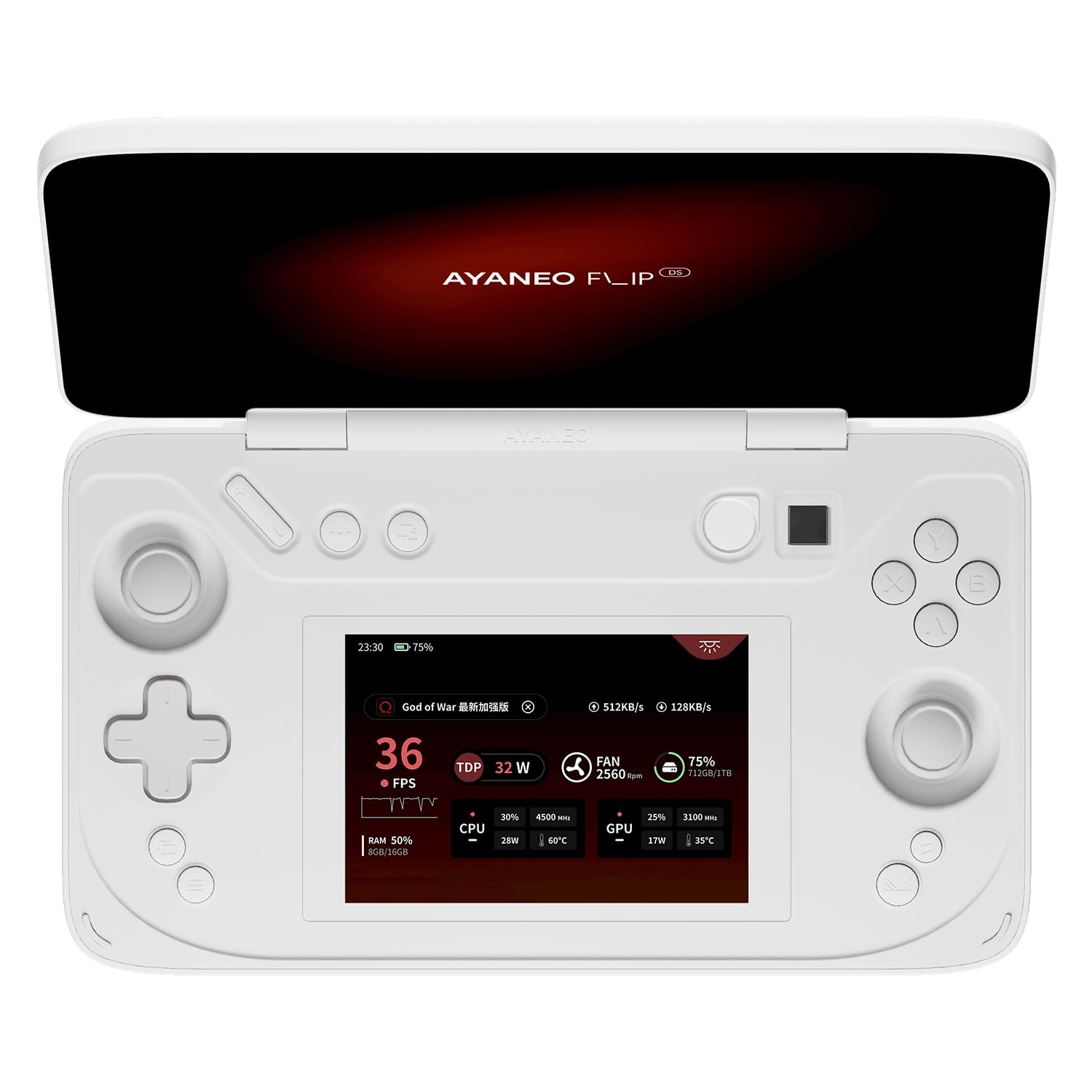
Image 4.1: The AYANEO Flip DS main 7-inch 120Hz display.
4.2. Controls and Input
The device is equipped with high-precision controls for an optimal gaming experience.
- Hall Sensing Joysticks: Zero-contact electromagnetic induction drive for high precision and no drift.
- Hall Triggers: Electromagnetic induction drive for higher input precision and stable feel, providing dynamic feedback.
- Knapper: Standard gaming buttons (A, B, X, Y), D-pad, shoulder buttons, and function keys.

Billede 4.2: Overview of the AYANEO Flip DS control features.
4.3. Porte og tilslutningsmuligheder
The AYANEO Flip DS offers comprehensive connectivity options.
- 1x USB 4 Type-C (up to 40Gbps, supports DP 1.4 video output, PD charging)
- 1x USB 3.2 Gen 2 Type-C (up to 10Gbps)
- 1x Oculink (PCIe 4x4 protocol, 64Gbps effective bandwidth for external graphics)
- 1x Micro SD Card Reader (UHS-II, up to 300MB/s read speed)
- 1x 3.5 mm hovedtelefonstik
- Wi-Fi 6E for high-speed wireless internet.
- Bluetooth 5.2 for wireless peripheral connections.

Image 4.3: High-speed transfer ports and wireless connectivity features.

Billede 4.4: Bagside view of the AYANEO Flip DS, highlighting ventilation and port placement.

Image 4.5: Explanation of the Oculink interface for enhanced performance.
5. Opsætning
5.1. Opladning af enheden
- Connect the provided USB Type-C cable to the charging port on the AYANEO Flip DS.
- Plug the other end of the USB Type-C cable into the power adapter.
- Insert the power adapter into a wall outlet. The device will begin charging.
5.2. Første opstart
- Press and hold the Power Button (often integrated with fingerprint recognition) until the AYANEO logo appears on the main screen.
- Follow the on-screen instructions to complete the initial Windows setup, including language selection, network connection, and user account creation.
6. Betjeningsvejledning
6.1. Strømstyring
- Tænd: Tryk og hold tænd/sluk-knappen nede.
- Sove mode: Briefly press the Power Button to put the device into sleep mode.
- Sluk: From Windows, navigate to Start > Power > Shut down, or press and hold the Power Button for several seconds until the device powers off.
6.2. Brug af dobbeltskærme
The secondary 3.5-inch screen can be utilized for various functions:
- Spilkontrol: Display custom controls or game-specific information.
- Multitasking: Run secondary applications, chat, or monitor system performance.
- Sekundær skærm: Extend your desktop for additional workspace.
6.3. AYASpace 2.0 Handheld Manager
AYASpace 2.0 is the integrated software designed to enhance your Windows handheld experience. It provides complete handheld and system settings, performance management, and quick access to features.
- Performance Scene Mode: Quickly switch between different performance profiles (e.g., balanced, performance, power-saving) to optimize for specific games or tasks.
- Quick Setting Window: Access essential settings like Wi-Fi, Bluetooth, brightness, and volume with ease.
- FPS Thunder: Monitor and display real-time performance parameters such as FPS, CPU/GPU usage, and temperature.

Image 6.1: The AYASpace 2.0 user interface for managing device settings and performance.
7. Vedligeholdelse
- Rensning: Use a soft, dry cloth to clean the device. For screens, use a microfiber cloth and a screen-safe cleaning solution. Avoid abrasive materials.
- Opbevaring: Opbevar enheden et køligt, tørt sted væk fra direkte sollys og ekstreme temperaturer.
- Softwareopdateringer: Regularly check for and install Windows updates and AYASpace updates to ensure optimal performance and security.
8. Fejlfinding
If you encounter issues with your AYANEO Flip DS, refer to the following common solutions:
- Enheden tænder ikke: Ensure the device is fully charged. Connect it to the power adapter and wait a few minutes before attempting to power on again.
- Skærmen reagerer ikke: Try restarting the device. If the issue persists, check for system updates.
- Forbindelsesproblemer (Wi-Fi/Bluetooth): Verify that Wi-Fi or Bluetooth is enabled in Windows settings. Restart the device and your router/Bluetooth peripheral if necessary.
- Ydelsesproblemer: Adjust performance settings in AYASpace 2.0. Ensure drivers are up to date. Close unnecessary background applications.
- Kontrolelementer reagerer ikke: Restart the device. Check AYASpace settings for controller calibration or remapping.
For further assistance, please refer to the official AYANEO support resources.
9. Specifikationer
| Feature | Specifikation |
|---|---|
| Platform | Windows |
| Processor | AMD Ryzen 7 8840U (8 kerner, 16 tråde, op til 5.1 GHz) |
| Grafik | AMD Radeon 780M |
| VÆDDER | 64 GB LPDDR5X |
| Opbevaring | 2 TB M.2 2230 PCIe 4.0 SSD |
| Hoveddisplay | 7-inch IPS, 1920x1080 (1080P), 120 Hz, 368 PPI, 100% sRGB |
| Sekundær skærm | 3.5-tommer IPS, 960x640 |
| Forbindelse | Wi-Fi 6E, Bluetooth 5.2 |
| Havne | 1x USB 4 Type-C, 1x USB 3.2 Gen 2 Type-C, 1x Oculink, 1x Micro SD (UHS-II), 1x 3.5mm Headphone Jack |
| Farve | Mælkehvid |
| Vægt | 650 gram |
| Modelnummer | DS |
10. Garanti og support
The AYANEO Flip DS comes with a limited manufacturer's warranty. Please refer to the warranty card included in your package or visit the official AYANEO webhjemmeside for detaljerede garantivilkår.
For technical support, product registration, or frequently asked questions, please visit the official AYANEO support portal or contact their customer service.
Official AYANEO Webwebsted: www.ayaneo.com