
1. Produktet er slutview
The EWEADN G61 is a 60% compact wireless mechanical keyboard designed for versatility and ergonomic comfort. It features a retro typewriter style with round keycaps and offers three connection modes: Bluetooth 5.0, 2.4GHz wireless, and USB-C wired. The keyboard is equipped with red mechanical switches for a responsive typing experience and includes white backlighting with multiple effects.
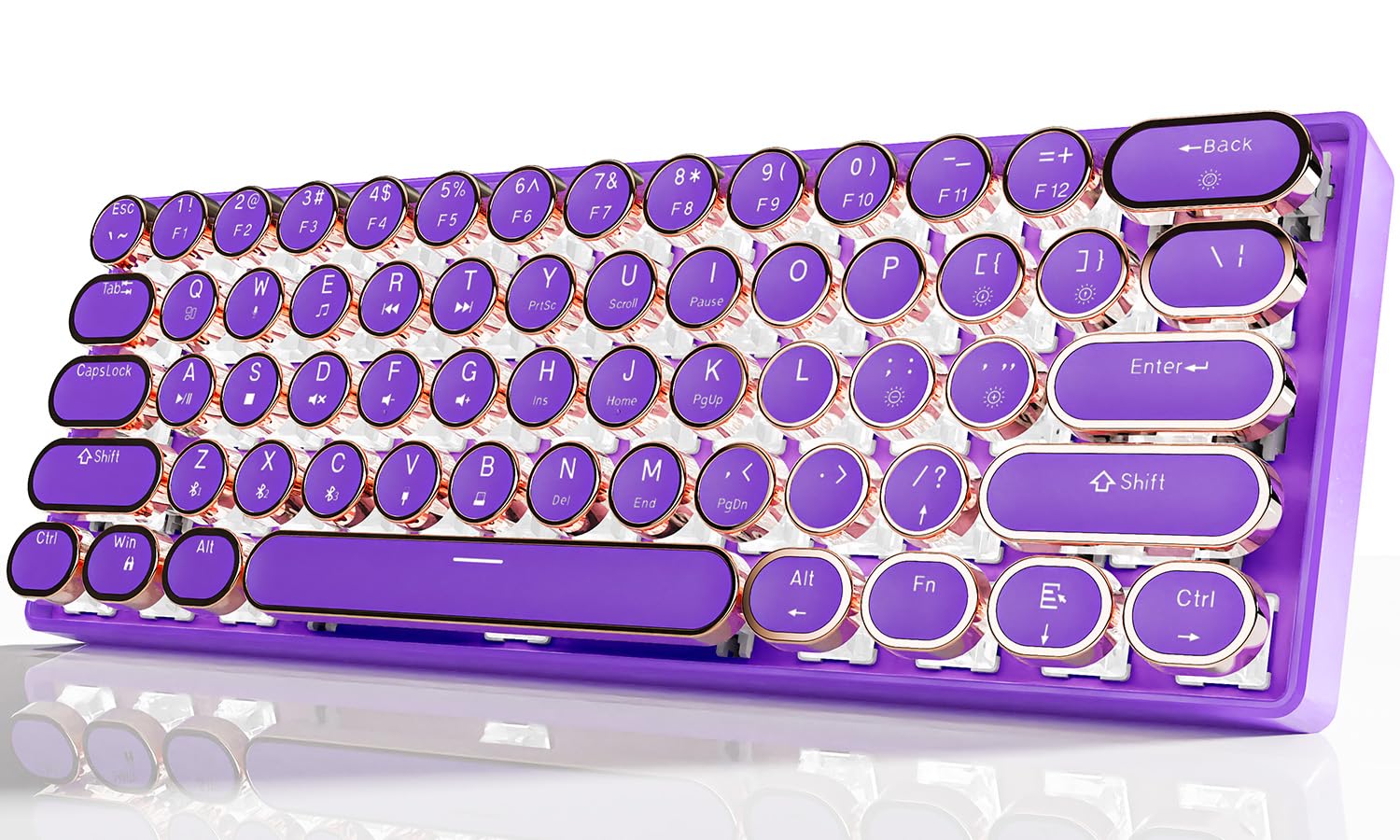
Image 1.1: EWEADN G61 Wireless Mechanical Typewriter Keyboard in purple, showcasing dens kompakte design og runde taster.
This keyboard supports connection to up to 5 devices simultaneously, allowing seamless switching between various platforms like tablets, laptops, and smartphones. Its metal panel construction ensures durability, while the anti-ghosting technology provides accurate input for both typing and gaming.
2. Hvad er der i æsken
- EWEADN G61 Wireless Mechanical Typewriter Keyboard
- USB-kabel (til kabelforbindelse og opladning)
- 2.4GHz USB Receiver (typically stored in the keyboard)
- Brugervejledning (dette dokument)
3. Specifikationer
| Model | G61 |
| Forbindelsesteknologi | Bluetooth 5.0, 2.4 GHz trådløs, USB-C kablet |
| Key Switch Type | Red Mechanical Switches (Linear, 3-PIN, 45±10gf Operating Force, 2.0±0.6mm Pre-Travel) |
| Tastaturstil | Retro Typewriter Style Round Keycaps |
| Baggrundsbelysning | White Backlight with 19 effects, 5 brightness levels, 5 breathing speeds |
| Anti-Ghosting | Full-key Anti-ghosting |
| Batteri | 1 litium-ion-batteri (inkluderet), 2000 mAh |
| Kompatible enheder | PC, Mac laptops, Tablets, Desktop computers, Gaming Consoles, Smart TVs, Smartphones |
| Operativsystemer | Windows 7/8/10/XP/Vista, Linux, Mac OS |
| Materiale | Aluminum Alloy (panel), Acrylonitrile Butadiene Styrene (ABS) |
| Varens vægt | 1.6 pund |
| Dimensioner | 13 x 5.8 x 2.3 tommer |

Billede 3.1: Nærbillede view of the G61 keyboard's red mechanical switch mechanism.
4. Opsætningsvejledning
4.1 Opladning af tastaturet
Oplad tastaturet helt før første brug med det medfølgende USB-C-kabel. Tilslut den ene ende til tastaturets USB-C-port og den anden ende til en USB-strømkilde (f.eks. computer, vægadapter).

Image 4.1: The USB-C charging port located on the keyboard.
4.2 Forbindelsestilstande
The G61 keyboard supports three connection modes: Bluetooth, 2.4GHz wireless, and USB-C wired. You can connect up to 5 devices simultaneously and switch between them.

Image 4.2: Visual representation of the three connection modes: Bluetooth, 2.4G Wireless, and Type-C Wired.
4.2.1 2.4 GHz trådløs tilstand
- Find 2.4 GHz USB-modtageren, som normalt opbevares i et rum på tastaturet.
- Sæt USB-modtageren i en ledig USB-port på din computer eller enhed.
- Trykke Fn+B on the keyboard to switch to 2.4GHz wireless mode. The keyboard should connect automatically.

Image 4.3: Illustration of plugging in the 2.4GHz USB receiver.
4.2.2 Bluetooth-tilstand (BT1, BT2, BT3)
- Sørg for, at tastaturet er tændt.
- Trykke Fn+Z, Fn + X, eller Fn+C to select one of the three Bluetooth channels (BT1, BT2, BT3). The corresponding key's backlight will flash, indicating pairing mode.
- On your device (computer, tablet, phone), go to Bluetooth settings and search for "G61 Keyboard" or a similar name.
- Select the keyboard to pair. Once connected, the key's backlight will stop flashing.
- For at skifte mellem parrede Bluetooth-enheder skal du trykke på Fn + Z/X/C for den ønskede kanal.
4.2.3 USB-C kablet tilstand
- Tilslut det medfølgende USB-C-kabel til tastaturets USB-C-port.
- Tilslut den anden ende af kablet til en USB-port på din computer.
- The keyboard will automatically switch to wired mode. Press Fn + V for at sikre, at kabelbaseret tilstand er aktiv.
- No drivers or software installation is required for wired mode.
5. Betjeningsvejledning
5.1 Backlight Control
The G61 keyboard features white backlighting with various effects and adjustable brightness.
- Fn + Slet: Cycle through 19 different lighting effects.
- Fn + {[/: Decrease backlight brightness (5 levels).
- Fn + }/]: Increase backlight brightness (5 levels).
- Fn + ;/:: Decrease breathing speed (5 levels).
- Fn + '/": Increase breathing speed (5 levels).
- Fn + Spacebar (hold for 3 seconds): Reset lighting effects to default.

Image 5.1: Diagram showing key combinations for backlight control.
5.2 Funktionstaster (Fn-kombinationer)
The keyboard utilizes Fn key combinations for various functions due to its compact 60% layout.
| Fungere | Nøglekombination |
| Switch Window | Fn + Q |
| Afspil/pause | fn + A |
| Switch Window | Fn + W |
| Afspil/pause | Fn + S |
| Multimedier | Fn + E |
| Stum | Fn + D |
| Forrige sang | Fn + R |
| Volumen - | Fn + F |
| Næste sang | Fn + T |
| Volumen + | Fn + G |
| piletaster | Fn + Right Alt, Fn + /, Fn + Menu, Fn + Ctrl (Specific combinations may vary, refer to keyboard legends) |

Image 5.2: A visual guide to common Fn key combinations for multimedia and system control.
6. Vedligeholdelse
- Rensning: Brug en blød, tør klud til at tørre tastaturoverfladen af. Brug trykluft til at fjerne støv og snavs mellem tasterne for at opnå en grundigere rengøring. Undgå at bruge skrappe kemikalier eller slibende materialer.
- Fjernelse af nøglekapsel: Keycaps can be carefully removed for cleaning or replacement using a keycap puller (not included). Gently pull straight up to avoid damaging the switch.
- Opbevaring: Opbevar tastaturet et køligt, tørt sted væk fra direkte sollys og ekstreme temperaturer.
- Batteripleje: To prolong battery life, avoid fully discharging the keyboard frequently. Charge it when the battery indicator is low.
7. Fejlfinding
7.1 Forbindelsesproblemer
- Tastatur opretter ikke forbindelse (trådløst/Bluetooth):
- Sørg for, at tastaturet er opladet.
- Verify the correct mode is selected (Fn + B for 2.4GHz, Fn + Z/X/C for Bluetooth).
- For 2.4 GHz skal du sørge for, at USB-modtageren er korrekt tilsluttet. Prøv en anden USB-port.
- For Bluetooth, ensure your device's Bluetooth is enabled and the keyboard is in pairing mode. Remove previous pairings and re-pair if necessary.
- Prøv at genstarte både tastaturet og den tilsluttede enhed.
- Hyppige afbrydelser:
- Ensure the keyboard is within the effective range of your device (typically up to 10 meters for Bluetooth/2.4GHz).
- Minimér interferens fra andre trådløse enheder (Wi-Fi-routere, andre Bluetooth-enheder).
- Sørg for, at tastaturet har tilstrækkelig batteriopladning.
- If using 2.4GHz, try moving the USB receiver closer to the keyboard or using a USB extension cable.
7.2 Keys Not Responding / Input Lag
- Check if the keyboard is properly connected in your chosen mode.
- Sørg for, at batteriet er opladet.
- Try switching to wired mode to rule out wireless interference.
- Clean any debris or dust from under the affected keycaps.
7.3 Baggrundsbelysning virker ikke
- Sørg for, at tastaturet er tændt og opladet.
- Juster lysstyrken ved hjælp af Fn + }/].
- Try resetting the lighting effects by holding Fn + mellemrumstasten i 3 sekunder.
Video 7.1: A demonstration of the G61 keyboard's RGB lighting and mechanical switches. This video shows the keyboard's aesthetic features and responsiveness.
8. Garanti og support
The EWEADN G61 keyboard comes with a manufacturer's warranty. For specific warranty details, please refer to the product packaging or contact the seller directly.
8.1 Kontakt support
If you encounter any issues or have questions not covered in this manual, please contact the seller or manufacturer for assistance. You can typically find contact information on the product's purchase page or through the seller's store on the platform where you purchased the item.

Image 8.1: Guide on how to contact customer support through the online marketplace.