
XSDTS F17
XSDTS Tuya Wifi Elektronisk Smart Dørlås Brugermanual
Model: F17 | Brand: XSDTS
Indledning
This manual provides comprehensive instructions for the installation, operation, and maintenance of your XSDTS Tuya Wifi Electronic Smart Door Lock. This advanced smart lock offers multiple convenient and secure access methods, designed for modern home and office environments.
The lock supports five distinct unlocking methods: fingerprint, RFID card, digital password, Tuya application (Bluetooth/Wi-Fi), and traditional physical key. It is suitable for doors with a thickness ranging from 30mm to 70mm and is recommended for indoor or protected outdoor use.
Produkt overview og komponenter
Familiarize yourself with the components included in your smart lock package.

Billede: Detaljeret view of the XSDTS Smart Door Lock components, including the front panel with keypad and fingerprint area, the rear panel, and a diagram illustrating key dimensions and included accessories such as smart cards and mechanical keys.
Inkluderede komponenter:
- Frontpanel (x1)
- Bagpanel (x1)
- Plug-in Lock (x1, optional, specific to model)
- Smart Card (x4)
- Mechanical Key (x2)
- Skruesæt (x1)
Note: 4 AA batteries are required for operation and are not included in the packaging.
Specifikationer
Key technical specifications of the XSDTS Smart Door Lock.
| Feature | Detalje |
|---|---|
| Modelnummer | F17 |
| Dimensioner (L x B x H) | 25 x 6 x 7.5 cm |
| Varens vægt | 2 kilo |
| Materiale | Aluminium |
| Farve | Sort |
| Gældende dørtykkelse | 30mm to 70mm (3.5 to 7 cm) |
| Oplåsningsmetoder | Fingerprint, RFID Card, Password, Tuya App (Bluetooth/Wi-Fi), Mechanical Key |
| Fingeraftrykskapacitet | 100 |
| IC-kort kapacitet | 100 (4 inkluderet) |
| Adgangskodekapacitet | 100 |
| Strømkilde | 4 x AA batterier (medfølger ikke) |
| Nødstrøm | Mikro-USB port |
| Særlige funktioner | Fingerprint, One-Touch Lock, Passcode Unlock, Resettable, Scratch-Resistant, Silent Mode |
Installationsvejledning
Proper installation is crucial for the optimal performance and security of your smart lock. It is recommended to have basic DIY skills or seek professional assistance.
1. Dørforberedelse
- Ensure your door thickness is between 30mm and 70mm (3.5 to 7 cm).
- Verify the existing boreholes and mortise dimensions match the lock's requirements. Refer to the dimension diagram for precise measurements.

Image: Technical drawing illustrating the dimensions of the lock's mortise (22x240mm, 7085) and the overall lock assembly, highlighting its universal right/left steering and suitability for doors 35-70mm thick.
2. Handle Adjustment (Universal Right/Left Steering)
The lock features a universal adjustable handle, allowing it to be configured for both left and right-handed doors. Adjust the handle direction before final installation as per your door's orientation.
3. Komponentsamling
- Installer indstikslåsen i dørkanten.
- Connect the front and rear panels, ensuring all cables are properly routed and connected.
- Secure the lock assembly using the provided screw kit.
4. Batteriinstallation
- Open the battery cover on the rear panel.
- Indsæt 4 AA-batterier, og sørg for korrekt polaritet.
- Luk batteridækslet forsvarligt.
Betjeningsvejledning
Your XSDTS Smart Door Lock offers multiple convenient ways to access your property.
Oplåsningsmetoder

Image: Visual representation of the six primary unlocking methods supported by the XSDTS smart lock, including temporary password, IC card, standard password, fingerprint, manual key, and mobile application unlock.
1. Lås op med fingeraftryk
Place your registered fingerprint on the fingerprint sensor located on the handle. The lock will unlock within 0.5 seconds if the fingerprint is recognized.

Image: Close-up of the fingerprint recognition area on the smart lock, highlighting its rapid identification speed (≤0.5s), low false recognition rate (≤0.001%), and low rejection rate (≤0.01%).
2. RFID/IC Card Unlock
Tap a registered RFID/IC card against the card swiping area on the lock's front panel. The lock utilizes dynamic encryption technology for enhanced security.

Image: A hand presenting an XSDTS branded IC card to the smart lock, illustrating the use of smart encrypted IC cards for secure access, designed to prevent unauthorized copying.
3. Password/Digital Key Unlock
Enter your registered digital password on the keypad. The lock supports standard and temporary passwords.
4. Tuya App Unlock (Bluetooth/Wi-Fi)
Use the Tuya Smart application on your mobile phone to unlock the door remotely via Bluetooth or Wi-Fi. This method also allows for remote unlocking requests and temporary access grants.
5. Mekanisk nøgleoplåsning
In case of power failure or other emergencies, use one of the provided mechanical keys to manually unlock the door.
Låsning af døren
To lock the door, simply lift the handle upwards. The lock features a free handle design, making the locking switch simpler and safer.
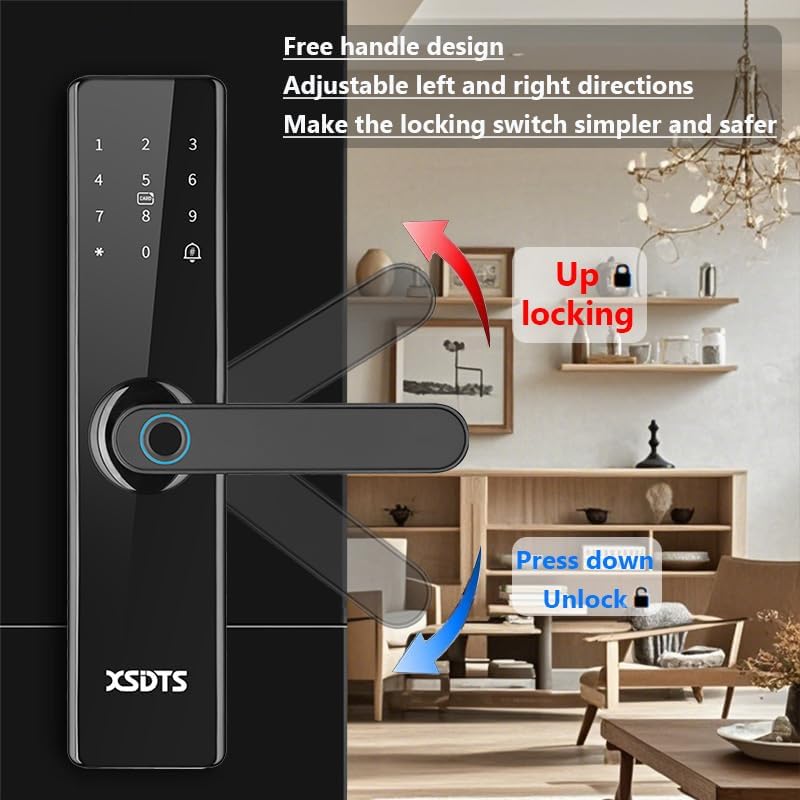
Image: Illustration of the smart lock's handle mechanism, indicating that pushing the handle up engages the lock ("Up locking") and pressing it down unlocks the door ("Press down Unlock"). This highlights the free handle design for simplified and secure operation.
Lydløs drift
The lock can operate in a silent mode, minimizing sound during unlocking and locking, which is ideal for not disturbing others, especially at night.

Image: The XSDTS smart lock installed on a door, with a person sleeping peacefully in the background, emphasizing the "Silent Mode" feature that allows for quiet operation without disturbing occupants.
Tuya Smart APP - Remote Control
The Tuya Smart APP provides comprehensive control and monitoring capabilities for your smart lock.

Image: A smartphone displaying the Tuya Smart APP interface, illustrating its one-stop remote control features including APP unlock, scene linkage, information sending, and records checking, with a prominent "Remote Unlocking Request" notification.
- APP Lås op: Remotely unlock your door from anywhere in the world via your mobile phone.
- Sceneforbindelse: Integrate your lock with other smart home devices for automated scenarios.
- Info Send: Receive notifications and alerts regarding lock activity.
- Records Check: View unlocking records and access history.
- Midlertidig adgangskode: Generate one-time or time-limited access codes, ideal for guests or service providers (e.g., Airbnb).
Download the free Tuya Smart APP from your device's app store.
Opretholdelse
Regelmæssig vedligeholdelse sikrer din smarte låss levetid og optimale ydeevne.
Udskiftning af batteri
- Låsen kræver 4 AA-batterier.
- When the battery level is low, the lock will emit an alert sound.
- Replace all four batteries simultaneously with new, high-quality alkaline batteries.
- Sørg for korrekt polaritet under installationen.
Rensning
- Tør låsens overflade af med en blød, tør klud.
- Undgå at bruge slibende rengøringsmidler, opløsningsmidler eller barske kemikalier, da disse kan beskadige overfladen og de elektroniske komponenter.
- Hold fingeraftrykssensoren og tastaturet rene og fri for snavs for optimal ydeevne.
Fejlfinding
Dette afsnit omhandler almindelige problemer, du kan støde på med din smartlås.
1. Lock Not Responding / No Power
- Tjek batterier: Sørg for, at batterierne er korrekt installeret og har tilstrækkelig opladning. Udskift dem om nødvendigt.
- Nødkraft: If batteries are completely drained, use a mobile power source or any power supply with a micro-USB connector to temporarily charge the electronic lock via the USB emergency charge port.
2. Fingeraftryk ikke genkendt
- Sørg for, at din finger er ren og tør.
- Place your entire fingerprint firmly on the sensor.
- If issues persist, try re-registering your fingerprint in the system.
- The lock has a low false recognition rate (≤0.001%) and rejection rate (≤0.01%), but proper placement is key.
3. RFID Card Not Working
- Ensure the card is properly registered.
- Tap the card directly onto the designated card swiping area.
- Check for any physical damage to the card.
4. Password Entry Issues
- Ensure you are entering the correct password.
- Check if the keypad is responsive.
- If you suspect the password has been compromised or forgotten, reset it via the Tuya app or master key.
5. Problemer med app-forbindelse
- Ensure your phone's Bluetooth is enabled and you are within range for Bluetooth connection.
- For Wi-Fi remote access, ensure the lock is connected to a stable Wi-Fi network and your phone has internet access.
- Restart the Tuya app or your phone if necessary.
- Tjek for appopdateringer.
Garanti og support
For any technical assistance, warranty claims, or further inquiries, please contact XSDTS customer support. Refer to your purchase documentation for specific warranty terms and contact information.
Fabrikant: XSDTS
Local Shipment Information: Saudi Arabia, Riyadh local shipment.
Ask a question about this manual
Ask about setup, troubleshooting, compatibility, parts, safety, or missing instructions. Manuals+ will review the question and use this page’s manual context to help answer it.