1. Introduktion
This manual provides detailed instructions for the installation, operation, and maintenance of your Leadfan 9-inch car radio stereo. This unit is designed to enhance your driving experience with advanced features such as wireless CarPlay, Android Auto, GPS navigation, Bluetooth connectivity, and a high-definition touchscreen. Please read this manual thoroughly before installation and use to ensure proper functionality and safety.
2. Kompatibilitet
This car radio stereo is specifically designed for Mazda 3 models manufactured between 2009 and 2013. It includes a CANBUS system for seamless integration with your vehicle's electronics.
Vigtig bemærkning:
- Before installation, verify your car's model, year, and the shape of the center console to ensure compatibility.
- This car radio is not compatible with vehicles equipped with premium sound systems such as J.B.L, SO.NY Amplifier, or B.ose Speakers.

Confirm your car's version. The image displays compatible and incompatible Mazda 3 center console designs for installation.
3. Pakkens indhold
The following items are included in your Leadfan car radio stereo package:
- 9-inch Touchscreen Head Unit
- GPS Module/Antenna
- WiFi Connection Module
- Bluetooth 5.1-modul
- FM radio antenne
- AHD backup kamera
- Steering Wheel Control Interface (CANBUS)
- 2 x USB-porte
- RCA indgangs-/udgangskabler
- External Microphone Jack in RCA Cable
- Strømkabel
- Brugermanual

Detaljeret view of the head unit dimensions, rear connections, and all included accessories.
4. Opsætning og installation
The Leadfan car radio stereo is designed for a plug-and-play installation for compatible Mazda 3 models. However, professional installation is recommended to ensure correct wiring and functionality, especially for the CANBUS and backup camera connections.
4.1 Kontrol før installation
- Sørg for, at køretøjets tænding er slukket, og at batteriet er frakoblet, før installationen påbegyndes.
- Confirm all included components are present as per the package contents list.
- Review your vehicle's existing wiring and dashboard layout.
4.2 Installationstrin (generel vejledning)
- Carefully remove the original car radio and dashboard trim. Refer to your vehicle's service manual for specific instructions.
- Connect the main power harness, RCA cables, USB cables, GPS antenna, and FM radio antenna to the new Leadfan head unit.
- Connect the CANBUS decoder to the vehicle's wiring harness. This enables steering wheel control functionality.
- Install the AHD backup camera (if applicable) and route its video cable to the head unit's reverse input.
- Mount the new 9-inch head unit into the dashboard opening.
- Tilslut bilens batteri igen, og test alle funktioner, før du samler instrumentbrættets beklædning helt igen.

The Leadfan car radio seamlessly integrated into a compatible Mazda 3 dashboard.
5. Betjeningsvejledning
5.1 Tænd/sluk og grundlæggende navigation
- Tryk på tænd/sluk-knappen for at tænde eller slukke for enheden.
- Navigate through menus and applications using the 9-inch capacitive touchscreen.
5.2 Trådløs CarPlay og Android Auto
Enheden understøtter trådløs Apple CarPlay og Android Auto for problemfri smartphone-integration.
- Sørg for, at din telefons Bluetooth og Wi-Fi er aktiveret.
- On the car stereo, open the CarPlay or Android Auto application.
- Follow the on-screen prompts to pair your smartphone via Bluetooth. Once paired, the system will automatically establish a Wi-Fi connection for CarPlay/Android Auto.
- Use voice control (Siri for CarPlay, Google Assistant for Android Auto) for hands-free operation of navigation, music, calls, and messages.
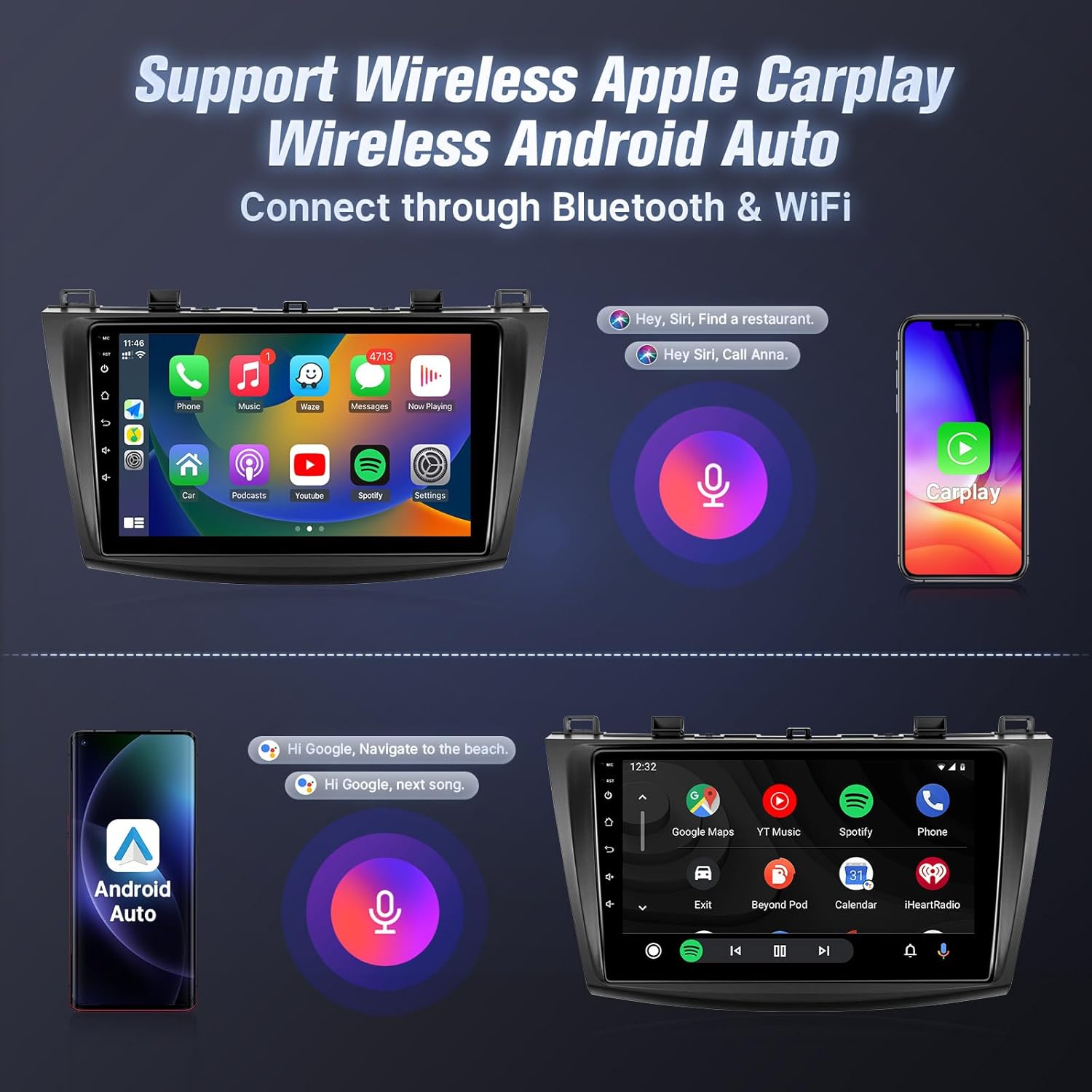
Wireless Apple CarPlay and Android Auto interfaces with voice control.
5.3 Spejllink
Mirror Link allows you to display your smartphone's screen on the car stereo.
- For iOS-enheder: Supports one-way wireless connection via Wi-Fi.
- For Android-enheder: Supports two-way wired (USB cable) or wireless (Wi-Fi) connection.
- Follow the instructions within the Mirror Link application on the head unit to connect your device.
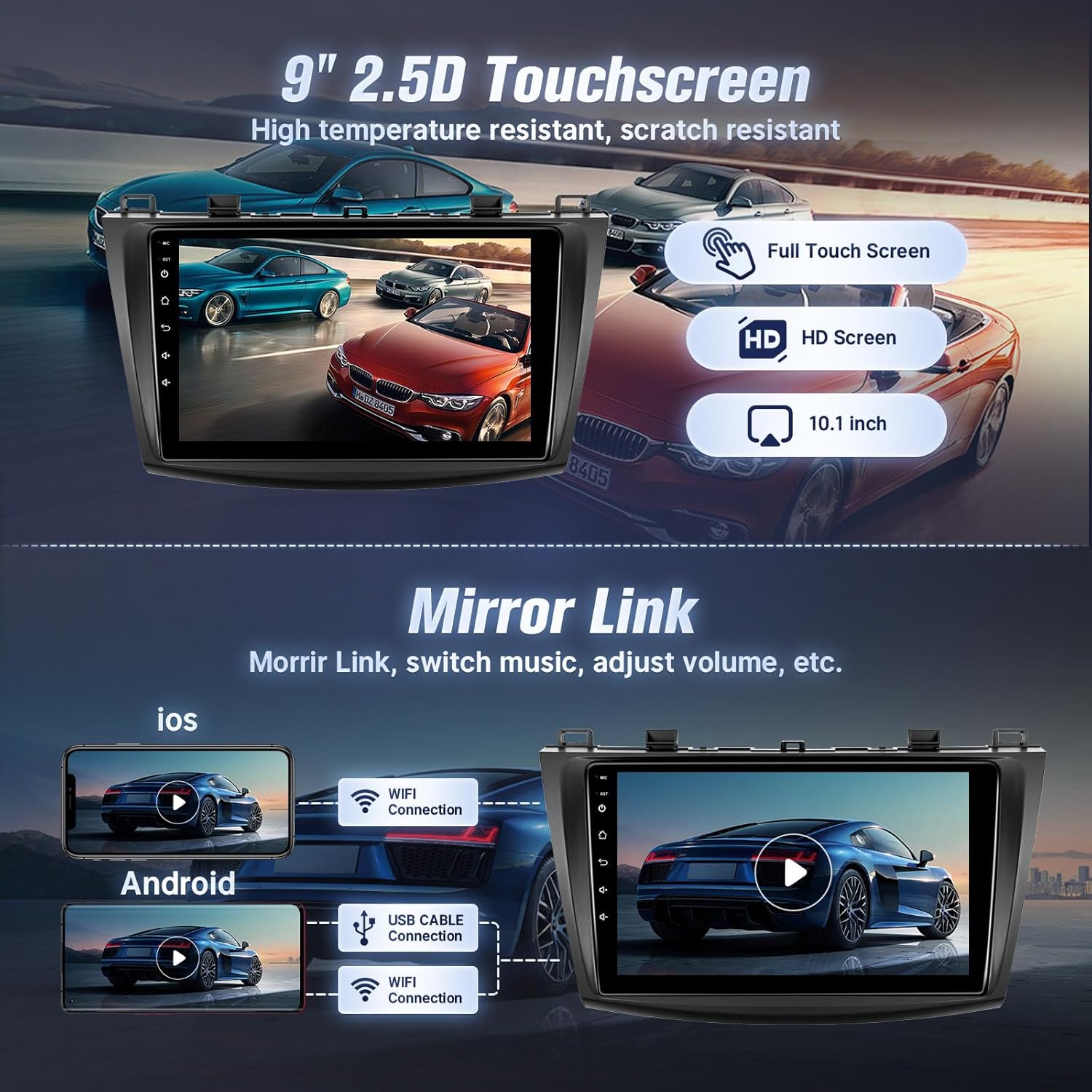
Mirror Link functionality for both iOS and Android devices.
5.4 Bluetooth-forbindelse
Tilslut din telefon via Bluetooth for håndfri opkald og musikstreaming.
- Gå til Bluetooth-indstillingerne på bilstereoen.
- Aktiver Bluetooth på din smartphone, og søg efter tilgængelige enheder.
- Select the car stereo from your phone's Bluetooth list and confirm pairing.
- Når den er tilsluttet, kan du foretage/modtage opkald og afspille musik direkte fra din telefon.

Bluetooth-grænseflade til opkald og musikstreaming.
5.5 GPS-navigation og Wi-Fi
The unit features built-in GPS for navigation and Wi-Fi for internet access.
- GPS: The stereo comes with a GPS antenna and supports both online and offline map files. You can use pre-installed navigation apps or download others from the app store.
- Wi-Fi: Connect to the internet via your mobile hotspot or a Wi-Fi device to browse online, download apps, and use online navigation services.
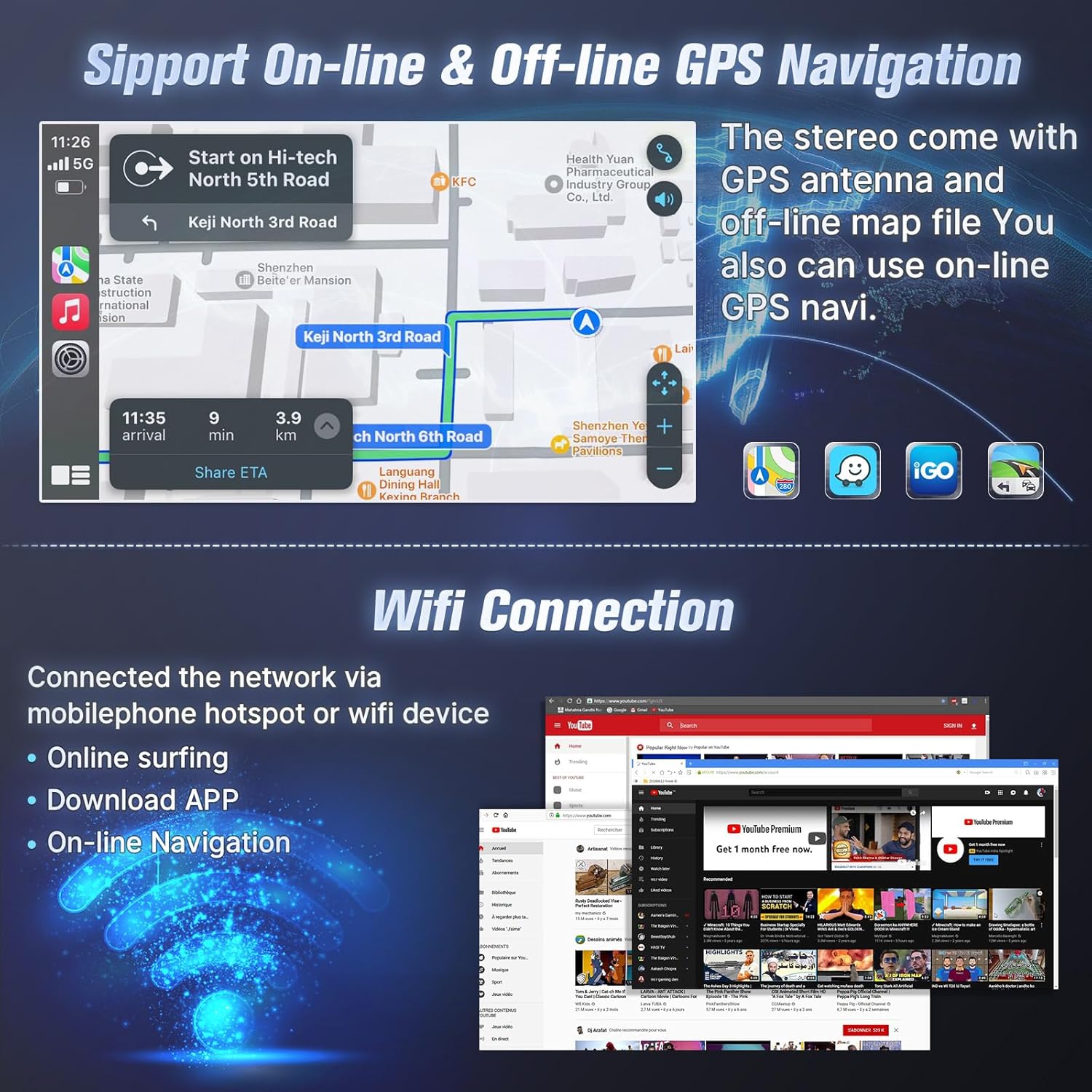
GPS navigation with online/offline map support and Wi-Fi connection for internet access.
5.6 FM radio
Få adgang til lokale radiostationer med den indbyggede FM-tuner.
- Åbn FM-radioapplikationen.
- Scan for stations automatically or manually tune to your desired frequency.
- Gem dine yndlingsstationer som forudindstillinger for hurtig adgang.

FM Radio interface with tuning and preset options.
5.7 Ratbetjening (SWC)
After correct CANBUS setup, you can control the car stereo using your vehicle's steering wheel buttons.
- Access the SWC settings in the unit's system menu.
- Follow the on-screen instructions to map your steering wheel buttons to specific functions (e.g., volume up/down, track skip, mode change).

Steering wheel control setup interface.
5.8 EQ Audio Adjustment and UI Themes
- EQ Audio: The unit offers 10-band EQ audio adjustment to customize sound output to your preference. Access this feature in the audio settings.
- UI-temaer: Choose from 38 different user interface themes to personalize the display's appearance.
5.9 AHD bakkamera
Det medfølgende AHD-bakkamera giver et klart billede view ved bakning.
- When the vehicle is shifted into reverse gear, the screen will automatically display the camera feed.
- The camera features night vision for improved visibility in low-light conditions.

Backup kamera view and physical camera unit.
5.10 Opdelt skærmtilstand
Funktionen til delt skærm giver dig mulighed for at køre to applikationer samtidigt på skærmen.
- While an application is open, long-press the recent apps button or drag an app to one side of the screen (depending on the Android version) to activate split-screen mode.
- Vælg et andet program, der skal køres sammen med det første.

Voice control and split-screen mode in operation.
6. Vedligeholdelse
To ensure the longevity and optimal performance of your Leadfan car radio stereo, follow these maintenance guidelines:
- Rensning: Use a soft, dry cloth to clean the touchscreen and exterior. Avoid abrasive cleaners or solvents that could damage the screen or finish.
- Softwareopdateringer: Periodically check for available software updates to ensure the system runs efficiently and has the latest features. Updates can typically be found through the system settings or the manufacturer's webwebsted.
- Temperatur: Undgå at udsætte enheden for ekstreme temperaturer. Langvarig udsættelse for direkte sollys eller meget kolde forhold kan påvirke ydeevne og levetid.
- Forbindelser: Sørg for, at alle kabler og forbindelser er sikre. Løse forbindelser kan føre til periodiske problemer.
7. Fejlfinding
If you encounter issues with your car radio stereo, refer to the following troubleshooting tips:
| Problem | Mulig årsag | Løsning |
|---|---|---|
| Enheden tænder ikke | Loose power connection, blown fuse, incompatible wiring. | Check power cables and fuse. Ensure correct wiring. Consult a professional installer if needed. |
| Ingen lydudgang | Volume too low, incorrect audio source, loose speaker wires, incompatible premium sound system. | Increase volume. Select correct audio source. Check speaker connections. Confirm car does not have a premium sound system. |
| CarPlay/Android Auto opretter ikke forbindelse | Bluetooth/Wi-Fi slukket på telefonen, forkert parring, problem med telefonens software. | Ensure phone's Bluetooth/Wi-Fi is on. Re-pair the device. Restart phone and head unit. |
| GPS-signal mistet eller unøjagtigt | GPS antenna obstruction, loose antenna connection, outdated maps. | Sørg for, at GPS-antennen har en fri view of the sky. Check antenna connection. Update map data if necessary. |
| Bakkameraet viser ikke | Loose video cable, incorrect wiring to reverse trigger, faulty camera. | Check camera video cable connection. Verify reverse trigger wire is correctly connected. Test camera functionality. |
| Bluetooth/Internet connection unstable | Interference, weak signal, device compatibility. | Move away from sources of interference. Ensure strong Wi-Fi/hotspot signal. Re-pair Bluetooth device. |
If the problem persists after attempting these solutions, please contact Leadfan customer support for further assistance.
8. Specifikationer
- Skærmstørrelse: 9 tommer
- Opløsning: 1080*600 (IPS Touchscreen)
- Operativsystem: Android 12
- VÆDDER: 2 GB
- ROM: 32 GB
- Processor: 4-kernet CPU
- Forbindelse: Bluetooth 5.1, Wi-Fi
- GPS: Built-in, supports online and offline maps (North America map type)
- Særlige funktioner: Wireless CarPlay, Android Auto, Mirror Link, FM Radio, AHD Backup Camera (waterproof, night vision), Steering Wheel Control, Split Screen, 10-band EQ Audio Adjustment, Multiple UI Themes, Dual USB ports, RCA Input/Output, External Microphone Jack.
- Varens vægt: 3.1 pund
- Produktdimensioner: 10.9 x 3.8 x 13.5 tommer
- Monteringstype: Dashboard montering

Internal specifications including processor, RAM, and ROM.
9. Garanti og support
Leadfan provides comprehensive support for your car radio stereo:
- Garanti: 12 months after-sales support and replacement available within 12 months.
- Penge-tilbage-garanti: 30 days money back service.
- Teknisk support: 24-hour after-sales technical support to assist with installation and operation problems.
Sådan kontakter du support:
For installation or technical assistance, please follow these steps:
- Gå til produktsiden på Amazon.
- Click on the 'Leadfan' store link.
- Click the 'Ask a question' button.
- Provide details of your installation or operation questions, including pictures or videos if helpful.
The Leadfan support team aims to respond within 24 hours.

Steps to contact Leadfan customer support for assistance.