
Indledning
This manual provides detailed instructions for the setup, operation, maintenance, and troubleshooting of your Docooler Wireless Mechanical Keyboard, Fun Cake House edition. Please read this manual thoroughly before using the product to ensure optimal performance and longevity.
The Docooler Wireless Mechanical Keyboard features red switches, PBT keycaps, a high-clear display, and a volume control knob. It supports multiple connectivity options including 2.4G wireless, Bluetooth, and wired connections, and is compatible with Windows, Mac, iOS, and Android systems.
Pakkens indhold
Bekræft at alle varer er til stede i pakken:
- 1x Docooler Wireless Mechanical Keyboard (Fun Cake House)
- 1x USB-kabel (til kabelforbindelse og opladning)
- 1x 2.4G USB-modtager
- 1x Brugermanual (dette dokument)
Opsætning
1. Opladning af tastaturet
Before initial use, fully charge the keyboard. Connect the provided USB cable to the keyboard's USB-C port and the other end to a USB power source (e.g., computer USB port, wall adapter). The display will indicate charging status. A full charge typically takes 2-3 hours.
The keyboard is equipped with an 1850mAh rechargeable lithium battery.
2. Tilslutningsmuligheder
Your keyboard supports three connection modes: 2.4G Wireless, Bluetooth (BT), and Wired USB.
2.1. 2.4G trådløs forbindelse
- Find 2.4G USB-modtageren, som normalt opbevares i et rum på tastaturet.
- Sæt 2.4G USB-modtageren i en ledig USB-port på din computer.
- Switch the keyboard's connection mode to 2.4G (refer to the Driftstilstande section for details on switching modes).
- The keyboard should automatically connect. The display will show the 2.4G connection icon.
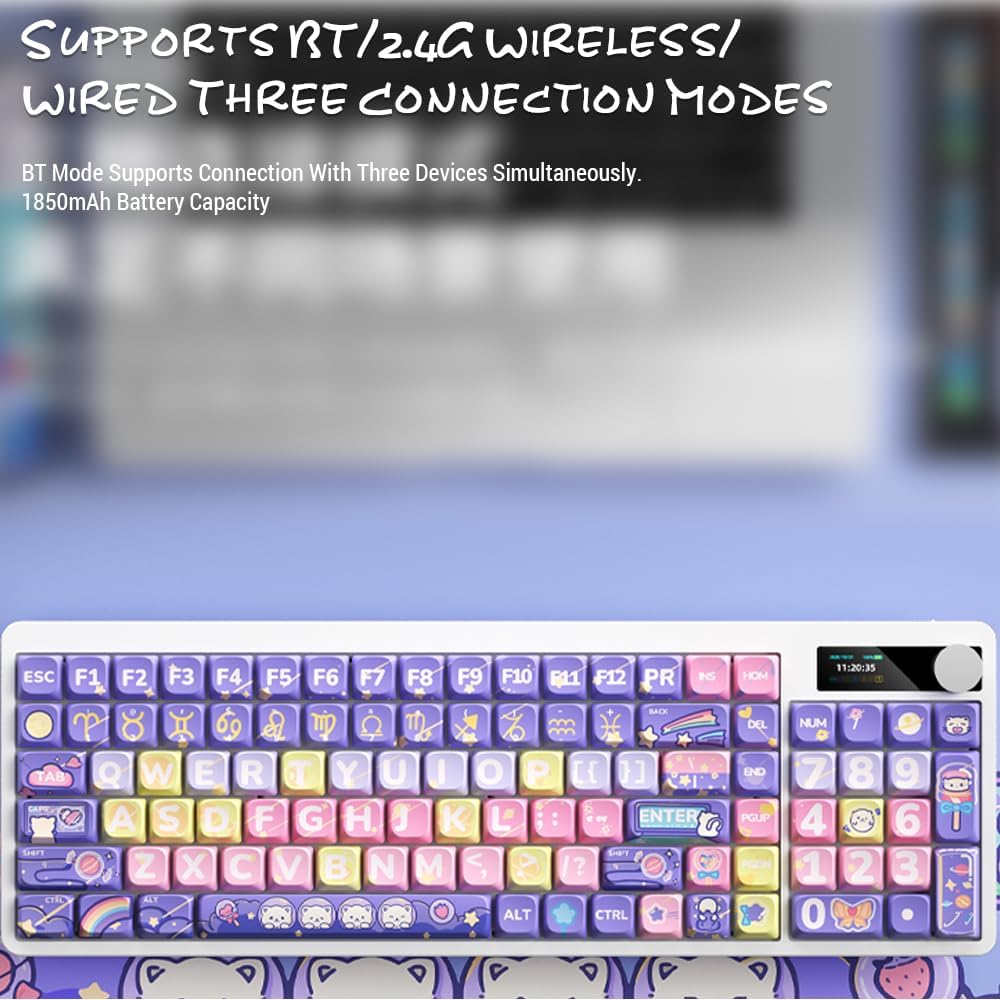
Image: Keyboard display showing 2.4G wireless connection status.
2.2. Bluetooth (BT)-forbindelse
The keyboard can connect to up to three Bluetooth devices simultaneously.
- Switch the keyboard's connection mode to Bluetooth (BT1, BT2, or BT3).
- Aktiver Bluetooth på din enhed (computer, tablet, smartphone) og søg efter nye enheder.
- Select "Docooler Keyboard" (or similar name) from the list of available devices.
- Hvis du bliver bedt om det, skal du indtaste den parringskode, der vises på skærmen.
- Once paired, the display will show the Bluetooth connection icon for the selected channel.
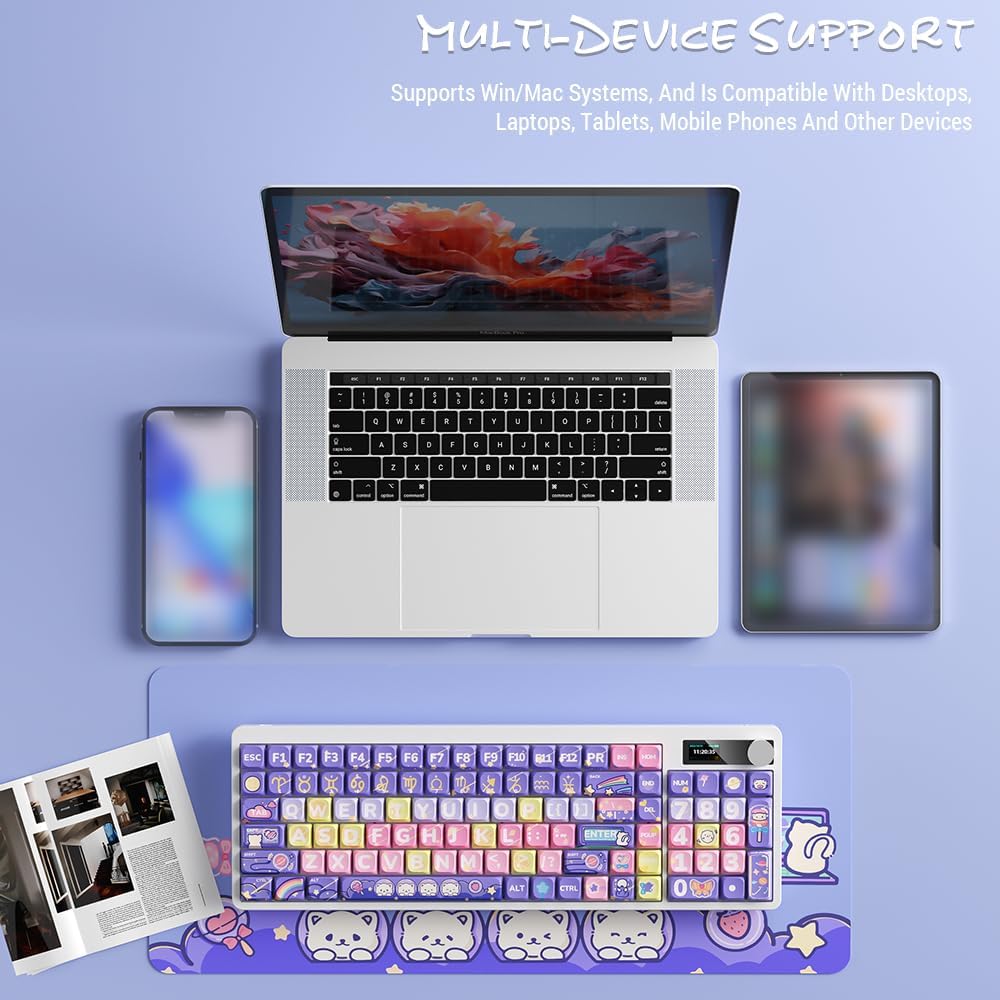
Image: Docooler keyboard demonstrating multi-device support, connected to a laptop, tablet, and smartphone via Bluetooth.
2.3. Wired USB Connection
- Connect the provided USB cable directly from the keyboard to your computer's USB port.
- Switch the keyboard's connection mode to Wired (refer to the Driftstilstande afsnit).
- Tastaturet vil blive genkendt som et standard USB-tastatur.
Betjeningsvejledning
1. Skift af forbindelsestilstande
Use the dedicated mode switch or key combination (refer to the keyboard's specific function keys, often marked with icons for 2.4G, BT, and USB) to cycle through the connection modes. The display screen will clearly indicate the active mode.

Image: Close-up of the keyboard display showing indicators for Bluetooth, 2.4G, and wired connection modes, along with battery status and time.
2. High Clear Display Functions
The integrated display provides real-time information and customization options. It can show:
- Dato og tid
- Batteriniveau
- Connection Mode (2.4G, BT1/2/3, Wired)
- Indstillinger for baggrundslys
- Lydstyrkeniveau
- Custom Images or Dynamic GIFs (customization via software, if available)

Billede: Detaljeret view of the keyboard's high-clear display, illustrating various functions such as date, time, power, connection mode, and backlight settings.
3. Volumenkontrolknap
The metal knob located on the top right of the keyboard allows for quick adjustment of system volume. Rotate clockwise to increase volume, counter-clockwise to decrease. Pressing the knob typically mutes/unmutes audio.

Image: Close-up of the unique metal round knob, highlighting its function for adjusting brightness and volume.
4. Justering af baggrundslys
The keyboard features a colorful backlight. Use the dedicated function keys (often Fn + specific keys) or the display menu to cycle through different lighting effects, adjust brightness, and change colors. Refer to the display for visual feedback on backlight settings.
5. Funktionstaster (Fn-kombinationer)
Mange taster har sekundære funktioner, der er tilgængelige ved at holde nede Fn key and pressing the desired key. Common Fn combinations include:
- Fn+F1-F12: Multimedia controls (play/pause, volume, track skip), application shortcuts.
- Fn + Piletaster: Backlight brightness/speed adjustment.
- Fn + Win: Lock/unlock Windows key.
- Fn + Mode Key: Switch between 2.4G, BT, and Wired modes.
Consult the keycap legends for specific Fn functions on your "Fun Cake House" keyboard.
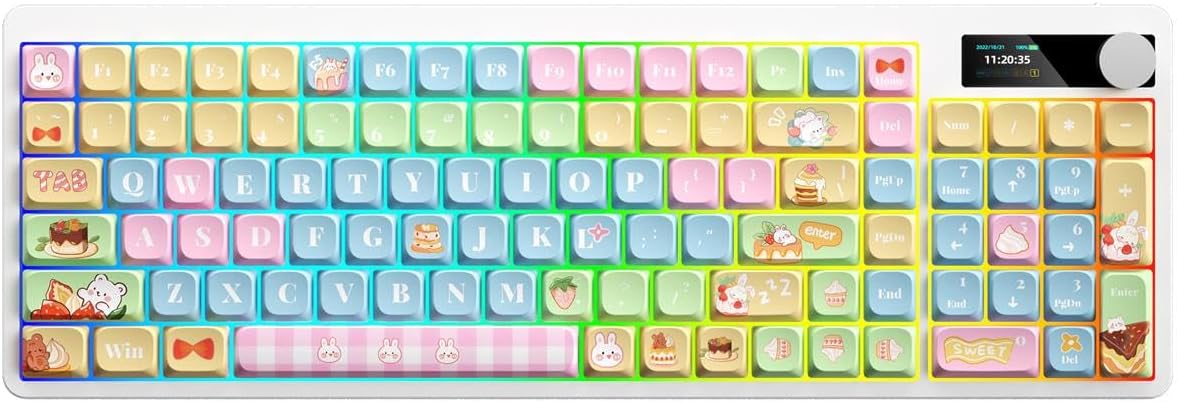
Image: Full layout of the Docooler Wireless Mechanical Keyboard in the Fun Cake House design, showing all 101 keys, the display, and the volume knob.
Opretholdelse
1. Rensning
- Frakobl tastaturet fra alle strømkilder og enheder før rengøring.
- Brug en blød, fnugfri klud lidt damprengøres med vand eller en mild rengøringsopløsning til at tørre tastaturets overflade af.
- Brug trykluft eller en lille børste til at fjerne støv og snavs mellem tasterne.
- Undgå at bruge skrappe kemikalier, slibemidler eller opløsningsmidler, da disse kan beskadige tastaturets finish og tastetekster.
2. Keycap Removal (Optional)
The PBT keycaps can be removed for deeper cleaning or replacement. Use a keycap puller to gently lift keycaps straight up. Avoid excessive force to prevent damage to the switch stems.
3. Opbevaring
When not in use for extended periods, store the keyboard in a cool, dry place away from direct sunlight and extreme temperatures. Ensure the battery is partially charged (around 50%) before long-term storage to preserve battery health.
Fejlfinding
Tastaturet reagerer ikke
- Tjek batteri: Ensure the keyboard is charged. Connect it via USB cable to charge.
- Kontroller forbindelsestilstand: Verify the keyboard is in the correct mode (2.4G, BT, or Wired) for your device.
- 2.4G Issues: Ensure the USB receiver is securely plugged in. Try a different USB port.
- Bluetooth-problemer: Re-pair the keyboard with your device. Ensure Bluetooth is enabled on your device. Try forgetting the device and re-pairing.
- Wired Issues: Ensure the USB cable is securely connected to both the keyboard and the computer. Try a different USB cable or port.
- Genstart: Genstart din computer/enhed og tastaturet.
Taster registreres ikke / Dobbeltindtastning
- Rengør tastehætter: Remove keycaps and clean any debris around the switch.
- Firmwareopdatering: Check the Docooler official website for any available firmware updates for your model.
Baggrundsbelysningen virker ikke
- Indstillinger for lysstyrke: Ensure the backlight brightness is not set to minimum or off. Adjust using Fn combinations or the display menu.
- Strømbesparende: The backlight may turn off after a period of inactivity to save battery. Press any key to reactivate.
Display Screen Issues
- Power Cycle: Sluk tastaturet og tænd det igen.
- Lysstyrke: Ensure the display brightness is not set too low.
Specifikationer
| Model | Docooler Wireless Mechanical Keyboard (Fun Cake House) |
| Switch Type | Røde kontakter |
| tasterne | PBT |
| Forbindelse | 2.4G Wireless, Bluetooth (BT), Wired USB |
| Baggrundsbelysning | Farverigt baggrundslys |
| Key Rollover | Fuld nøglerollover |
| Vise | High Clear Display |
| Knop | Metal Volume Control Knob |
| Batteri | 1850mAh 3.7V Rechargeable Lithium Battery |
| Nøglelayout | 101 Keys (with display screen + knob) |
| Understøttede systemer | Windows, Mac, iOS, Android |
| Dimensioner | 39.7 x 13.4 x 1.7 cm (15.6 x 5.3 x 0.7 '') |
| Vægt | 621 g (1.37 lbs) |

Image: Diagram illustrating the dimensions of the Docooler Wireless Mechanical Keyboard: 39.7cm (15.6in) length and 13.4cm (5.3in) width.
Garantioplysninger
Docooler products are covered by a limited warranty from the date of purchase. This warranty covers manufacturing defects in materials and workmanship. It does not cover damage caused by accident, misuse, abuse, modification, improper installation, or normal wear and tear.
For specific warranty terms and conditions, please refer to the warranty card included with your product or visit the official Docooler webwebsted.
Kundesupport
If you encounter any issues or have questions regarding your Docooler Wireless Mechanical Keyboard that are not addressed in this manual, please contact our customer support team.
- E-mail: support@docooler.com
- Webwebsted: Visit the official Docooler website for FAQs, drivers, and additional support resources: www.docooler.com
When contacting support, please have your product model (B0DB7YPHFK) and purchase information ready.